Note: This page is under construction.
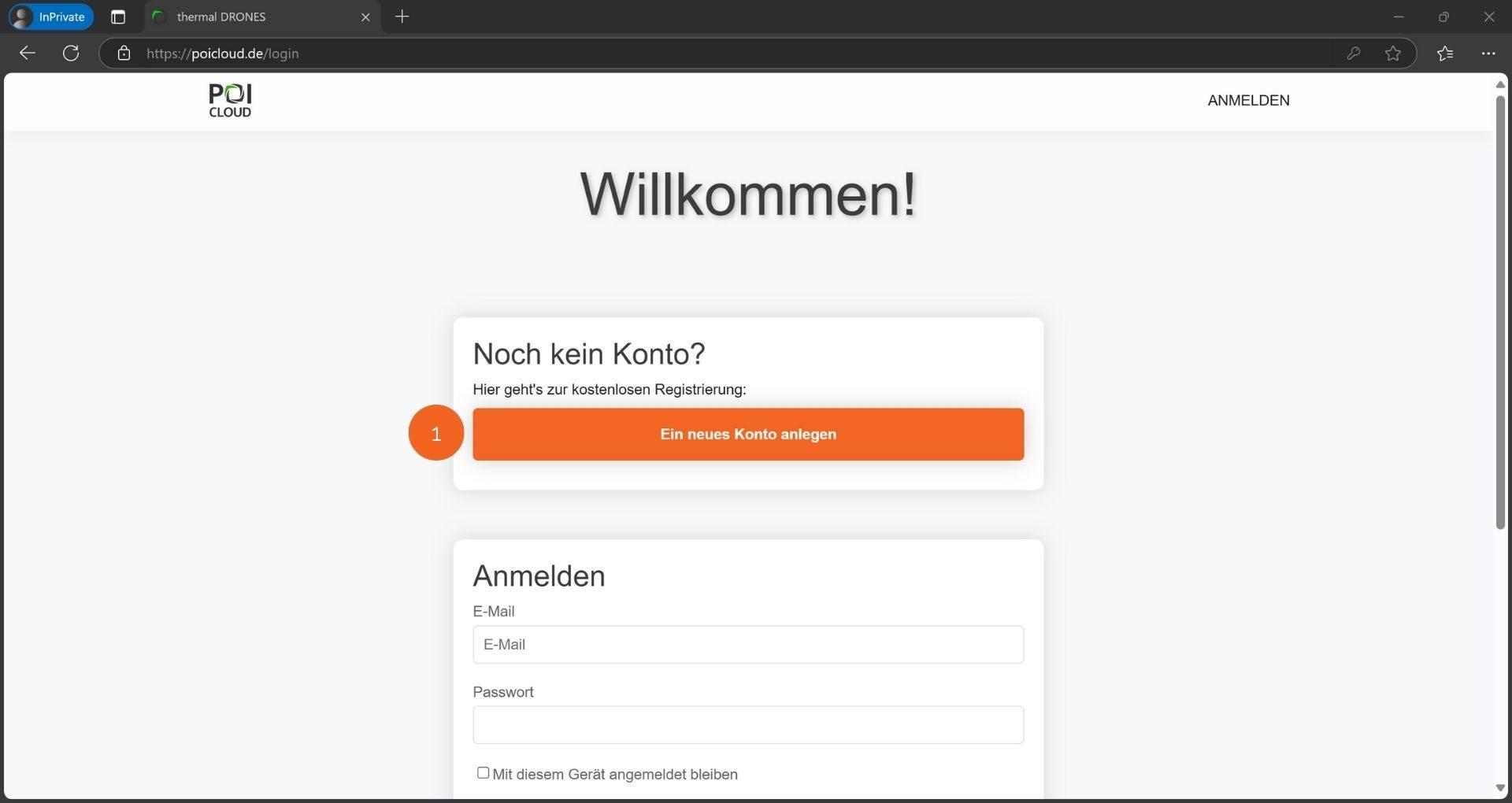
Before using POISuite and its applications, you need to create a free account. You can access the registration page either through the previously installed app or via the link www.poicloud.de.
Account creation
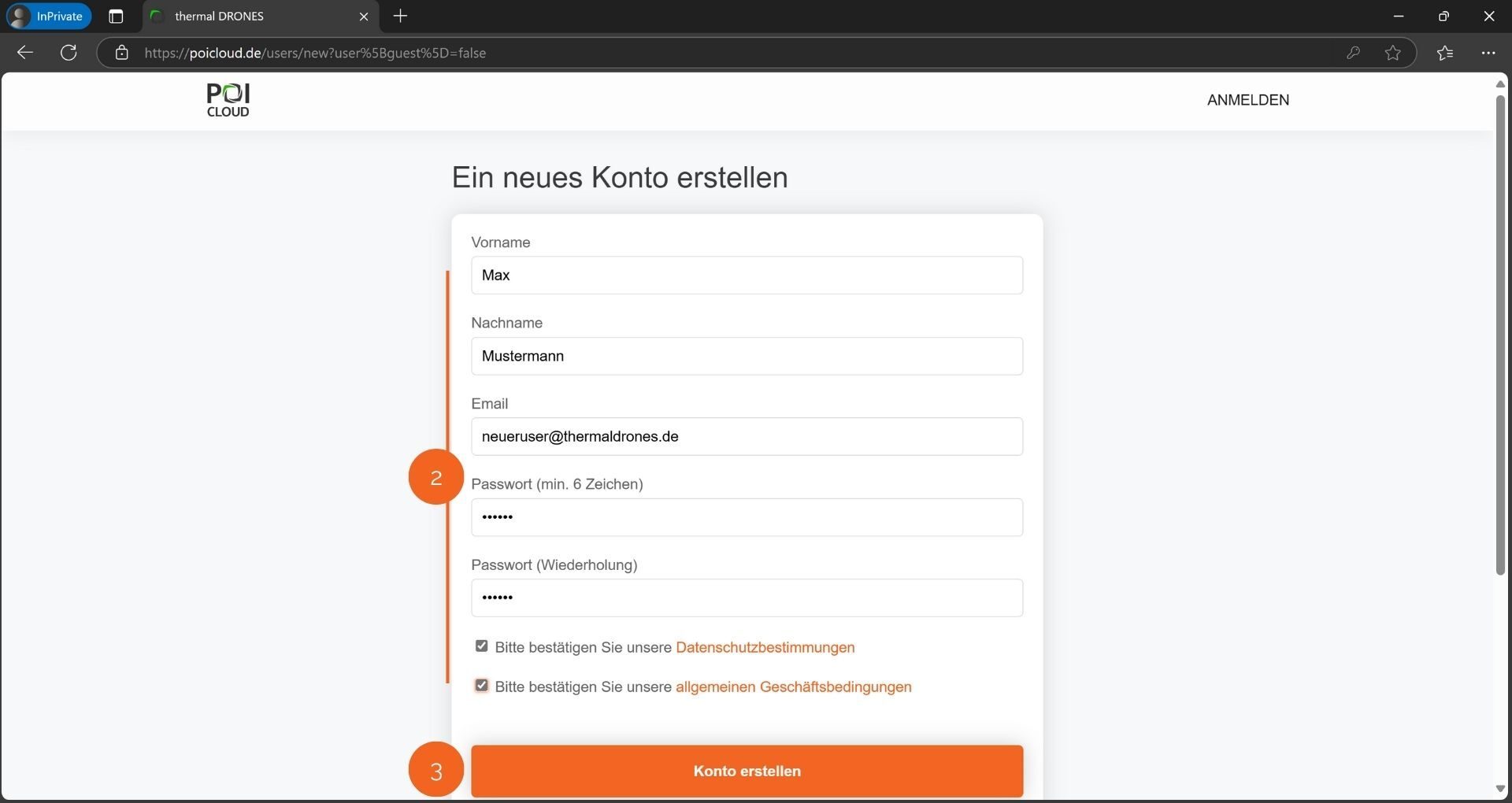
You can open an account here. First, click the "Create a new account" button (1). After entering your data and choosing a password, you will need to agree to the privacy policy and our terms and conditions (2). Check the boxes for the relevant ones. Then, click the "Create account" button (3) to confirm your entries and complete the account creation process.
Setting up organizations, departments & teams
The division into organizations, departments, and teams forms the basis for POICloud's functionality. As a first step, it is necessary to create at least one organization with one department and one team.
Organizations
First, a new organization needs to be created. This could be, for example, a fawn rescue association, an organization for the protection of breeding birds, or a surveying office. After successful registration, the following application interface will appear:
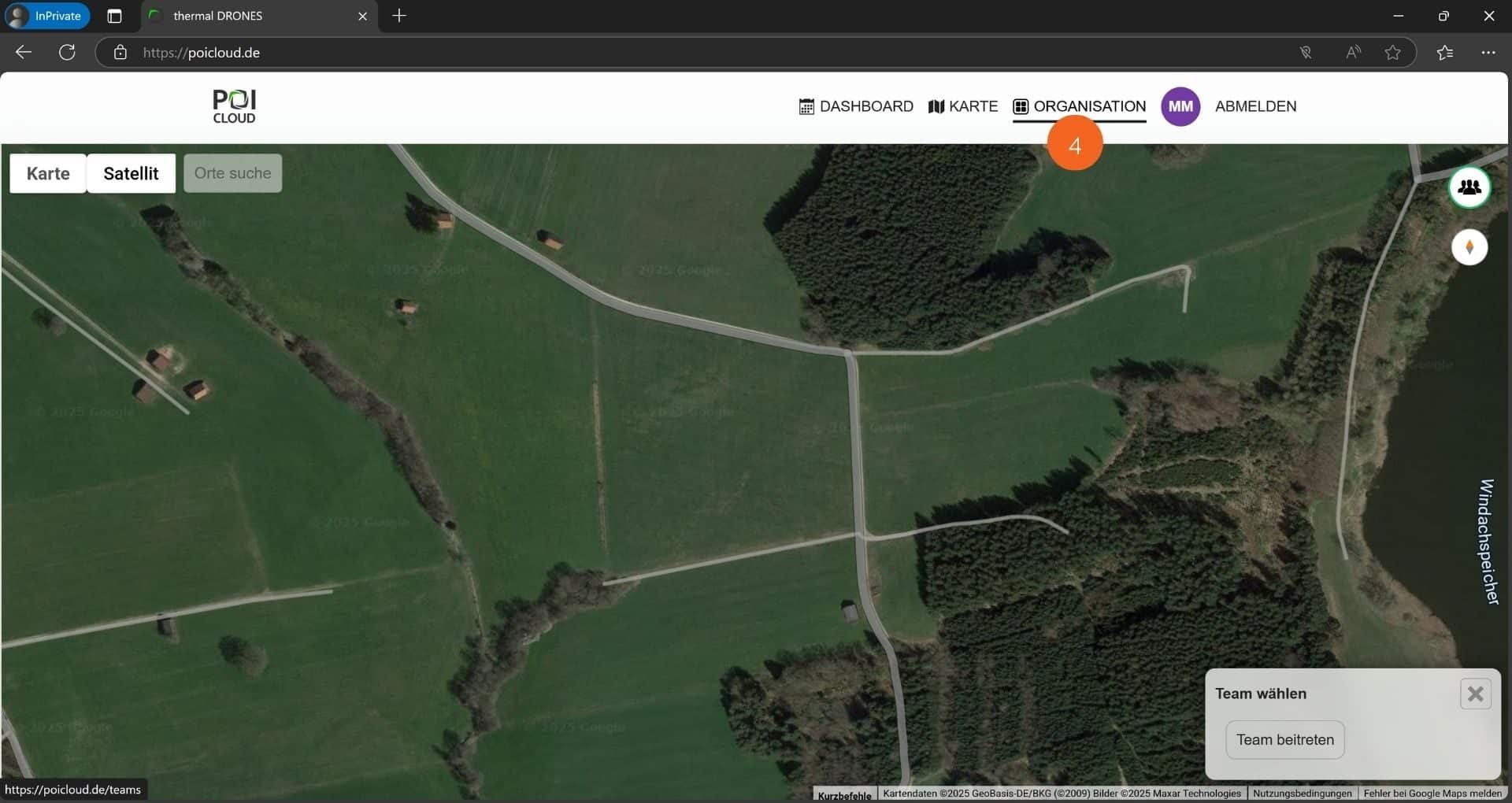
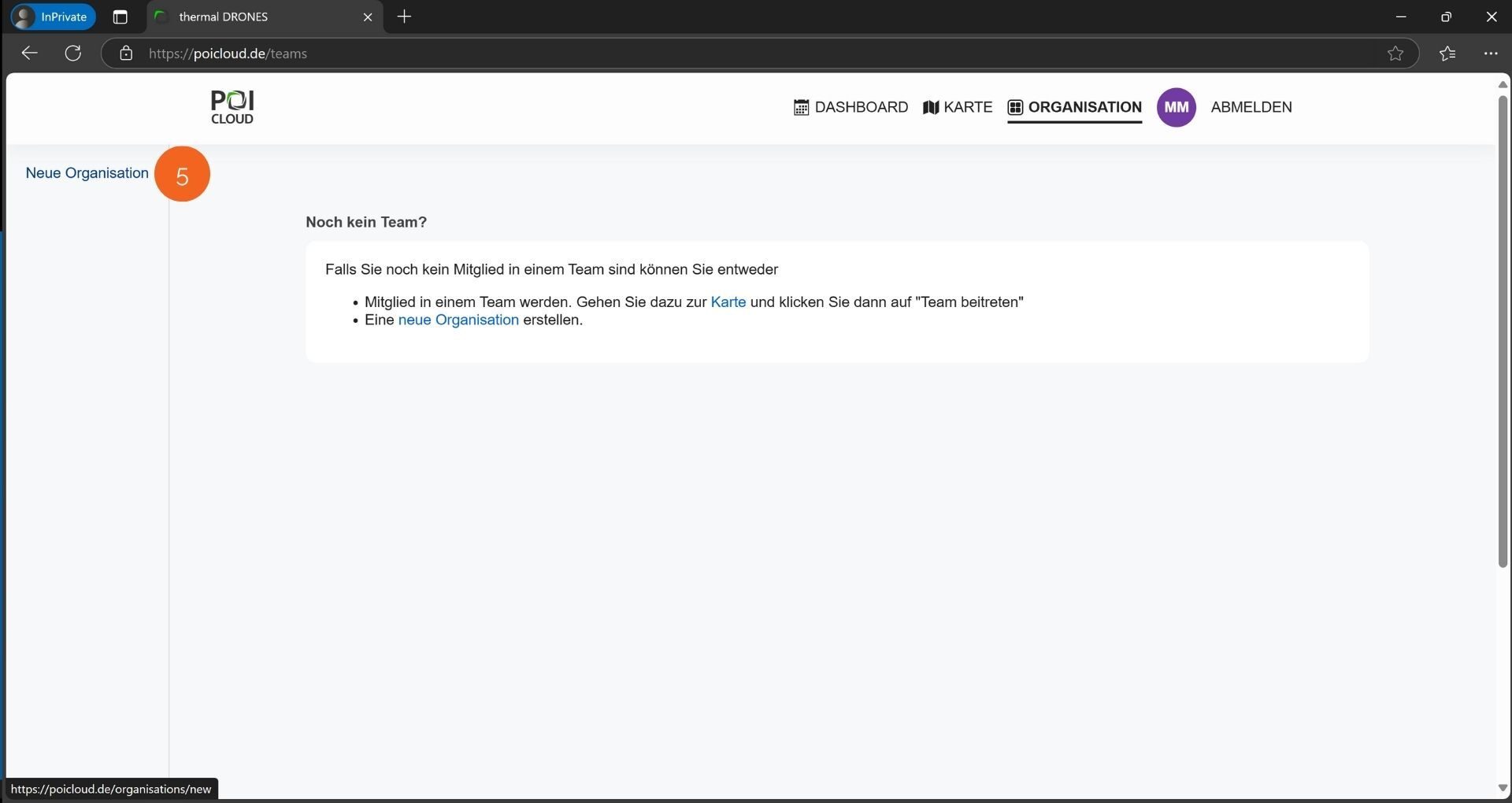
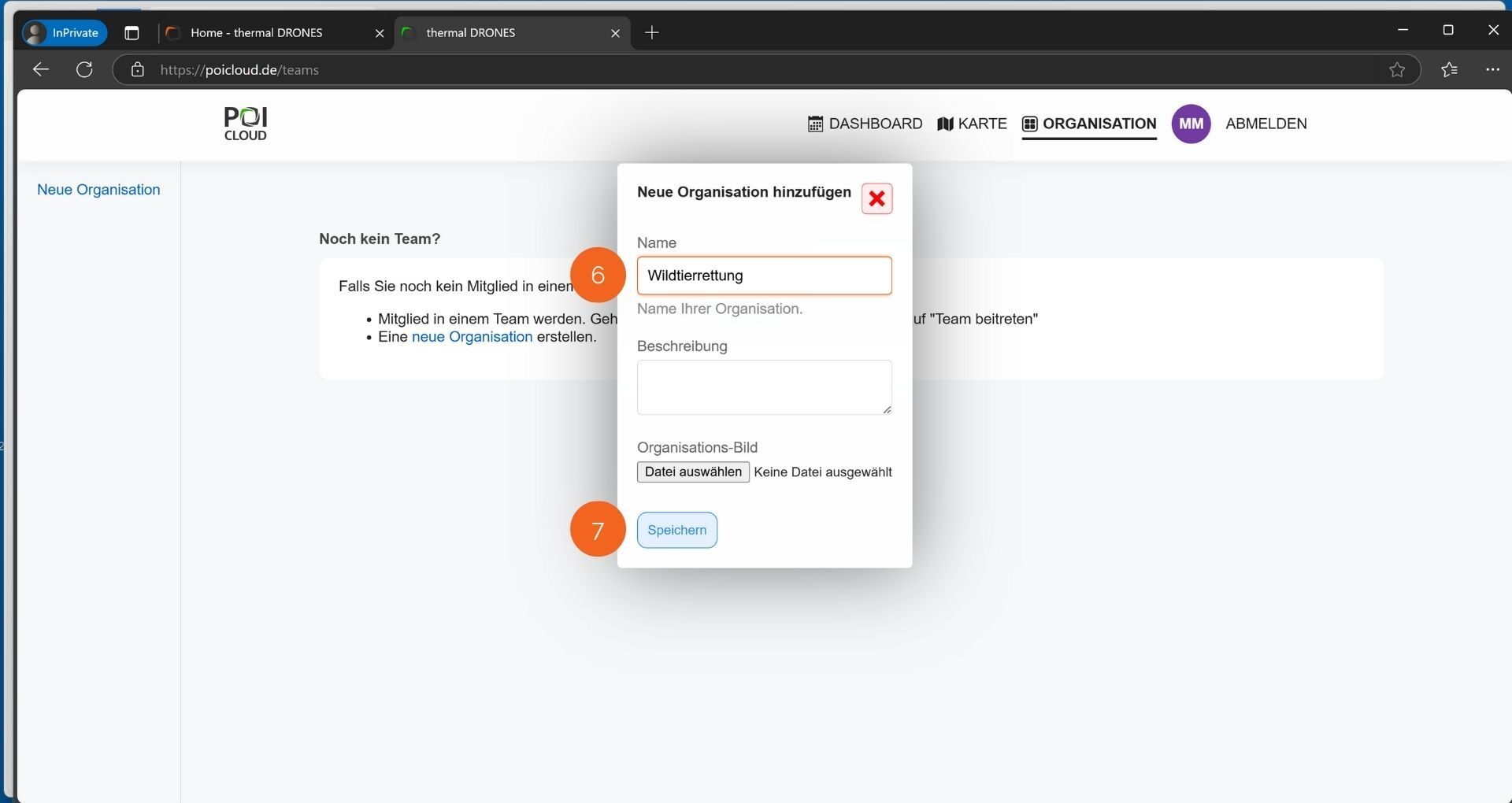
Under the menu item Organization (4), you can either view existing organizations or add one or more new organizations. To do this, select the New Organization field (5). In the window that opens, you can now add the organization's name (example: Wildlife Rescue Association XY), a description, and an organization image (e.g., the association or company logo) (6). Then click Save (7), and the creation of the organization is complete.
Add organization members
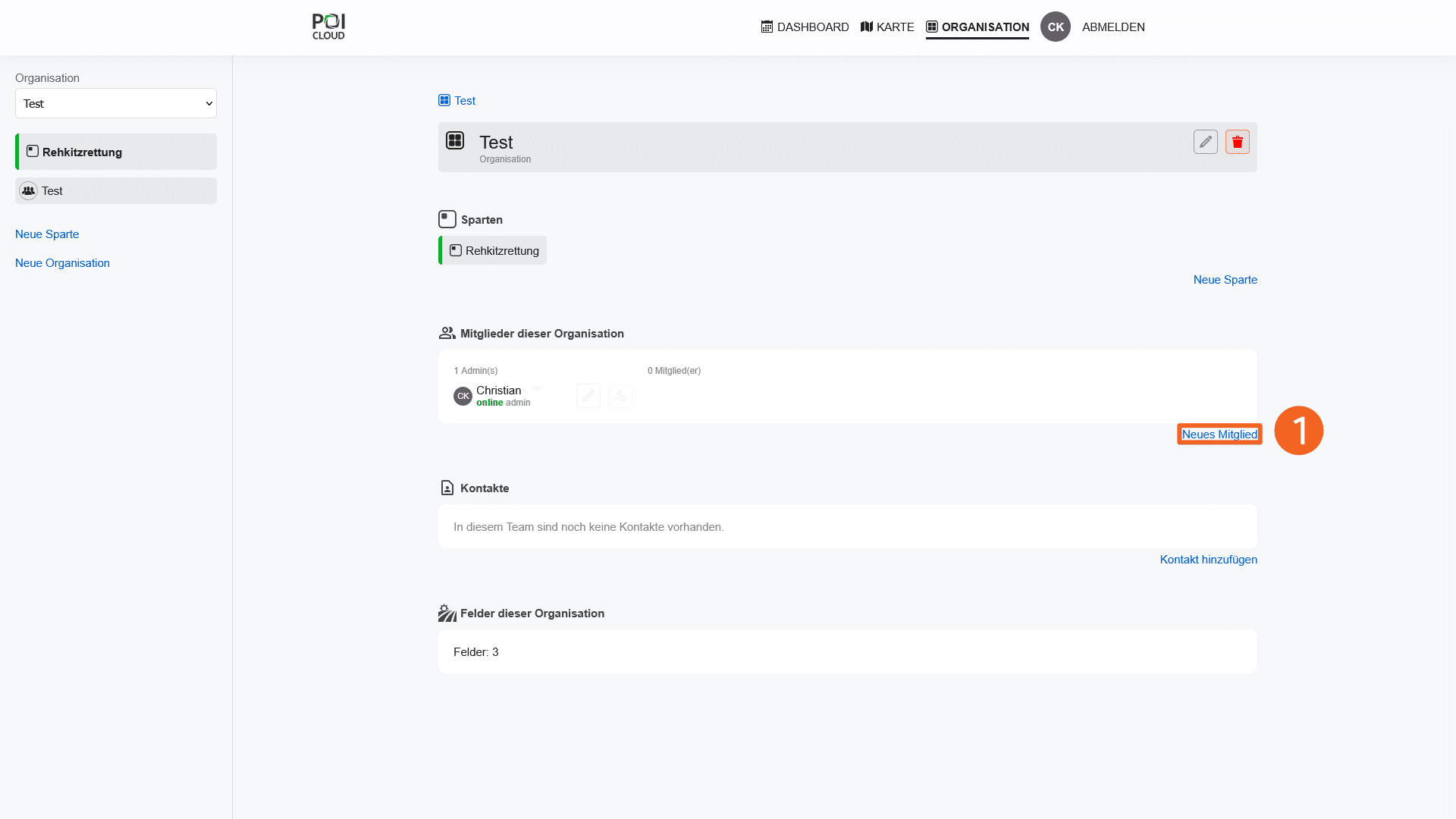
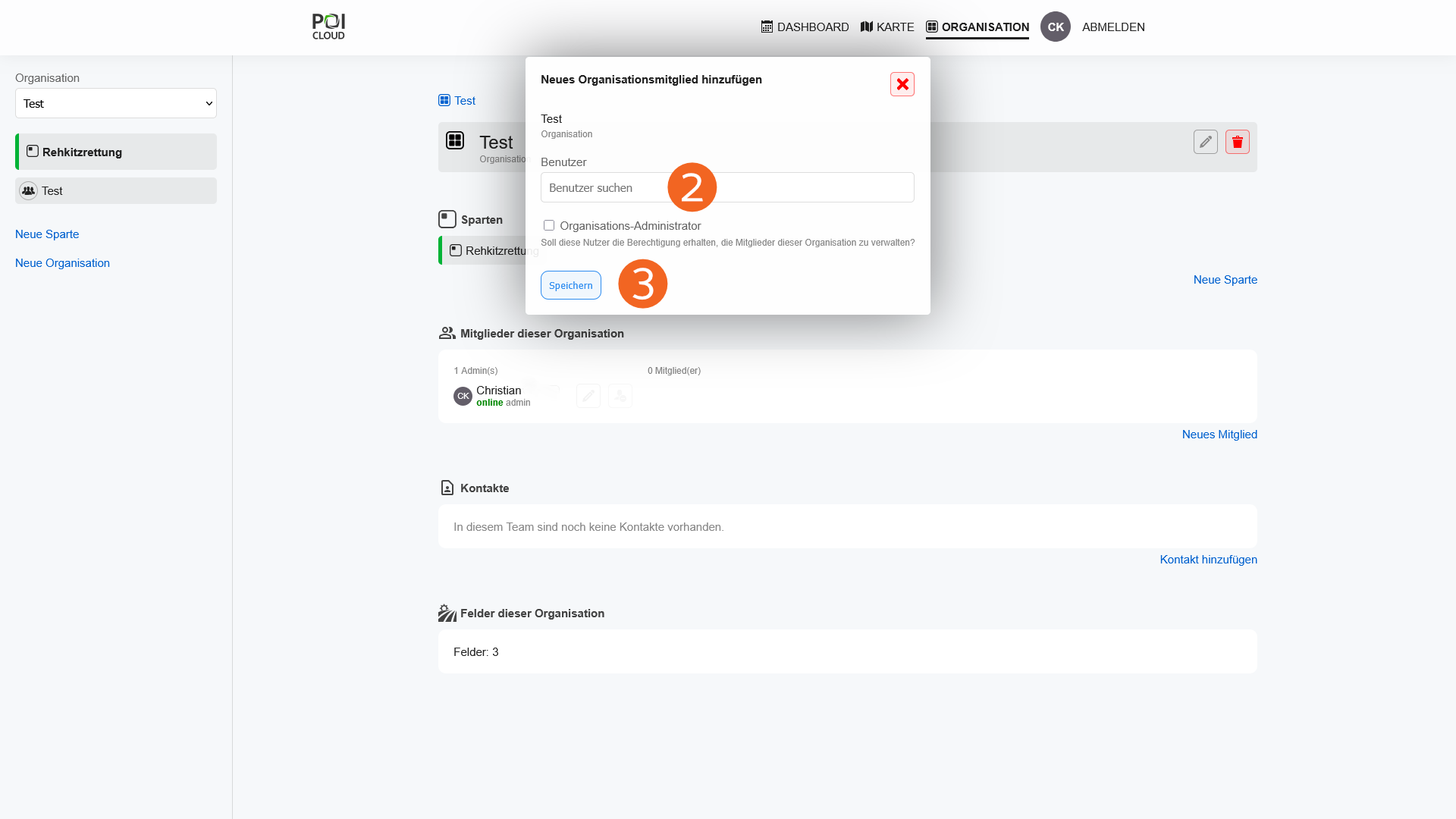
Once the organization has been created, new members can be added. To do this, select the "New Member" button (1) on the organization's overview page. In the window that opens, select the desired user in the "Search for User" field (2). You can then assign administrative rights to the new organization member. This will allow them to adjust settings for the organization and its teams. Clicking "Save" (3) completes the process.
divisions
The next step is to create one or more categories. These serve to divide the organization into different areas of application. For example, separate categories can be created for fawn rescue, search and rescue, African swine fever (ASF), etc. Each category contains different categories for creating markers and points of interest (POIs).
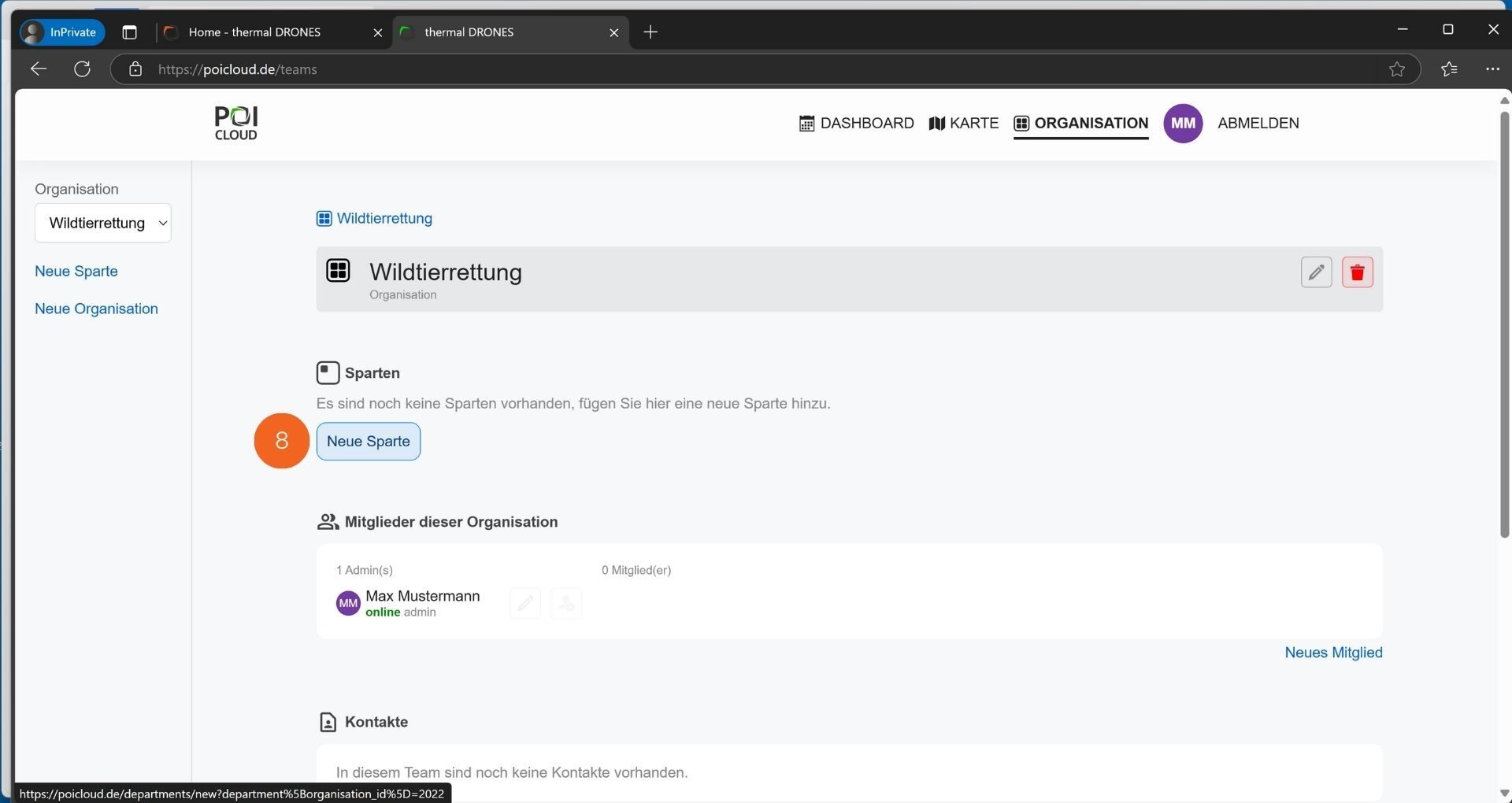
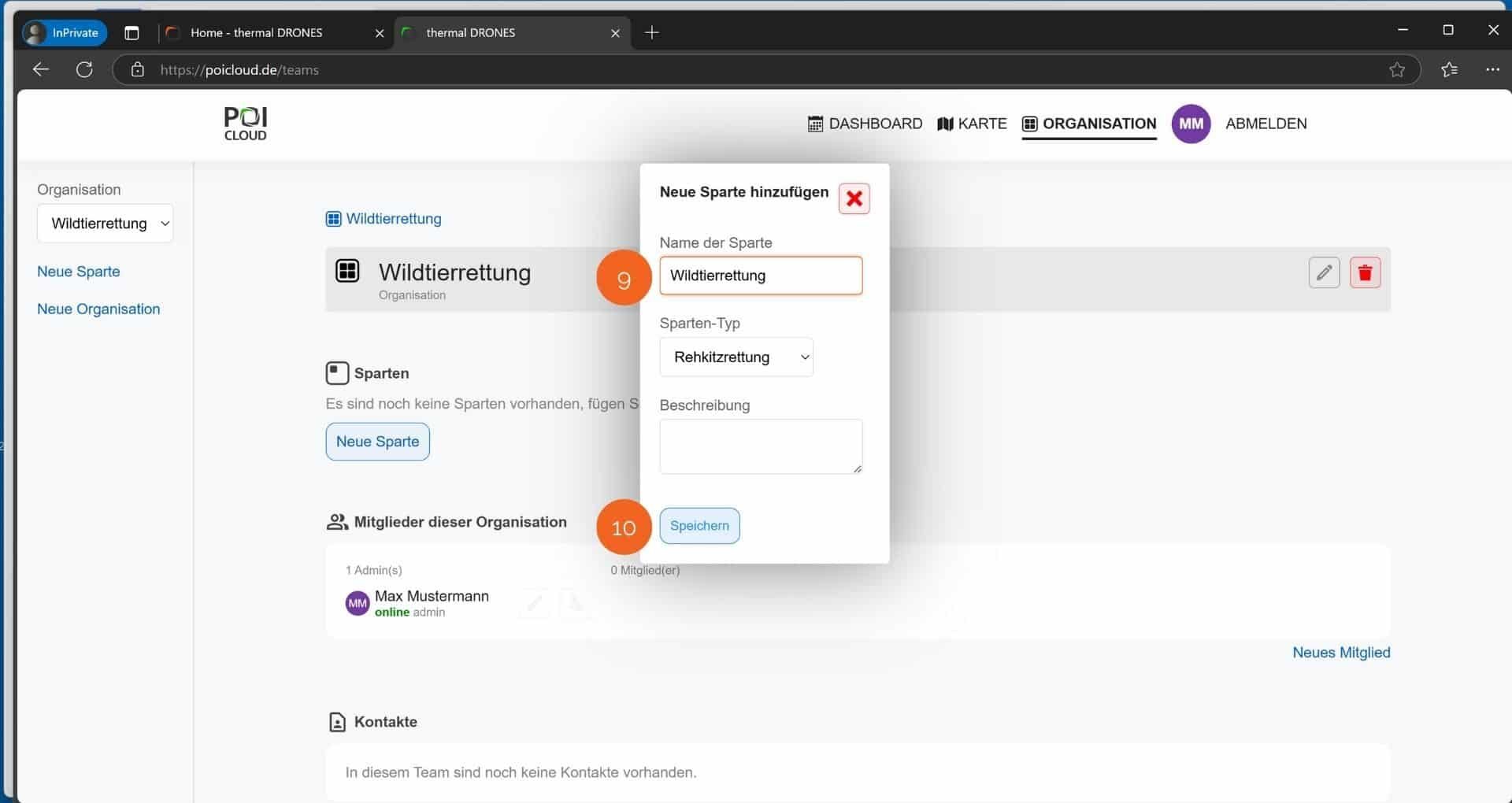
In the current overview for managing the organization, a new category can be created using the "New Category" button (8). A window will open for adding the new category. This category must be given a name (9). Then, the appropriate category type for the respective area of application is selected from several options. A description can be added if needed. Clicking "Save" (10) completes the creation process.
Industry-specific flight parameters
Note: This feature is currently in the testing phase!
Depending on the application, different drone requirements arise, and each drone has different characteristics. Therefore, depending on the specific application, standard flight parameters can be defined and then applied to flight missions.
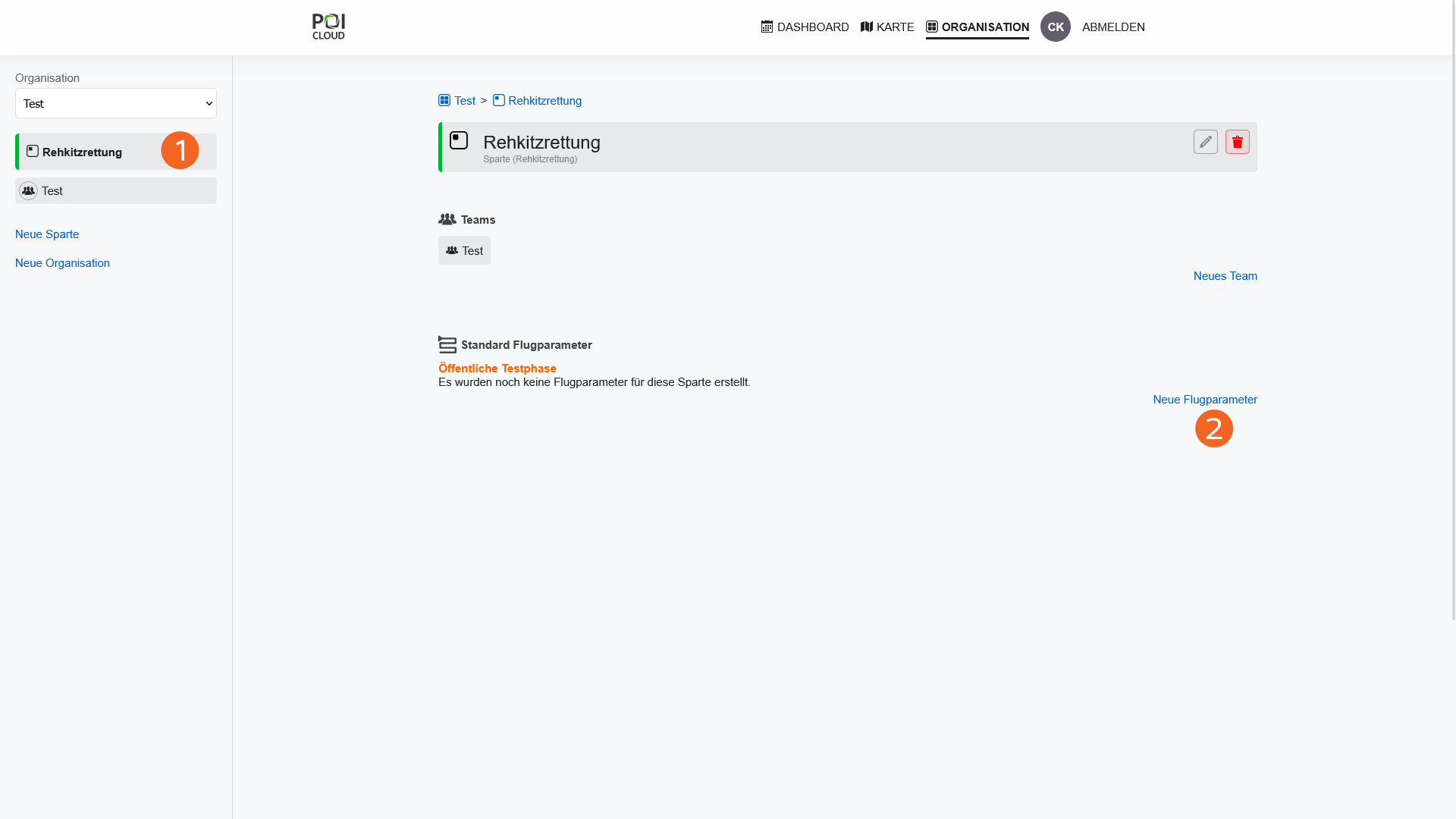
Standard flight parameters are defined in the application view (1). Here, individual values for new flight missions can be adjusted by clicking on "New Flight Parameters" (2).
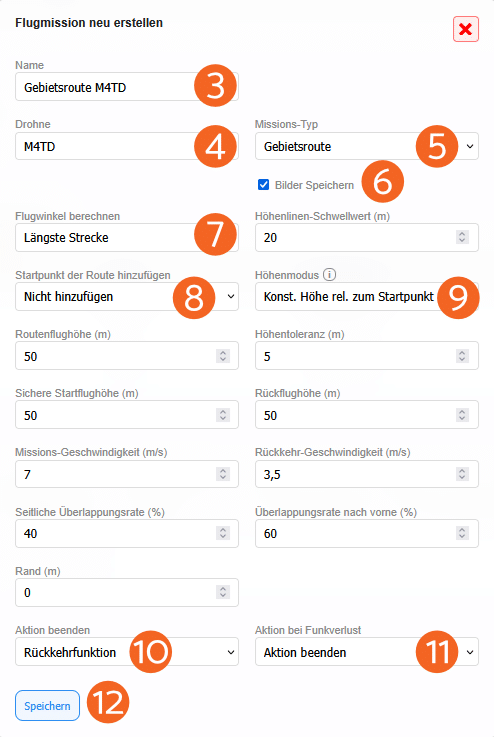
After choosing a name (3) for the mission, the drone (4) and mission type (5) are selected. Currently, you can choose between area route and waypoint route. Under "Save Images" (6), you can enable or disable image capture during the mission by checking the box.
Note: When using POIStudio to analyze thermal images, this function must be enabled!
Under "Calculate Flight Angle" (7), you can choose from several options: Longest Route, Main Axis, Shortest Routes, and Perpendicular to Main Axis. The appropriate option is selected based on the area and your personal preferences.
Depending on the terrain and the mission plan, you can automatically add the route's starting point to the beginning or end of the route, or define it manually. This can be done via the corresponding drop-down menu (8).
Attention! If the elevation mode "Following terrain relative to the starting point" is selected, the "Add starting point at the beginning" option must be selected, as the starting elevation is measured based on this point. If this option is not selected, collisions may occur.
Latest innovation: Altitude mode
Recently, by selecting the appropriate altitude mode (9), it has become possible to fly in hilly and mountainous areas:
Constant Altitude Relative to Takeoff Point
In this mode, the drone flies at a constant altitude, calculated based on the altitude of the takeoff point. The flight altitude remains independent of the terrain's elevation.
Terrain Following Relative to Takeoff Point
In this mode, the drone follows the terrain's contours and adjusts its altitude accordingly. This allows for flying in areas with significant changes in elevation. Thanks to the use of accurate elevation models for Germany, Austria, and Switzerland, the deviation is only 50 cm.
Furthermore, other important parameters, such as flight altitude and speed, can be set.
For example, under "End Action" (10) and "Action in Case of Signal Loss" (11), you can configure how the drone should behave when a mission ends or a signal is lost.
By default, the return-to-home function is selected when a mission ends, and the "End Action" option is selected in case of signal loss.
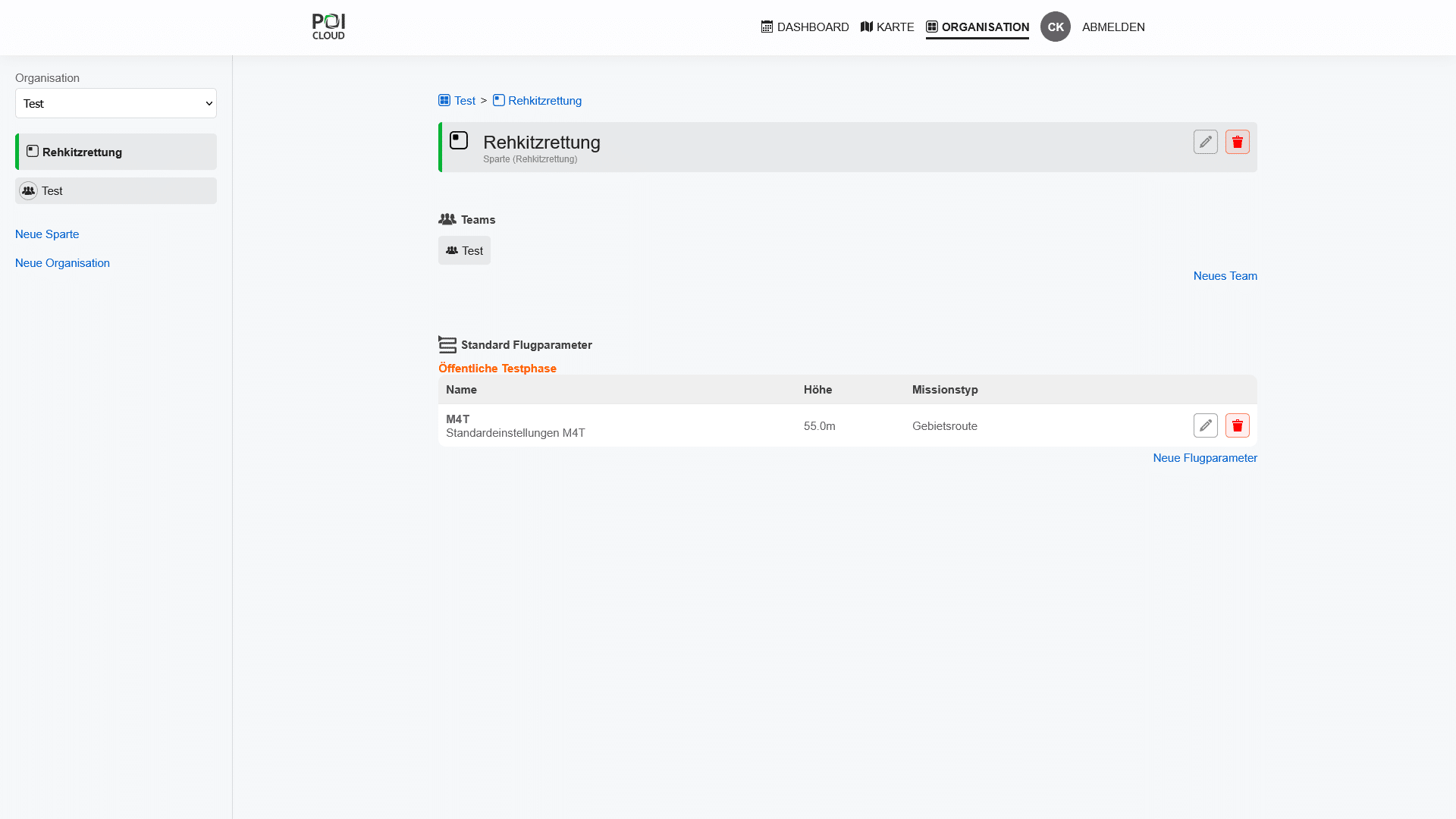
By default, the return-to-home function is selected when a mission ends, and the "End Action" option is selected in case of signal loss. By clicking Save (12), the default flight parameters for the category are successfully set.
Teams
The final step involves creating one or more teams. These can be generated and managed depending on the specific application area or current workload.
Note: Teams are created within the relevant category and are independent. This means that tasks, fields, and statistics are always created for a single team and can only be viewed by its members.
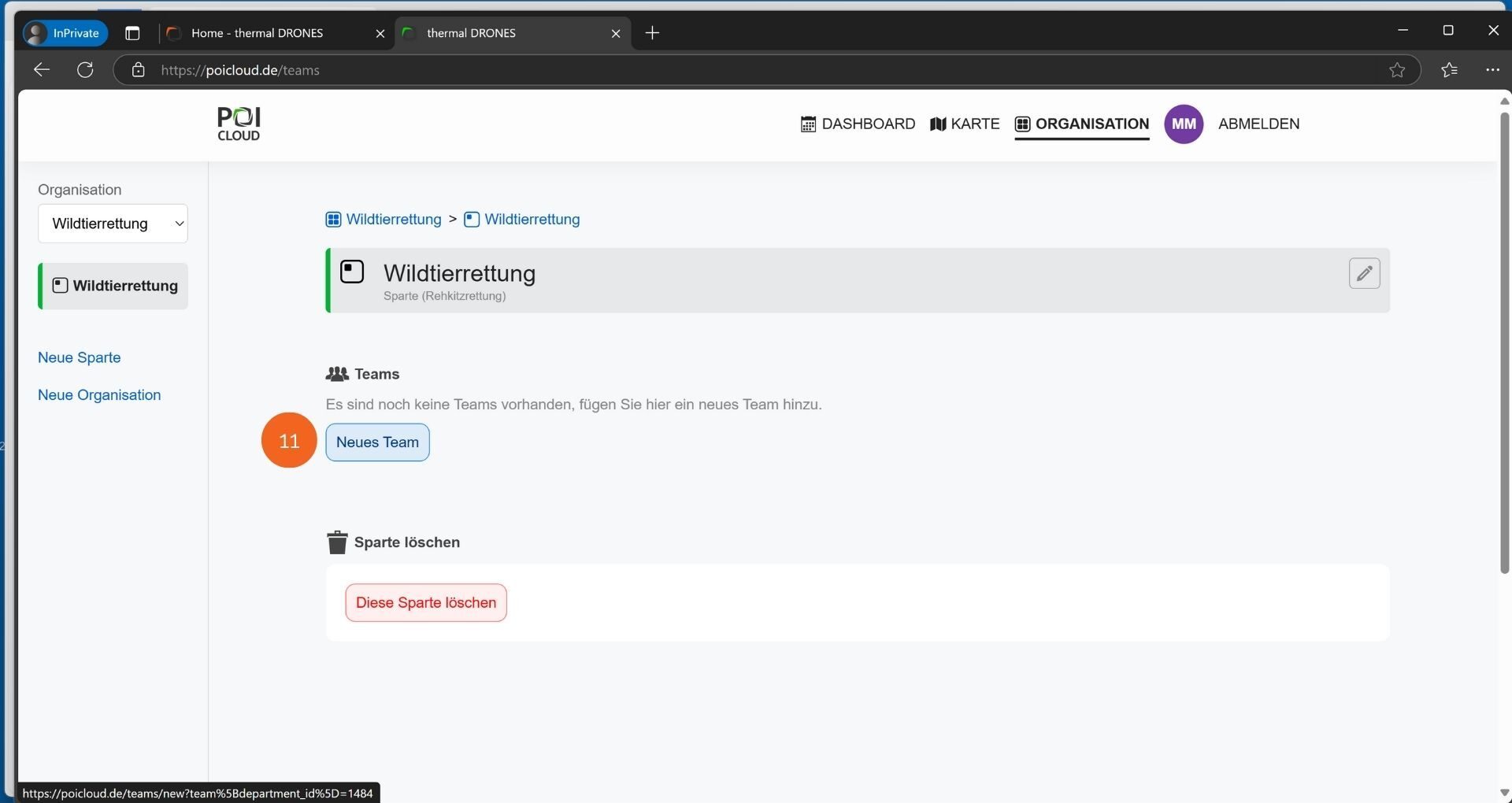
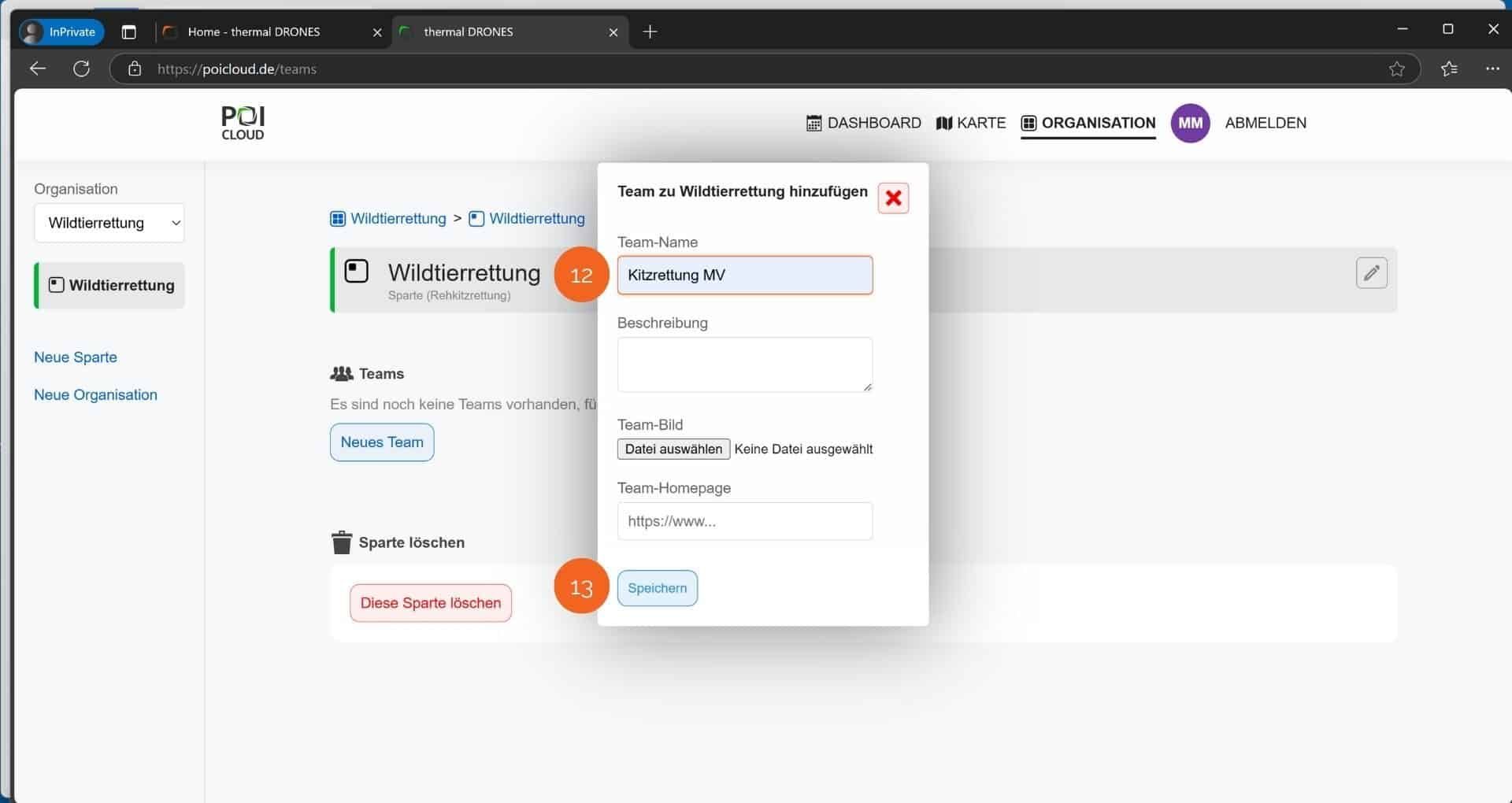
In the category management view, a team can be added by clicking on "New Team" (11). Within a team, tasks can be created, fields defined, and flights/searches planned and executed. The app also generates task statistics and summaries for each completed task for every team. After clicking the button, a new window appears where a team name, a description, a suitable image/logo, and, if applicable, an existing website can be added (12). Clicking "Save" (13) successfully creates the new team.
Team management
After creating a team, the following overview appears:
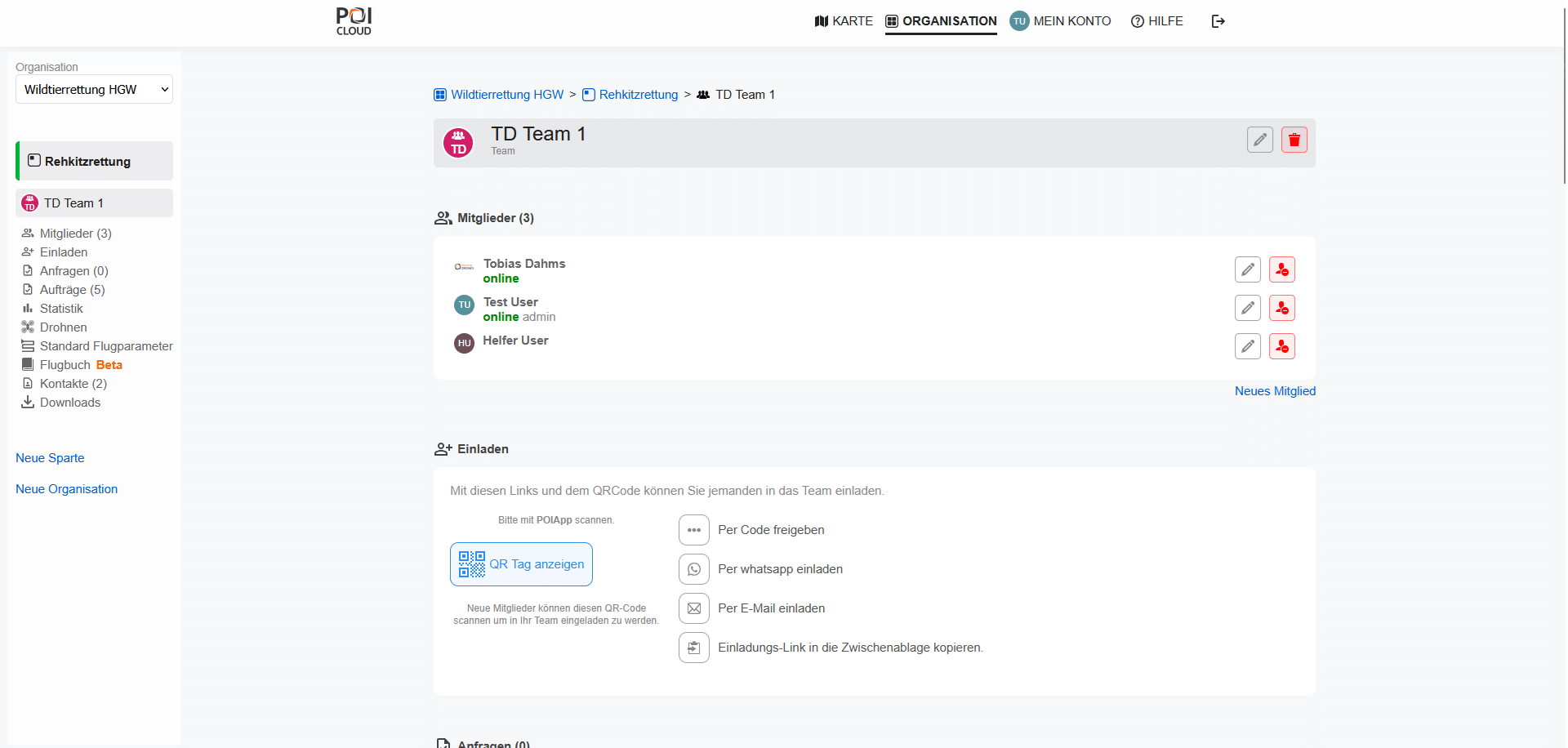
This is where the management of each team takes place. There is an overview of existing members, new members can be added, and all tasks processed by the team are displayed along with corresponding statistics.
Adding new members
Several options are available for adding new members to an existing team:
By clicking "New Member," a member can be added using the email address they used to register with the POIApp. Additionally, it's possible to grant the member administrator rights. Team administrators can then make changes to the team and its tasks.

Further options
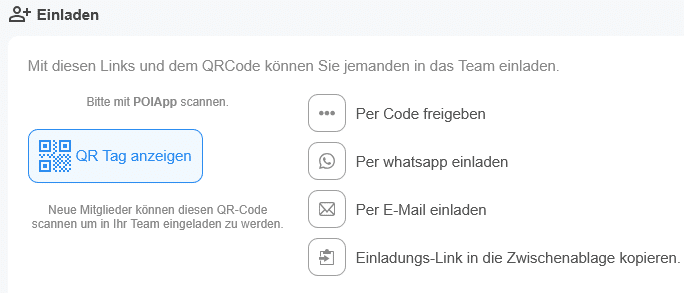
-
Display QR code: An individual QR code is generated for each team, which users can scan with the POIApp. Team membership is granted after a successful scan.
-
Join via code: Each team receives an ID and a corresponding join code upon creation. After clicking the button, the ID and code are displayed and can be entered to join.
-
Invite via WhatsApp: An invitation link can be shared via WhatsApp. New users can then join the team using this link.
-
Invite via email: The invitation link will be sent using an existing email provider.
-
Copy invitation link to clipboard: Allows sharing the link in other messenger applications or, for example, embedding it in a website.
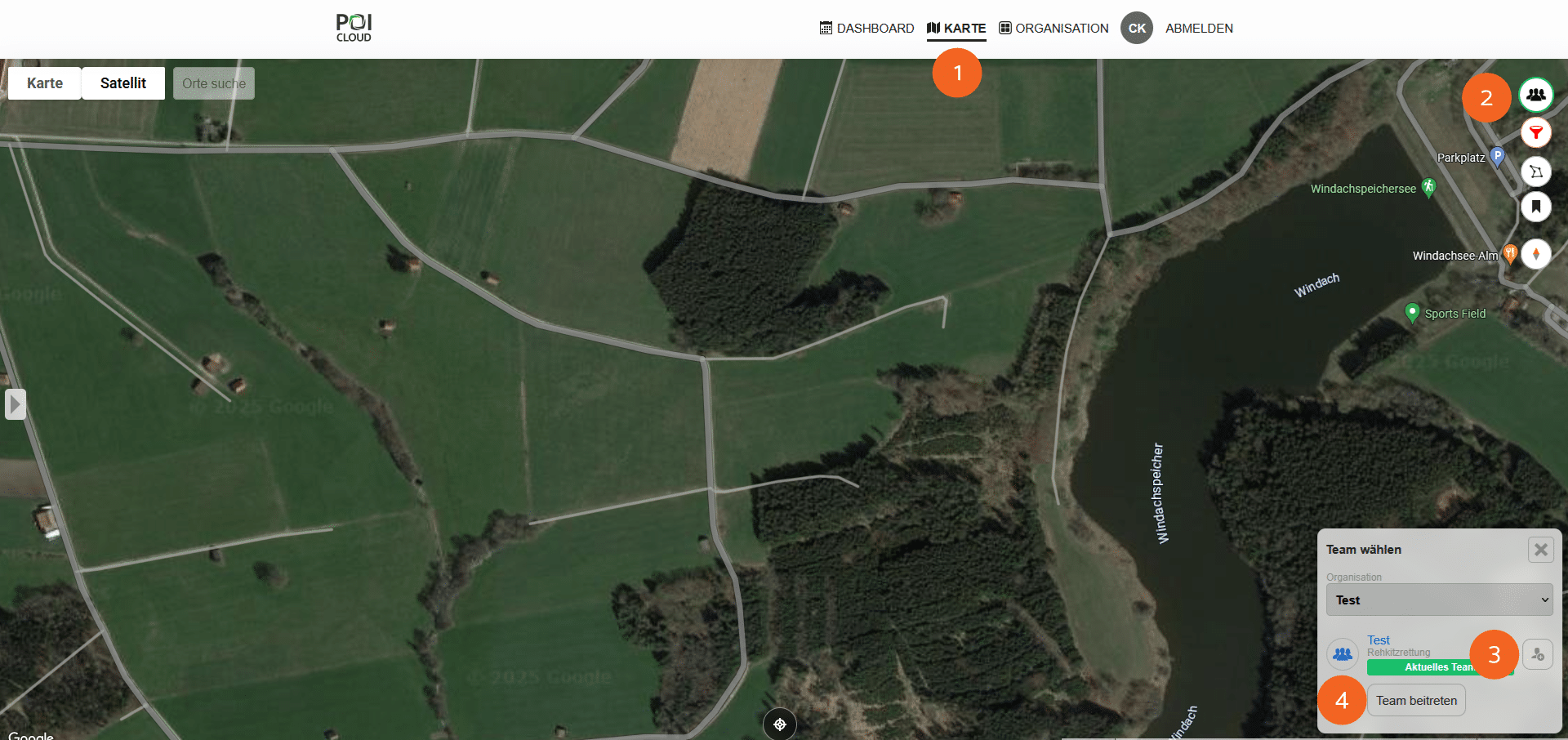
The same options are also available in the map view (1). Here, you can select the currently existing organizations and their associated teams by clicking on the team icon (2). Clicking the "Add team members" button (3) displays all the options mentioned above for inviting new members.
To scan the team's QR code or join using an ID and code, click the "Join team" button (4).
Inquiries, orders & statistics
Inquiries
The "Inquiries" section displays active requests for orders or flights. Important data such as the flight date, the landowner, and the size of the area to be flown are also listed here.

Field registration
To generate a request, you can add a persistent link that allows external users to fill in their fields and create job requests.
Simply click the button below the contact view, and the link will be copied to your clipboard. This allows you to embed it on your organization's website, within a document, or easily share it via a messenger service or email.

Registration & Access
1. Open the field registration form via the provided link.
2. Preferably use Google Chrome or Microsoft Edge.
3. Enter your personal information and register.
4. Important: After registration, you will receive a personal link via email, which you can use to manage your areas and registrations in the future.
Important:
- Save this link as a favorite.
- No password required.
- If lost, simply request it again from your organization/wildlife rescue contact person.
If fields already exist, you may receive pre-filled access from your organization/wildlife rescue contact person.
After registration, you will have access to a map application where you can mark and manage your areas and submit requests for mowing dates/searches.
Draw Fields
How to create a field:
- Open your personal link
- Select the Polygon Tool on the right
- Draw your field:
- Points awarded upon click
- Move or delete points
- Add (drag) new points between existing ones
- Name the field meaningfully
- e.g. “Meadow by the moor”
- Add information on hazards or special features
- Mark the access point (S)
-> saves time in deployment planning - Click on “Save”
Additional fields:
→ Simply repeat
→ The field list can be opened via the menu on the right
Request a mowing appointment
How to create a request:
- Select field
- Directly on the map
- Or via the field list (searchable)
- Click on “New Request”
- Specify:
- 📆 Date
- ⏰ Time
- 📝 optional: Comment
- Click on “Save”
Currently available: Mowing appointments in the morning
What happens after the request?
The wildlife rescue team will schedule the operation and then get back to you as to whether your request can be processed.
Request status:
- Request → Request has been created
- Order→ Request confirmed and deployment will take place
- Rejected → we will contact you personally
- Completed → Mission successfully carried out
You will receive a response via email or phone → no later than the evening before your appointment.
Support
If something isn't working or you need access, simply contact the team – we'll help you quickly.
orders
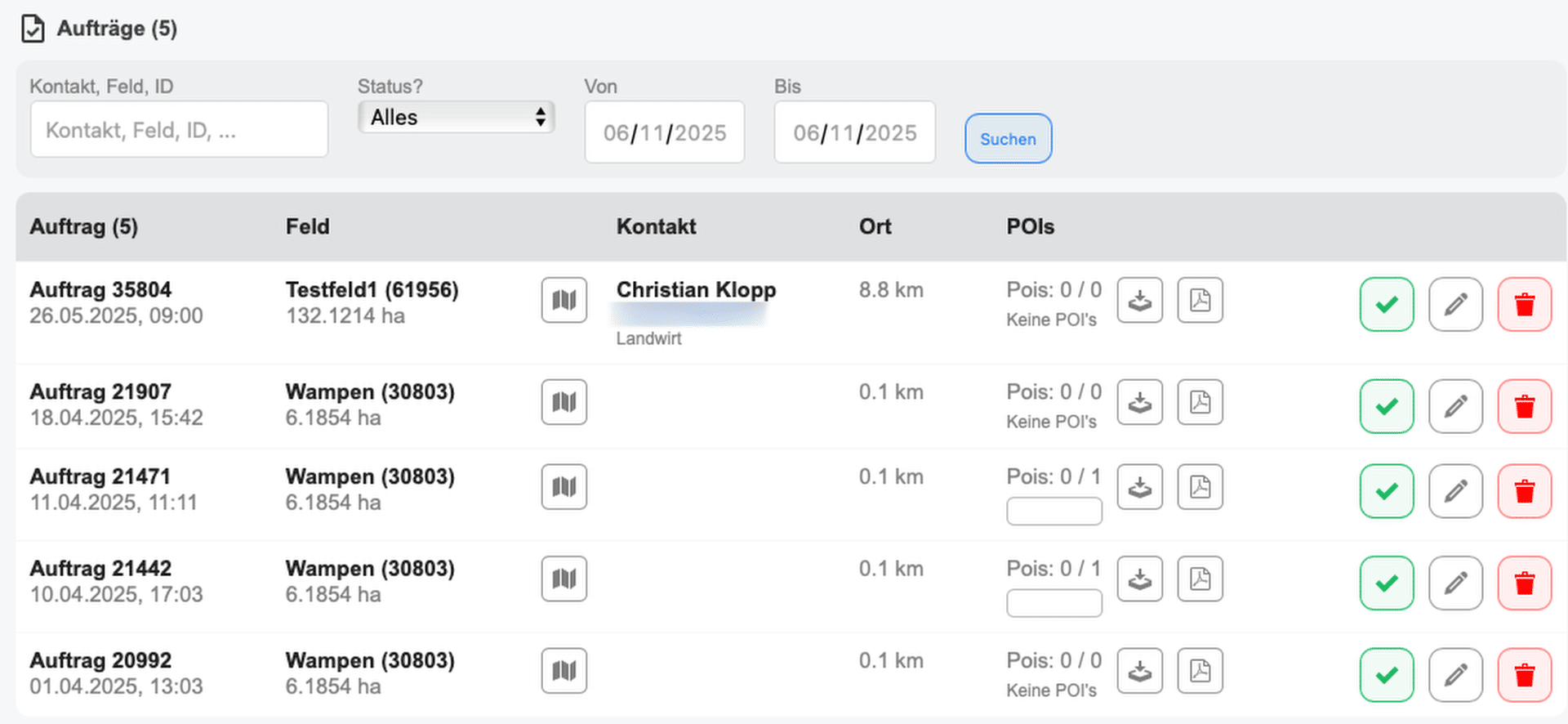
This view lists all active and inactive orders. These can be easily sorted by status and order date using the order filter. The search field allows you to directly search for orders, for example, those with the same contact person.
-
Order: Each order receives a corresponding order number. This is automatically assigned as soon as a previously drawn field is marked as an active order. More information can be found in section 5.
-
Field: The fields with their name and size appear next to the respective task. The map icon takes you directly to the map view, where you can start a search mission in the corresponding area.
-
Contact: Contact details will appear here. These may be from the owner of the area to be flown over, the hunting leaseholder, or other contact persons for the respective order.
-
Location: The location of the area belonging to the order, as well as the distance to it from the current location, are listed here.
-
POIs (Points of Interest): This section displays an overview of all POIs marked on the map. If a box for a POI is filled in green, the find has already been confirmed. If the box is gray, it is a different object that does not meet the desired parameters (e.g., stones, mounds of earth, etc.). Empty boxes indicate POIs that have not yet been searched.
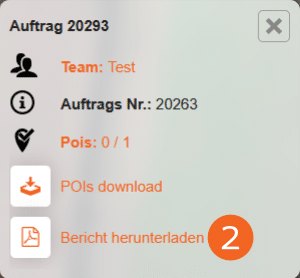
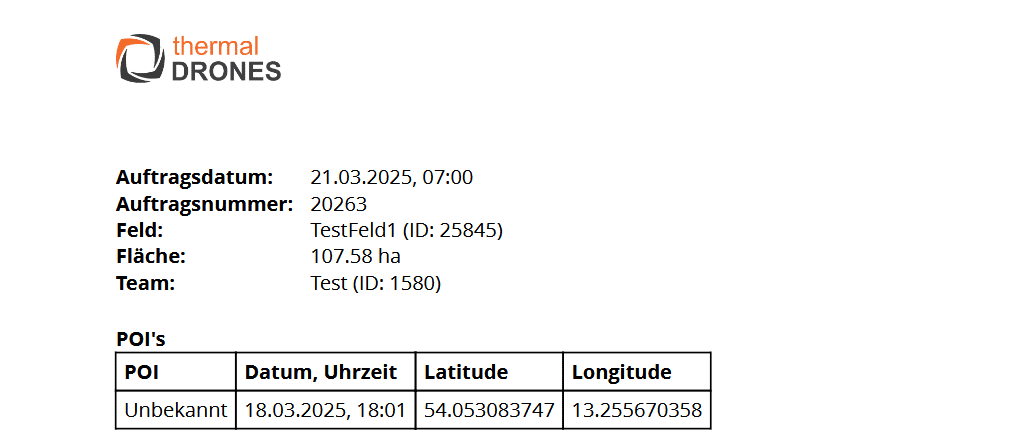
The download icon allows you to download the POIs and import them into other programs or GPS devices. Clicking the PDF icon generates a document summarizing the current task. All POIs marked on the map are also listed here.
To reactivate the task, simply click the checkmark next to it.
statistics
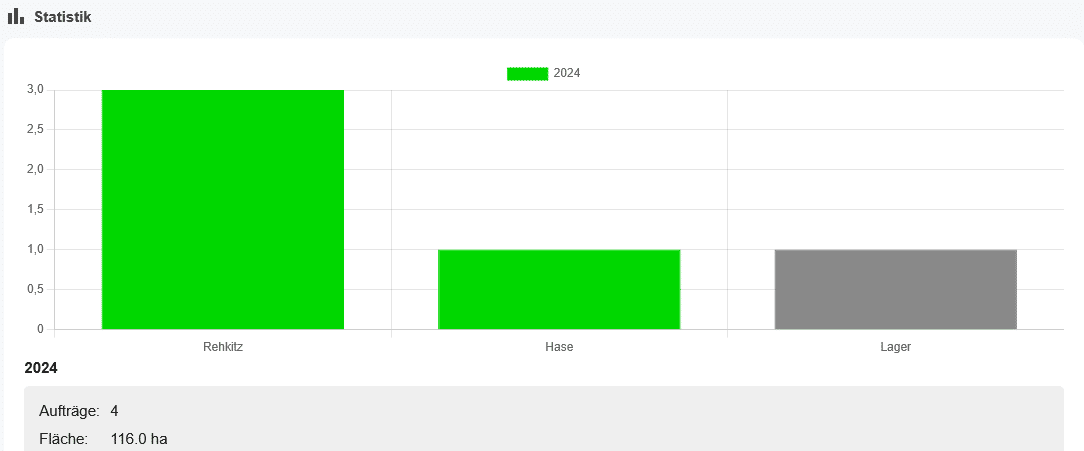
For evaluation and to provide an overview of all completed search assignments, a statistics report is compiled. This report lists all findings for a given year (e.g., number of fawns, number of clutches, etc.). It also includes the number of completed assignments and the total area surveyed in hectares.
Drones
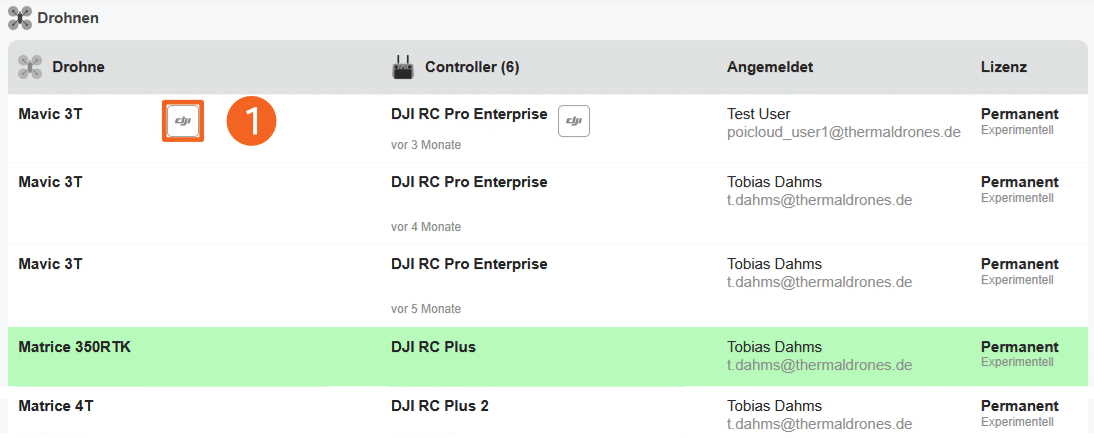
This overview lists all drones and controllers connected to POICloud, along with their current license status. Active drones are highlighted in green.
Clicking the DJI button (1) takes you directly to the DJI device information page. After logging in, you can view information about the selected device and its current DJI Care status. Active repair requests are also listed here.
Note: DJI account required
Contacts & Downloads
Contacts - Organization View
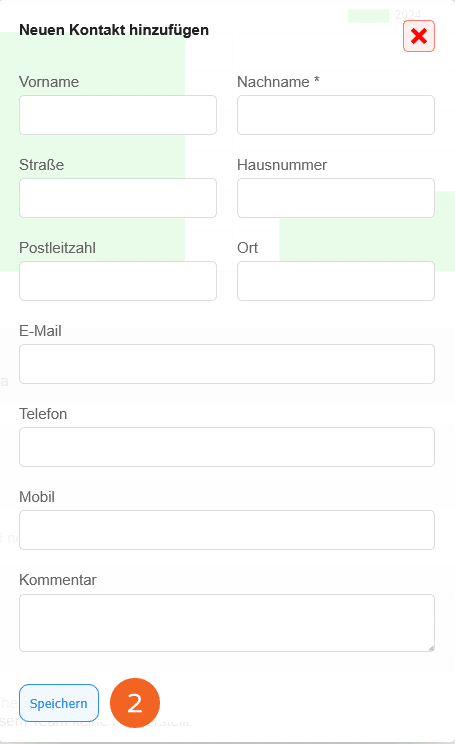
If you have existing partnerships with landowners, hunting leaseholders, farmers, companies, etc., you can enter the contact information for the respective contact persons in the Contacts section. These contact details can then be assigned to the relevant area(s) when creating an order, making it clear who is responsible for which area.
Clicking the Add Contact button (1) opens the window for adding a new contact with all the necessary information. After clicking the Save button (2), the contact is successfully created.

Downloads
If needed, all POIs generated on a given day can be downloaded as GPX files from this section. In this format, they can then be imported into external programs (e.g., QGIS, ArcGIS) for further use or for searching with GPS devices. Downloads are always available for the day on which the POIs were created.

Create fields
This section describes how fields can be created and edited.
Map view management
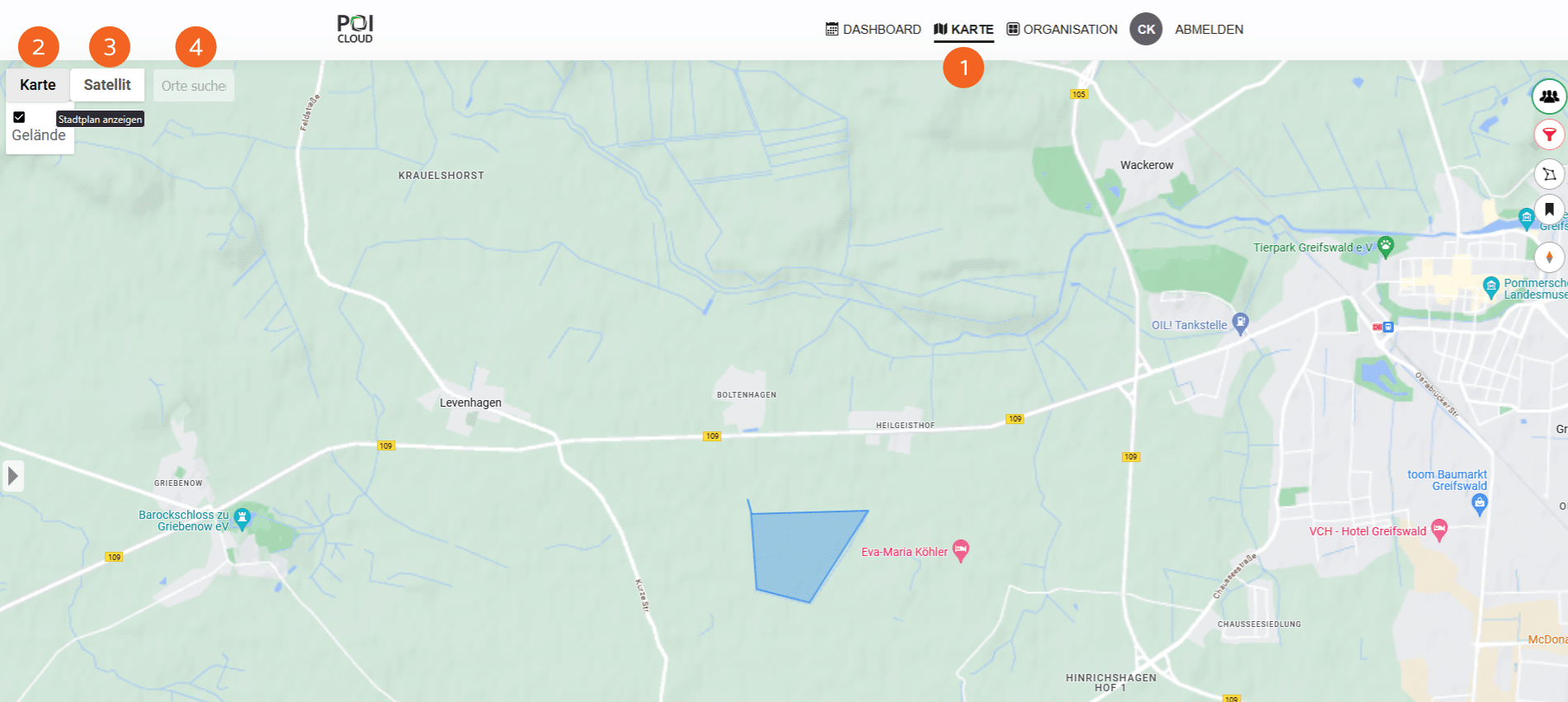
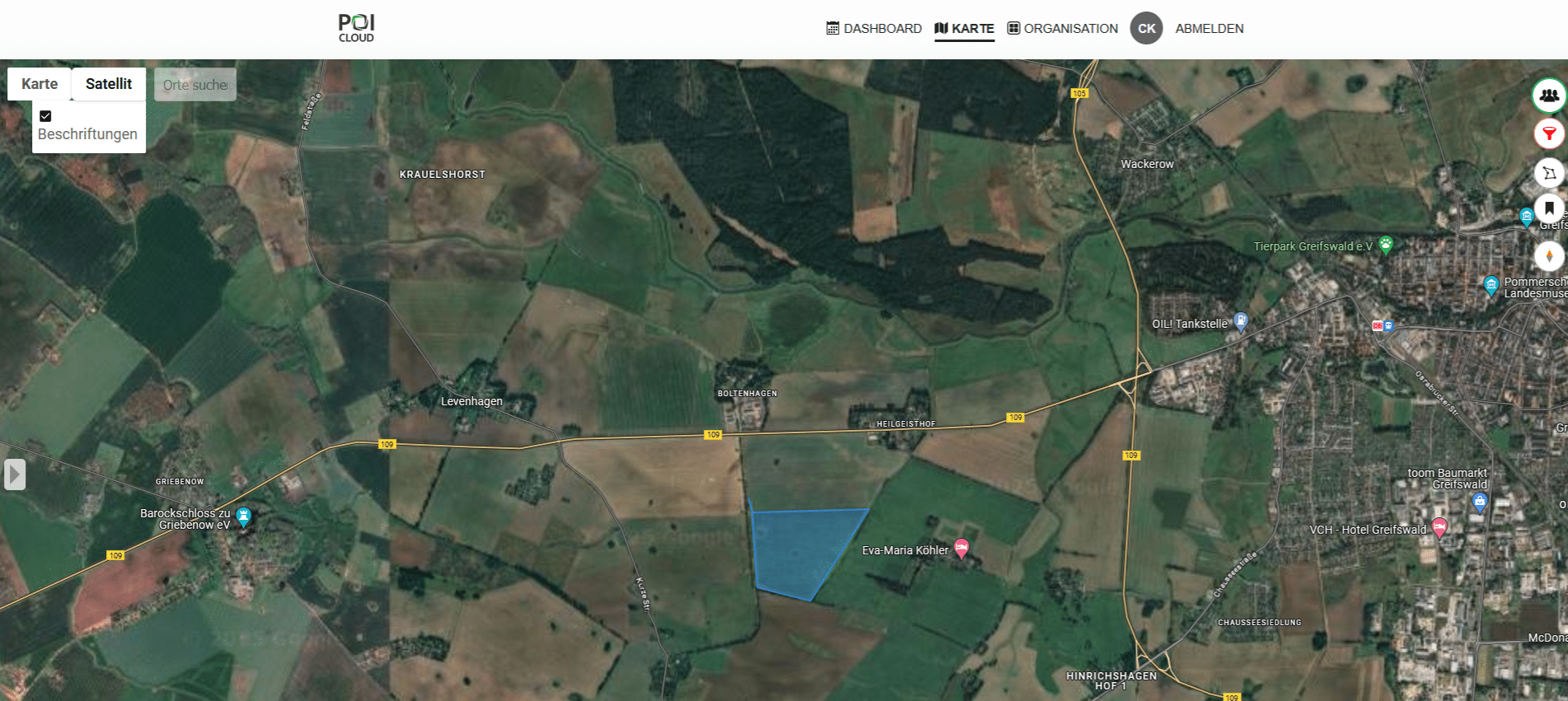
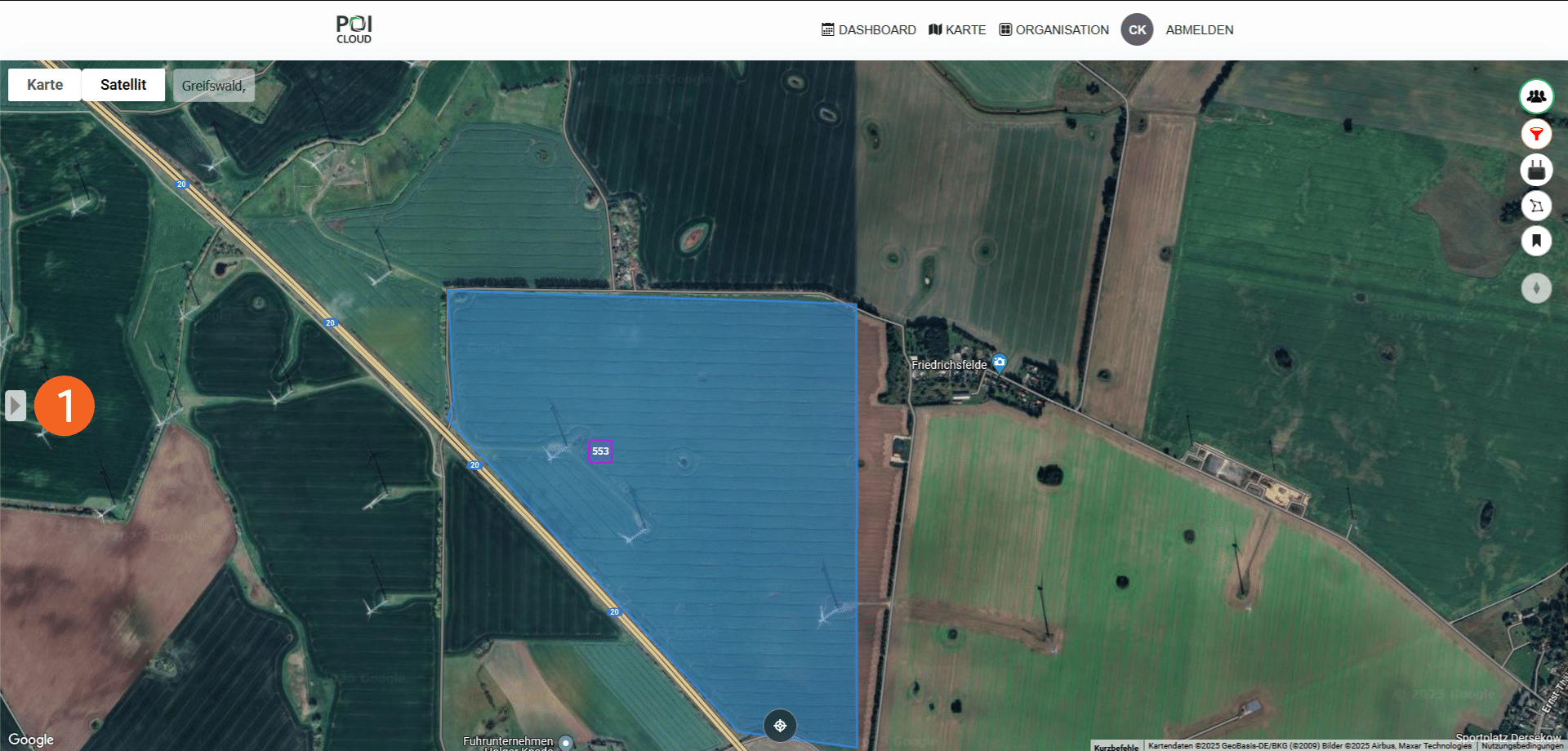
We are now in the map view (1) of POICloud. Various options for field and order management are available here: the map view can be changed using the Map (2) and Satellite (3) buttons in the upper left. Furthermore, a terrain model can be added or removed in Map view, and the labels for map elements can be added or removed in Satellite view. A search for locations is possible using the adjacent search field (4).
Controls
The following controls are located on the right side of the map view:
Team selection
See Team Management – Adding New Members. This button allows you to select all the teams you are a member of. After selection, the map view displays the fields and tasks associated with that team. You can also add members or join an existing team via the control panel.
Field and order filters
Here you can filter the selection of orders to be displayed on the map. You can further refine the selection by specifying a particular time period. Alternatively, you can choose to display only fields containing orders or archived fields. To do this, simply check the box next to the desired option. Confirm your selection by clicking Filter (1).
Active pilots
Displays all active pilots who are currently logged in and connected to a drone remote control in the selected team.
Draw fields
The polygon tool makes it easy to create new fields that can then be converted into orders. Simply select the corners and boundaries of the fields, and the polygon will be created automatically. This is demonstrated in the following video:
The points of the fields can be moved or reset as needed, allowing for precise marking of the areas. The starting point (yellow S) can also be freely set and moved. It serves as the starting point for the task, and you can navigate to it using Google Maps.
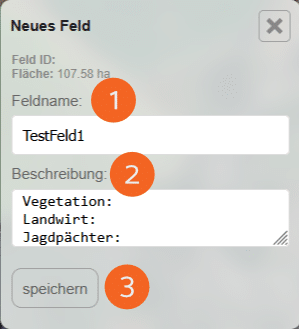
To create a new field, you must assign a field name (1). If necessary, you can add a more detailed description (2) of the area. Clicking Save (3) creates the field and assigns it a unique field ID.
List tags
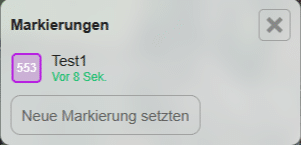
This function lists all existing markers on the map.
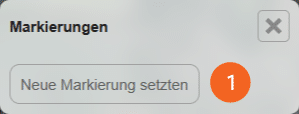
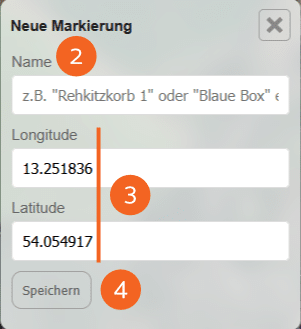
Clicking "Set New Marker" (1) creates a marker at the center of the map. You can name it as desired (2). If needed, you can adjust the marker's coordinates so that it appears in the correct location (3). Clicking "Save" (4) successfully creates the marker.
Note: When using POIConnect, markers you set will also appear automatically on the drone remote control – in real time!
Edit Markers
When a marker is selected, various editing functions are available:
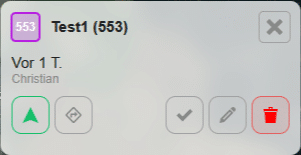
Navigation to the marker
Opens the application's navigation function and takes the user directly to the selected marker.
Open route planner
Opens an installed navigation application (e.g., Google Maps) so that navigation to the marker is also possible by car.
Disable/enable markers
This function allows the selected marker to be shown or hidden, making it either visible or invisible for the active job.
Edit marking
Here, the properties of the marker can be adjusted/changed.
Delete selection
Removes the selected marker from the current job.
Map north
Stops automatic orientation/map centering and orients the map to north.
Edit fields
Created fields can be edited and modified in several ways.
Option 1 - Field selection
Clicking on the created area will display the following window, which lists all information about the selected field:
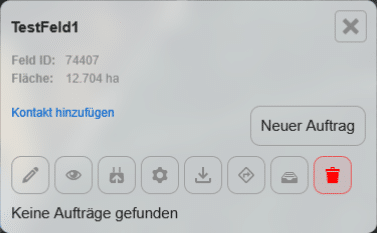
Field editor
Here, the selected field can be edited and adjusted. The created polygon, including its points, can also be modified here.
Show/hide field
For better overview or for editing purposes, the selected field can be shown or hidden.
Upload to controller
This allows the created field to be sent to active drone controllers connected to the POICloud and converted into a flight mission there.
Show field duplicates
Displays possible duplicates of the selected field.
Export field
For further use in external applications (e.g., GIS programs), the field can be exported here as a GPX or KML file.
Users of the beta version can also download a digital elevation model of the selected area in this section, which can be used for drone flights where the drone follows the terrain's elevation.
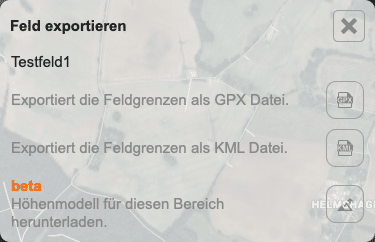
Navigation to the field
Opens a link to Google Maps, so that a route to the previously defined starting point of the field is created directly and navigation to the area can begin.
Archive field
Moves the selected area to the archive so that it is no longer displayed in the map view.
Delete field
Deletes the selected field and all associated orders.
Add contact:
Clicking the button opens a new window where you can either select a contact person (1) with the appropriate role (2) from an existing contact list, or create a new contact (see Team Management - Contacts & Downloads). Clicking Save (3) adds the new contact to the selected field.
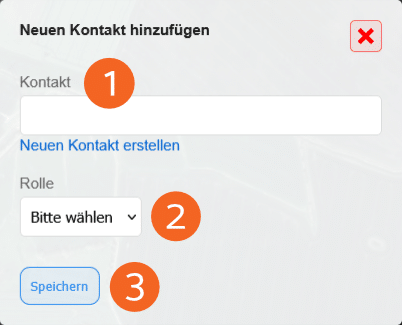
Variant 2 - Field Drawer
On the left side of the map view is the icon to open the field drawer (1). All areas belonging to the team are listed here. Individual fields can be edited/adjusted here even without prior selection. The editing functions are the same as in variant 1.
First, the field view must be selected (2). Fields can be searched for in the search field (3) using field name or field ID. Furthermore, externally created fields can be imported via the Import Fields button (4).
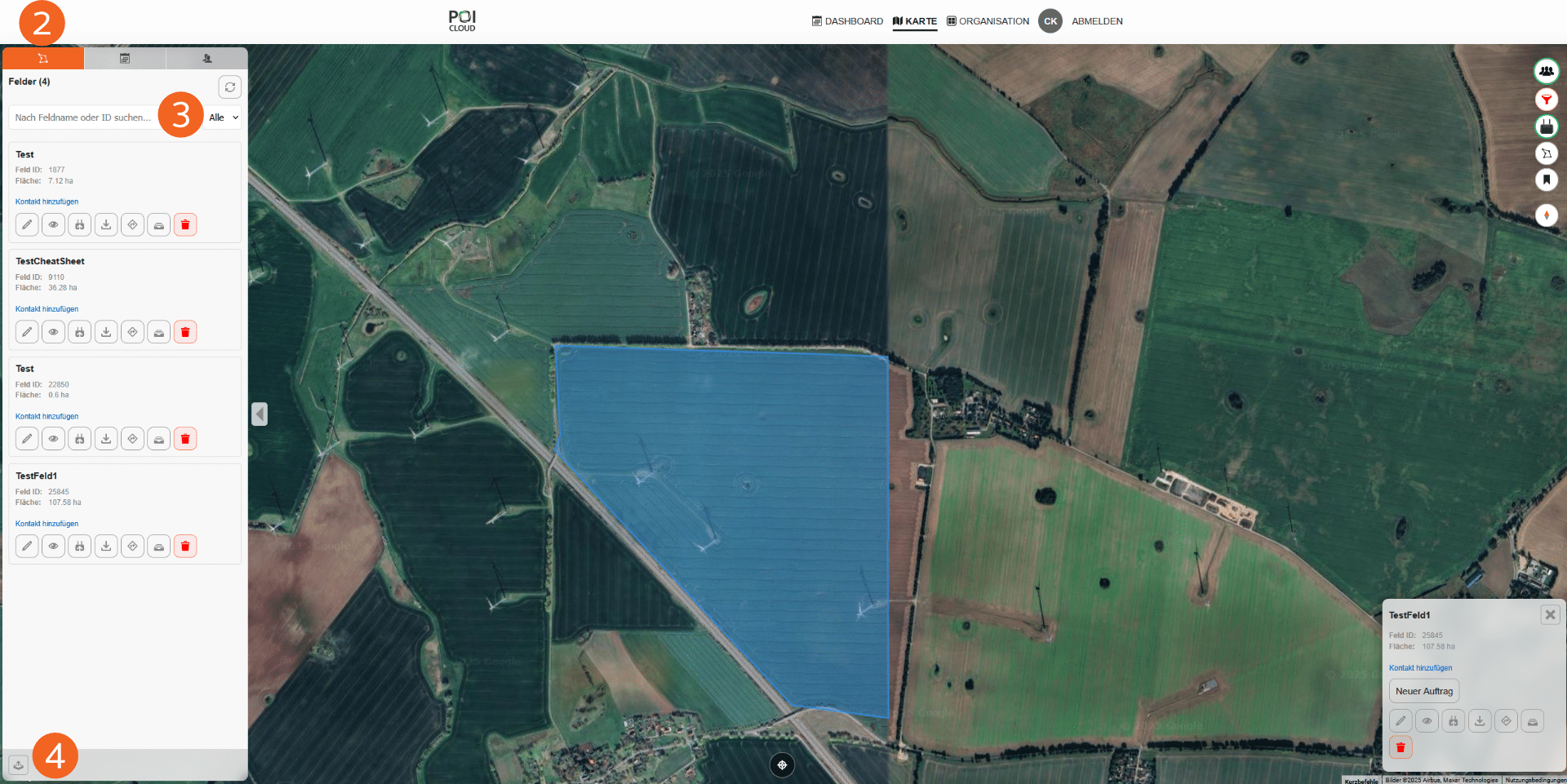
Flight planning
Exporting fields as KMZ files is possible once you've opened a field using the DJI Pilot app on your drone's remote control and transferred it to POICloud. This allows you to directly generate a flight mission with the corresponding flight parameters from the previously created field.
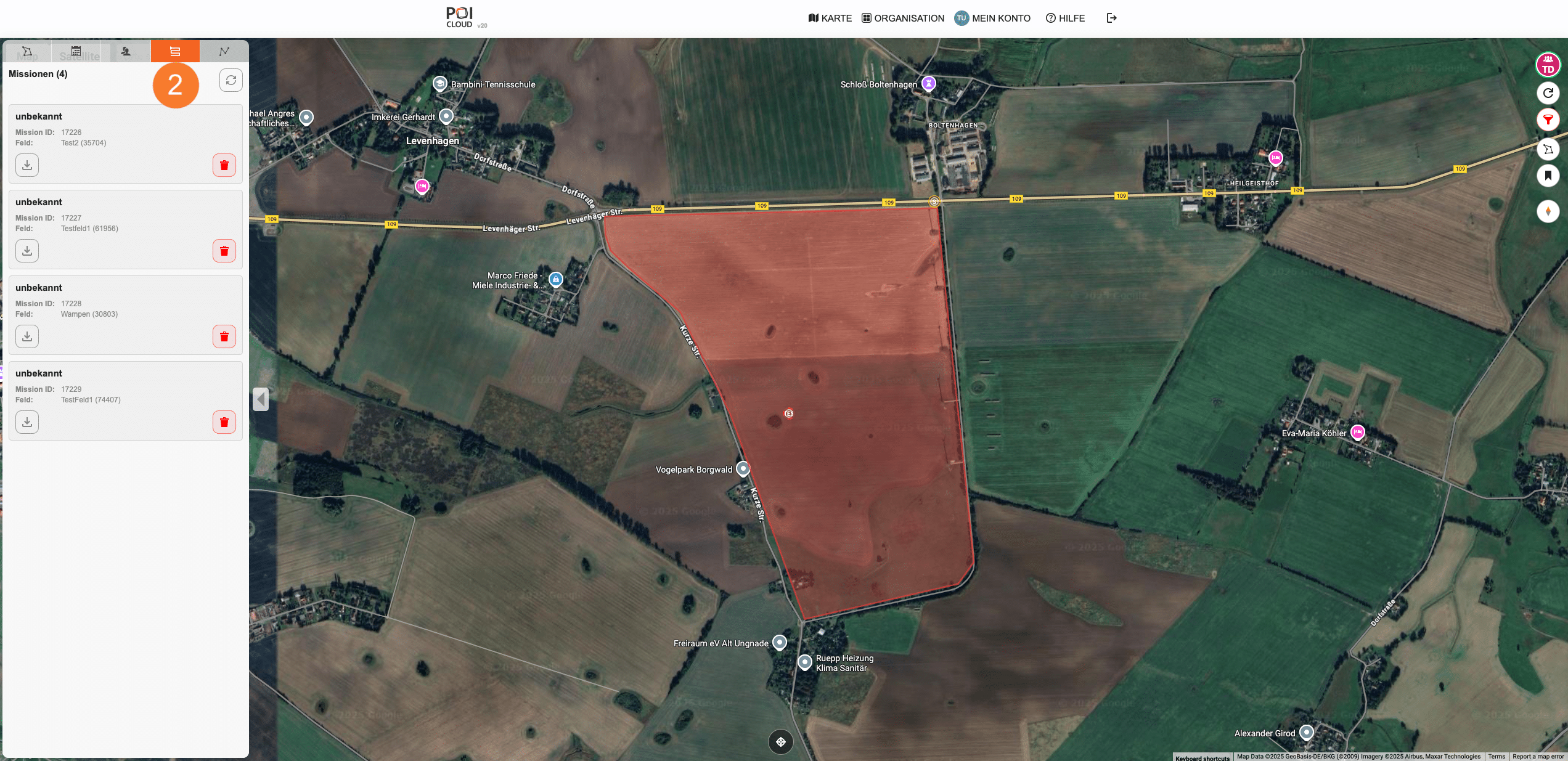
To do this, first open the field drawer (1) and then the Missions tab (2). If flight parameters were defined for the selected drone when creating the field, some values will already be preset.
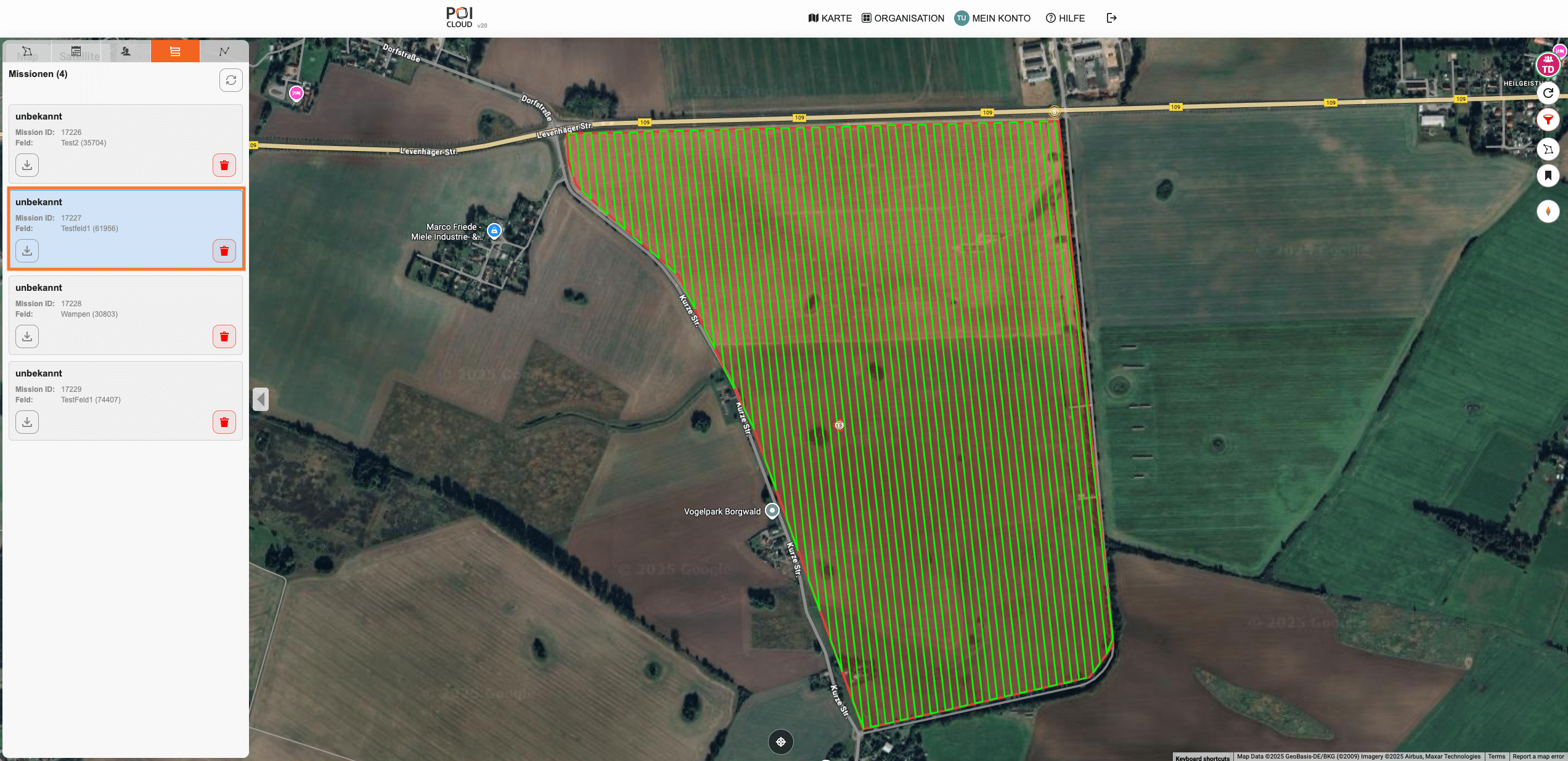
When a field is selected as a mission, it appears on the map with the flight paths calculated in the cloud. The routes can, of course, be adjusted and edited later.
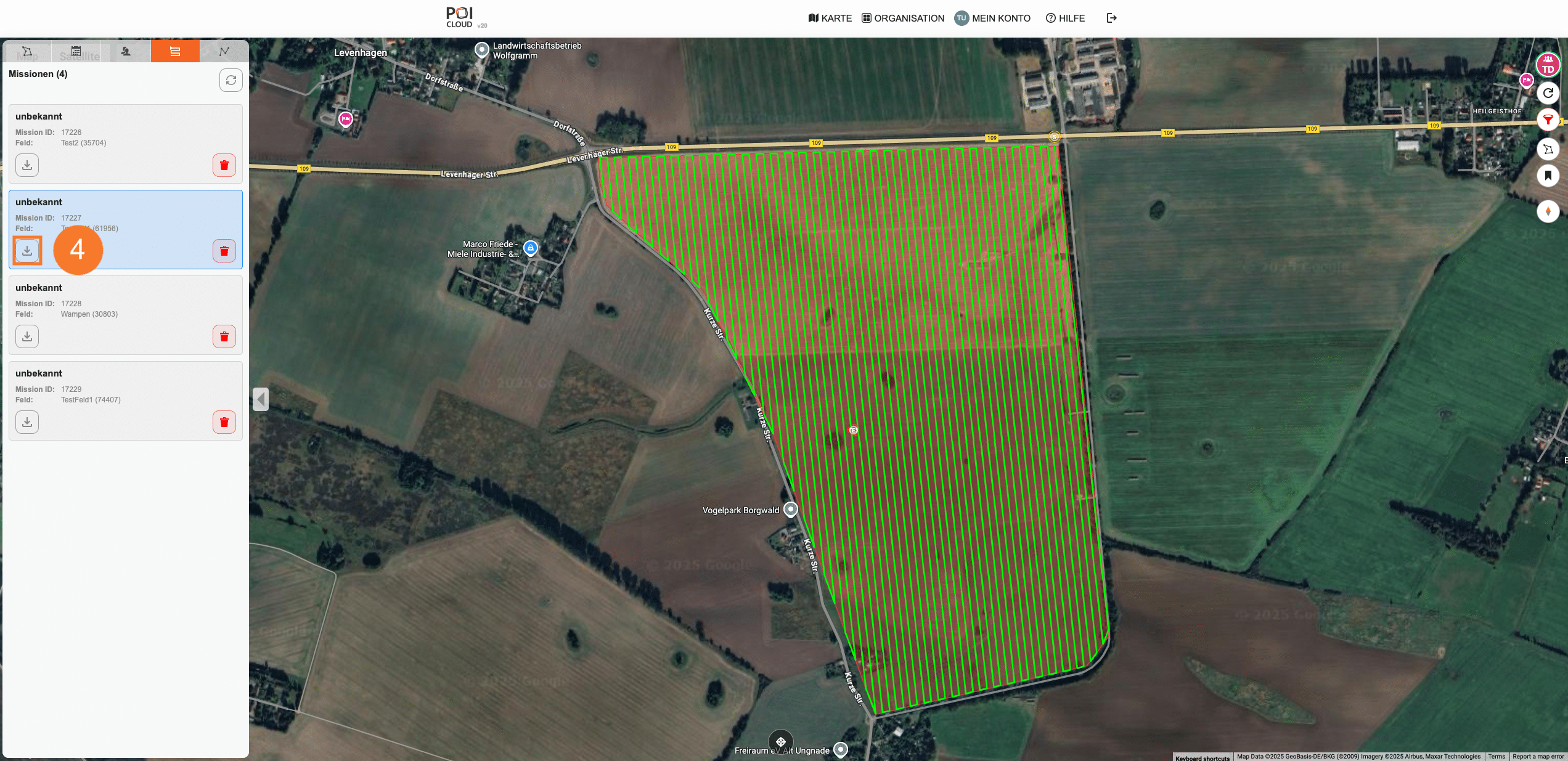
Clicking the Download button (4) exports the field as a flight plan, which can then be used on any DJI remote control.

Automatic flight planning
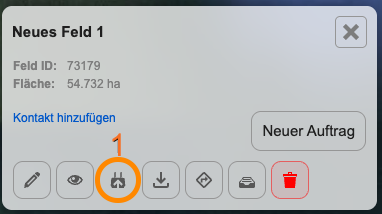
Once a field has been created with the flight parameters defined for the category and the desired drone, it can be transferred directly to the cloud. This usually happens immediately after creation. Alternatively, the field can also be manually uploaded to the connected drone remote control(s). To do this, select the field. In the pop-up menu that appears, simply click the upload button (1).
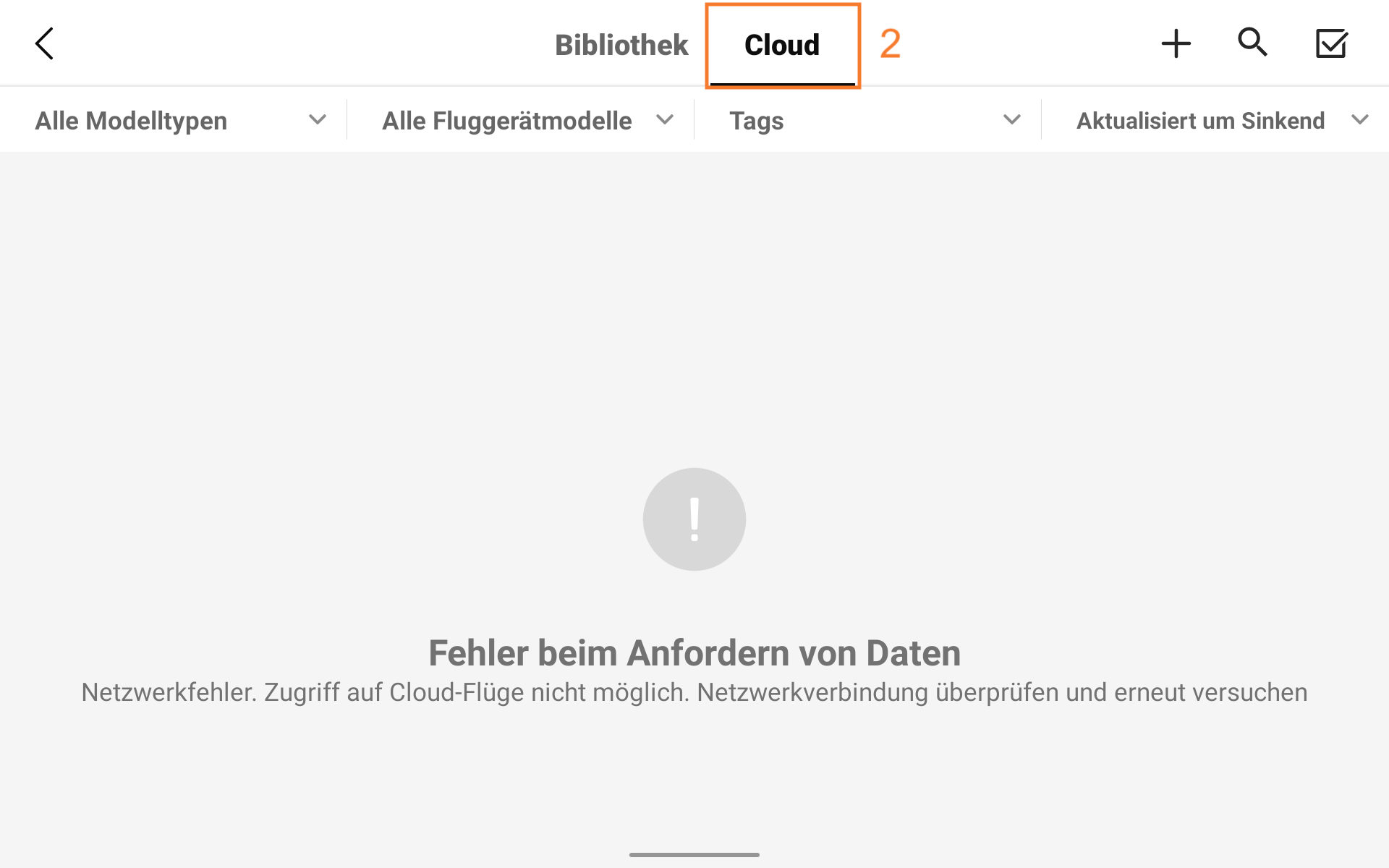
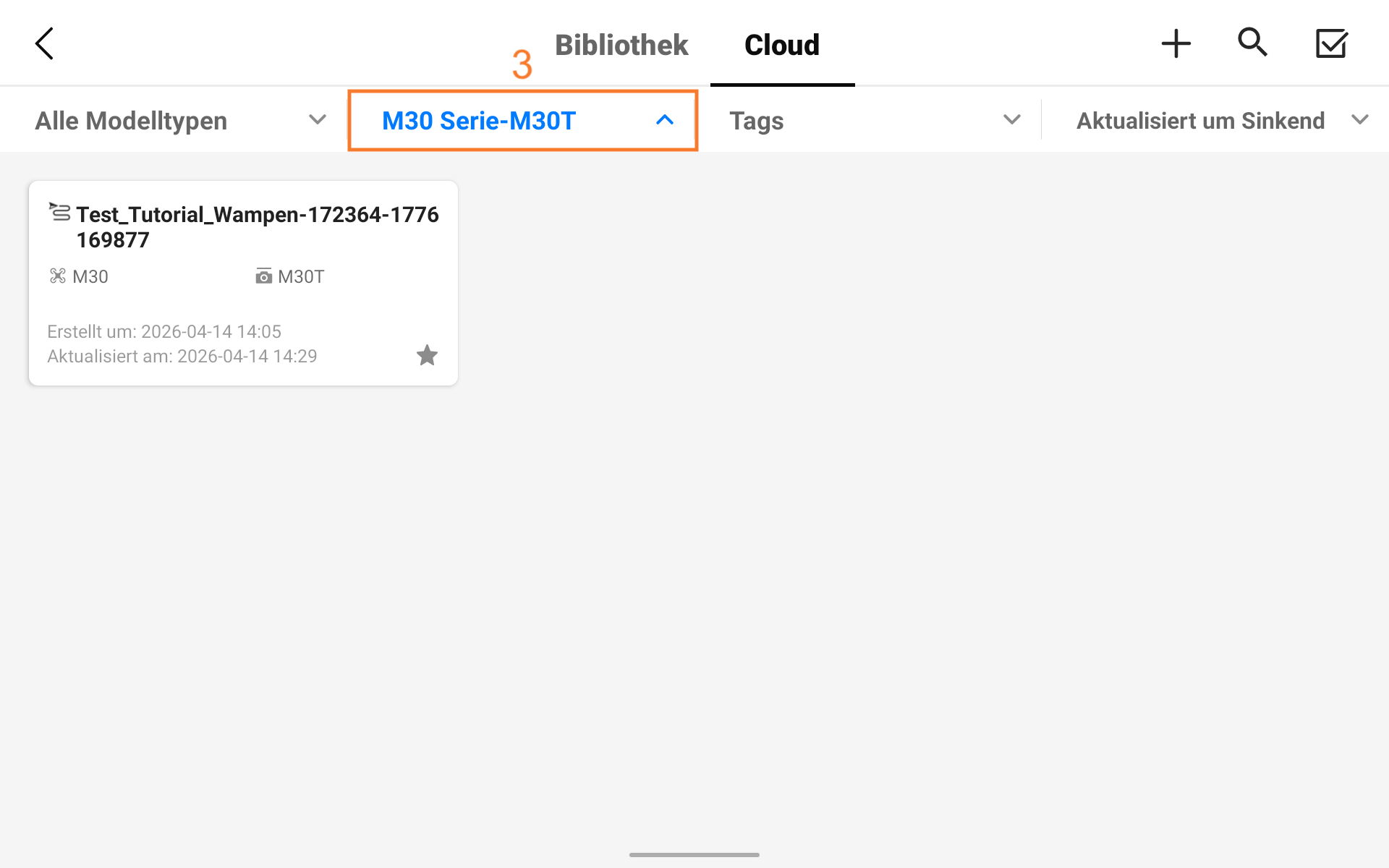
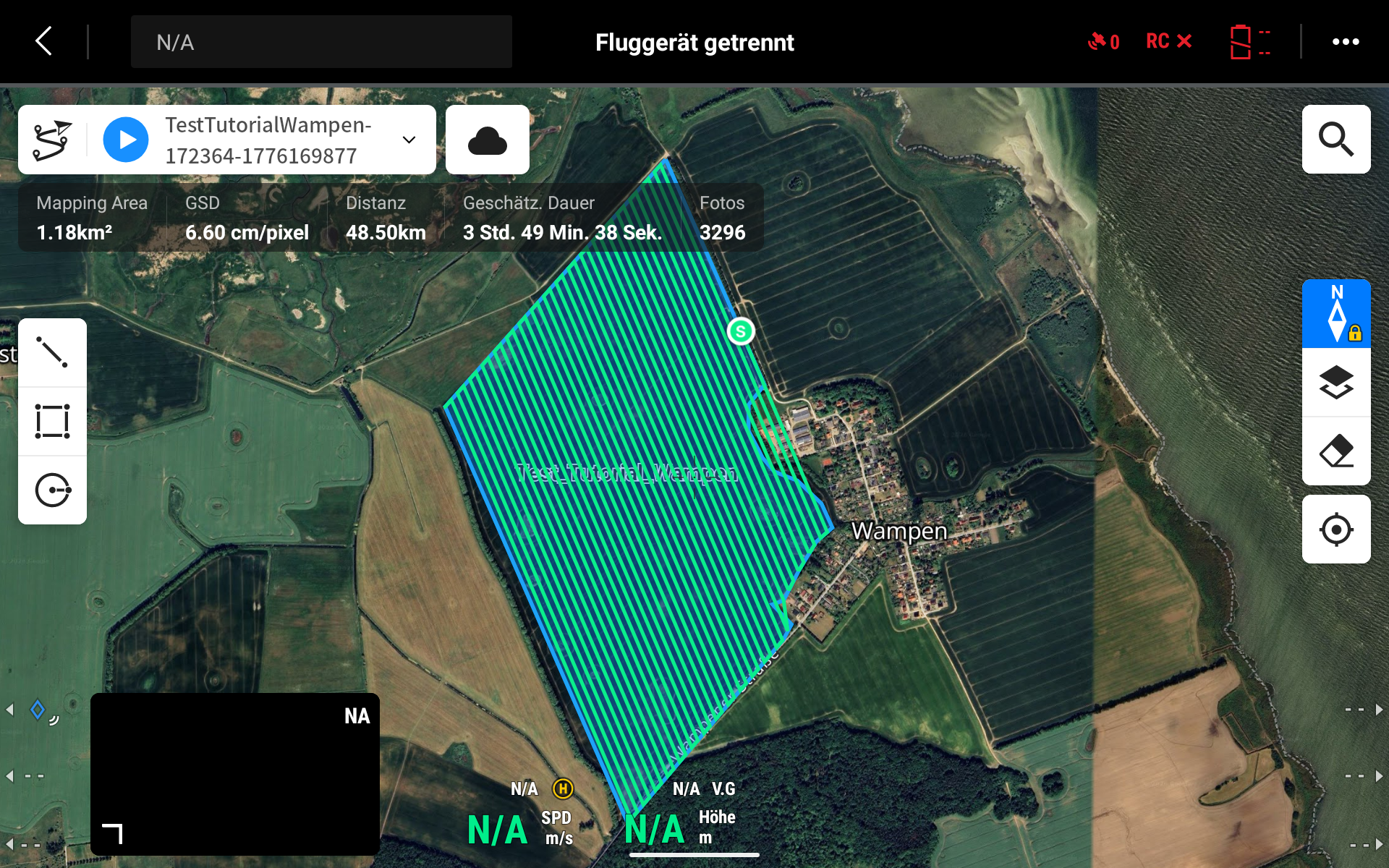
The corresponding field should then appear in the "Cloud" tab (1) of the flight routes in the DJI Pilot app. NOTE: Ensure that the correct drone for which the parameters were created is selected in the aircraft model selection menu (2). In our case, it's the M30T. Clicking on the mission opens the map view of the DJI Pilot app. Here, the automatically generated flight route appears with all associated information such as size, estimated duration, and estimated number of photos to be taken. The mission can now be easily started using the blue play button.
Edit flight routes
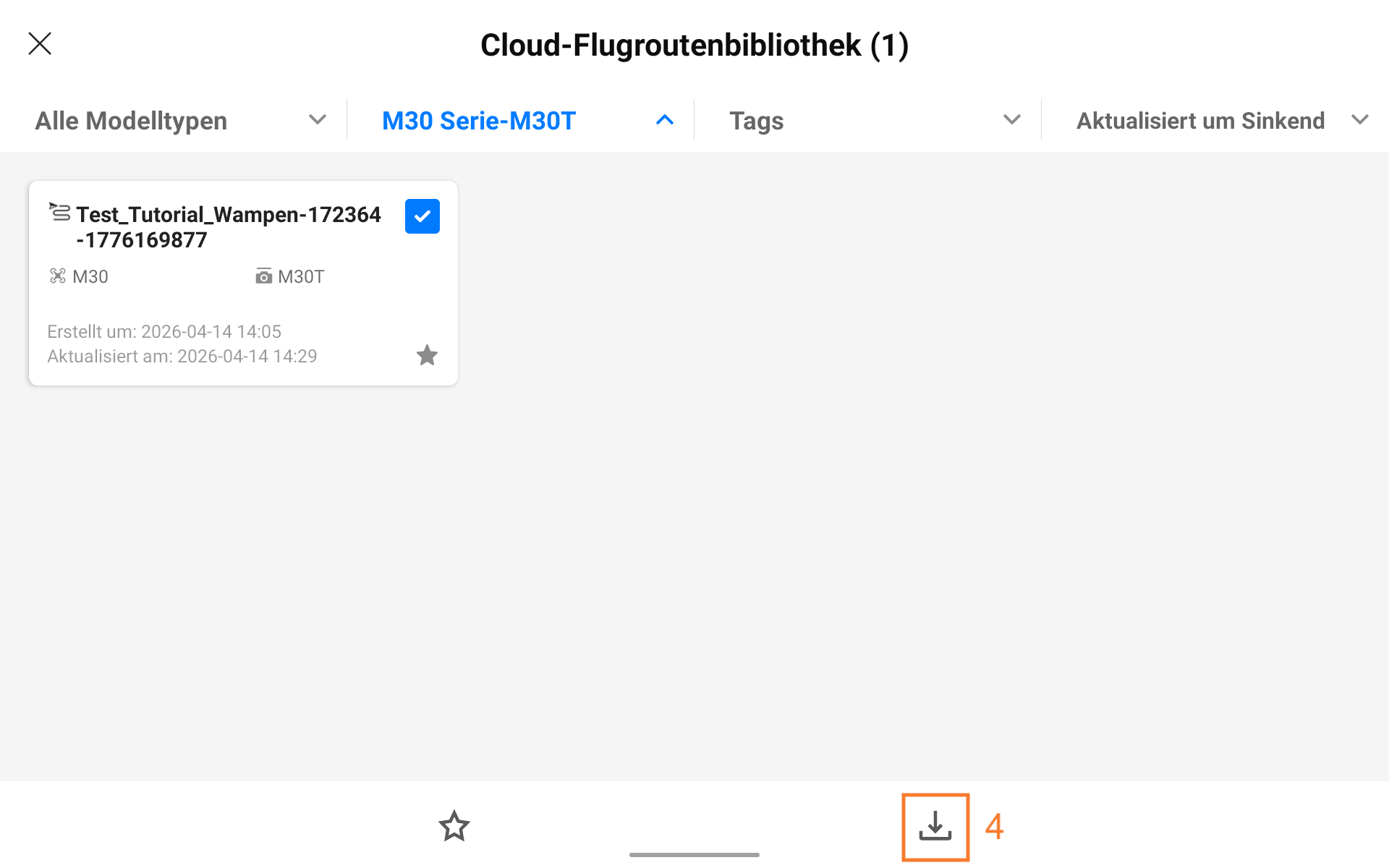
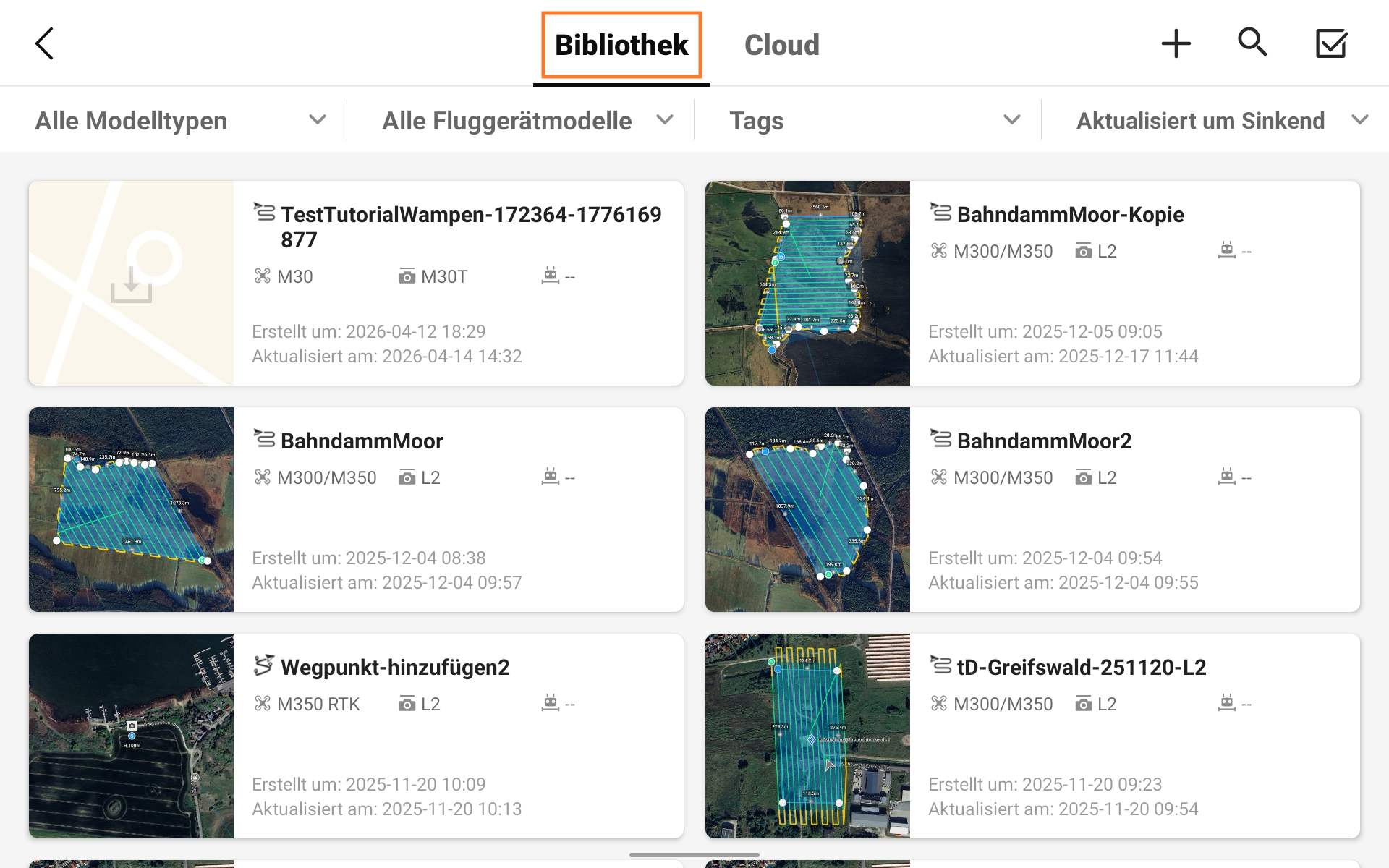
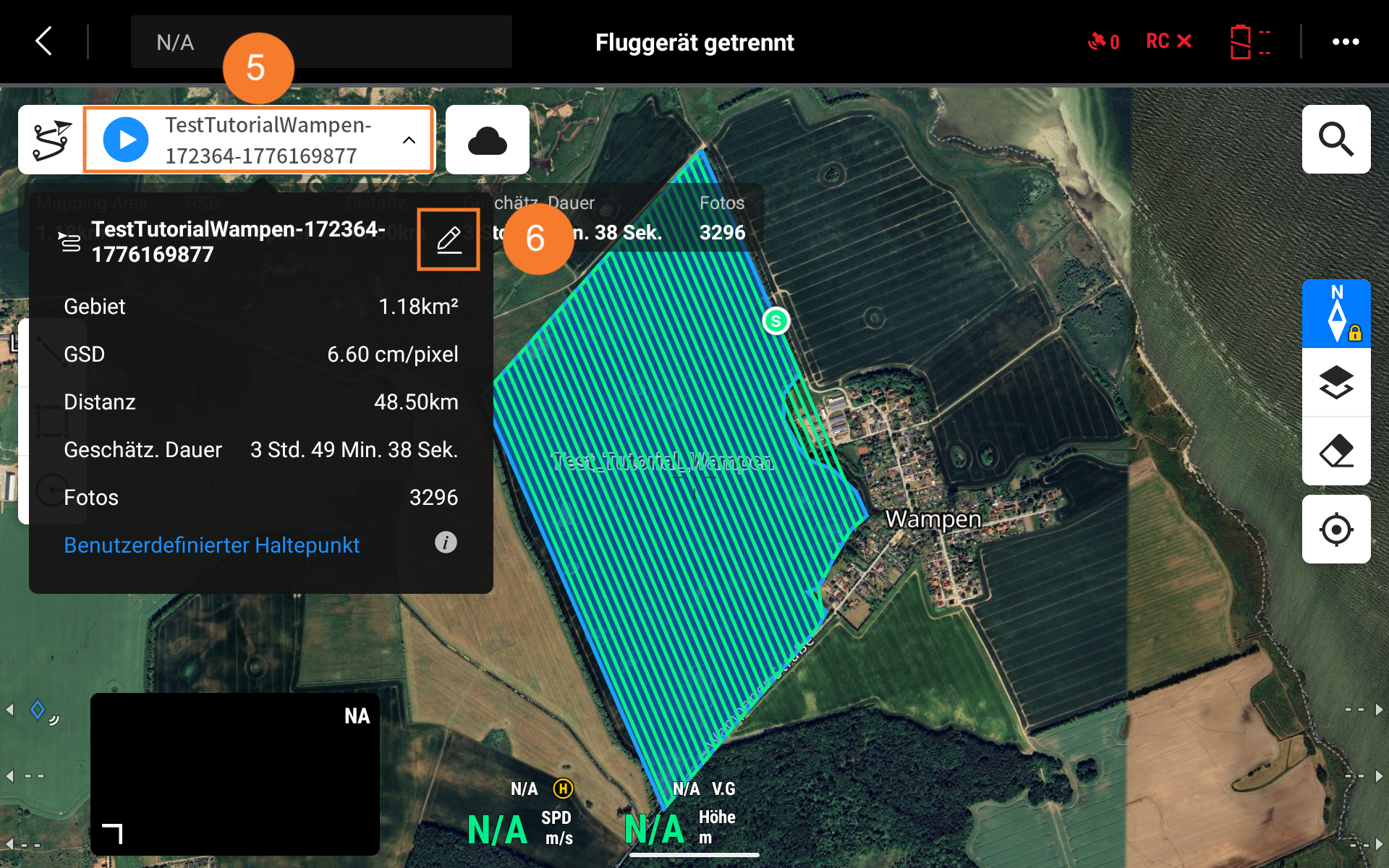
The automatically generated flight route cannot be customized within the cloud. It must first be downloaded. To do this, press and hold the corresponding mission until it is selected. Then, it can be saved to the flight route library using the download button (4). From there, it can be opened with a single click, returning you to the map view. To edit the mission, tap the mission name (5) and then tap the pencil icon (6) to access the route settings.
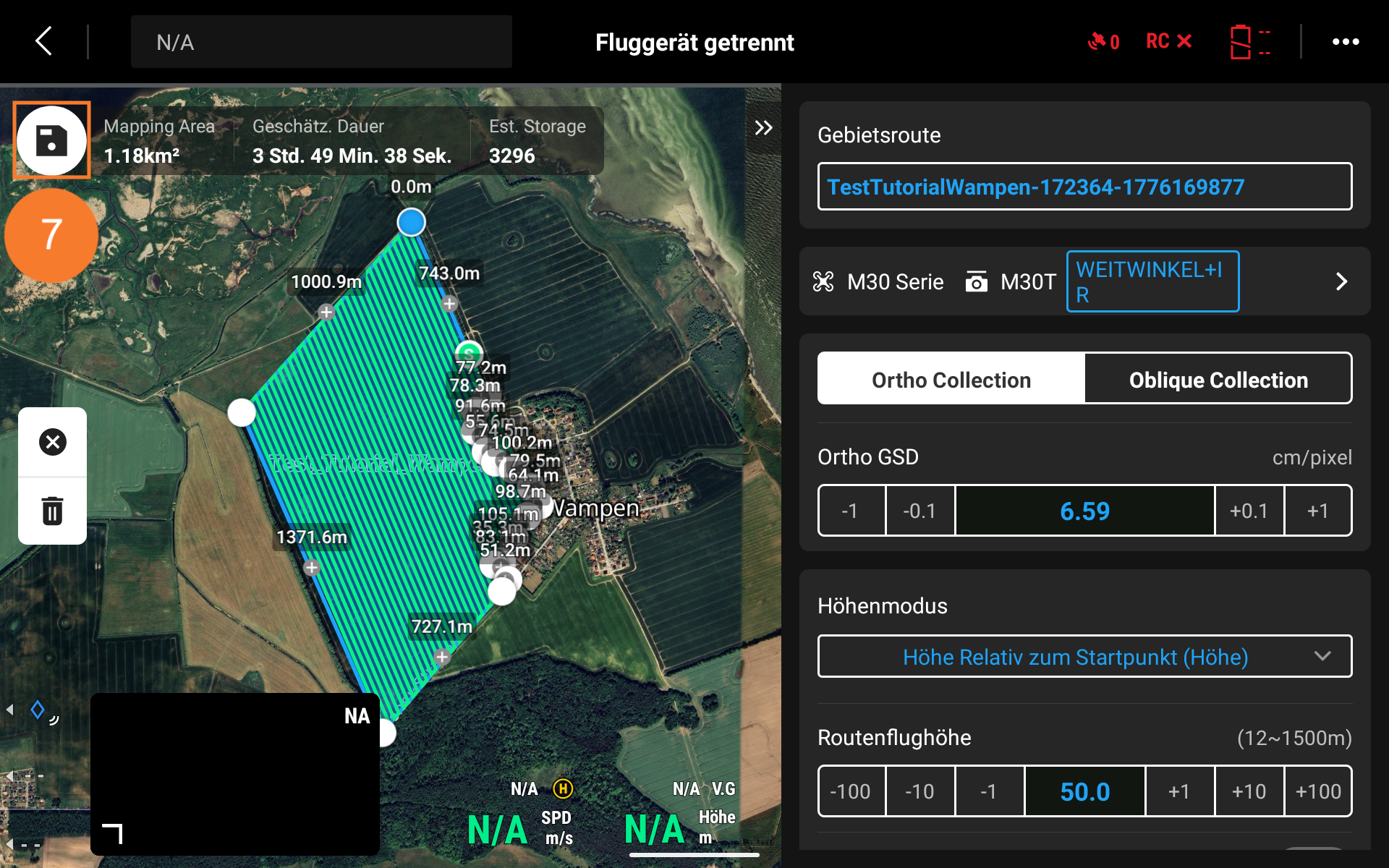
After editing, you can save the changes using the save button (7) and then start the flight mission as usual.
Create orders
Once a field has been created, an order can be generated from it. The most important steps for this process are outlined here.
If a field is selected, the following window appears in the lower right corner of the screen:
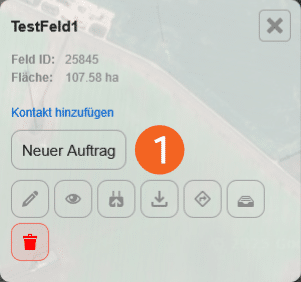
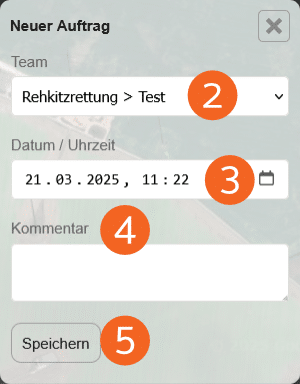
Clicking on New Order (1) opens another editing window where all the important information for the new order is entered.
If multiple teams are defined in the organization and department, the corresponding team (2) is selected for the order when creating the order.
The exact date and time for processing the order are set in the Date/Time field (3), and the Comments field (4) provides space for additional useful information about the order.
Clicking the Save button (5) successfully creates the new order.
Color coding of the fields
For clarity, fields are color-coded according to their status. This makes it easy to see which fields contain orders, which fields have already been successfully searched, and which fields are currently inactive.
-
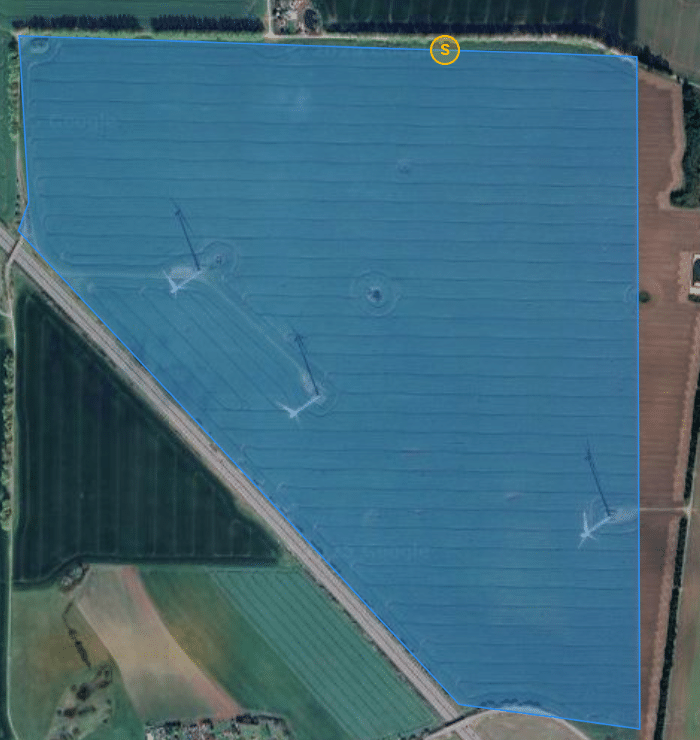
Blue: Field without an active order
-
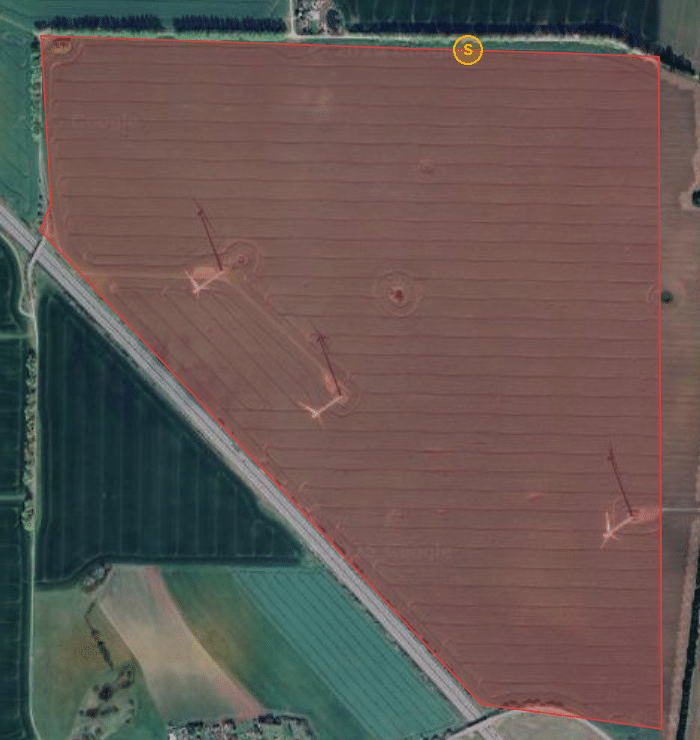
Red: Field with active order
-
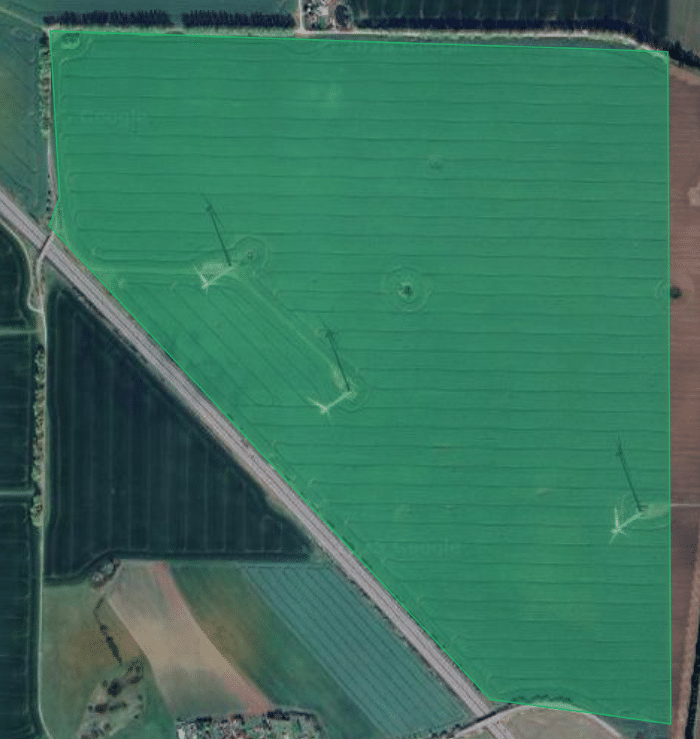
Green: All orders are completed
Order Management
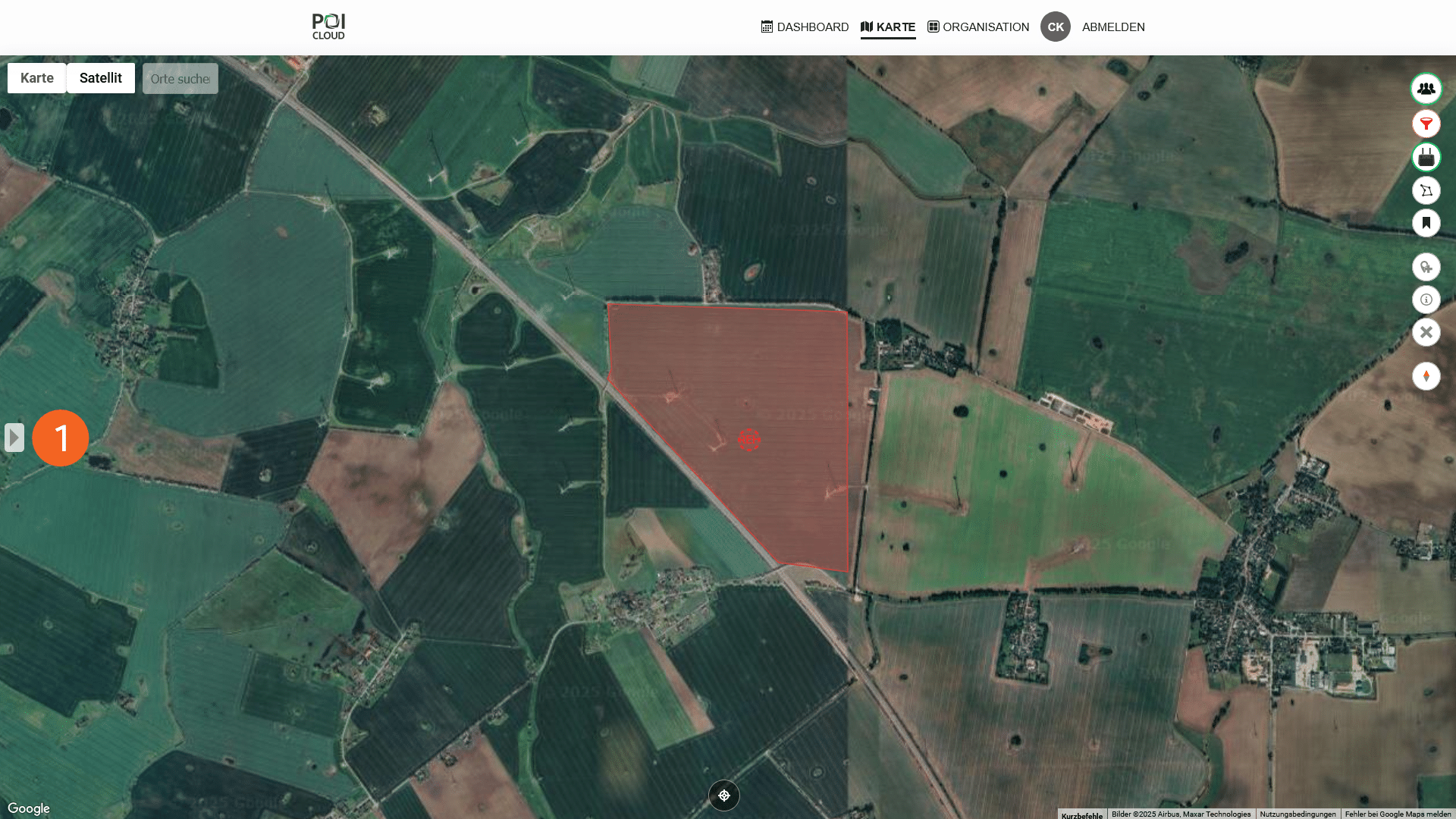
Once an order has been created, it will be listed with its corresponding order number in the drawer menu (1) on the left side of the screen.
In the order view (2), all important information can be seen again at a glance. This includes, among other things, the field name, the date and time of processing, and the number of POIs marked on the area.
Here, too, you can search for individual orders using the name or the ID/order number. This is done via the search field (3).
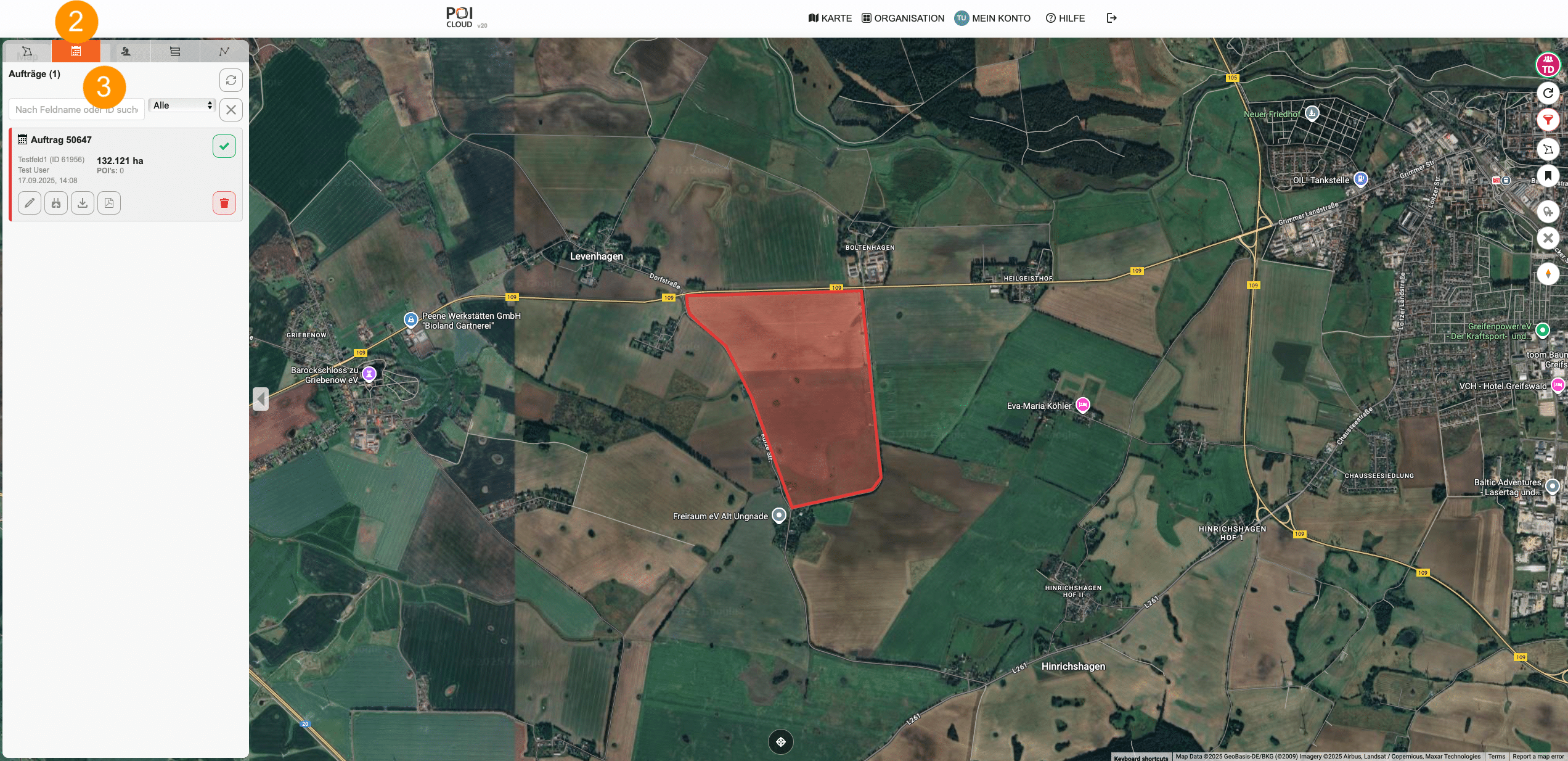
The following functions are available for processing and managing all listed orders:
Process order
This allows an existing order to be subsequently modified; for example, if a different team is to be assigned or the order deadline has changed.
Complete order
Once the task is successfully completed, it can be marked as completed by clicking the button, both on the map and in the team's task overview. The corresponding field will then also appear with a green color code.
Upload order
Clicking this button will transfer the task and its associated field to all active drone remote controls connected to the team.
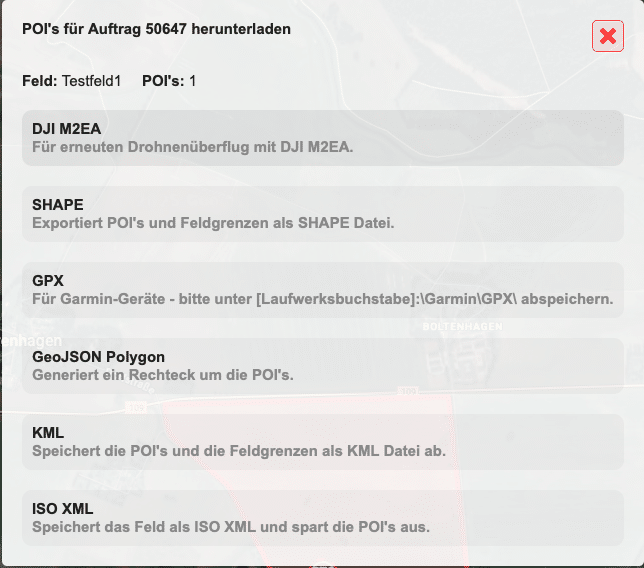
Download POIs
This allows you to download all POIs stored in the selected area in various file formats.
Save order as PDF report
This allows a report containing all important information, such as the number of fawns rescued, field size, flight duration, etc., to be generated and downloaded in PDF format after a mission has been completed.
Further options for order management
If an active order is selected, additional icons with order management functions will appear on the right side of the map:
Manually add new POI
Here, users can manually create a POI. This will always appear directly in the center of the map. For example, if an object is found during the search that was previously not visible via the drone, it can be added retroactively in real time. When using POIConnect, this marker also appears directly on the drone's connection and can be reviewed.
The following window appears when the button is clicked:
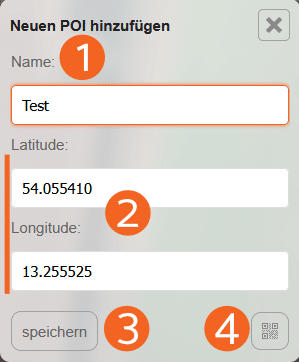
A name (1) can be assigned to the POI. When setting the POI, the coordinates always correspond to the center of the current map view. If you wish to set the coordinates manually, this is possible in the Latitude and Longitude fields (2). Clicking Save (3) successfully creates the POI.
Add POI via QR code
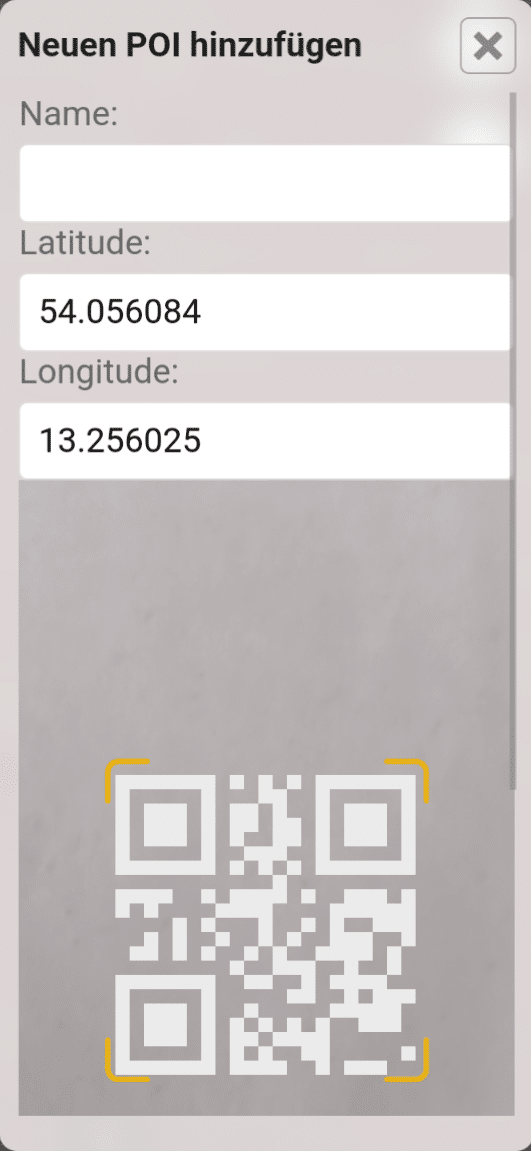
Furthermore, DJI drone remote controls offer the option of outputting a marker as a QR code. To add such a marker to the current mission, select the QR code icon (4) and scan it using the device's camera:
Information about the current order
All information regarding the order can be viewed here.
Export POIs
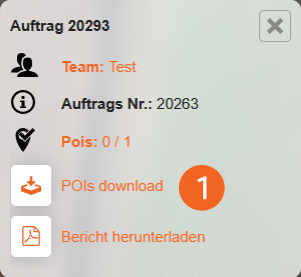
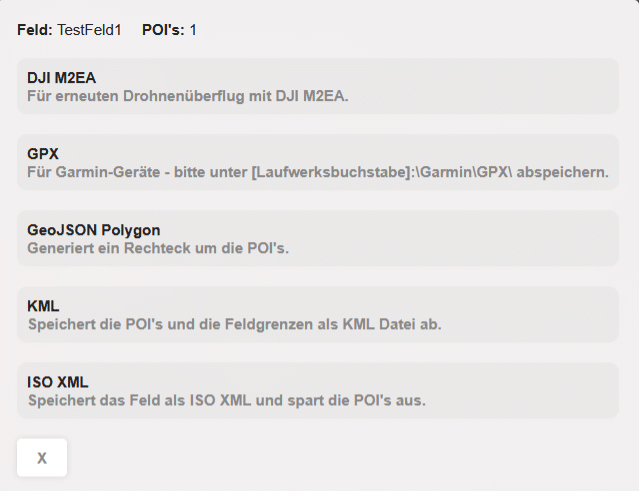
All saved POIs can be downloaded in various file formats using the download button (1). This allows them to be used in external programs or on external devices that are not connected to the POICloud.
Download report
Using the "Download report" button (2), you can generate and download a summary of the current order in PDF format. This can be used, for example, as proof of the completed flight.
Linking drone remote control - POICloud
To use services like POICloud or POIConnect/EasyPOI, all drones involved in the operation must be linked to our cloud service. The following section explains how this works.
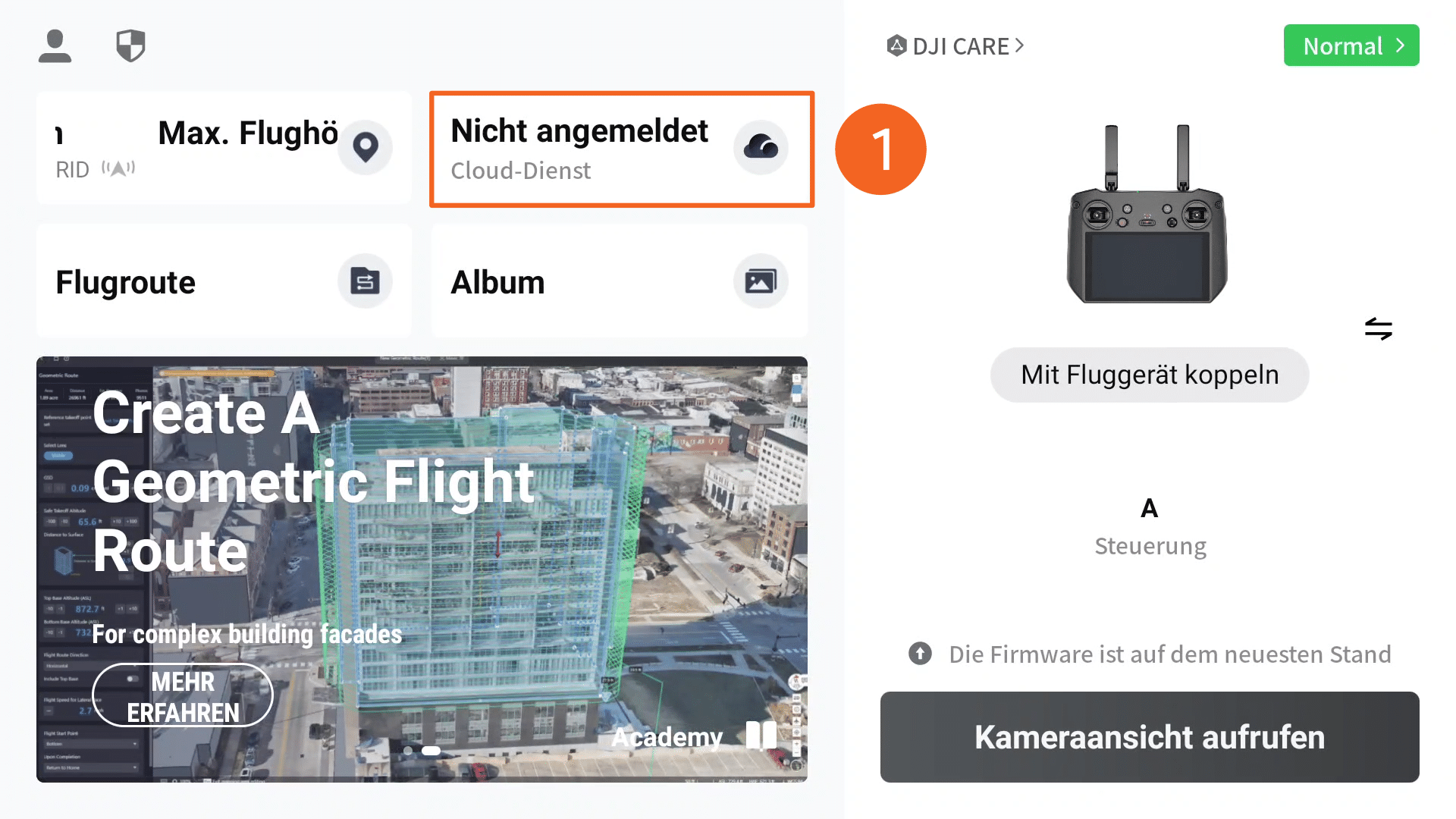
DJI Pilot app user interface
The following view will initially appear on the drone remote control screen. Under the Cloud Service (1) option, you can add a cloud service. By default, the message "Not logged in" will appear here.
After clicking this button, the menu for cloud services opens. Since POICloud is a third-party service, the Open Platforms panel (2) must be selected here.
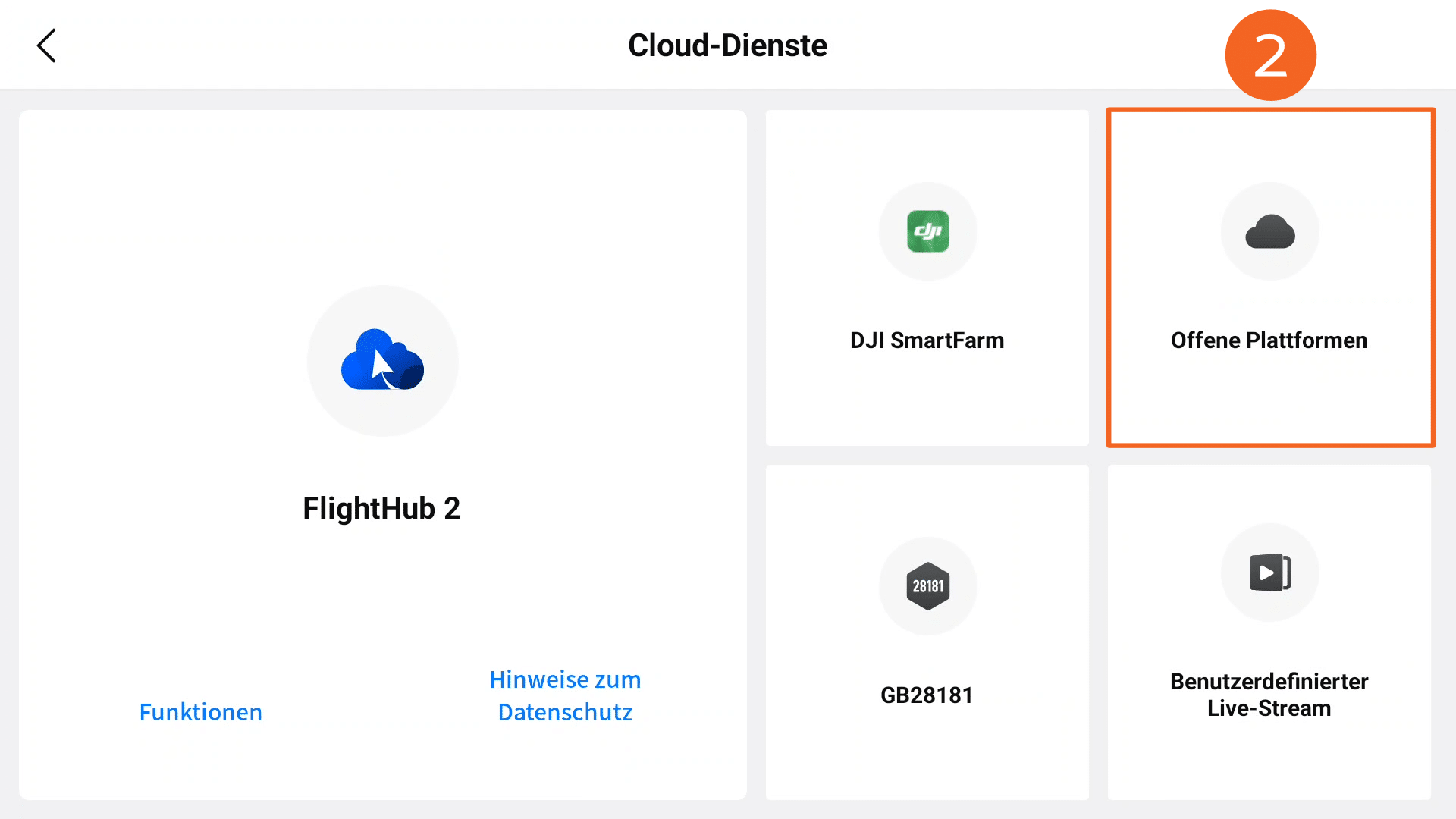
Next, the corresponding web address/URL (3) must be entered. In the case of POICloud, this would be https://poicloud.de/cloud. Clicking "Connect" establishes a connection between the drone remote control and POICloud.
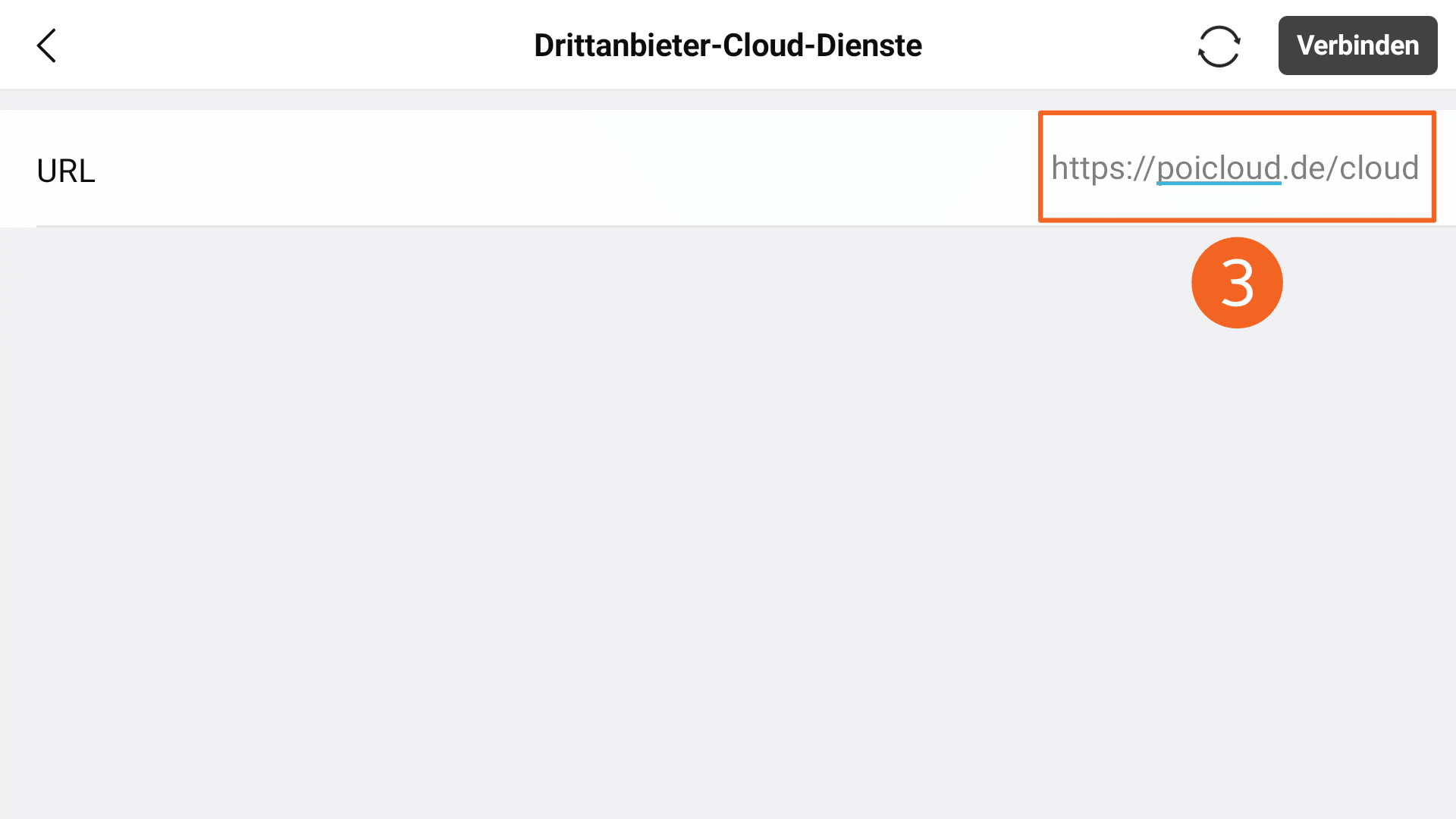
POICloud registration
In the following login window, you must enter your email address (4) and password (5). These details correspond to the POICloud login credentials used when creating your account. Log in by clicking the login button (6).
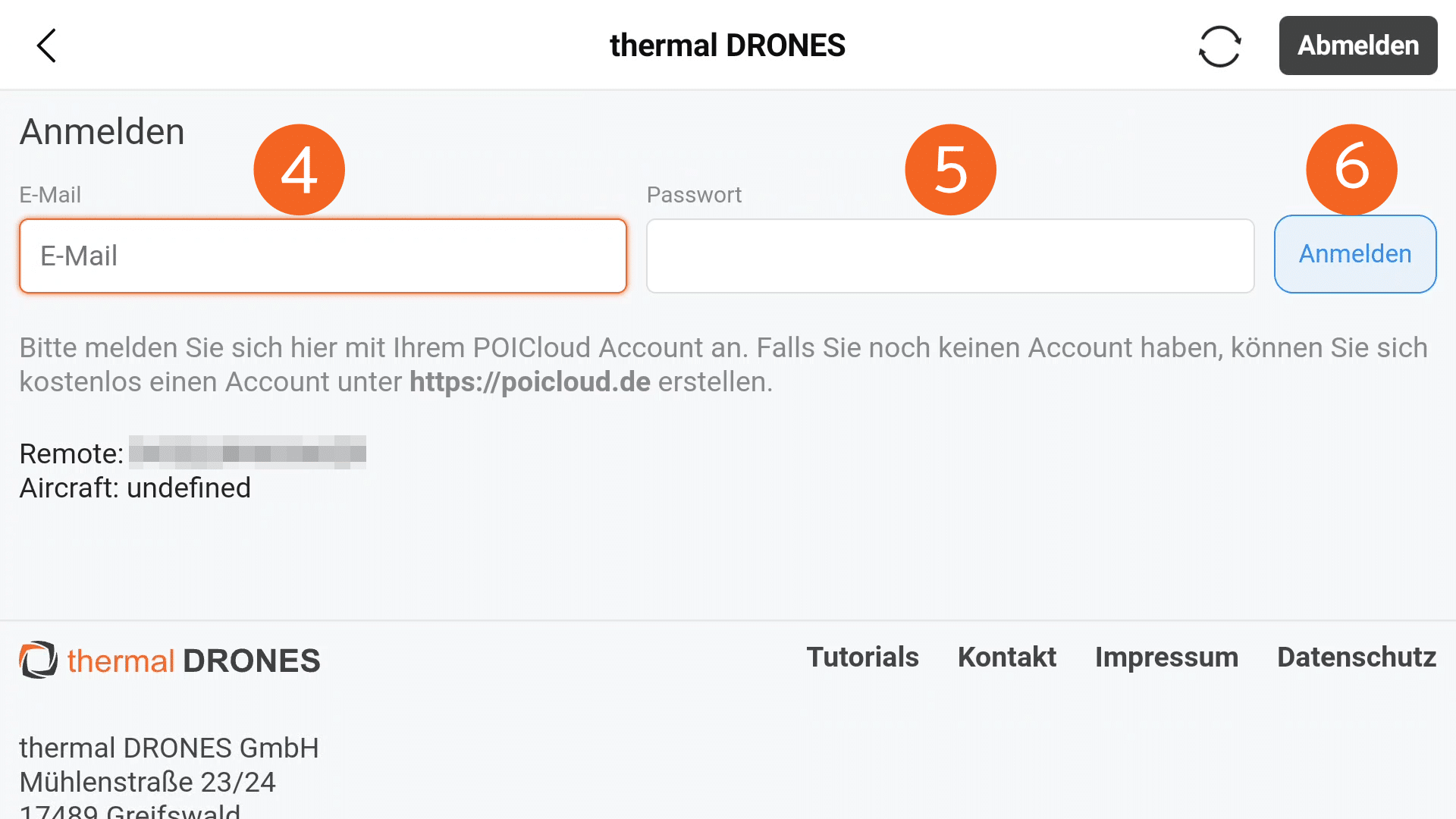
Selection Organization & Team
After logging in, the POICloud user interface homepage opens. First, you must select the appropriate organization (7). If such an organization already exists and the specified account is a member, the selection will be made automatically.
In addition, you can activate a 14-day trial access to POIConnect in this overview. Simply click the "Start Free 14-Day Trial" button (8). Once activated, features such as the automatic transfer of POIs from the drone to the POIApp will be available for a limited time.
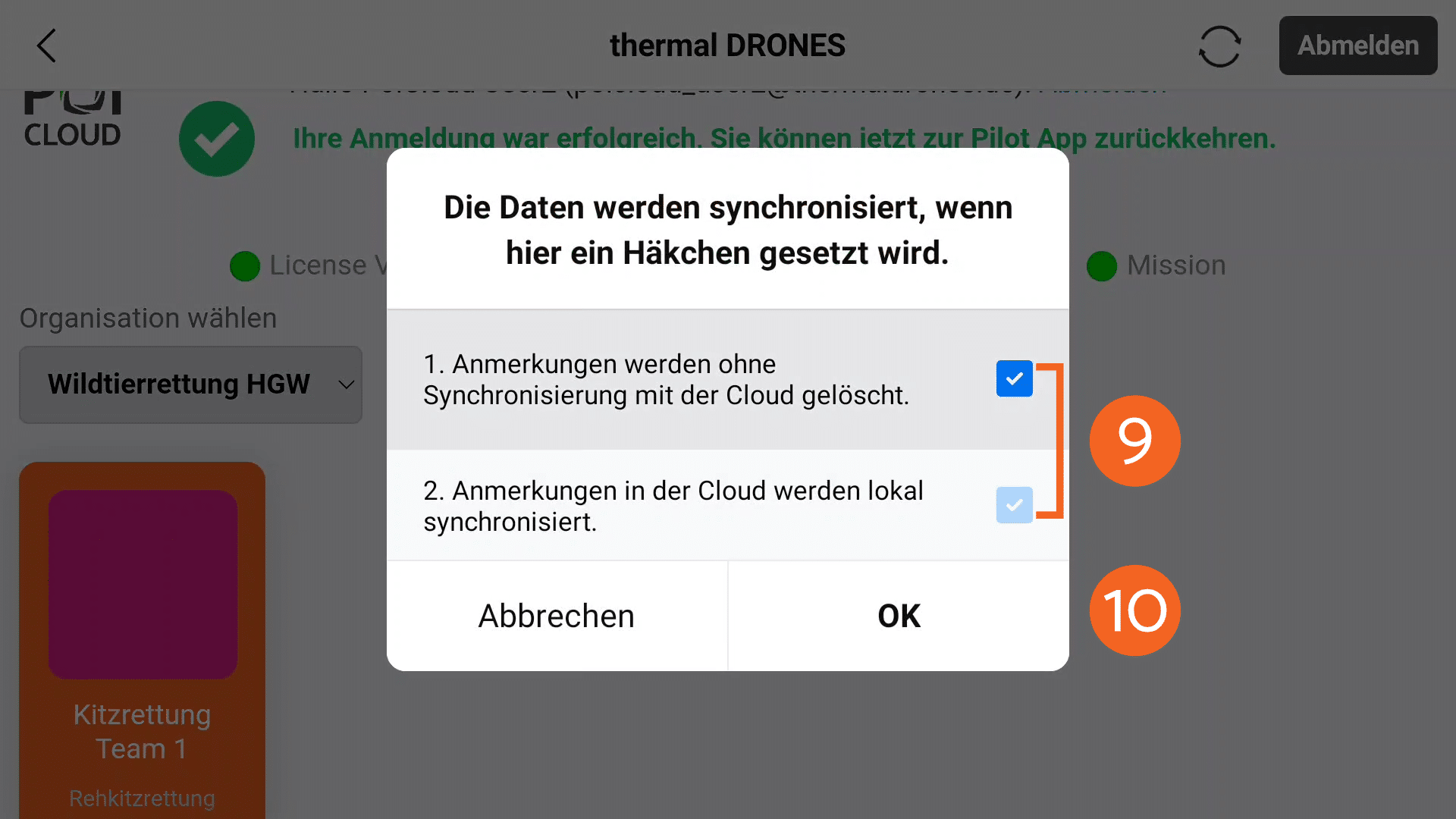
After selecting the organization, a window opens where you can configure the data synchronization preferences. It is important that both options are checked (9). Clicking OK (10) confirms the settings.
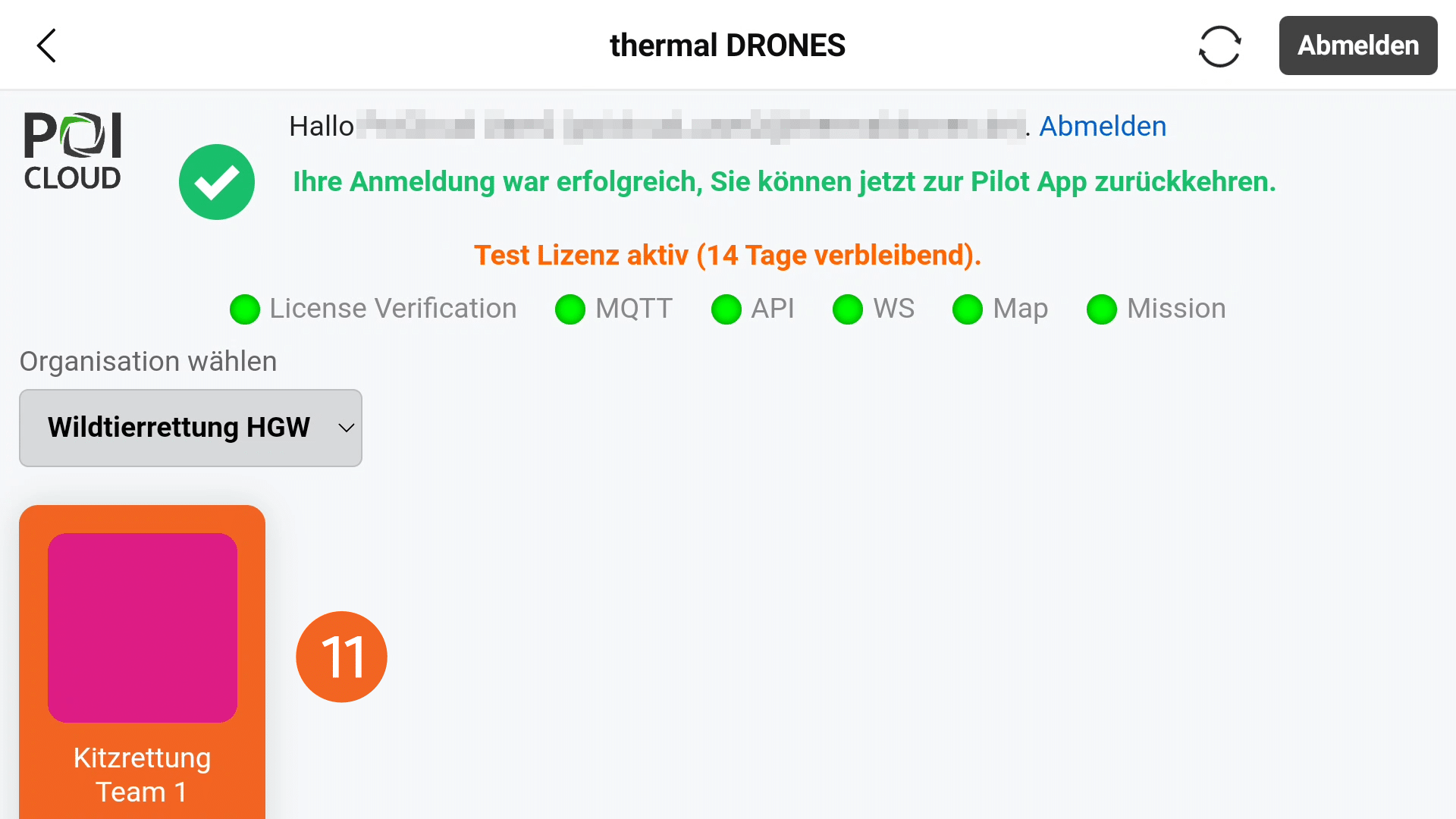
The overview now displays all teams within the organization. After selecting the appropriate team (11) and uploading the data, all currently created areas are visible on the drone remote control. Markers placed with the drone also only appear in the team to which the drone is currently linked.
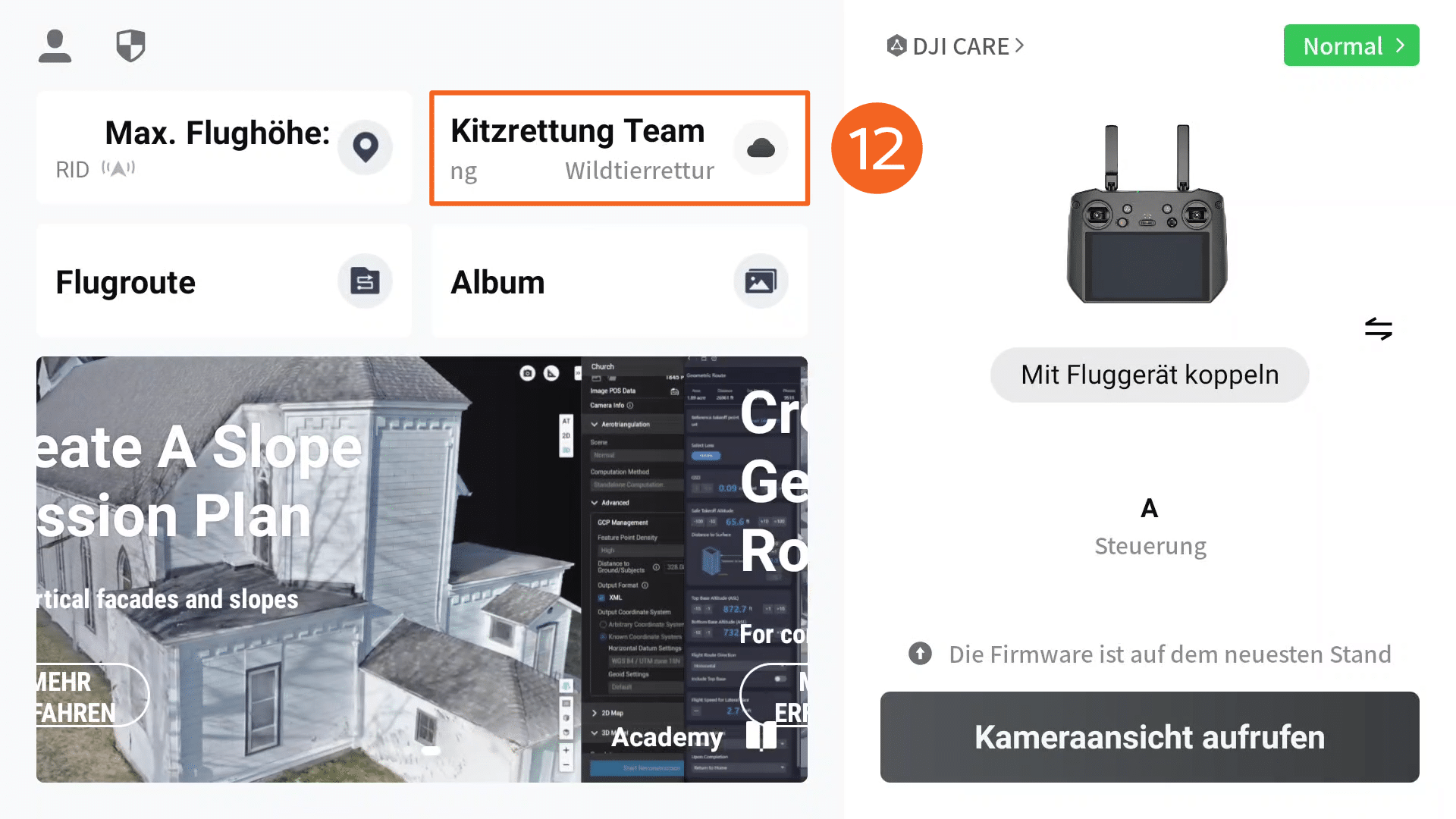
Upon returning to the remote control's home screen, the selected organization and active team now appear in the overview of cloud services (12) and the linking is complete.