
Note: If a drone was purchased from us, POIConnect is included as a full version with the purchase. To use the full version, the 14-day trial version must first be activated. Afterwards, we can manually unlock the feature by assigning the drone's serial number. Therefore, please be sure to contact us after setup!
Linking Drone Remote Control - POICloud/POIConnect
In order to use services such as POICloud or POIConnect/EasyPOI, all drones involved in the operation must be connected to our cloud service. How this works is shown in the following section:
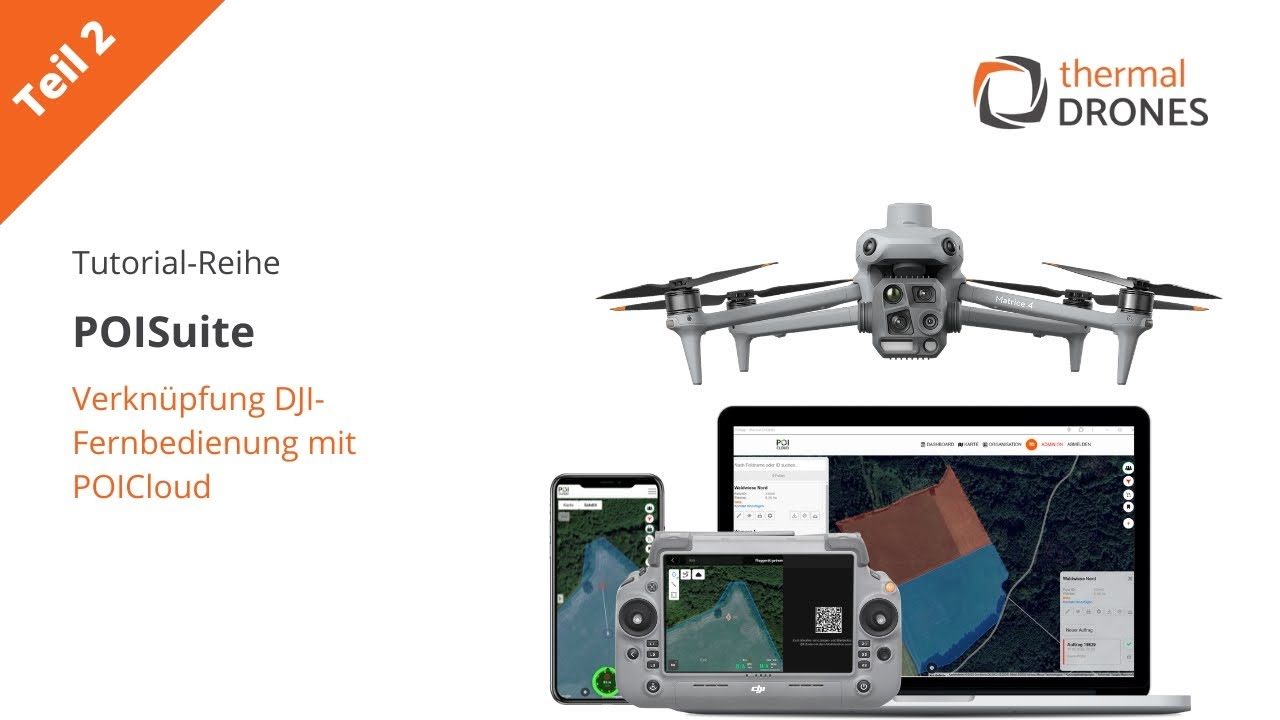
Note: For the setup and use of POIConnect, the drone remote control must be connected to the internet. Therefore, ensure beforehand that Wi-Fi is activated and the remote control is connected to a network (e.g., a smartphone's Wi-Fi hotspot).
DJI Pilot2 App User Interface
First, the following view appears on the drone remote control screen. Under Cloud Service (1), you have the option to add a cloud service. By default, the message ‘Not logged in’ appears here.
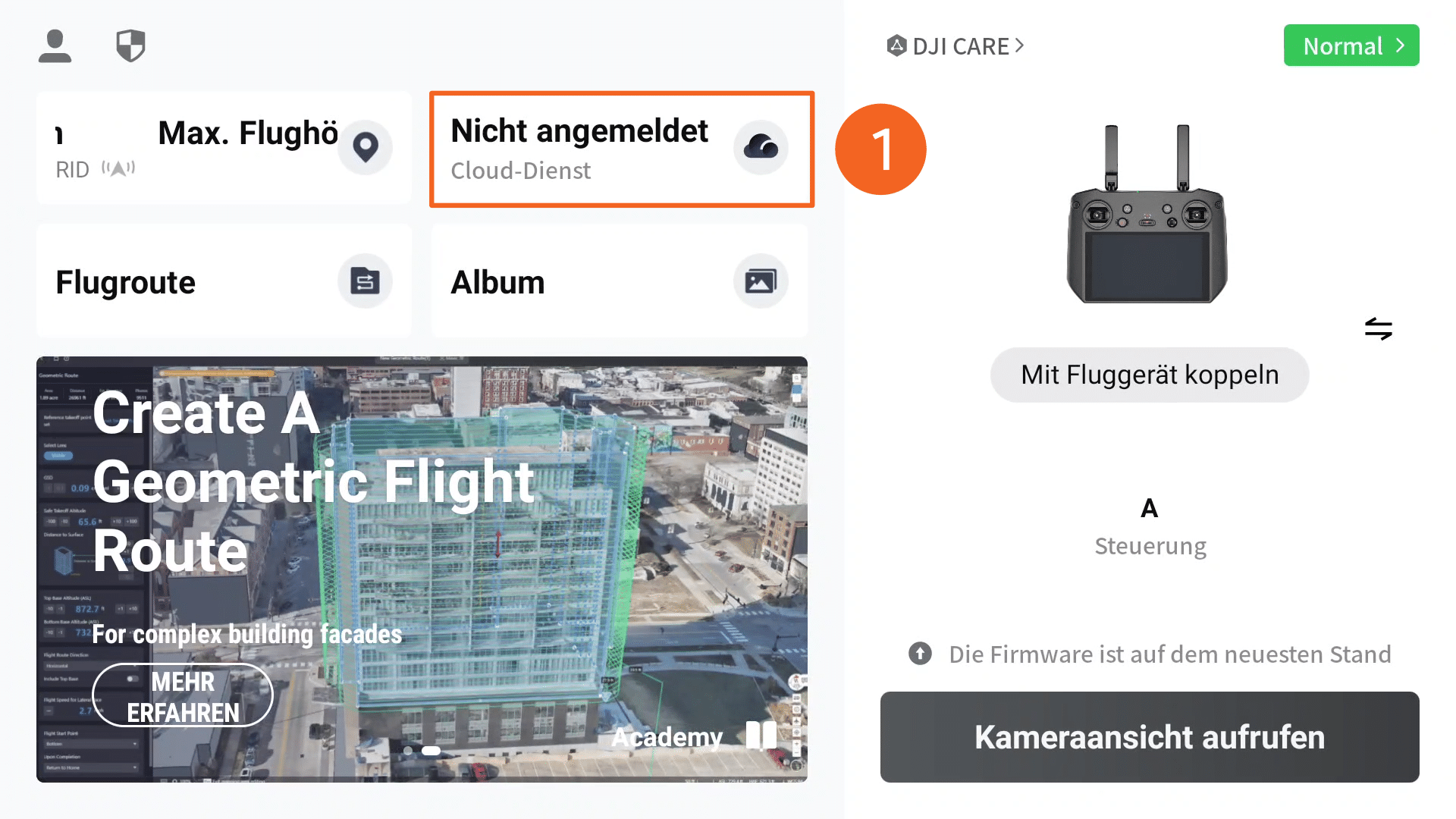
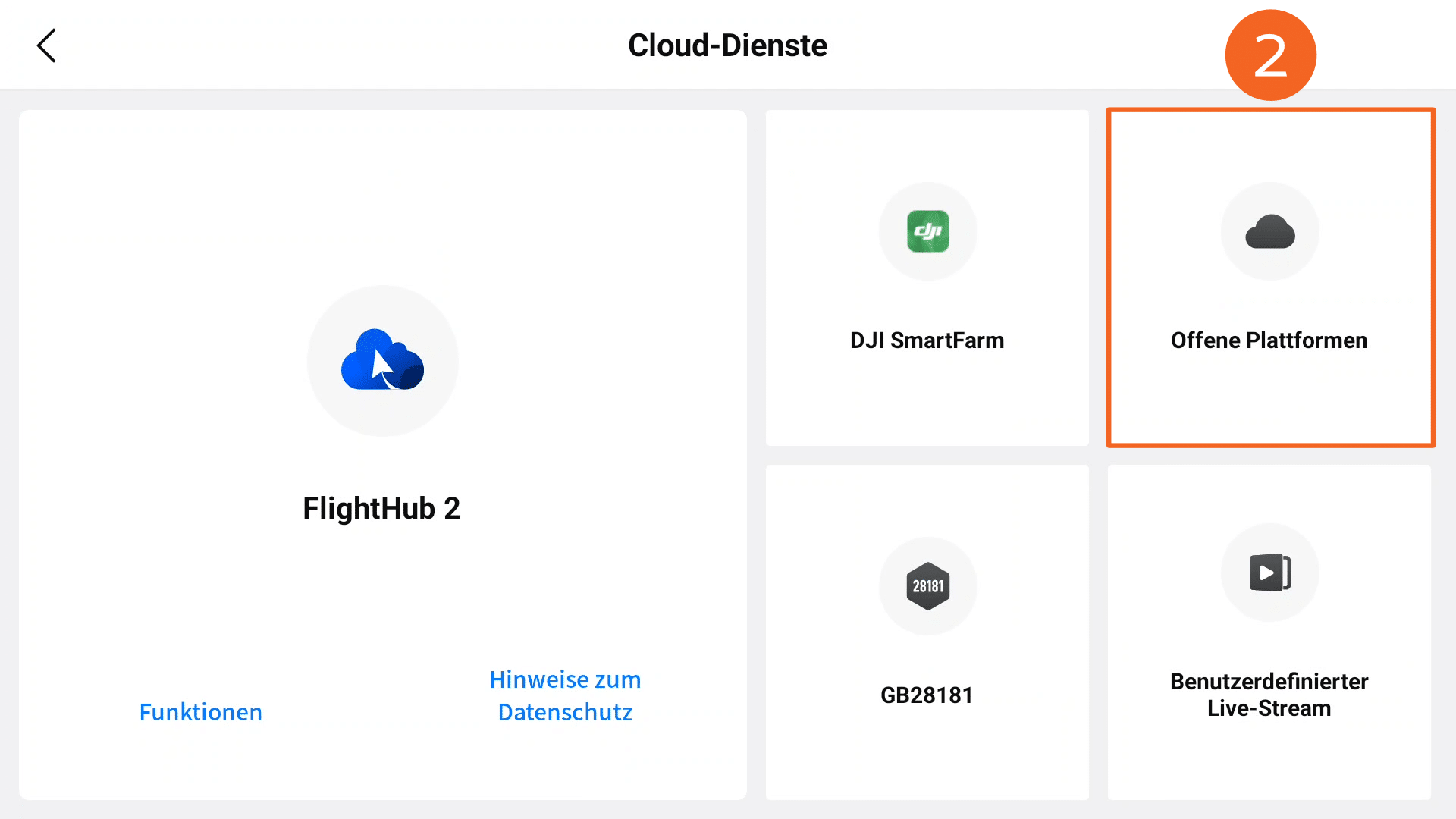
Clicking this button opens the menu for cloud services. Since POICloud is a third-party service, you must select the Open Platforms control panel (2) here.
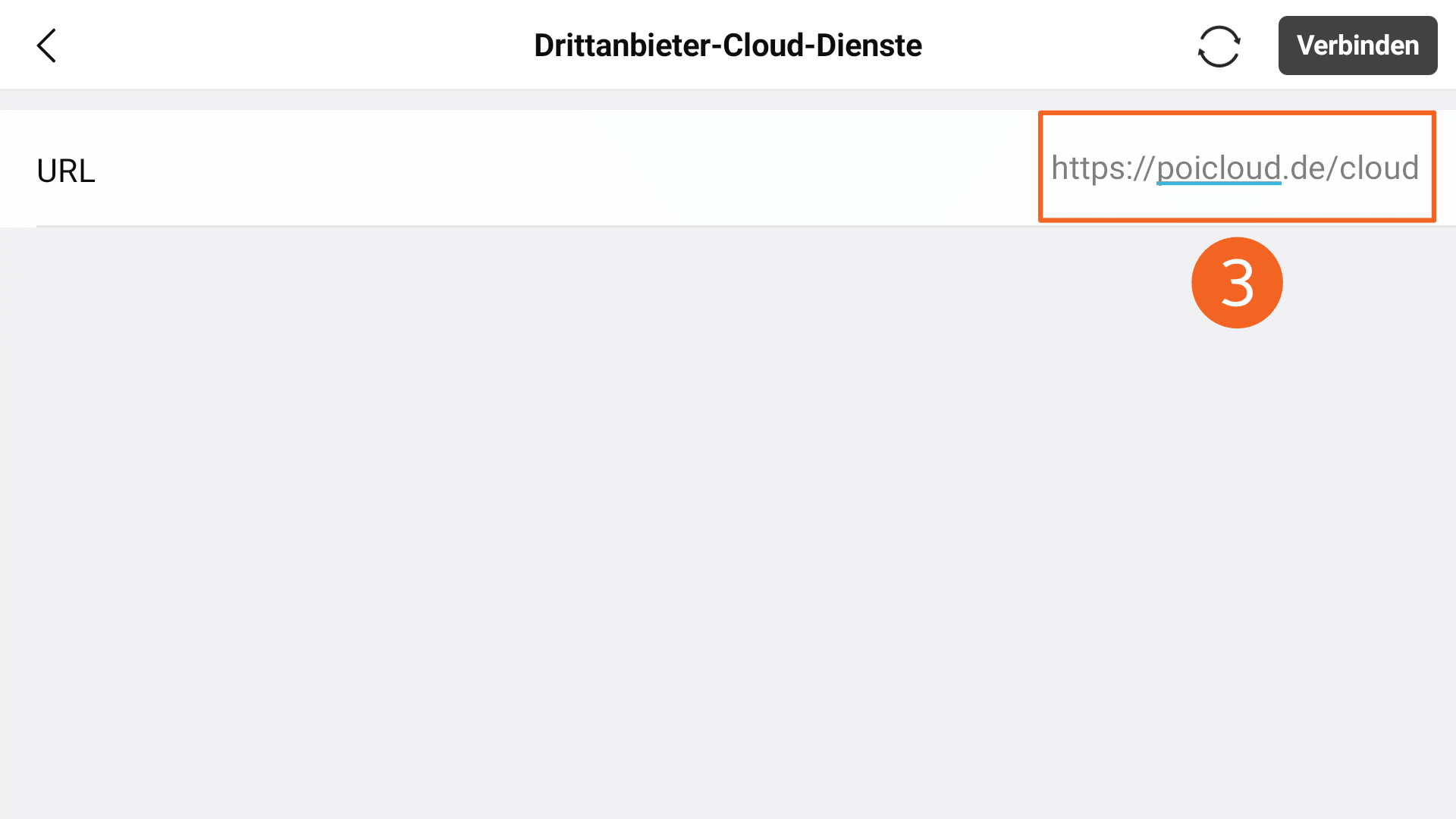
Next, you need to enter the corresponding web address/URL (3). In the case of POICloud, this would be https://poicloud.de/cloud. Click on Connect and the drone remote control will establish a connection to POICloud.
Registration POICloud
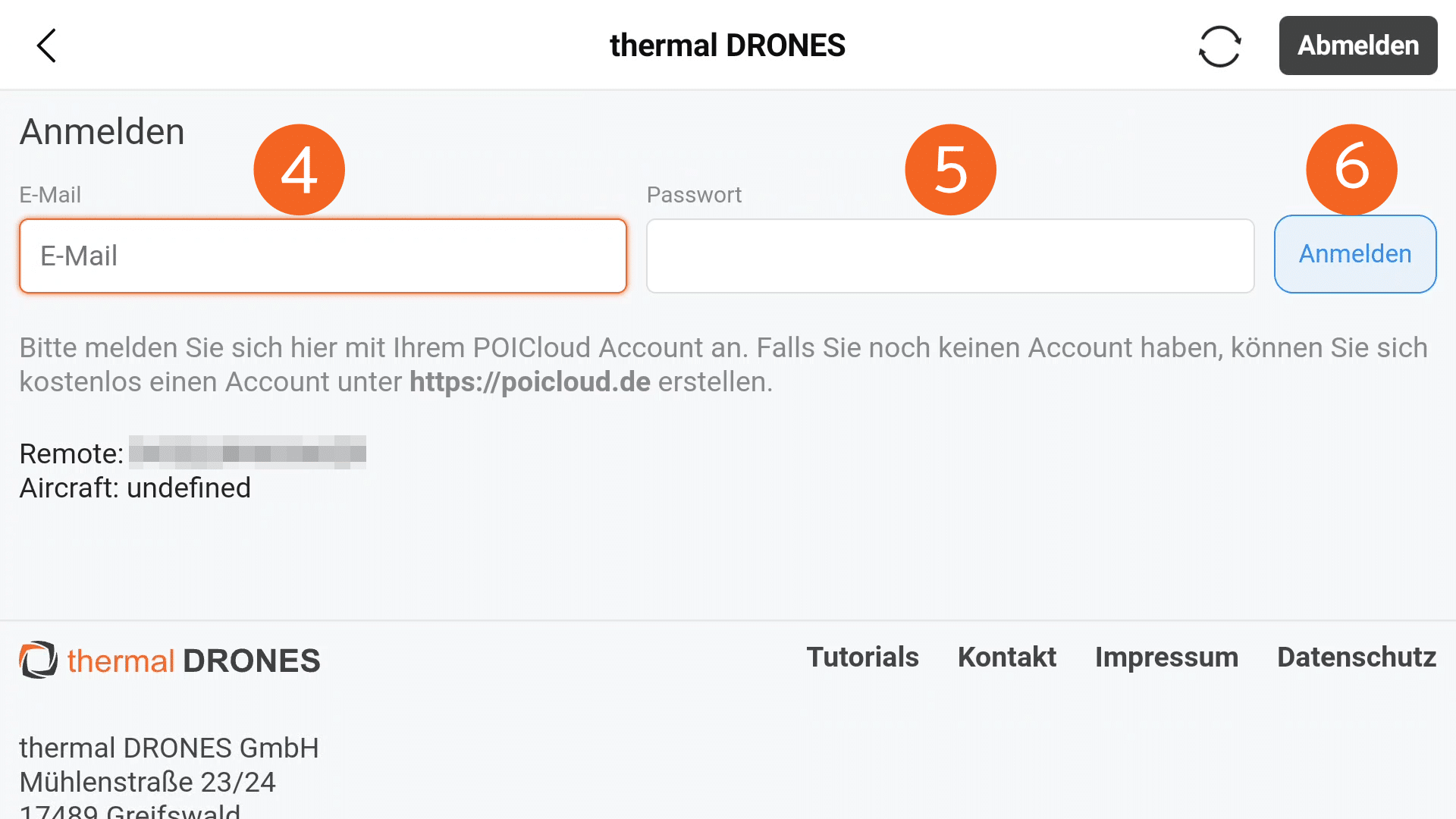
In the following login window, the email address (4) and password (5) must be entered. The data corresponds to the POICloud login credentials used during account creation. Login is completed by clicking the Login button (6).
Selection Organization & Team
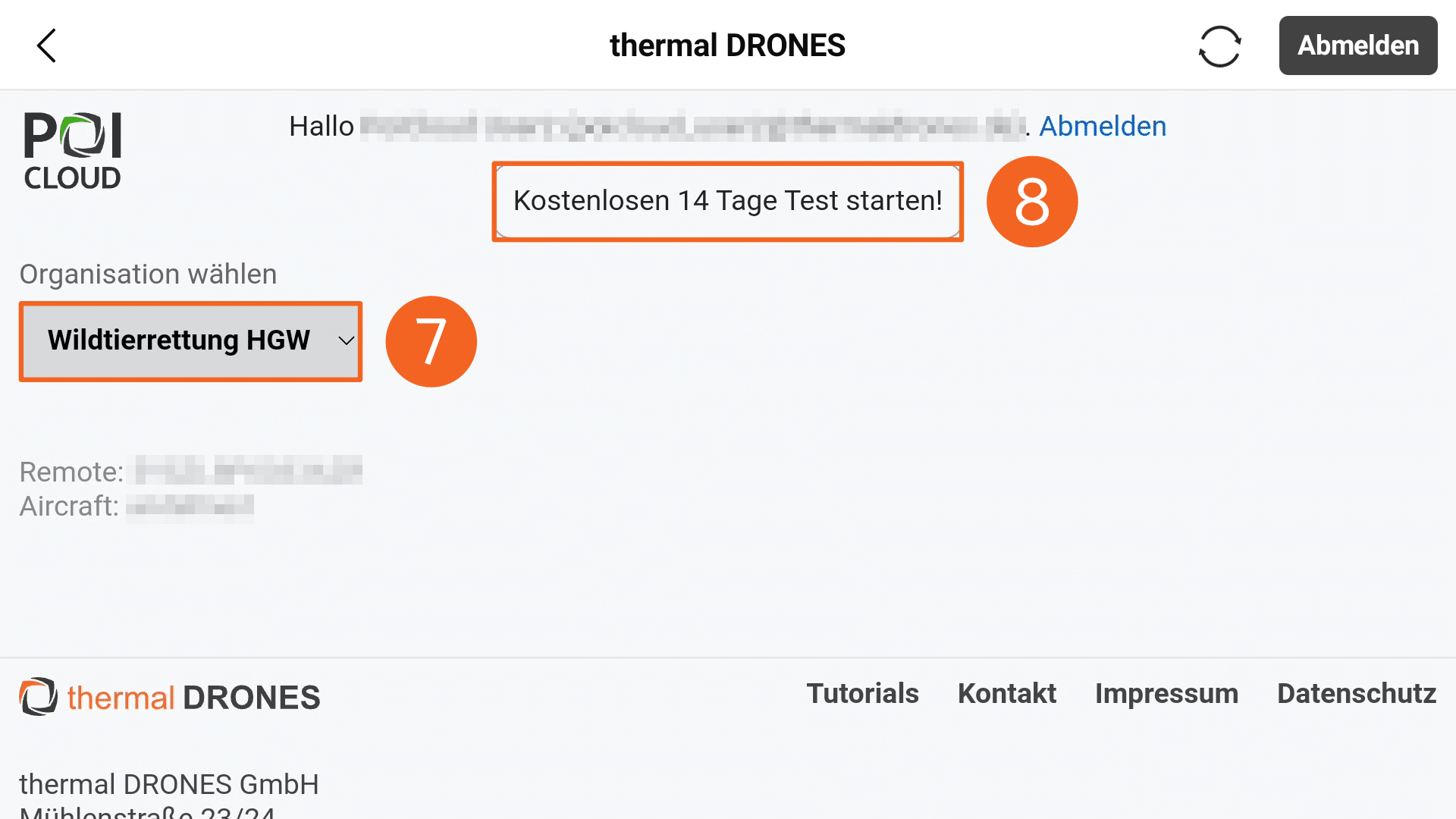
After successful login, the POICloud user interface homepage opens. Here, the appropriate organisation (7) must first be selected. If one has already been created and the specified account is a member of it, the selection will be made automatically.
Additionally, in this overview, it is possible to activate a 14-day trial access for POIConnect. To do this, simply click the Start Free 14-Day Trial (8) button. After activation, features such as the automatic transfer of POIs from the drone to the POIApp will be available for the specified period.
However, please also observe the note at the beginning of the page if POIConnect is to be used permanently!
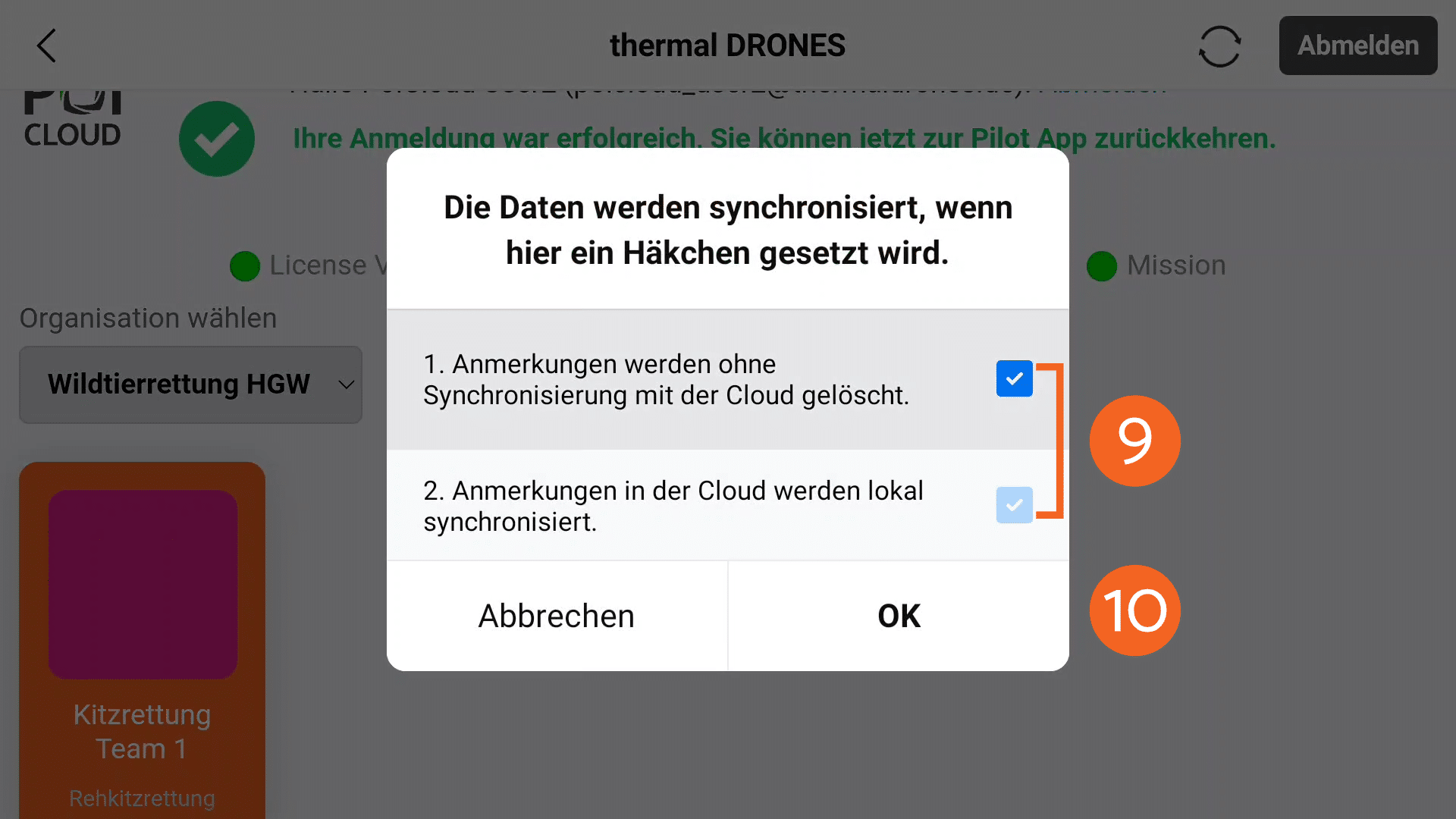
After selecting the organisation, a window opens in which the default settings for data synchronisation can be configured. It is important that both options are ticked (9). Click OK (10) to confirm the settings.
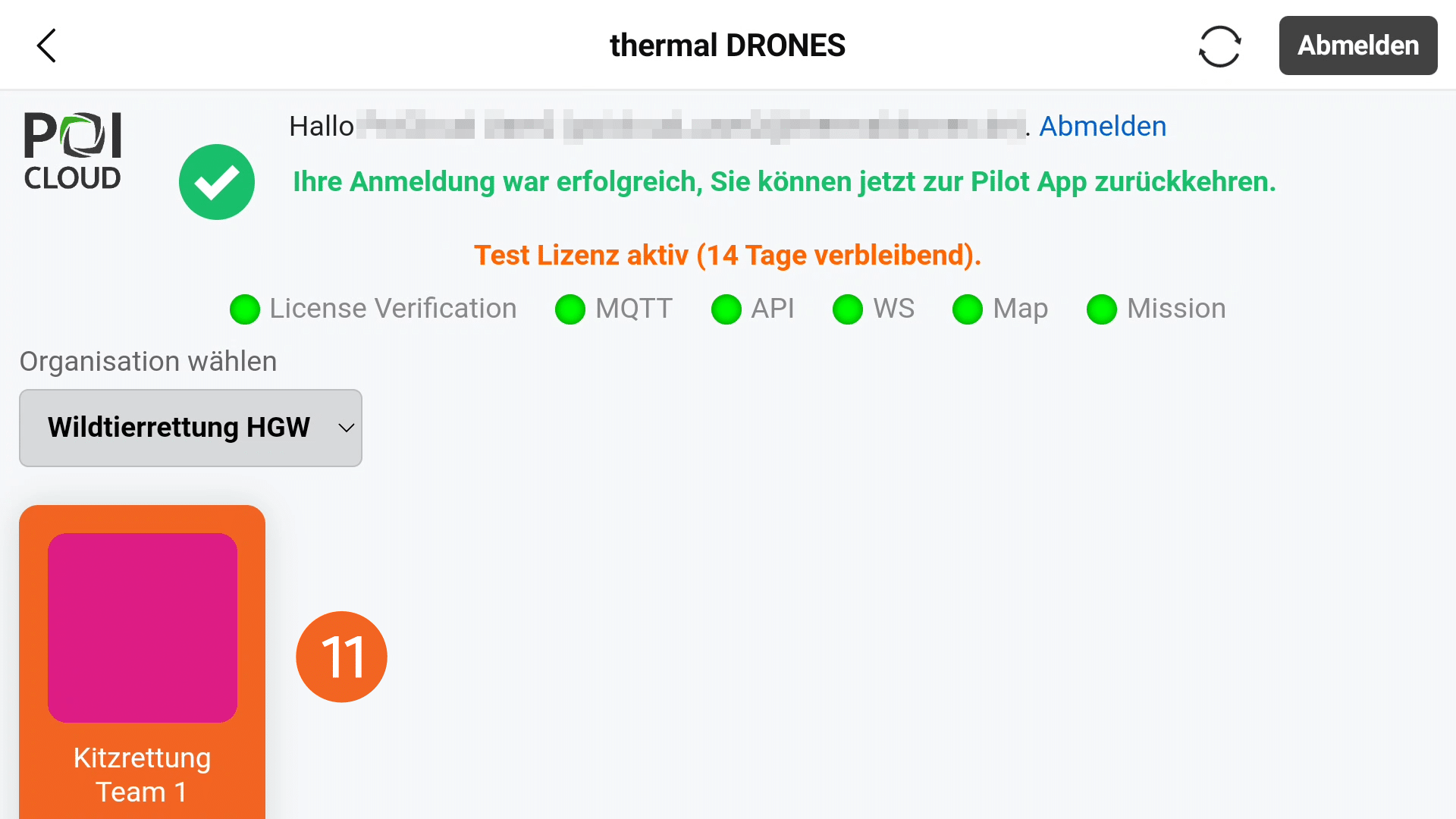
All teams included in the organisation are now displayed in the overview. After selecting the appropriate team (11) and uploading, all currently created areas are visible on the drone remote control. Markings made with the drone also appear only in the team to which the drone is currently linked.
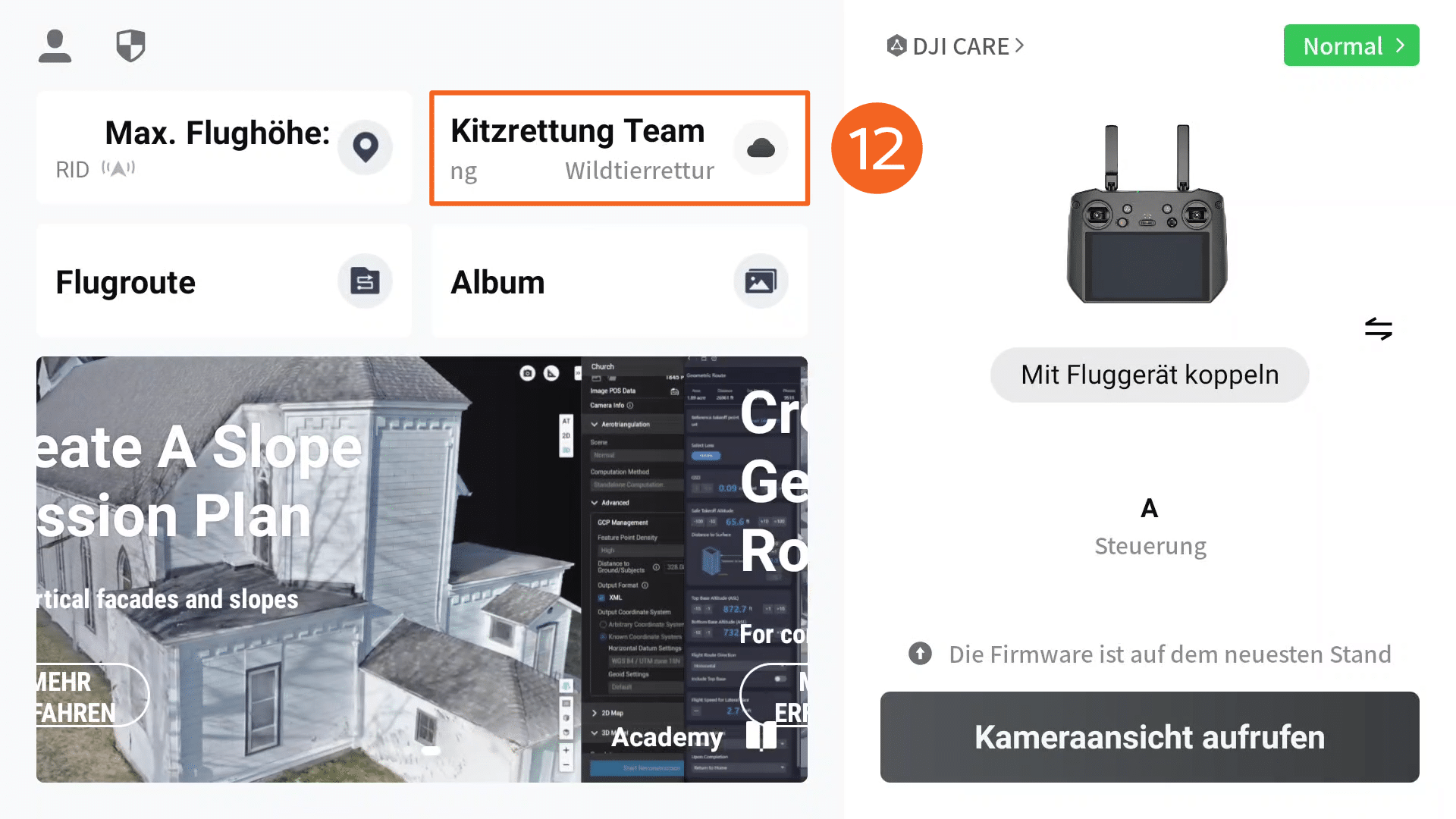
When you return to the remote control's start screen, the selected organisation and active team will now appear in the cloud services overview (12) and the link will be complete.
Placing and Transferring Markers
Mavic 3T Example
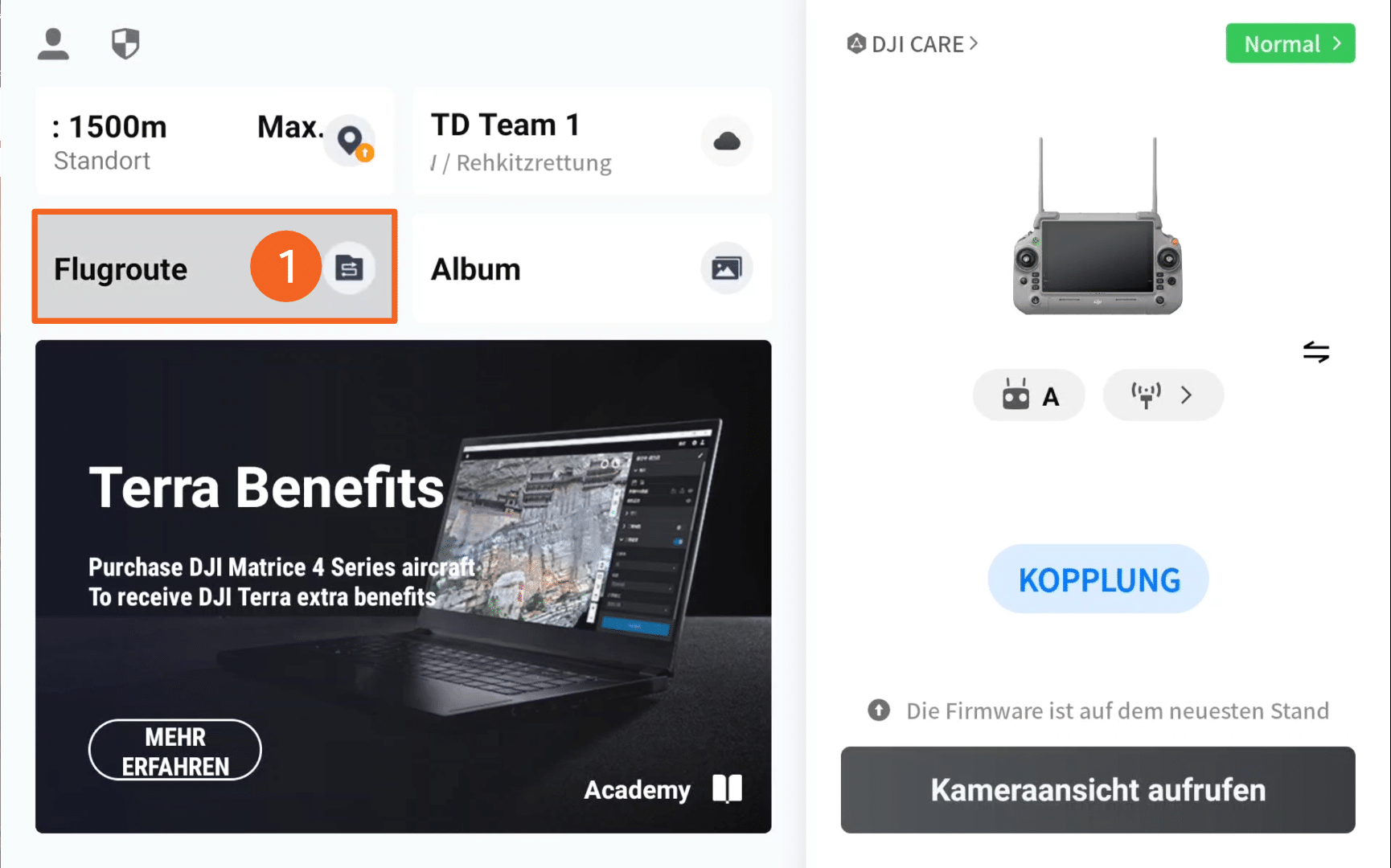
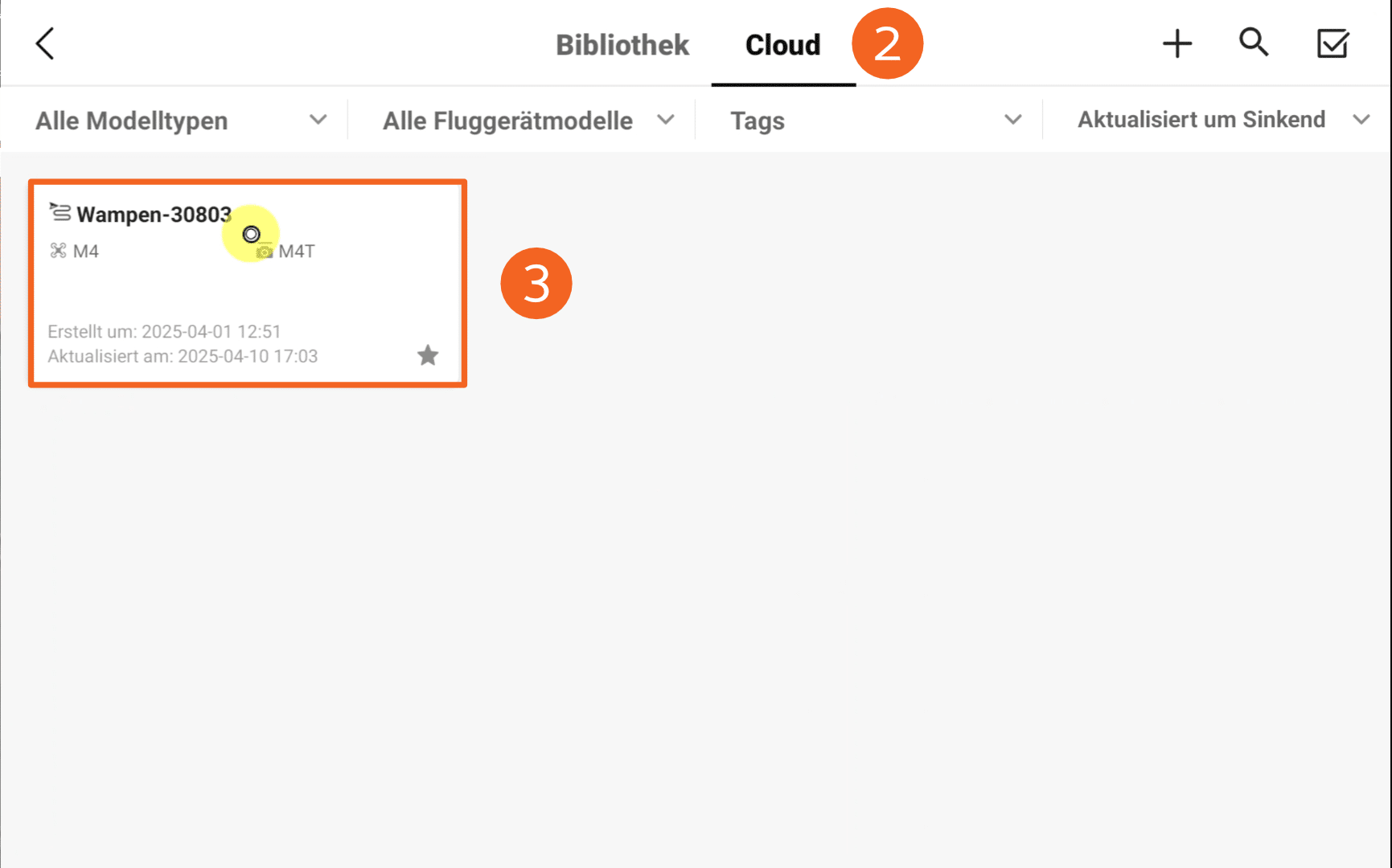
To set POIs with the DJI Mavic 3T and then send them via cloud connection to POIApp and POICloud, you should first create a flight plan for the area to be flown. How to do this can be found in the POICloud documentation. In the DJI Pilot2 app, under Flight Routes (1), the Cloud (2) tab can be selected. Here, all fields created in the cloud appear, along with pre-set flight parameters. The desired area is now selected and loaded with a click (3).
If an object with a thermal signature is identified during the flight, the drone can first be stopped. Subsequently, switch to the Zoom optics view (4), and the drone is positioned as centrally as possible over the identified object.
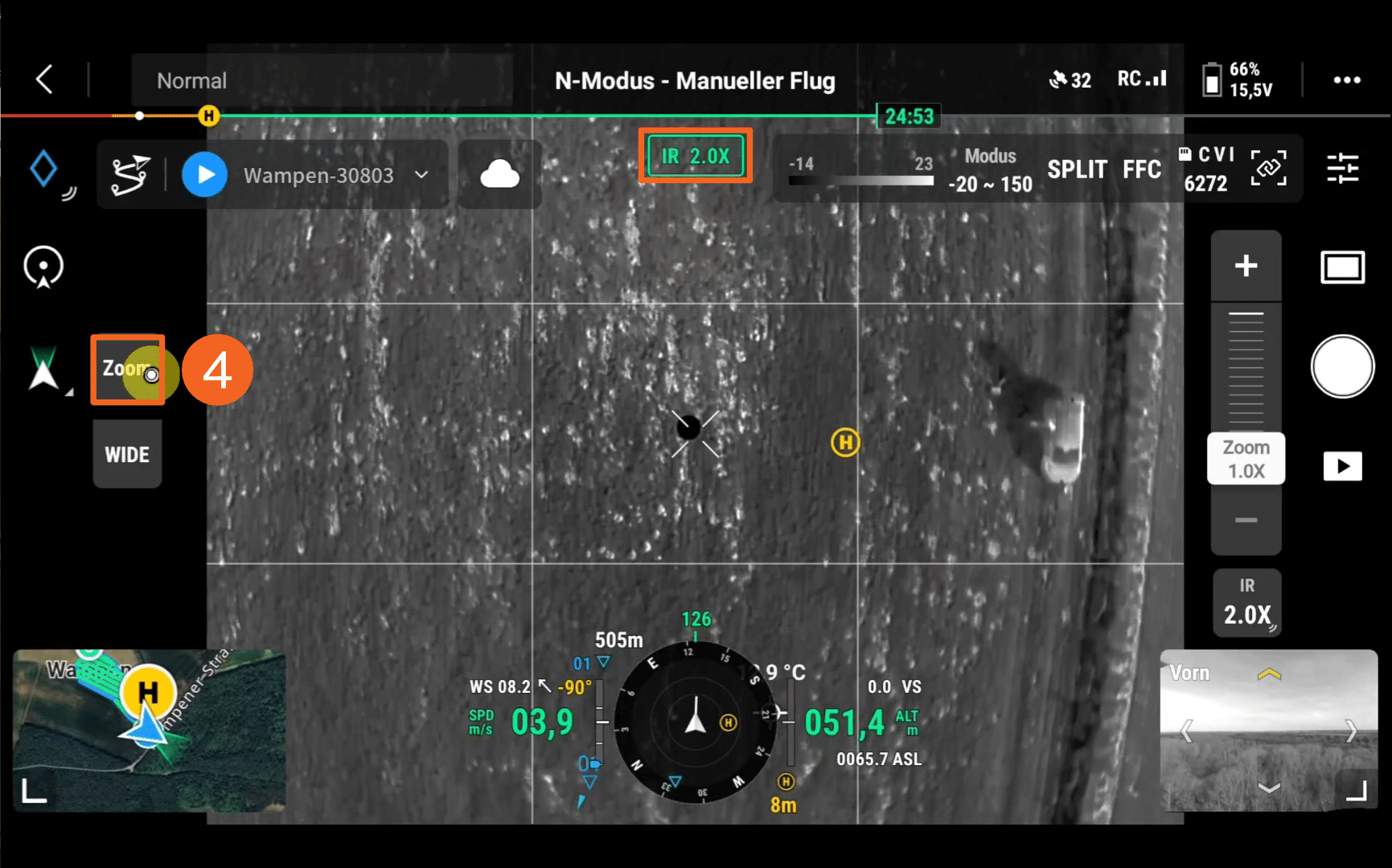
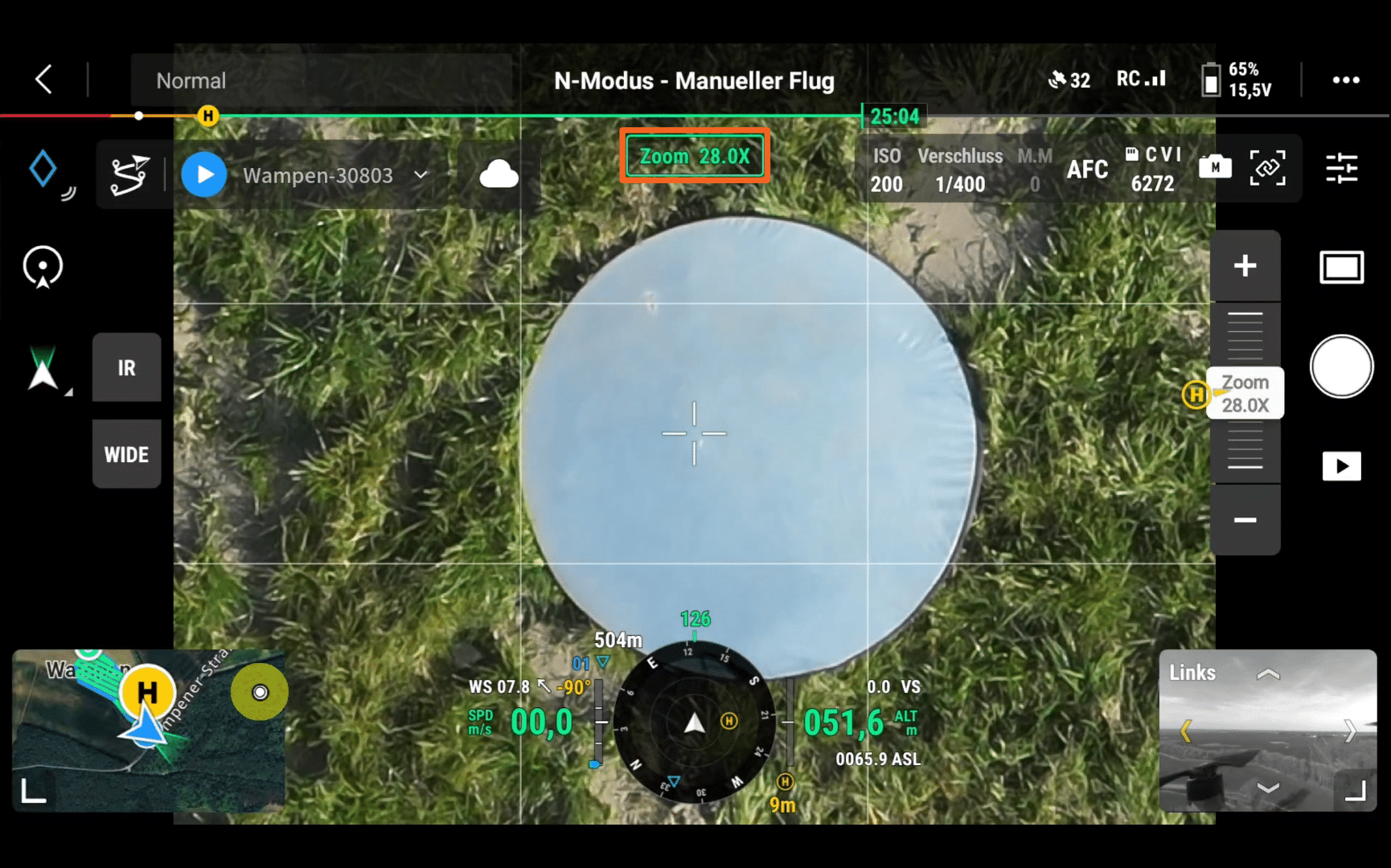
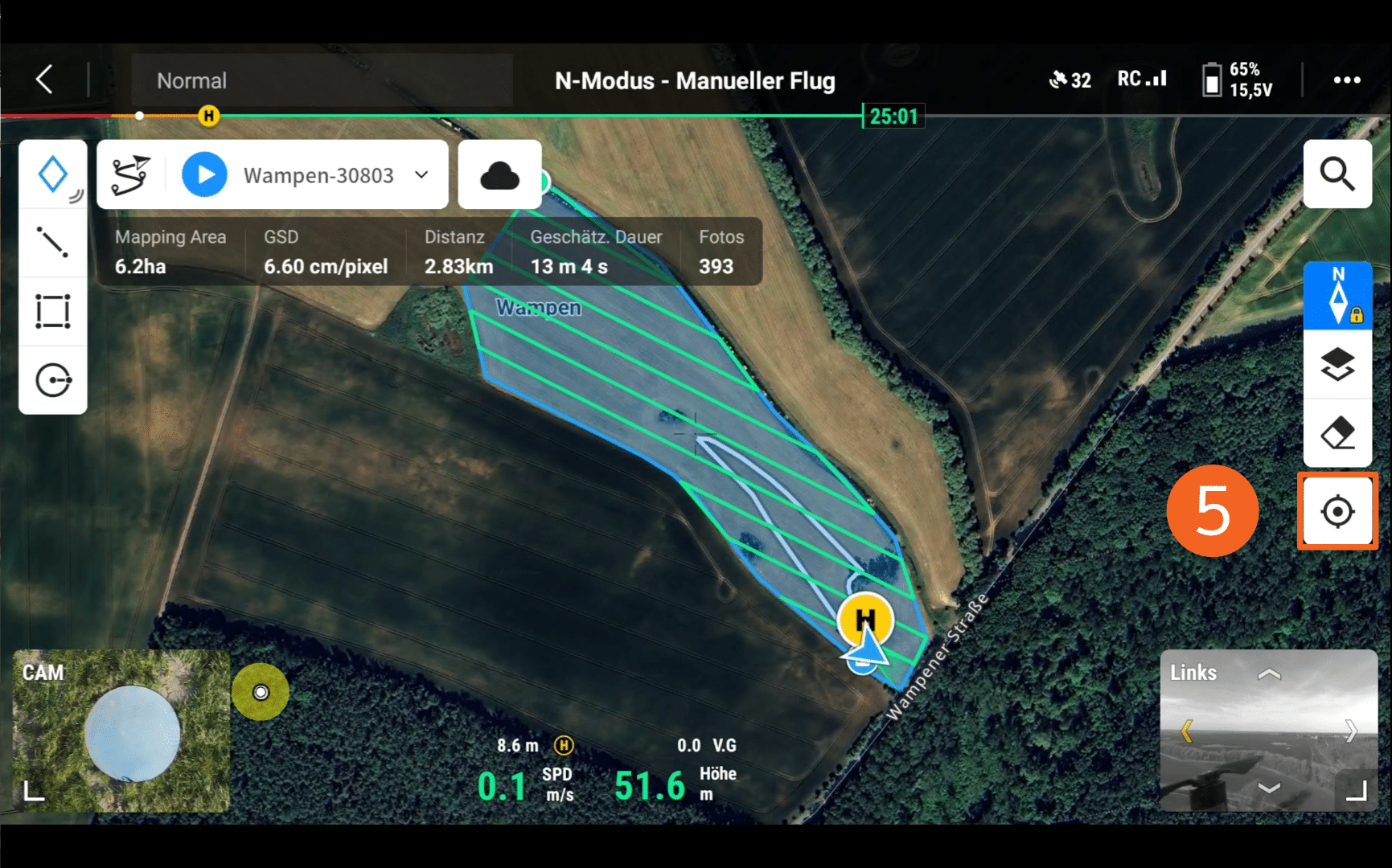
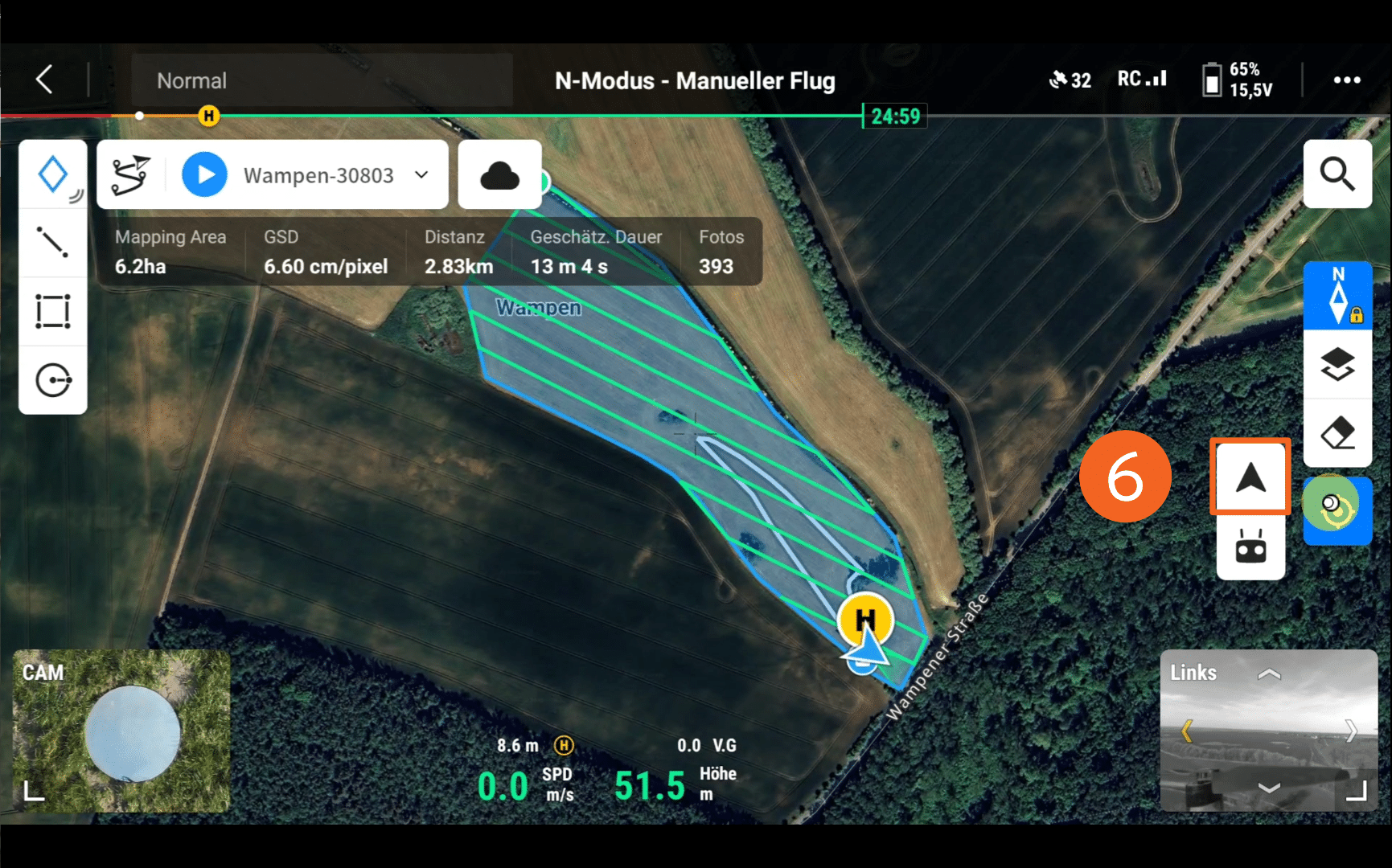
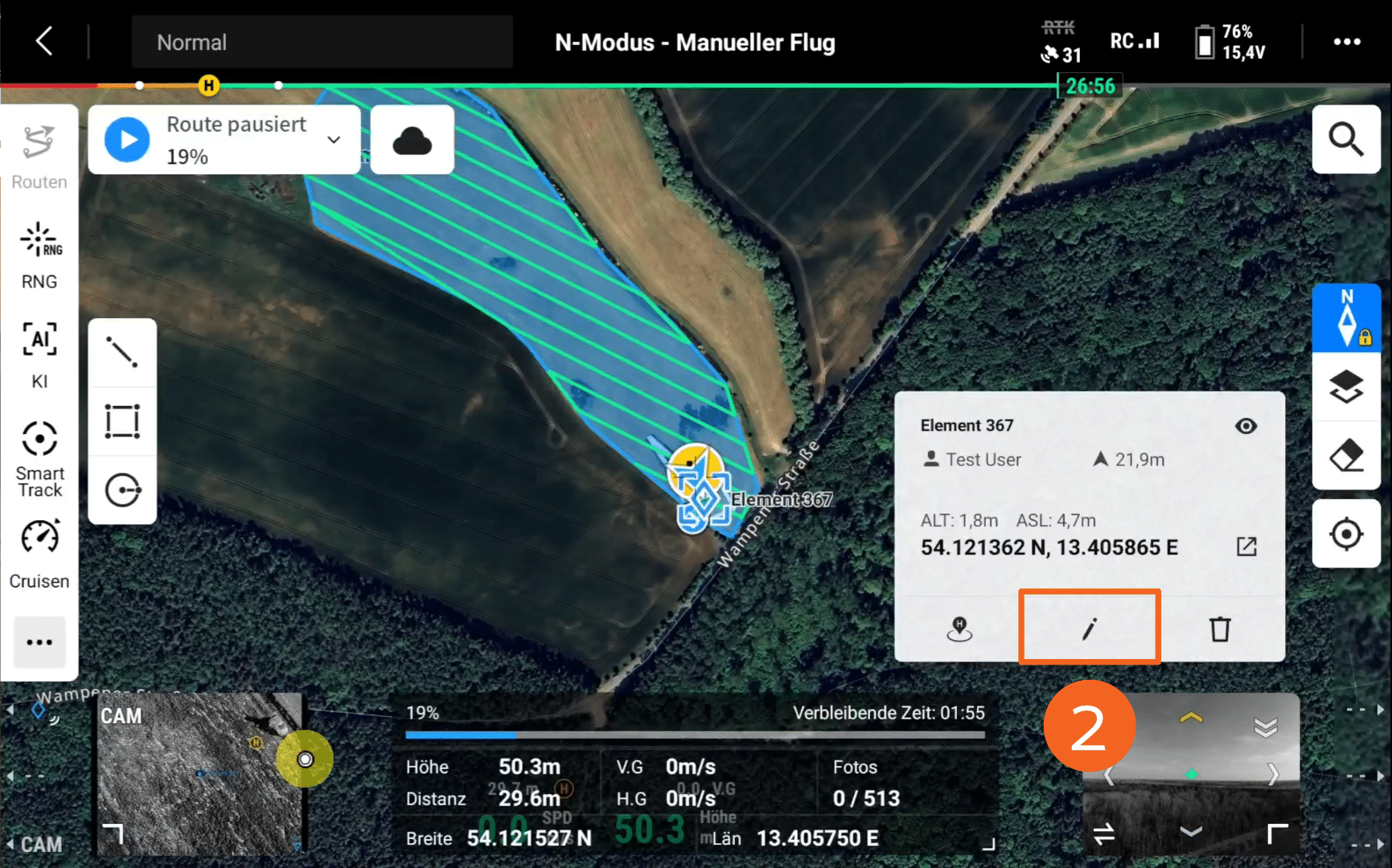
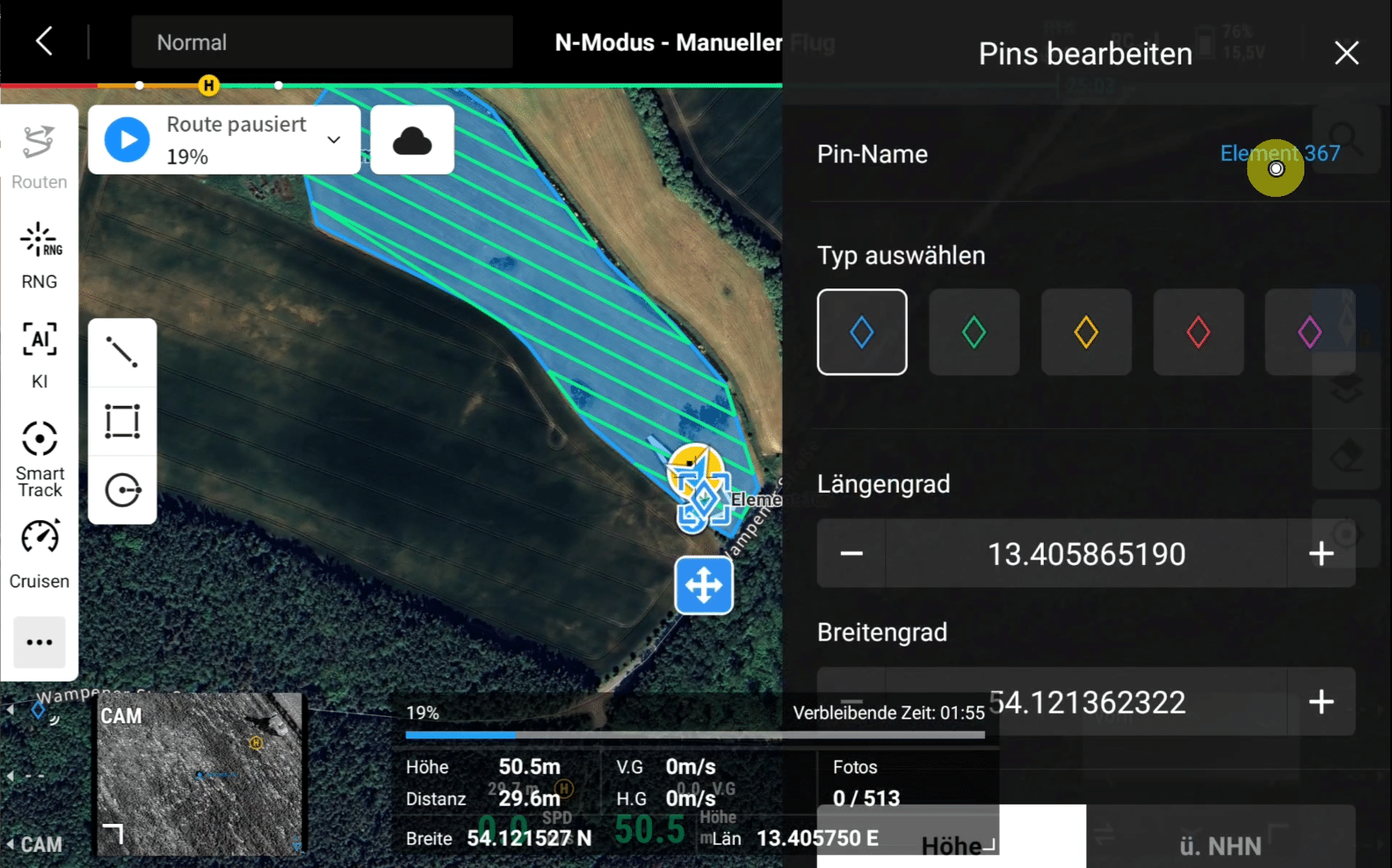
Subsequently, switch to the map view. Here, by clicking the Location icon (5) and selecting the Arrow icon (6), the map can be centered on the current drone position. This ensures the best possible location accuracy when setting a POI. To do this, simply select the blue Diamond icon (7) to place a marker at the current drone position. This can then be edited by selecting the Pen button (8). For example, the POI's color can be adjusted or a custom name can be assigned.
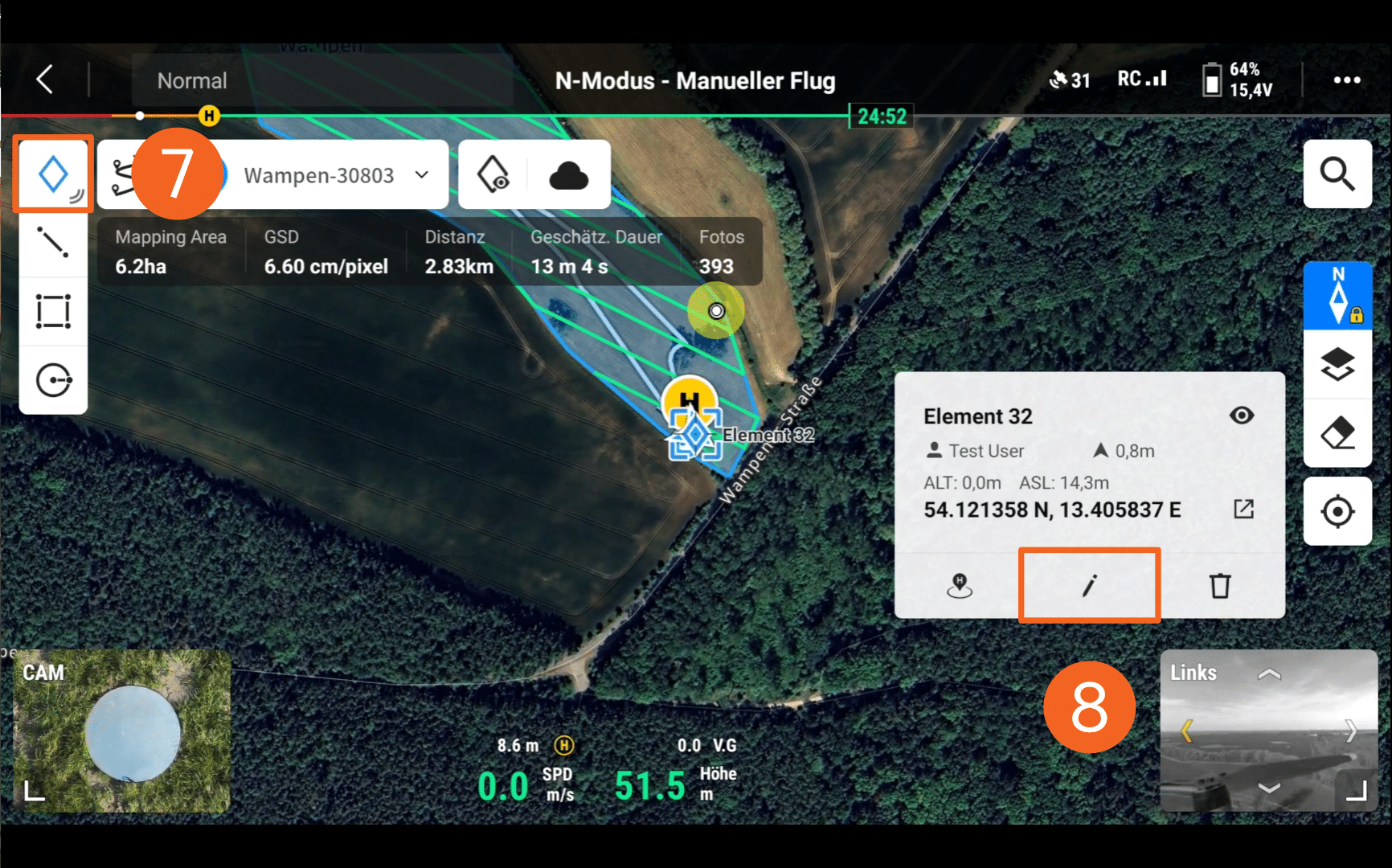
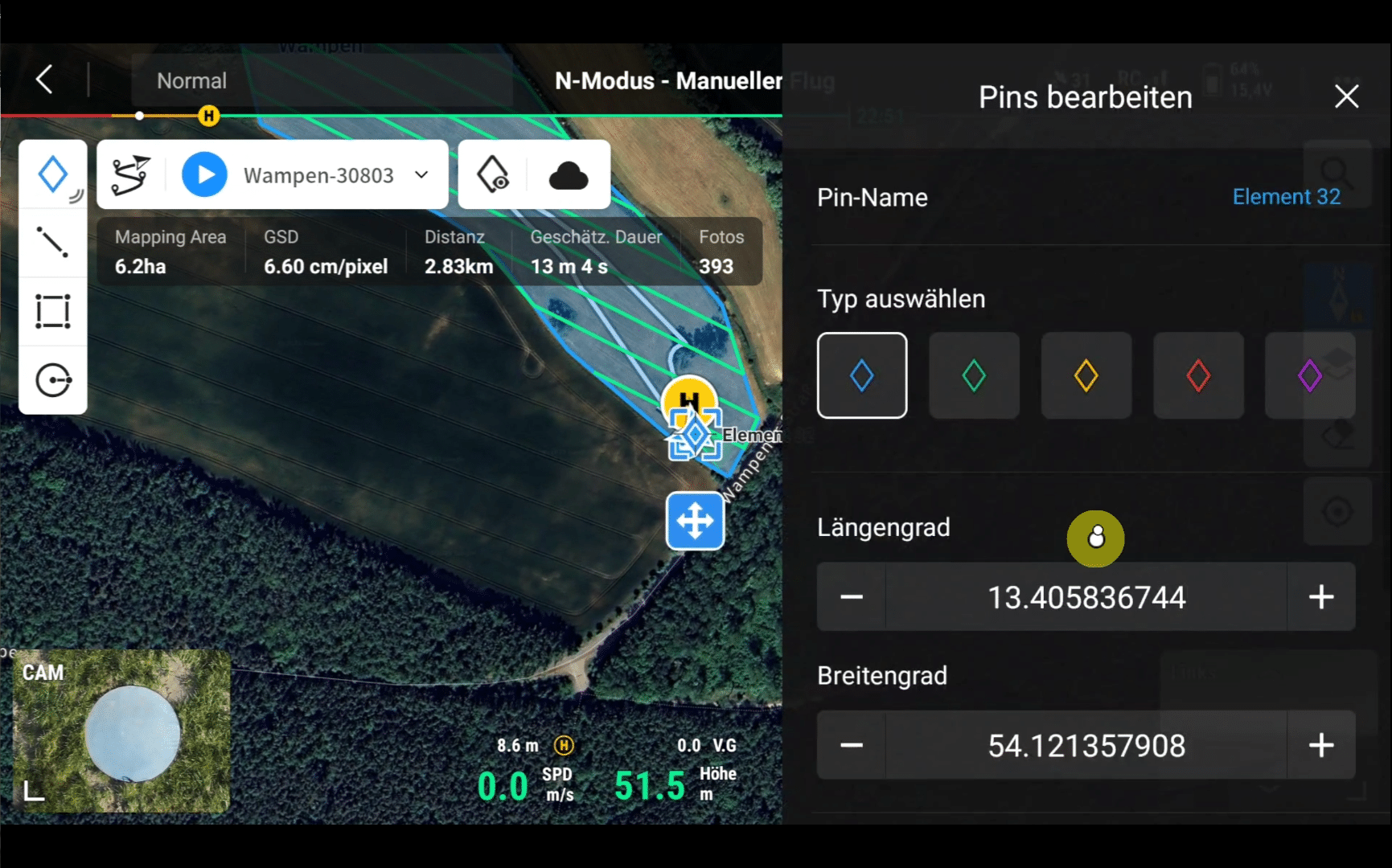
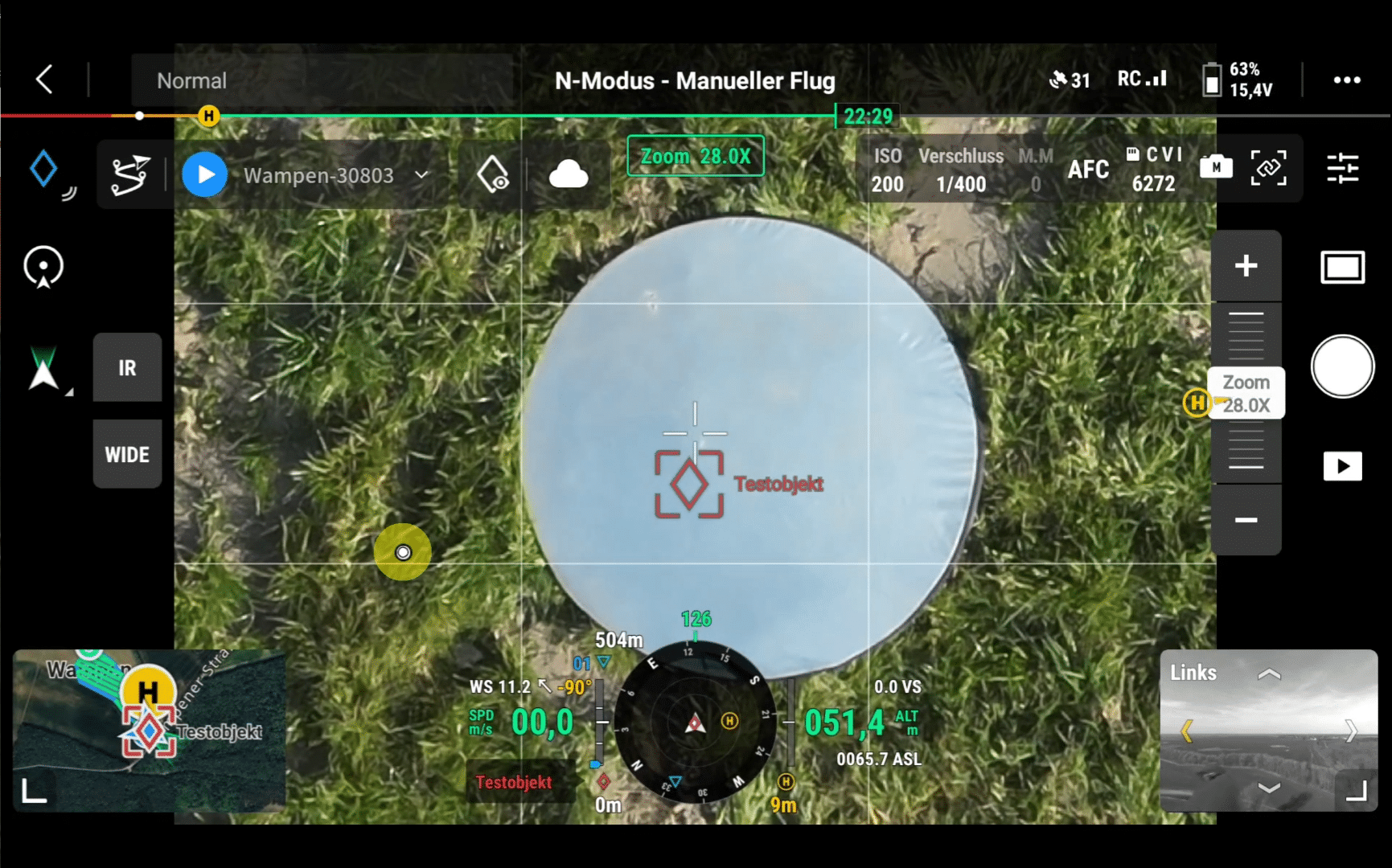
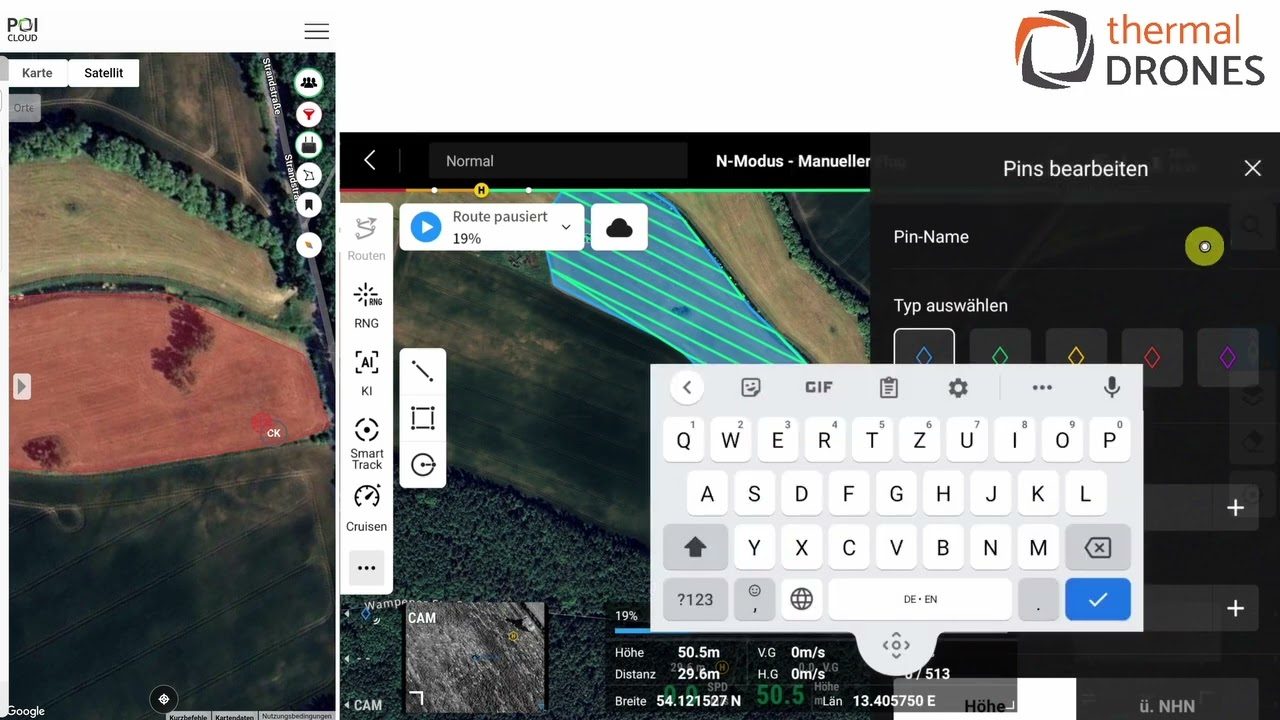
All set POIs appear in real-time in POICloud or the POIApp on the smartphone thanks to the cloud connection and can be directly navigated to using the integrated navigation function. The set POIs also appear directly in the image above the respective object in the drone's camera view.
Matrice 4T(D) Example
The steps for setting POIs with the Matrice 4T(D) are similar to those for the Mavic 3T. However, thanks to the integrated laser rangefinder, for example, the need to position the drone directly over the identified object is eliminated.
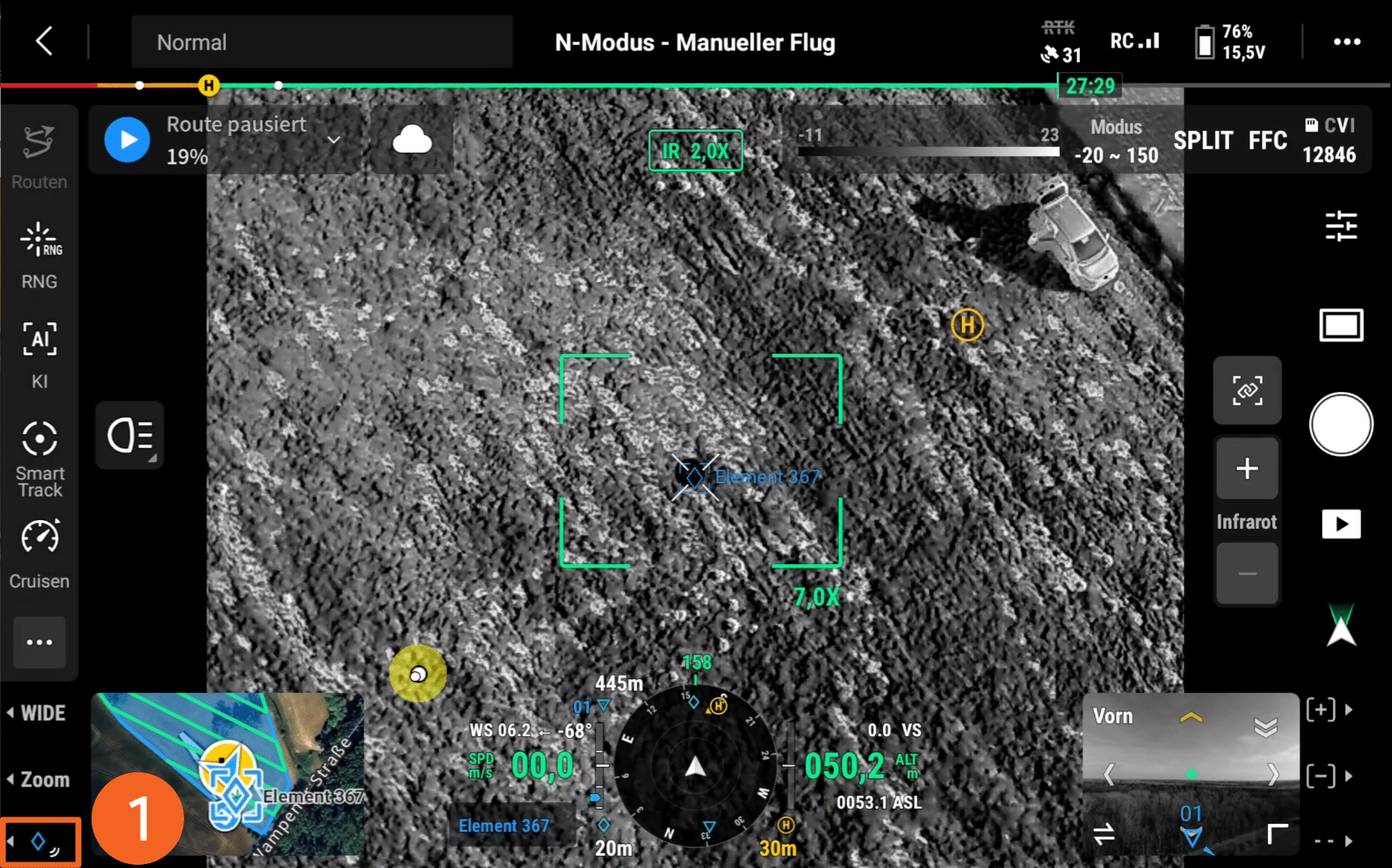
The drone can also be aligned, thanks to the laser, with a simple double-click on an object to be marked. Here too, marking is done by clicking the blue Diamond icon (1). Thanks to the additional buttons on the new RC Plus 2 remote control, this function can be easily assigned to a custom button and executed with a single press. Here too, set POIs appear directly in the drone's map and camera view, as well as in real-time in POICloud or POIApp.
Here too, editing the POI is possible by selecting the Pen icon (2), allowing properties such as name or POI color to be individually adjusted.
Example Video for Real-time Transfer of POIs to the POIApp
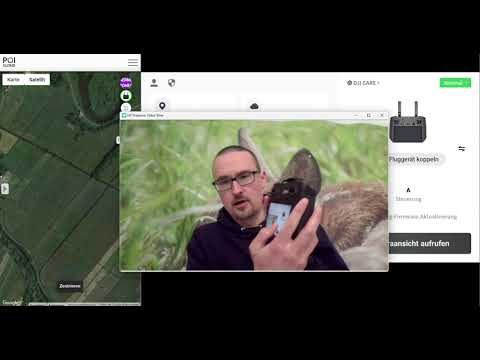
Setup and Introduction as Video
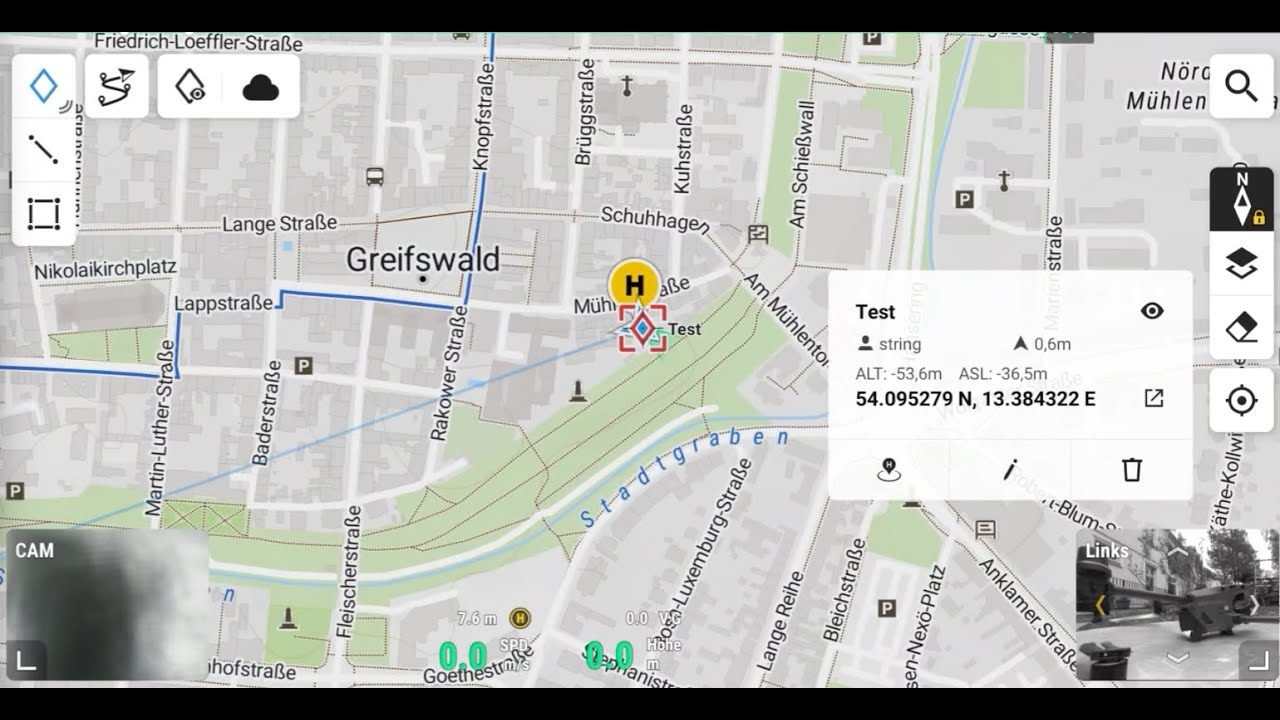
Introduction to Georeferencing on the Remote Control
easyPOI enables the networking of smartphones, remote controls, and laptops, thus opening up entirely new possibilities for drone use.
More videos are available on our YouTube channel at