
Hinweis: diese Seite befindet sich im Aufbau.
POIApp Installation
The POIApp serves as the interface between the drone and the user. It combines all the important steps for successful wildlife and people search in a single application. The app includes functions such as area creation, team and task management, statistics generation and a navigation function for searching in the field. Markings can be forwarded directly to the drone remote control from the app, and markings from POIStudio appear here in real time.
New: The POI app is now available on Google Play and the App Store!
The POIApp can now be easily downloaded from the Google Play Store for Android devices or from the App Store for iOS devices. The user experience remains unchanged and the POIApp can be used as usual. All you need to do is log in again with your existing login details.
-
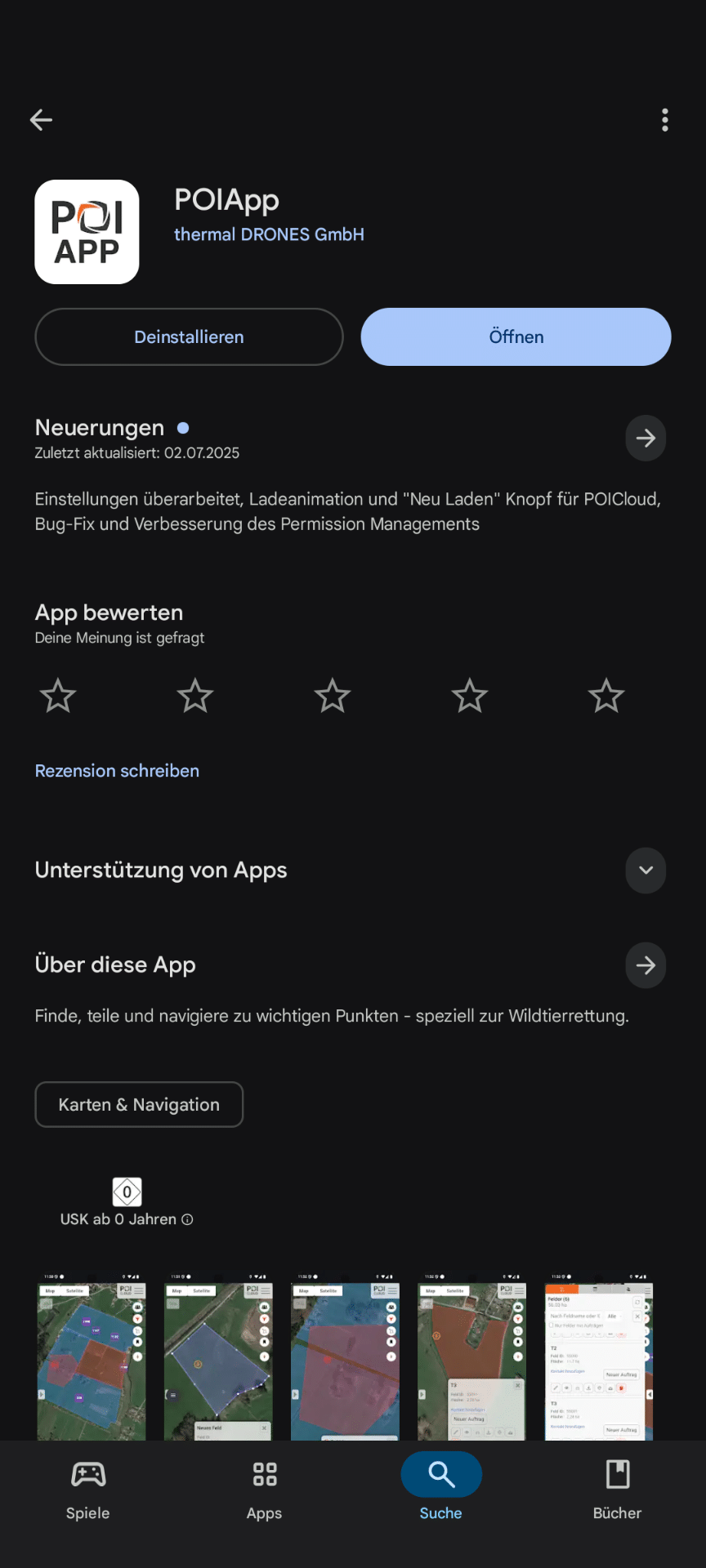
Google Play Store
-
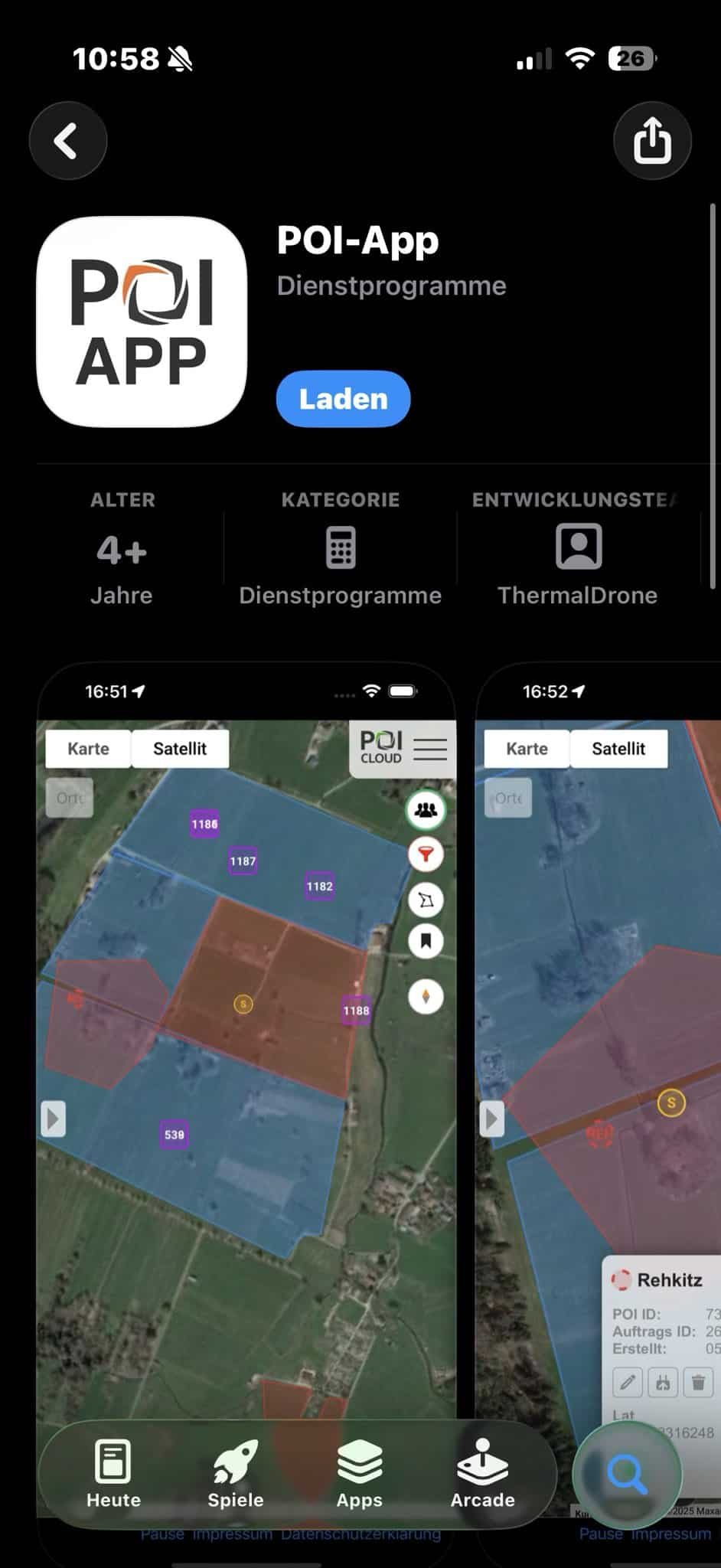
App Store
In both cases, installation is performed by clicking on Download or Load.
Background location updates
The POI app offers the option of permanently activating location tracking. This allows to record running routes, for example.
Please note: Battery usage may be higher when recording is activated, as the process continues to run in the background even when the app is closed.
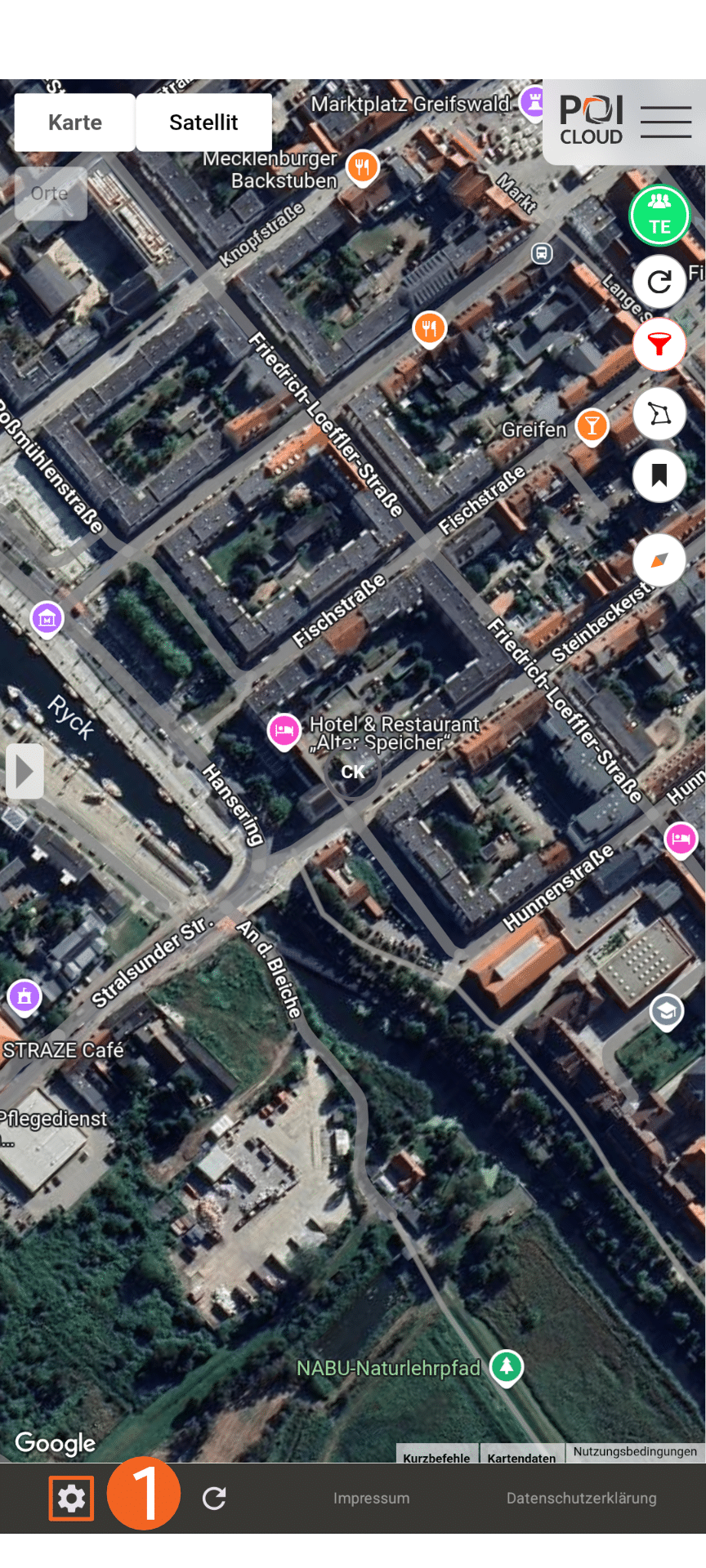
Clicking on the settings button (1) opens the location update settings in the background, which can be activated/deactivated using the slider (2). In the drop-down menu (3) below the update interval is adjustable.

Installation as a Web-App
The POI app can still be used as a progressive web app on Android and iOS. It can also be used as a web application on a PC. Instructions for this can be found underPOICloud documentation.
-
Installation on Android Devices
– Open Google-Chrome Browser.
– Enter poicloud.de/login in the search bar.
– Tap the 3 dots in the top right corner for more options.
– Select Add to home screen.
– Click install.
– Confirm installation.Note: Permission to use location services must be granted in order to use this feature!
-
Installation on iOS Devices.
– Open Browser.
– Enter poicloud.de/login in the search bar.
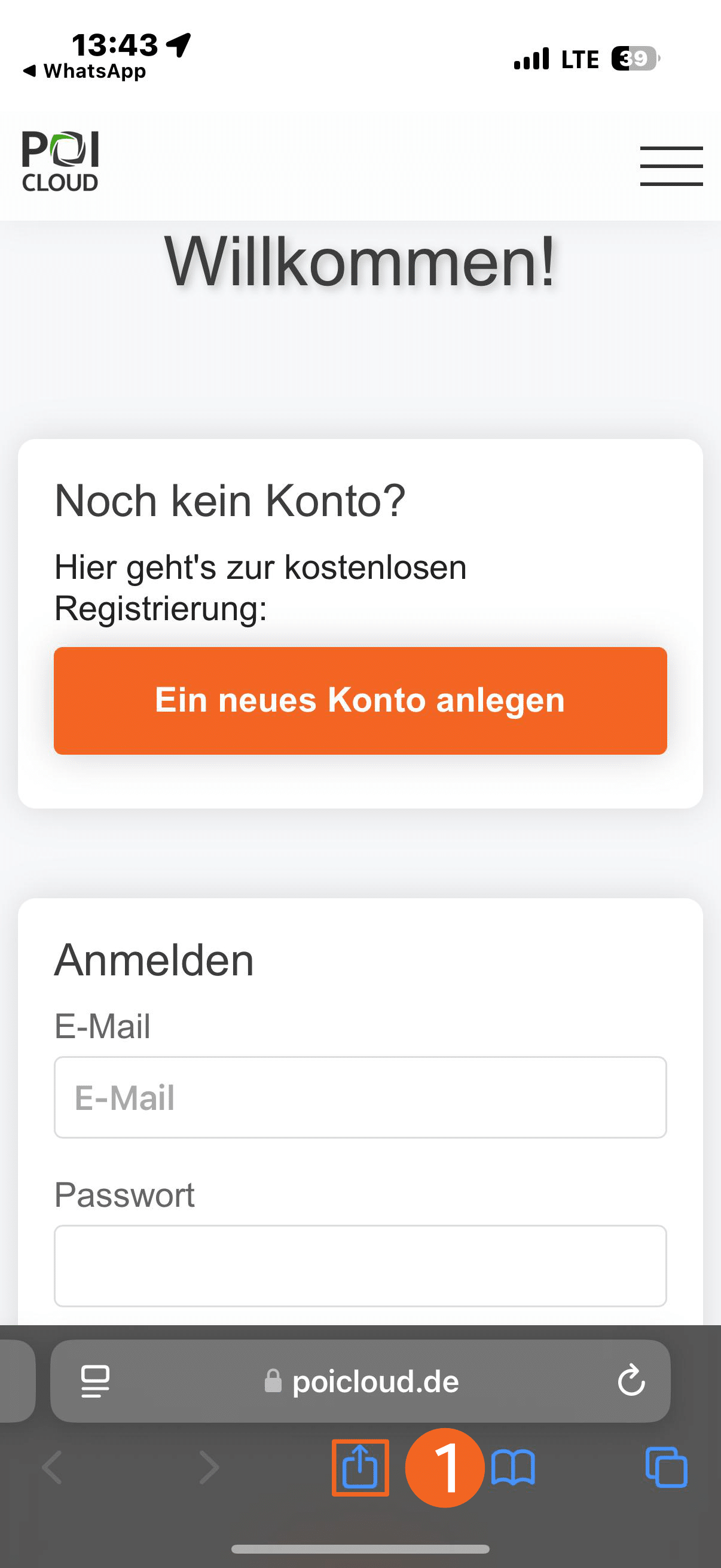
– Click on the share button.
– Select To home screen (2).
– Click on Add (3).Note: Permission to use location services must be granted in order to use this feature!
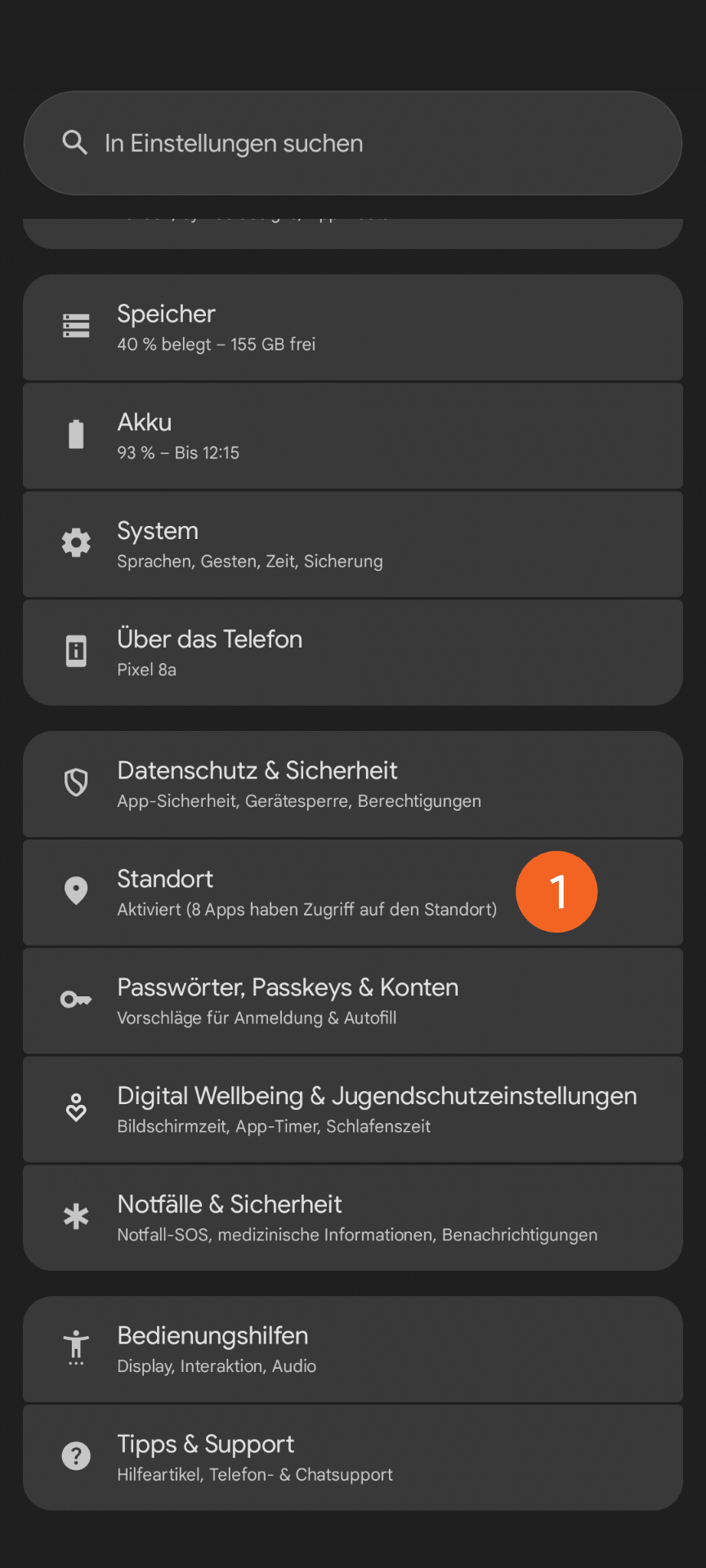
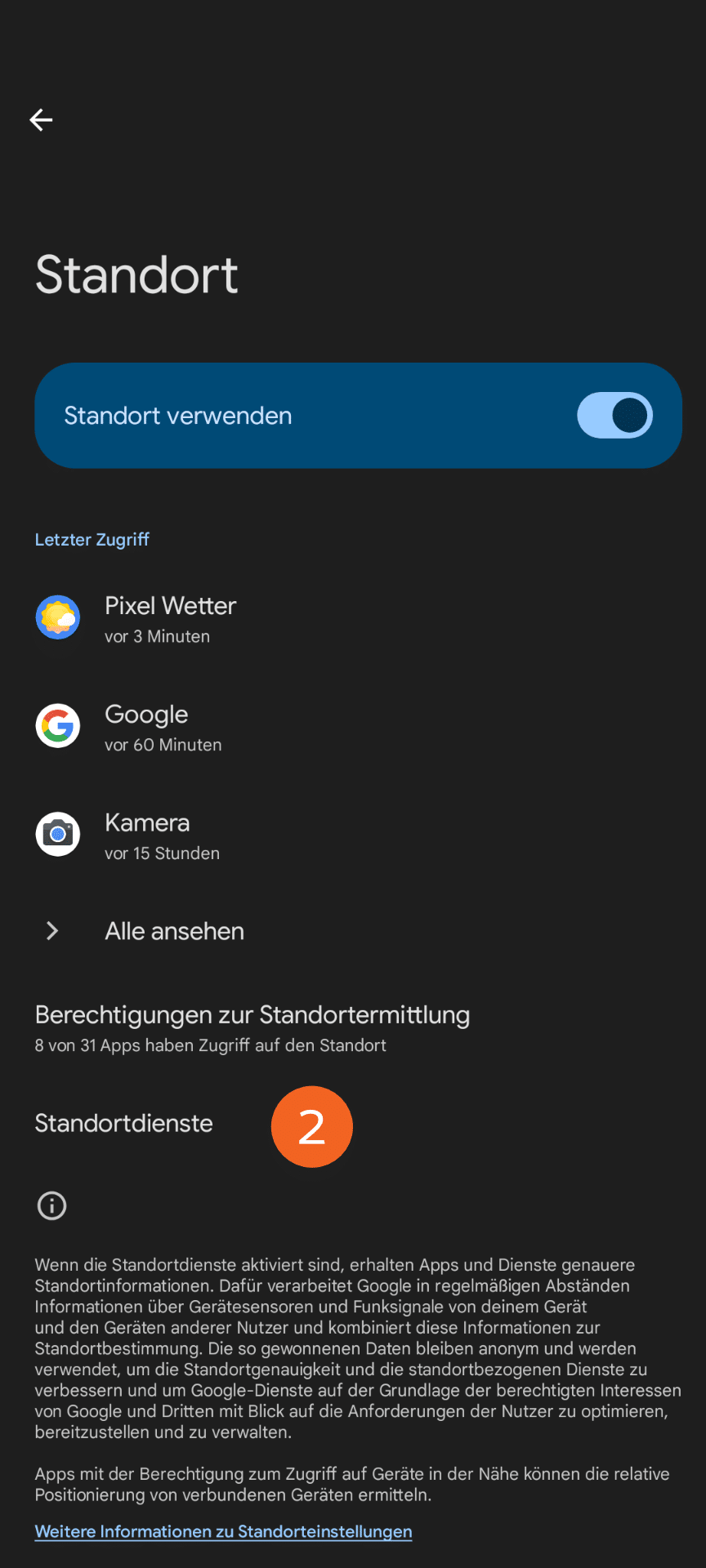
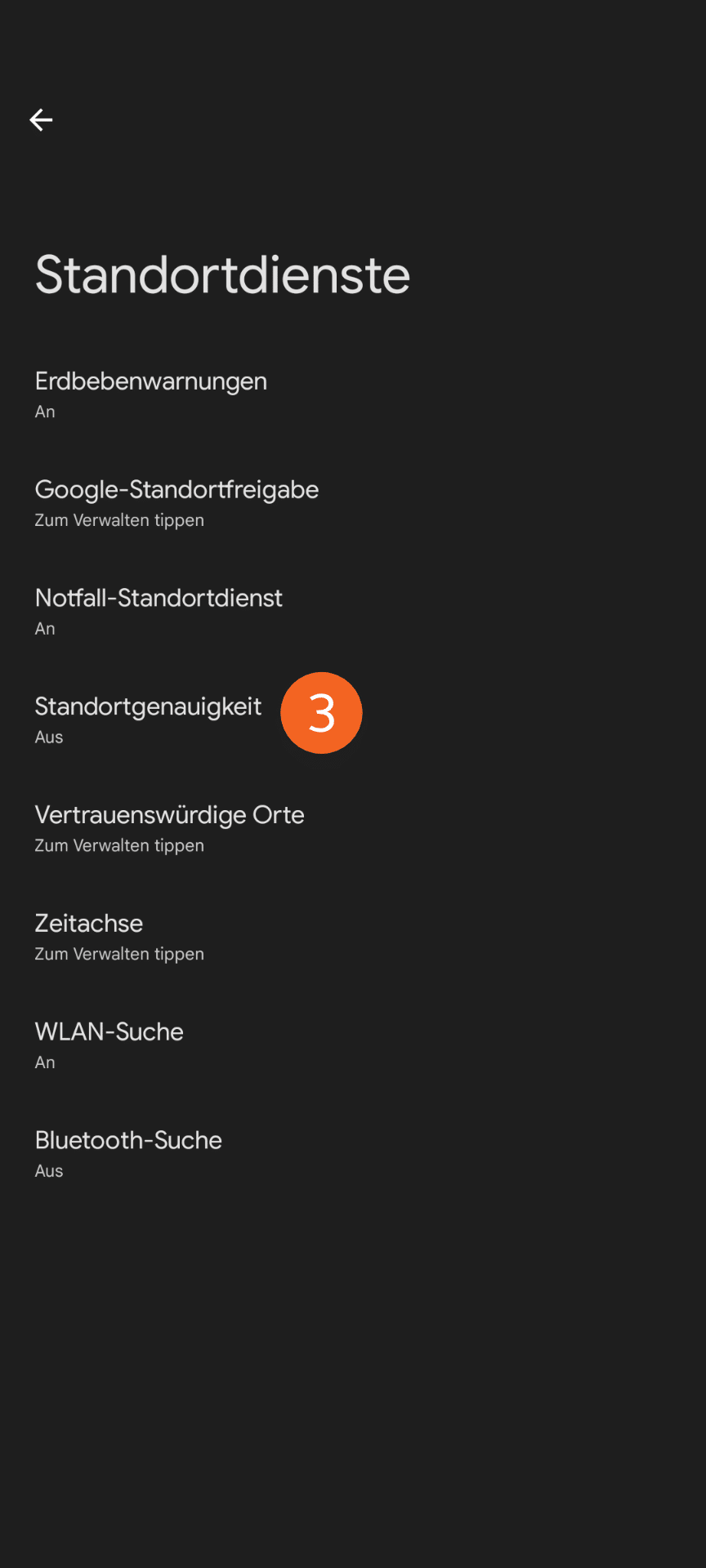
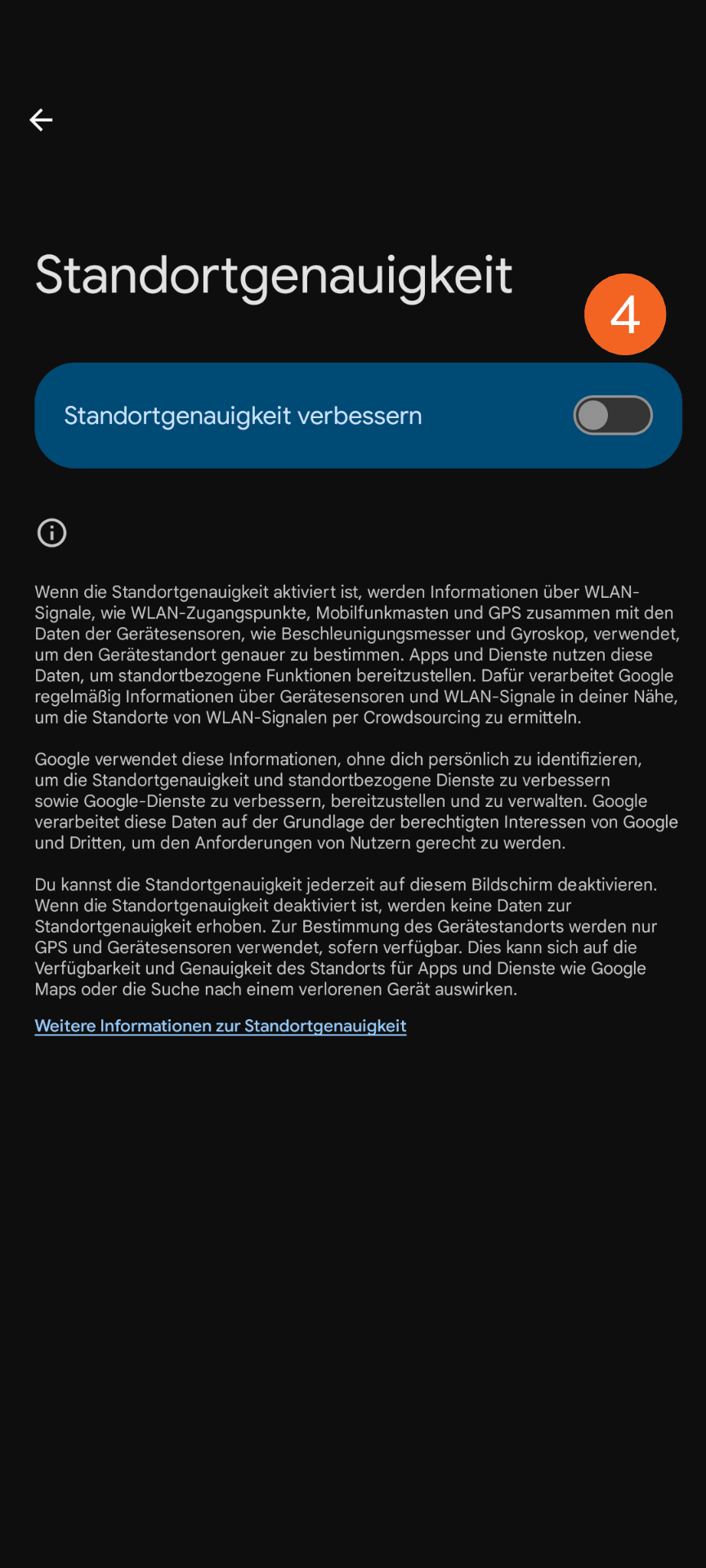
Note for Android users: for optimal use of GPS, the Improve location accuracy function must be deactivated! On Android devices, this function can be found in the location settings:
Account Creation
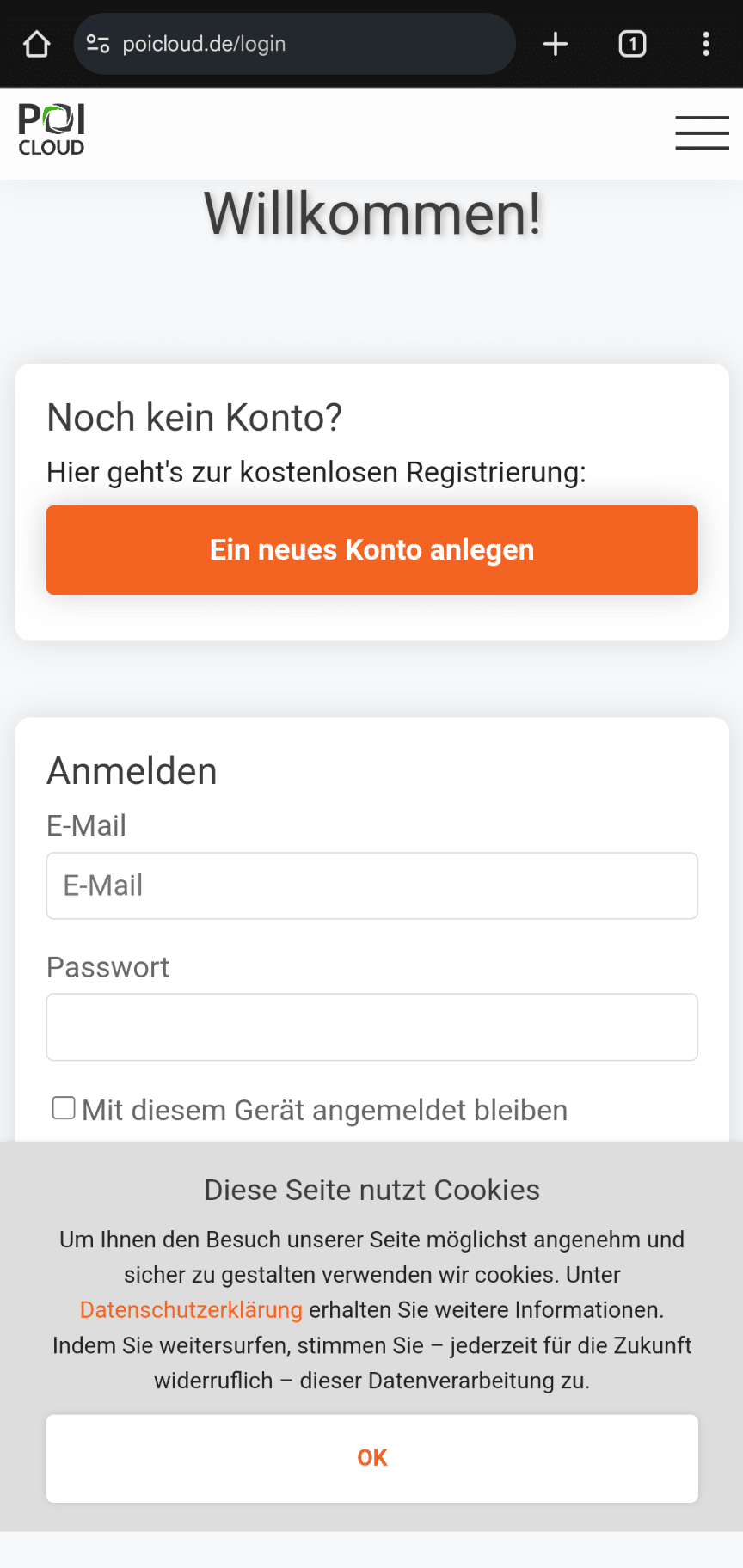
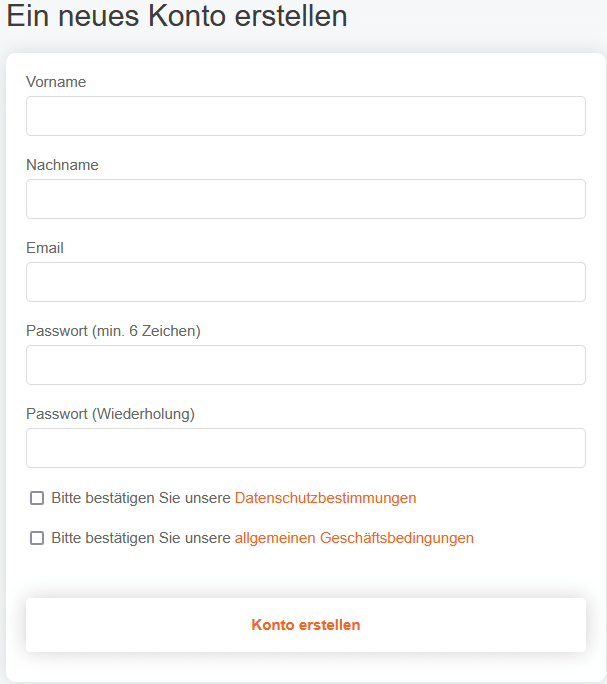
An account can be opened here. First, click on the Create a new account button. After entering your details and setting a password, you must agree to the privacy policy and our terms and conditions. To do this, tick the respective boxes. Then click on the Create account button to confirm your entries and complete the account creation process.
Location Approval
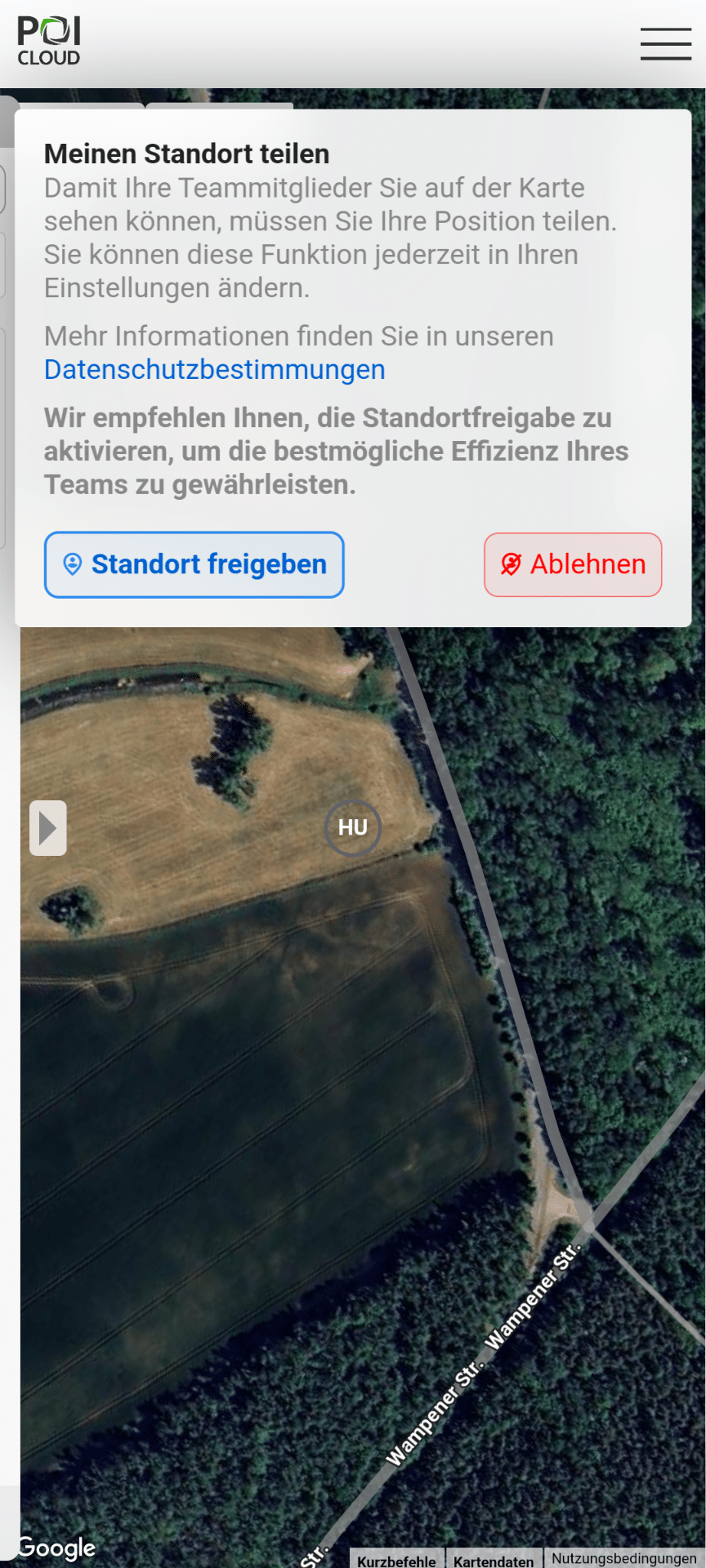
When you open the app for the first time, you will be asked to share your location. To get the most out of POIApp, click on Share location.
Creating POIs
In addition to all administrative and planning functions that can be implemented with the POI app as well as with the POI Cloud website, the POI app focuses primarily on field applications. The navigation function is particularly important here.
Creating POIs via POIConnect/EasyPOI
For detailed instructions on setting up and using POIConnect, please click on the following link:POIConnect documentation
If this function is activated on the drone remote control, markers can be set in a matter of seconds. To do this, it is useful to assign the Set Marker function to one of the freely assignable additional buttons on the DJI Smart Controller (for example, the C1 button).
The gimbal of the drone camera is then aligned at a 90° angle downwards, i.e. pointing directly at the surface, above the respective heat point. The mark set is then directly on the heat source found.
If the drone has a laser rangefinder, it is even possible to set marks with centimetre precision.
Once the marker has been set, it appears in real time as a POI in the map view of the POIApp on the field that is currently assigned to an active order and selected.
Pictures to follow!
Creating POIs via POIStudio
For detailed instructions on setting up and using POIStudio, please click on the following link: POIStudio documentation
In the georeferencing process, the thermal images captured by the drone are evaluated using our POIStudio software after the flight. Heat points identified here are marked in the application and assigned the corresponding coordinates. With just one click, the list of POIs created can also be transferred to the POIApp via the cloud service and assigned to the current job.
Pictures to follow!
Creating POIs via POIApp
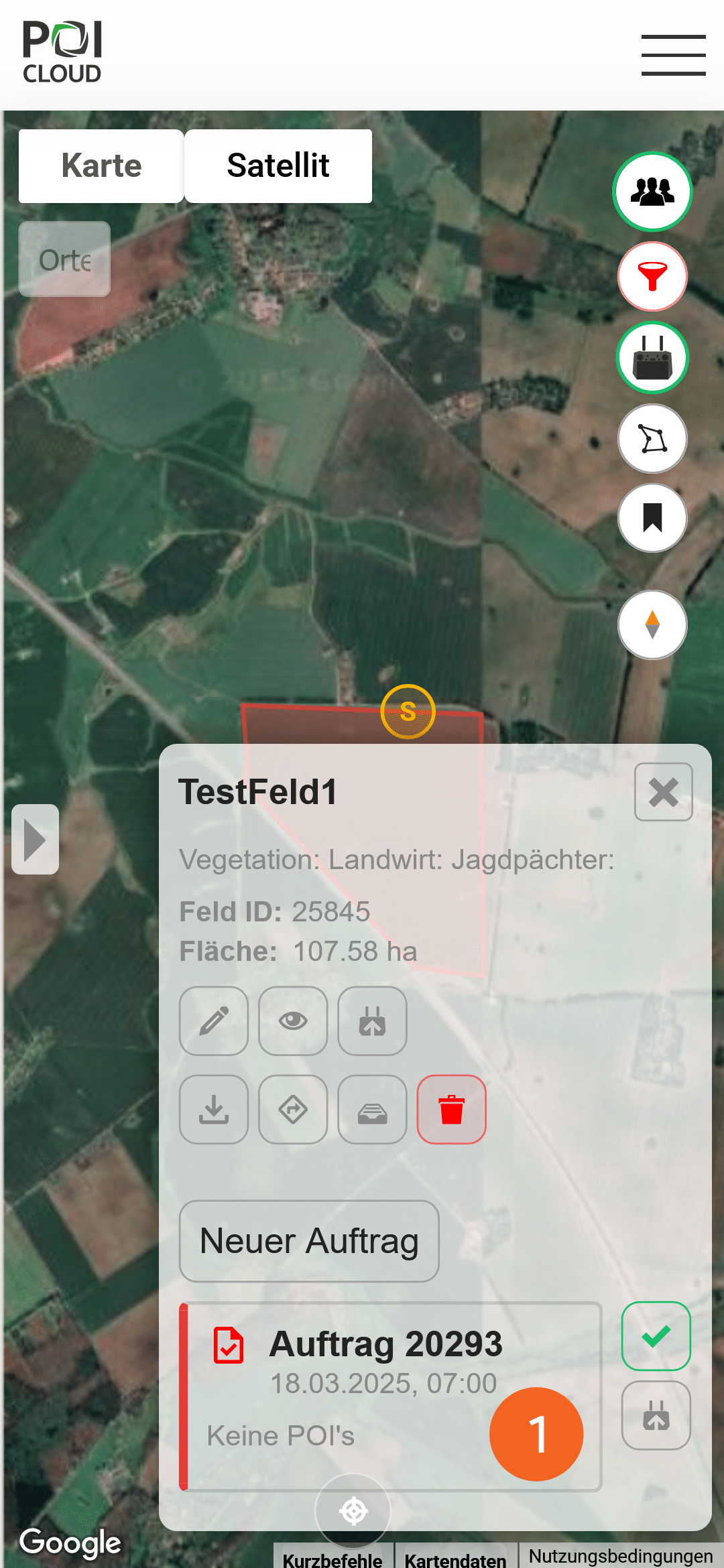
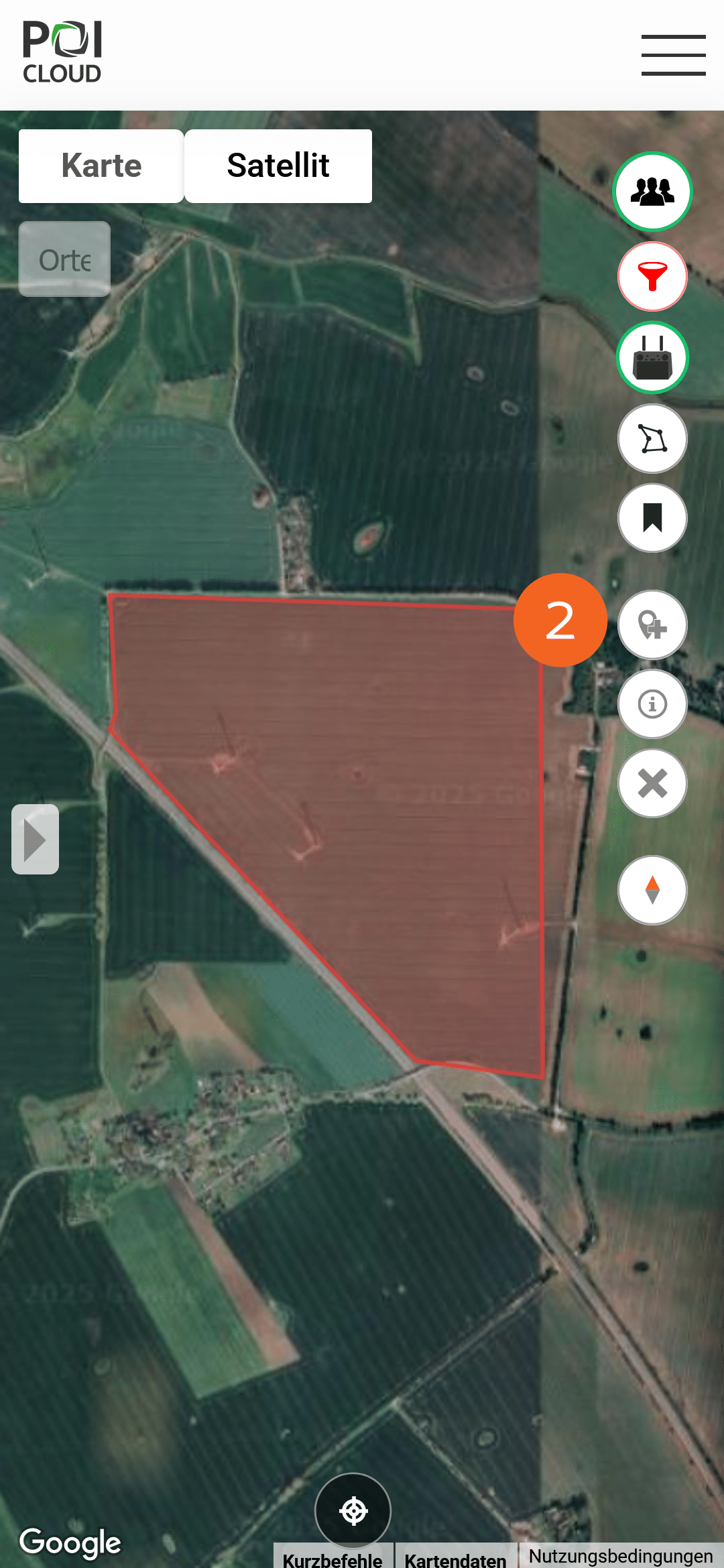
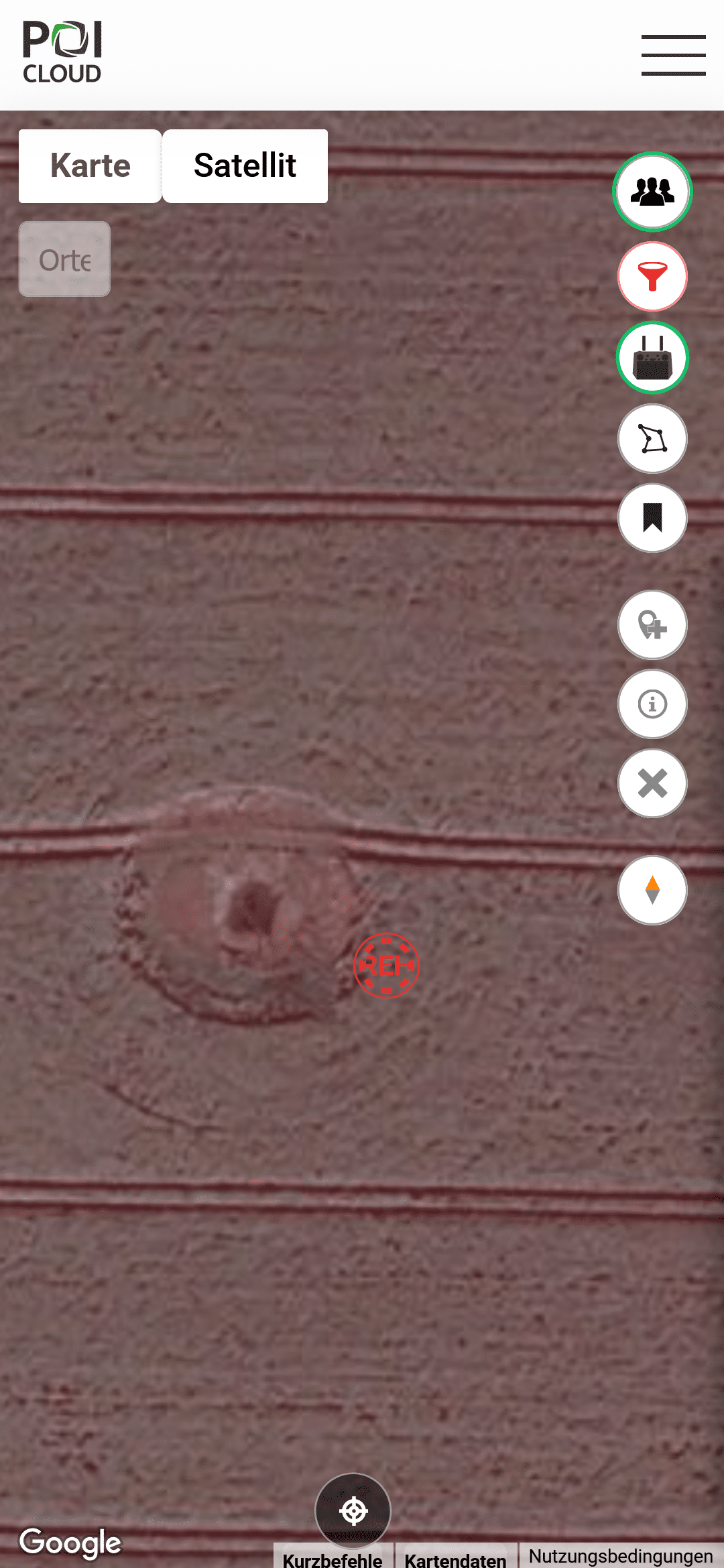
Similar to markers, POIs can also be set via the map view of the POI app. To do this, click on the active order in the selected field again (1). Once the order is selected, three additional symbols appear on the right-hand side of the screen. To set a new POI, use the Add a new POI manually button (2). This adds a marker directly in the centre of the map. This can be moved to the appropriate location on the map using the mouse or touchscreen.
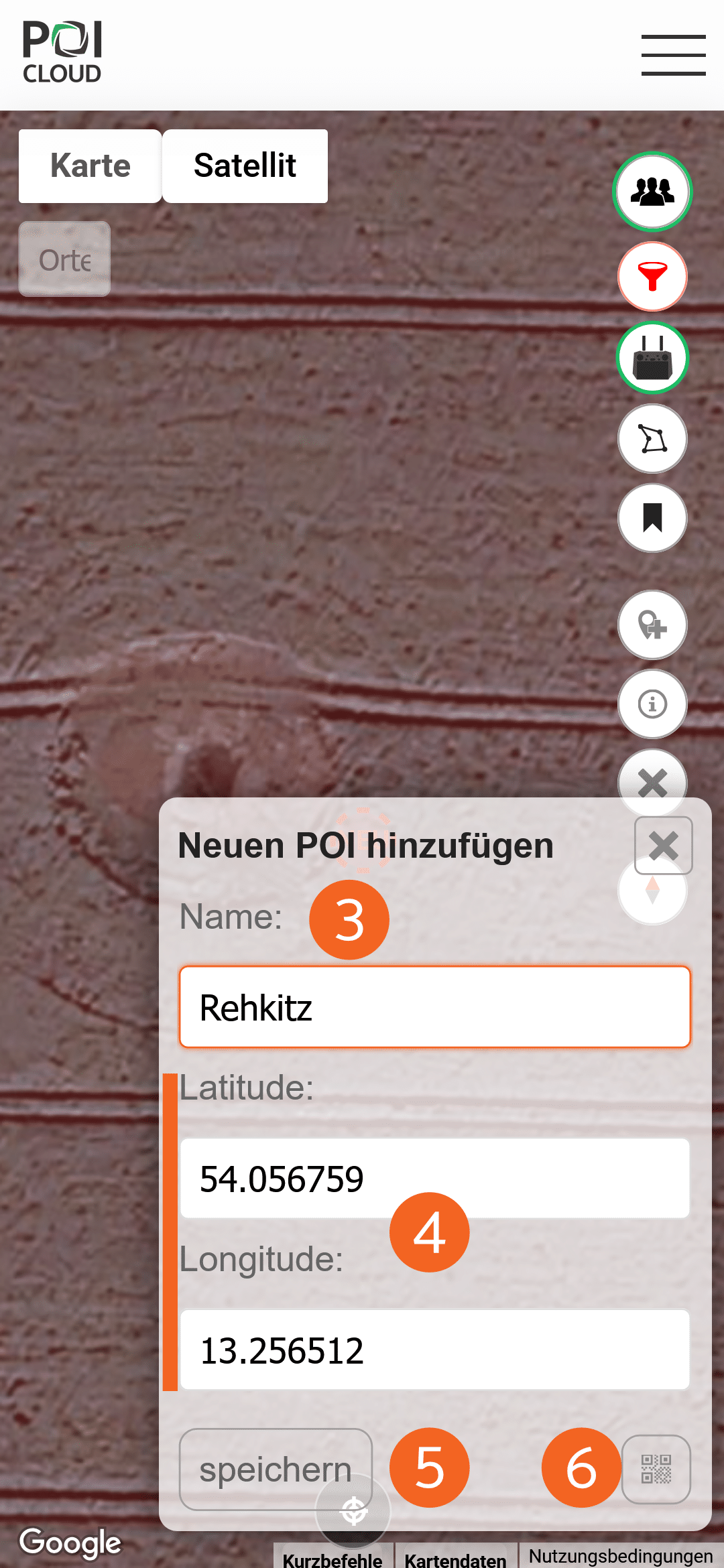
The point must be given a name (3). If the exact coordinates are known, these can also be entered in the Latitude and Longitude fields (4). Click on Save (5) to set the POI and you can then navigate to it.
It is also possible to output set markers from the drone remote control as a QR code and scan them (see POICloud documentation – Order Management). To do this, simply click on the QR code button (6). This opens a window with the camera of the device you're using, and you can scan the QR code straight from the drone remote control.
Managing POIs
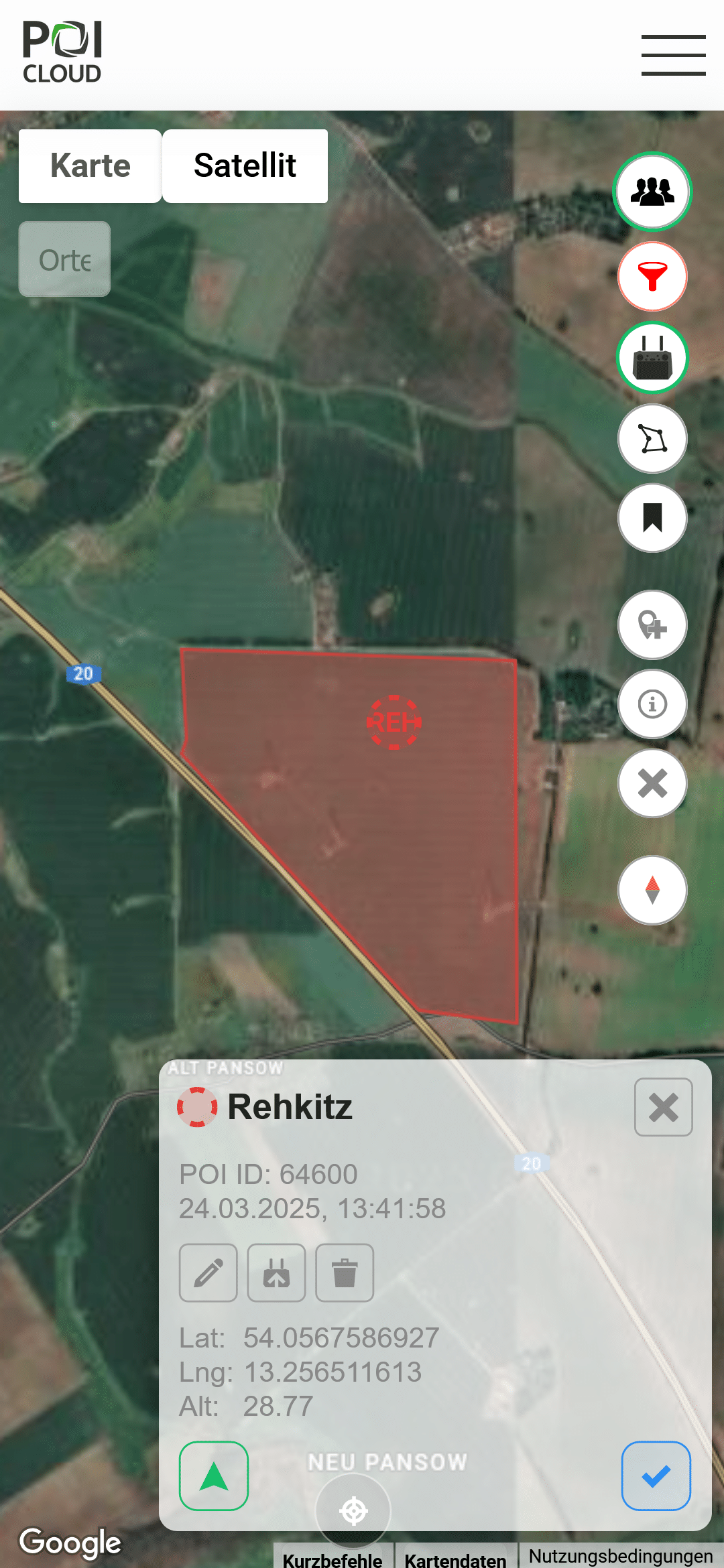
Once a POI has been created, there are various options for customising and managing it:
Edit POI
This allows you to adjust the selected POI even after it has been set. It can be renamed and/or provided with a comment as a note for the pilot and search team.
Upload POI
This allows the POI to be sent directly to active and connected drone remote controls via the cloud service, where it will appear in the map view.
Delete POI
Deletes the selected POI and removes it from the active order.
Navigate to POI
Opens the POIApp's navigation function. This guides the person searching to the selected POI using their smartphone. More on this in the next section.
Verify POI
Depending on the selected section, you can choose the appropriate one for the POI from a list of categories. For example, a fawn that has been found is verified as such. Depending on the category, the POI then appears either green or grey.
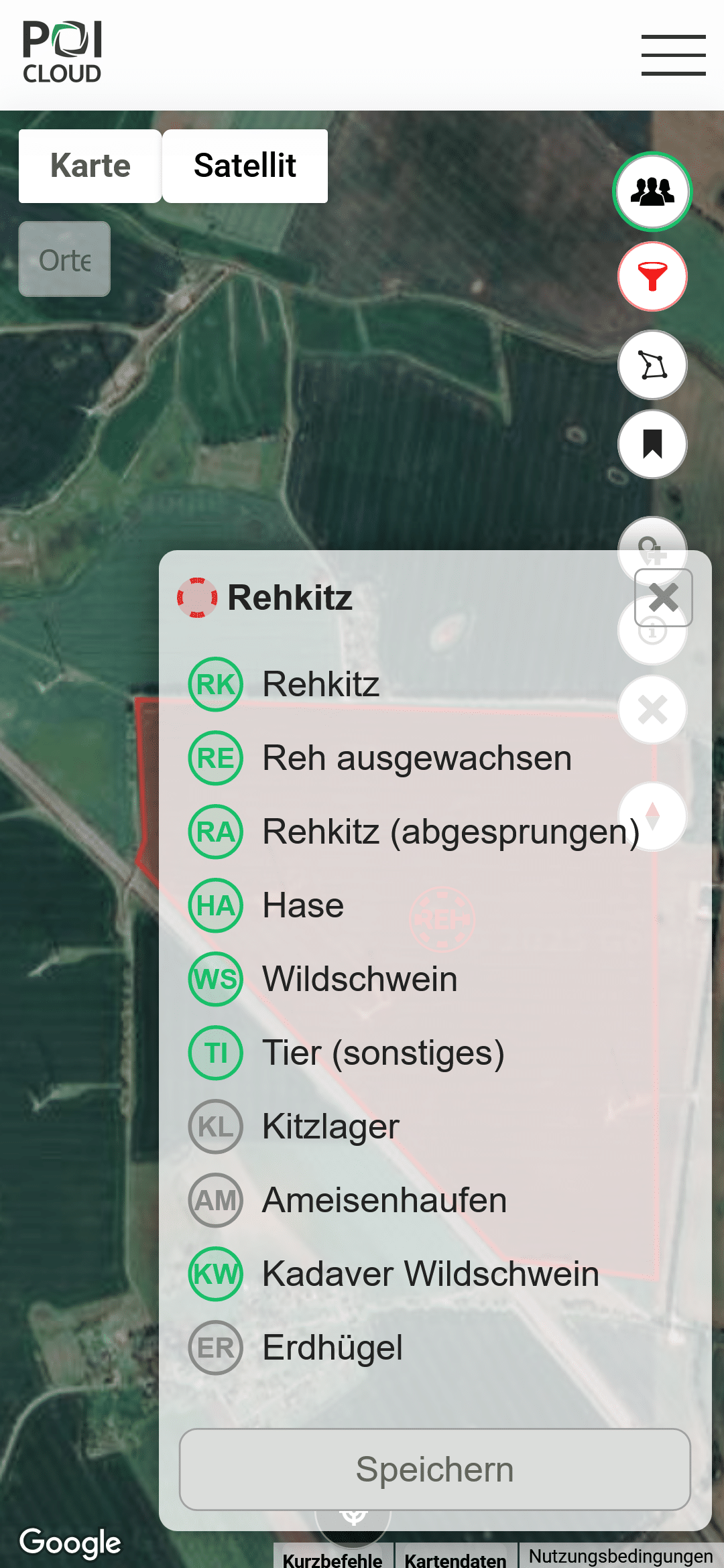
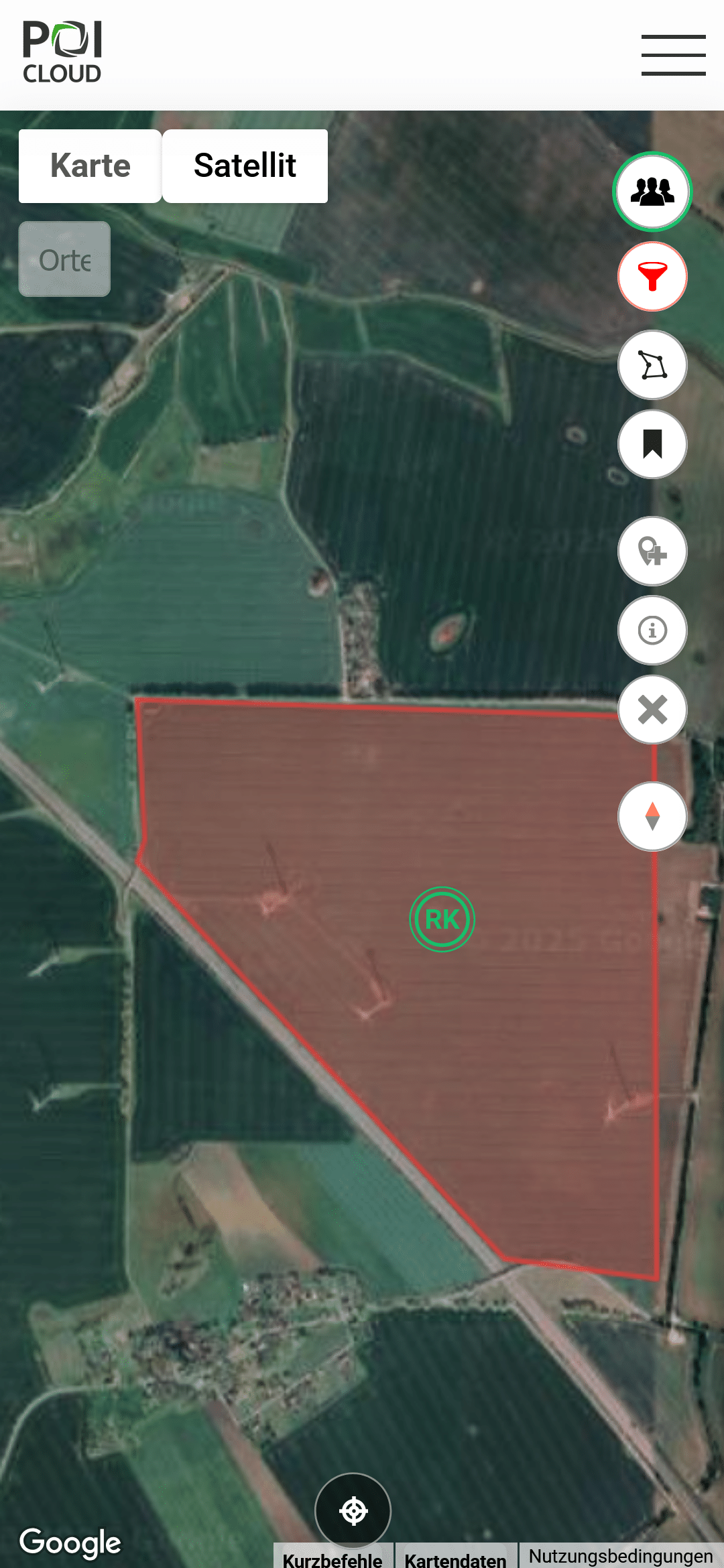
Navigation function
One of the most useful features of the POIApp is its built-in navigation function. This turns your smartphone into the ultimate tool for search and rescue missions!
When a POI is selected and navigation to it is started (see Managing POIs - Navigating to a POI), the following interface appears on the map:
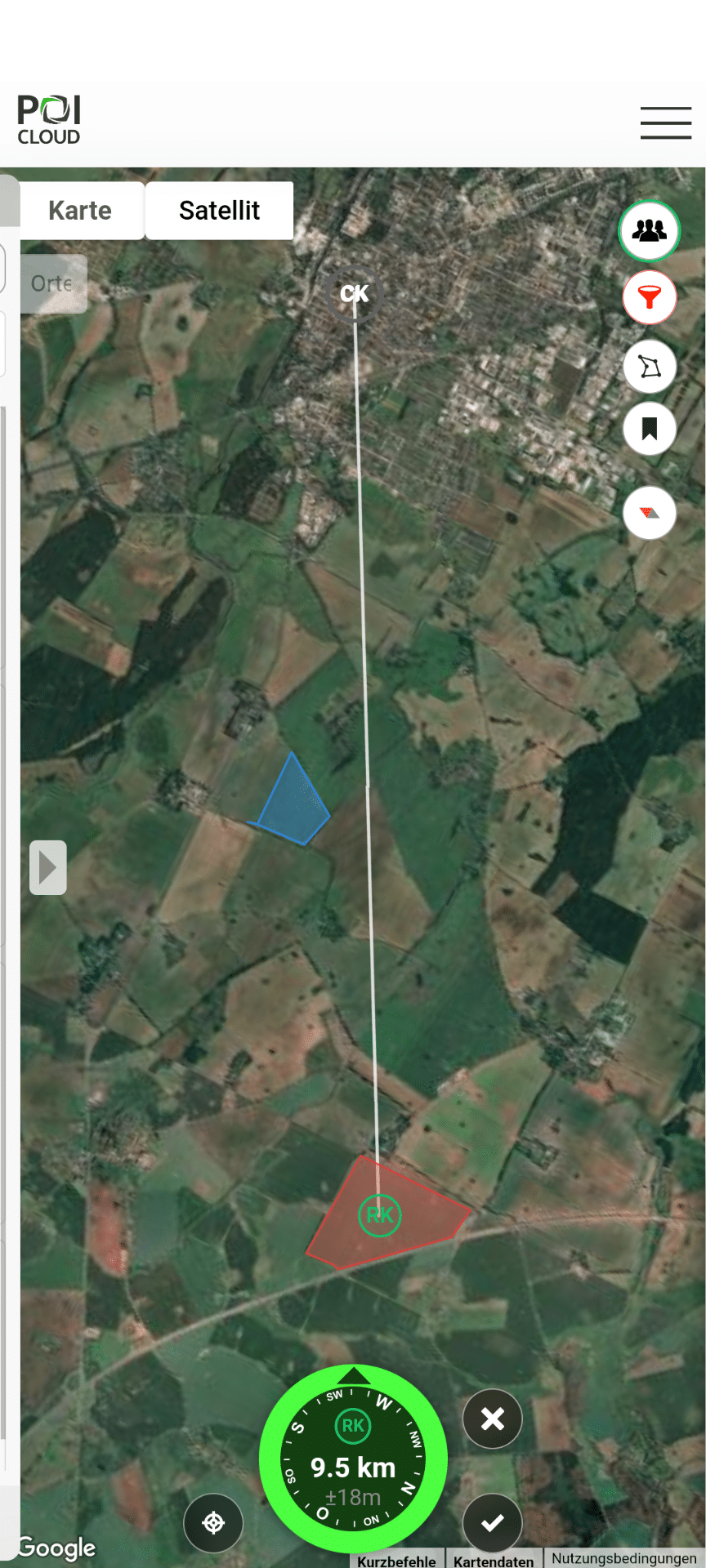
When the navigation function is active, a compass needle is displayed with various information about the selected POI. This includes, for example,
– Direction arrow indicating the cardinal direction depending on the orientation of the smartphone
– Accuracy of the GPS signal
– Remaining distance to the selected point
– Colour indicator depending on alignment with the target
– Centring function
– POI-verification
– Exit navigation
Colour indicator of the compass needle
Depending on how the smartphone is oriented in relation to the selected POI, the compass needle appears in a different colour. This is shown in the following video.
-
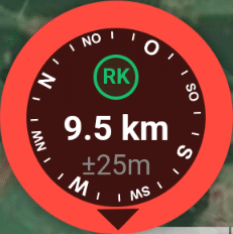
Rot: Das Ziel befindet sich in der entgegengesetzten Richtung
-
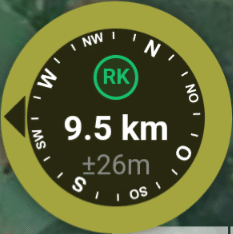
Gelb: Das Ziel liegt 90° westlich bzw. östlich ausgehend von der aktuellen Ausrichtung
-
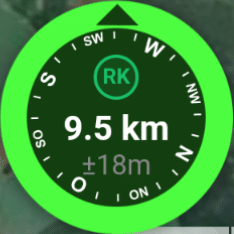
Grün: Der Kompass bzw. das Smartphone ist direkt auf das Ziel ausgerichtet
Verification of POIs
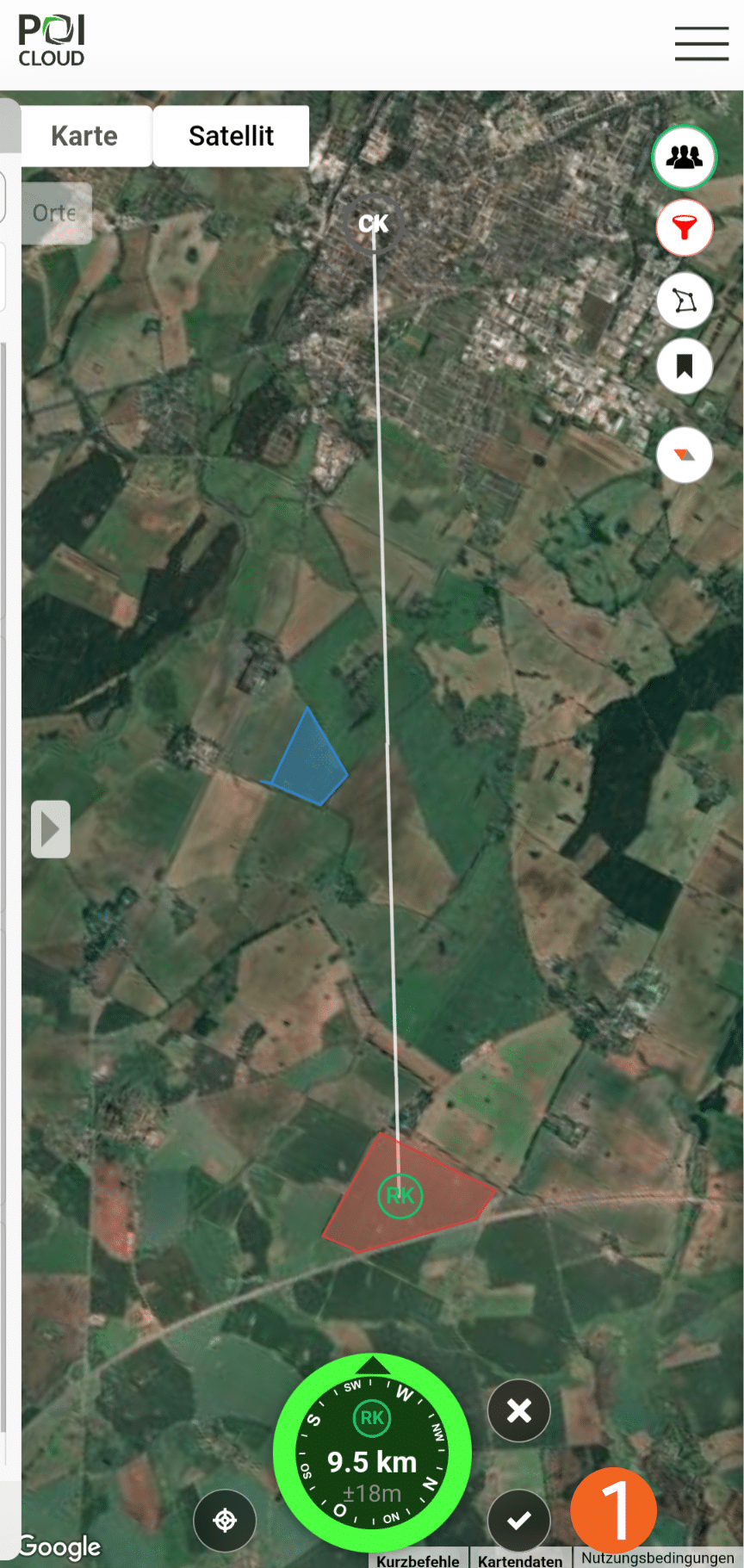
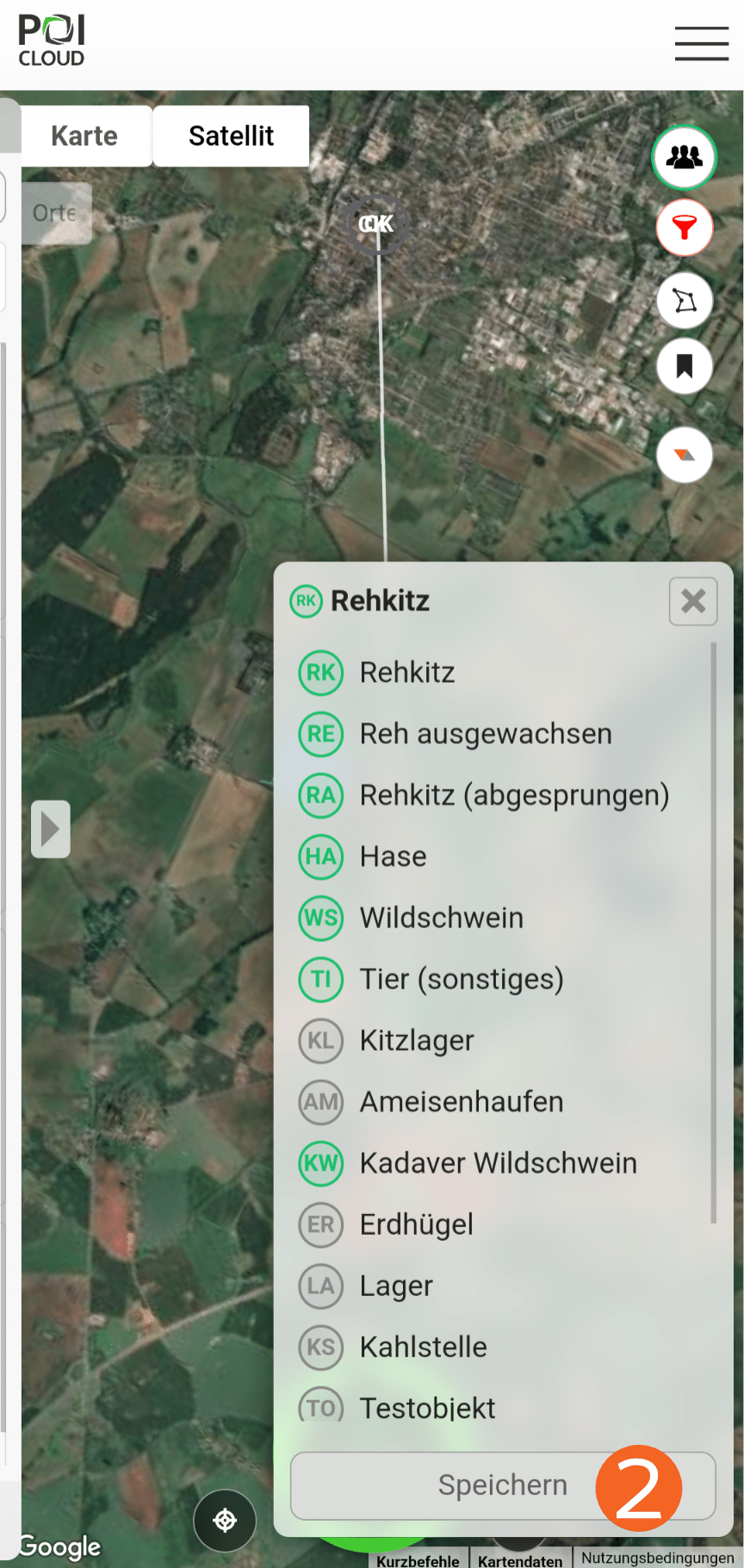
Once the target has been reached and the POI is in view (e.g. if the point is marked as a fawn and you have found it), it can be verified by clicking on the tick (1) next to the compass needle. Here, too, a selection of categories depending on the category opens, from which the appropriate one for the POI is selected. Click on Save (2) to save the selection for this POI.
Introduction Videos and Tutorials
More videos are available on our YouTube channel!