Note: This page is under construction.
POIStudio 0.8.0 - What's new for you?
POIStudio 0.8.0 extends AI detection with a second detection method (YOLO) and makes the detector dialog significantly clearer.
New: AI detection with YOLO models
Previously, only the built-in Keras model was available for fawn detection. Starting with version 0.8.0, POIStudio also supports YOLO models. YOLO can detect multiple object classes per image—e.g., fawns plus other animals—and is faster than the Keras model on most computers.
The two model types work differently: The Keras model divides each image into many small, overlapping tiles and answers the question "Fawn or not a fawn?" for each tile individually. The detection frames are then derived from the tiles with a match—which is why the model only recognizes one class. YOLO, on the other hand, detects objects directly within the overall image and delivers the frames along with the class assignment in one step—this saves processing time and allows multiple classes in one model. (The current model only has one class; later versions will hopefully be able to distinguish between objects.)
Manage models
In the detector dialog, there is a new button: “Manage models…”. This allows you to:
- Include local model files (ONNX or H5 from the hard drive).
- Load YOLO models from AI Spotter — if you are logged into POICloud, you can load finished models directly from the repository without leaving the program.
- Select, rename, or delete models.
Class settings per class
In the class table, you can now set the following for each class:
- Name — Class label.
- Threshold — How certain the AI must be for a detection to be displayed. Low = more hits, but also more false alarms.
- Color — The color of the recognition frame in the image.
- Visible — Whether detections of this class are displayed at all.
Changes are saved immediately — you don't need to close the dialog using the Start button for a setting to take effect. Even clicking Cancel will no longer discard your changes.
Display class names in detections
The checkbox "Show class names in detections" displays the class names directly next to the detection frame. This is helpful when a model detects multiple classes.
The threshold also filters out existing detections.
If you subsequently increase the threshold, the lower-confidence detections disappear from the image—even without re-detection. If you lower the value again, they reappear. The detections are not deleted, only filtered.
Image list responds to class settings
The "AI Only" filter in the image list hides images whose only detections are hidden (Visible Off) or below the threshold. The list therefore shows exactly what is actually visible in the images.
Three areas in the detector dialogue
The dialogue is divided into three clearly defined groups:
- Model — Model type and selected model.
- Classes — Class table and detection settings.
- Execute detection — Execution options and the Execute button that triggers the detection.
Minimum patch overlap (Keras only)
Because the Keras model works with tiles (see above), the degree of overlap between adjacent tiles must be defined. Min. Patch Overlap in the "Execute Detection" section specifies this minimum overlap in pixels.
- More overlap — Fawns lying precisely on a tile boundary are found more reliably because they are more likely to be fully visible in at least one tile. However, detection takes longer because more tiles need to be processed.
- Less overlap — detection is faster, but an animal at the edge of a tile may be overlooked if it is not completely contained within a single tile.
The default value is a good compromise between speed and hit rate.
IoU threshold (YOLO only)
IoU stands for Intersection over Union — that is, how much two frames overlap in area. YOLO sometimes finds multiple frames for the same object — two slightly offset boxes around the same fawn, for example. The IoU threshold in the
"Execute detection" section determines at what overlap two frames are considered the same match and only one of them is kept.
- Low (e.g., 30%) — even slight overlaps are sufficient; double frames are consistently removed. However, two closely spaced animals may be mistakenly merged into a single hit.
- High (e.g. 70%) — only strongly overlapping frames are combined, but a double frame is more likely to remain.
Note: Currently, this setting has no visible effect on detection in version 0.8.0 — this is a known bug and will be fixed in a future version.
Perform detection on optimized image (YOLO only)
In the "Run Detection" section, there's an option: "Run detection on optimized image." This means the AI runs not on the standard preview image, but on the optimized version (CLAHE / Clip / Homogenize) – the image you see in the preview.
Depending on the model, this can improve the recognition rate.
Installation and setup of POIStudio
The following steps are described that are necessary to install POIStudio and calibrate the drone:
-
Request the license via support (e.g. info@thermaldrones.de)
-
Download the software from our download page.
-
Installation of POIStudio
-
Connecting POIStudio to the POICloud
-
Calibrating the drone
You can always contact us if you need help.
Download
Auf unserer Download-Seite stehen mehrere Versionen des PSInstallers zum Download zur Verfügung. Momentan ist eine Nutzung von POIStudio auf Systemen mit Windows oder MacOS möglich. Eine Version für Linux befindet sich noch in Entwicklung. Der Download erfolgt mit einem Klick auf den Button neben der für das System zutreffenden Version:
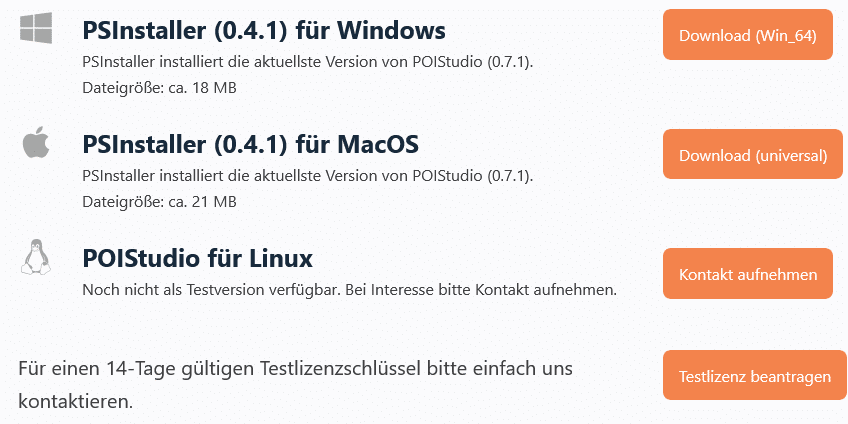
Furthermore, you can request a 14-day trial of POIStudio. Simply click the corresponding button and fill out the contact form that appears. An access code will then be sent to you by email, which you must enter in the designated input field within the application.
installation
After the download is complete, the PSInstaller will be located in the computer's Downloads folder, unless otherwise configured:
Installation is performed by double-clicking the installer file. Administrator privileges are required to run the program. In the window that opens, answer Yes to the question, "Do you want to allow this app to make changes to your device?"
In the PSInstaller window that opens, you can first select the program language (1). Currently, German and English are available. Clicking "Browse..." (2) specifies the installation path for POIStudio. By default, the Program Files folder on your system drive (C:\) is selected as the installation path. Clicking "Install" (3) starts the installation process.
The installation may take up to 5 minutes, depending on your system.
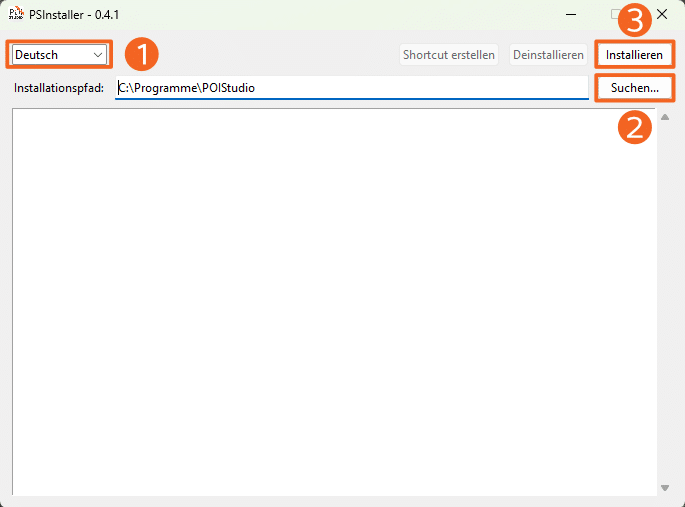
If needed, a program shortcut can be created on the desktop after installation. The installation process is now complete.
Activate license
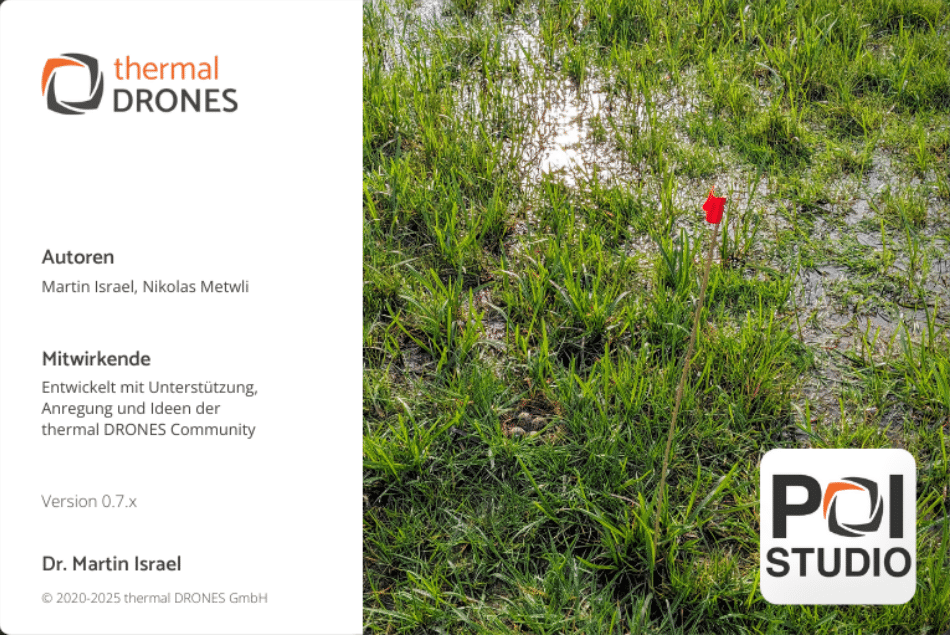
Double-clicking the desktop application opens POIStudio with the following image:
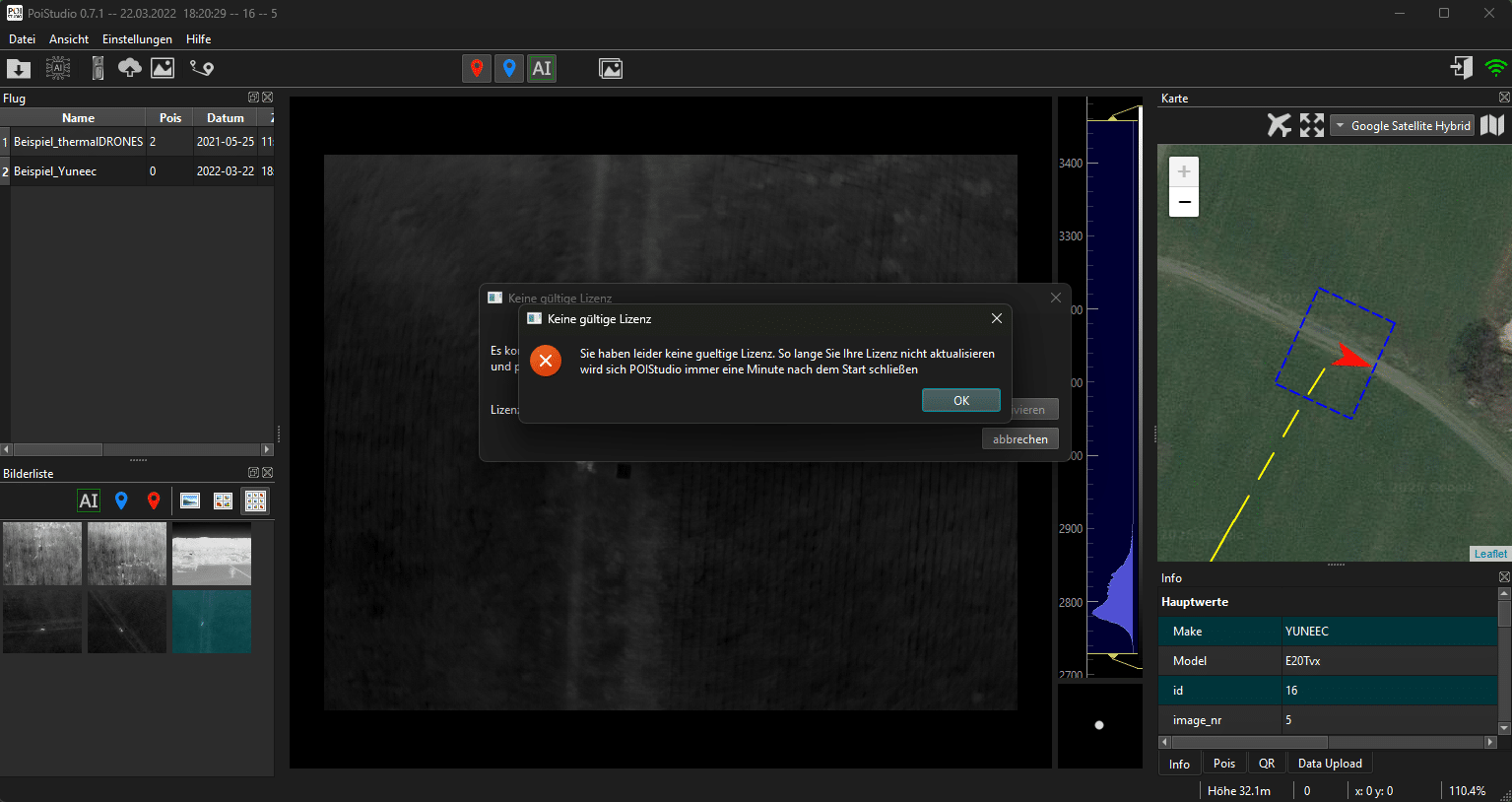
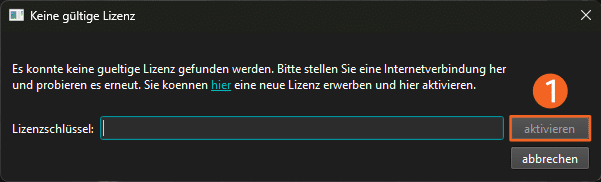
On the POIStudio user interface that appears after launching the program for the first time, a message will appear stating that no valid license is present. Clicking OK will hide this message, allowing you to enter a previously purchased license. After entering the license details and clicking Activate (1), POIStudio will be fully functional.
Note: The license key is also stored in your POICloud account under My POIStudio Licenses.
POIStudio User Interface
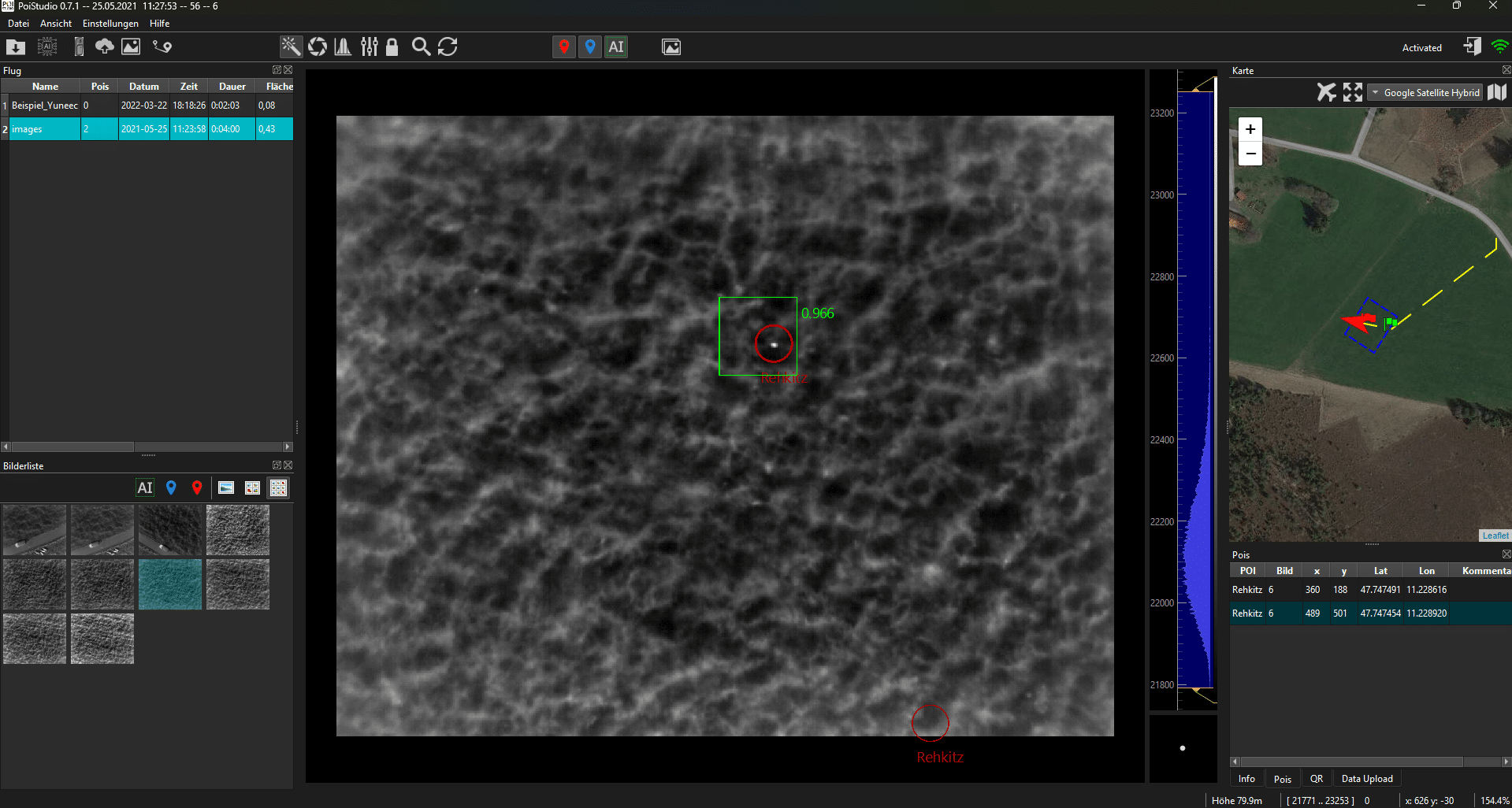
Once POIStudio is activated, the application's user interface opens. This is divided into several sections, all of which can be adjusted in size and position.
Grayscale values setting
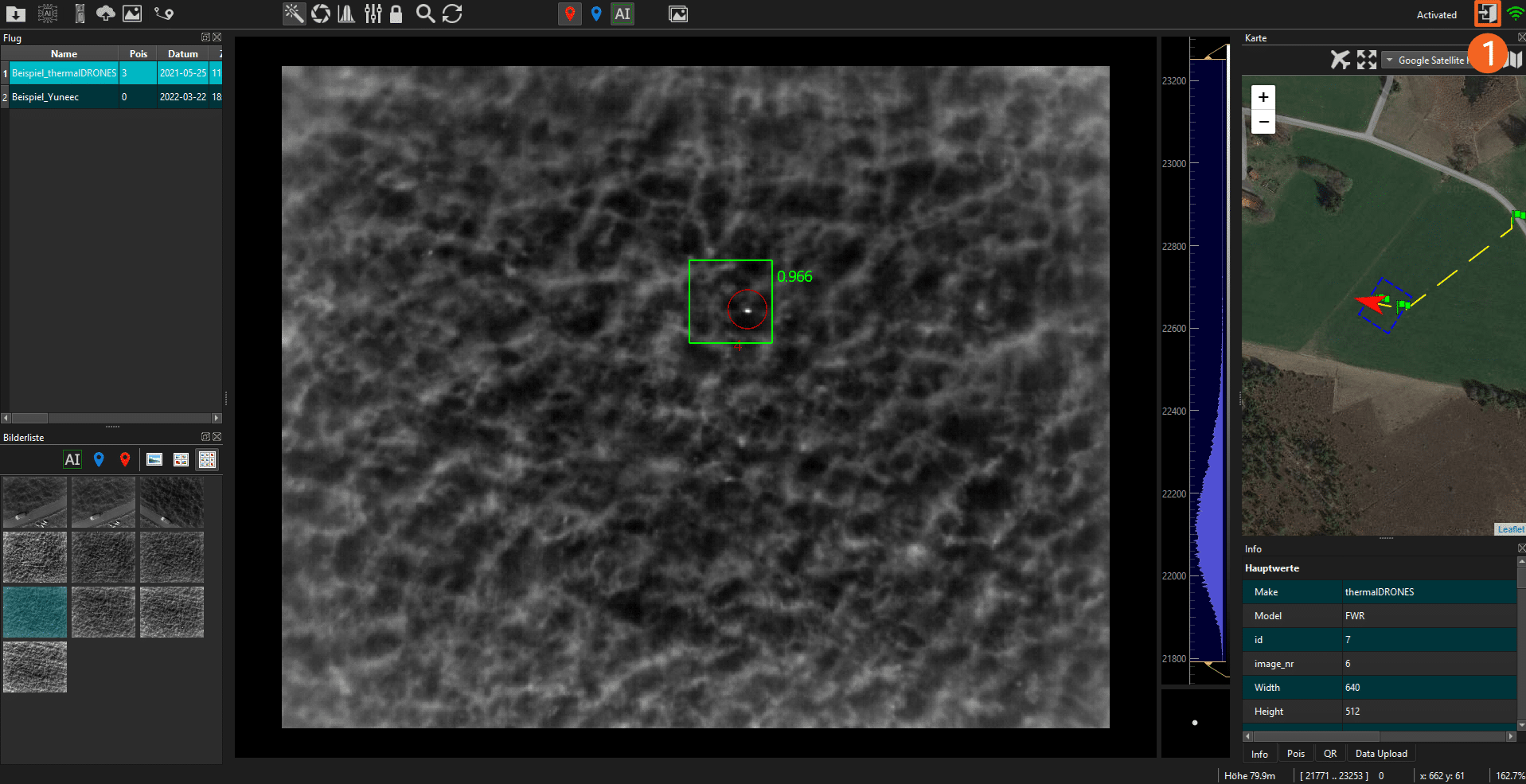
To the right of the currently selected thermal image of a flight is the histogram, which displays the distribution of color values in the image. The slider allows you to adjust and narrow the displayed range, so that only a specific range of grayscale values is shown.
Depending on the range setting, bright or warm objects are thus much more clearly distinguished from their surroundings. This process is demonstrated in the video.
The point below the histogram is the reference point. This indicates the expected size of animals (e.g., fawns) or objects. It is adjusted to the zoom level of the currently displayed thermal image and can be configured in the settings depending on the application.
Action bar icons
Import flights
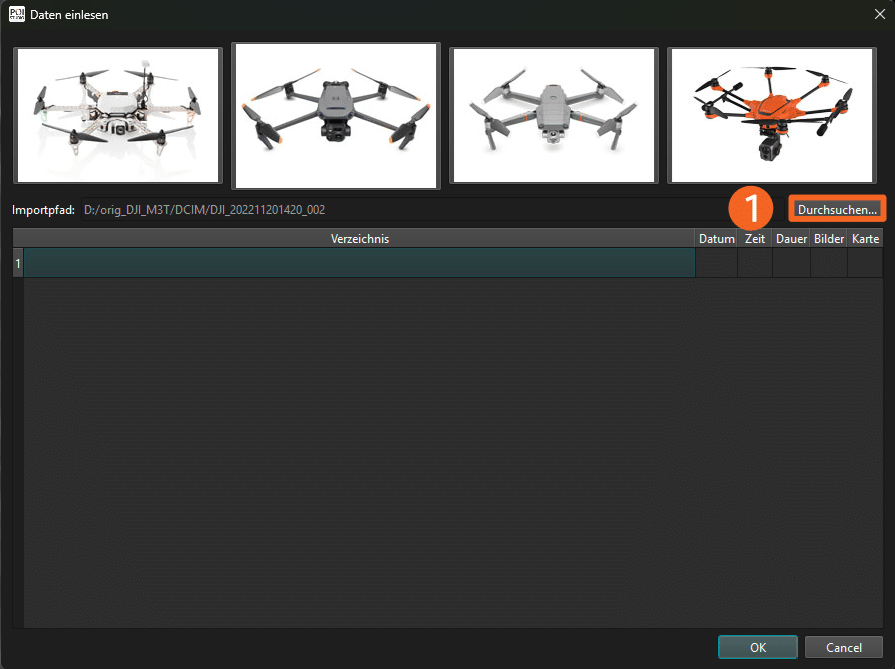
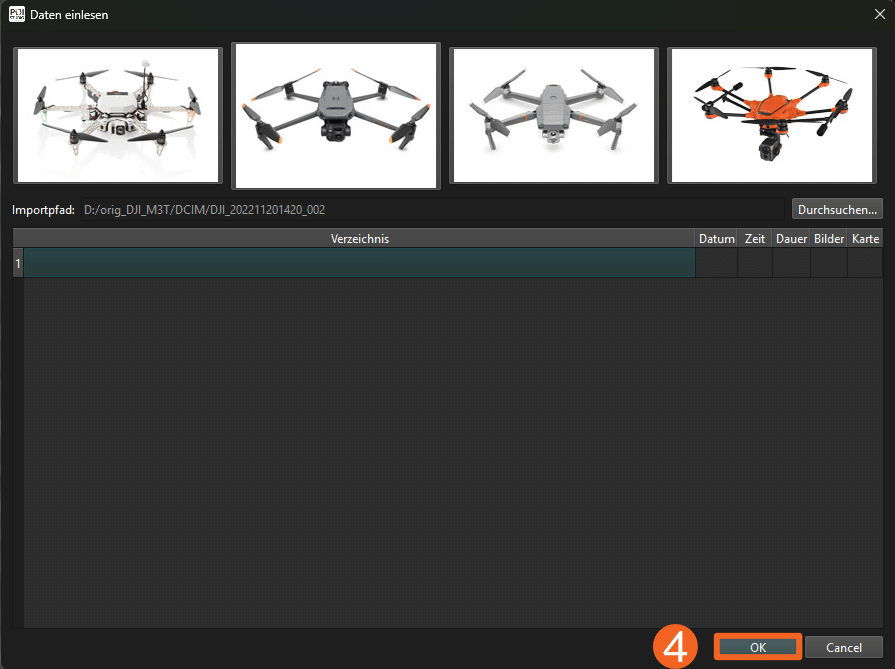
Clicking this icon allows you to import images from one or more flight missions into POIStudio. First, you must either connect the drone to your PC via USB or, if the images are stored on an external SD card, read the memory card from the PC.
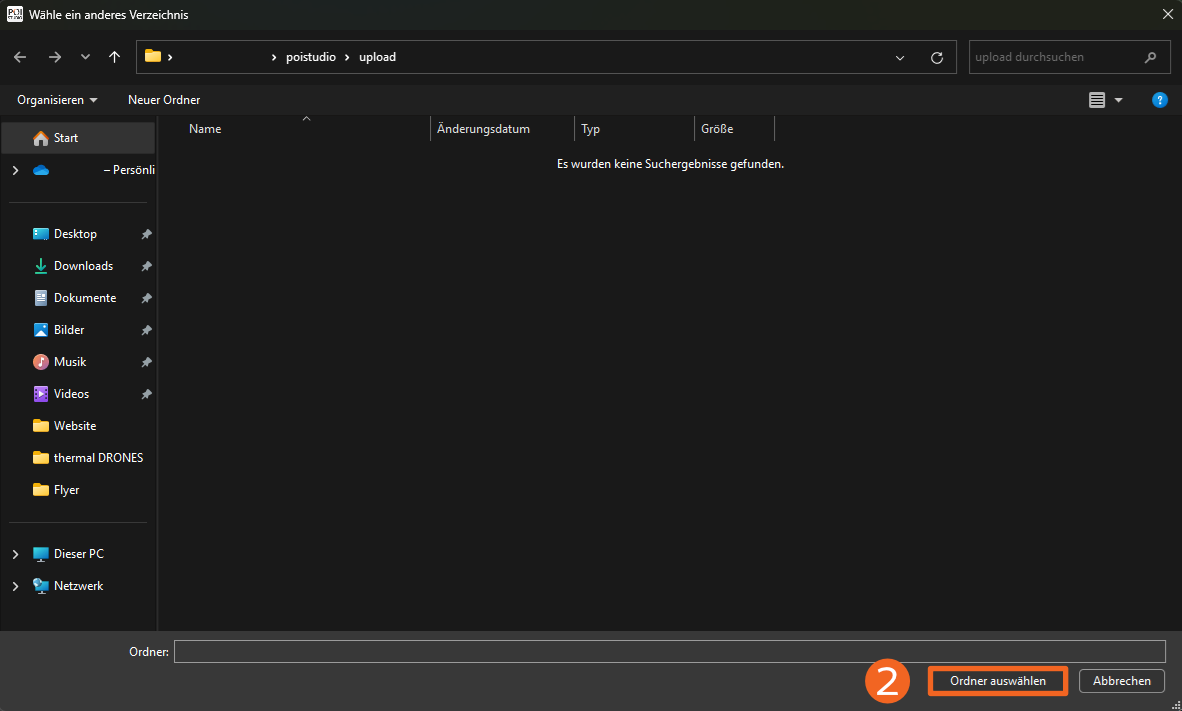
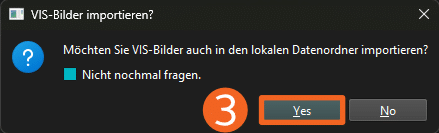
In the window that opens, you can select the appropriate drone model to configure the sorting of the imported images. The DJI Mavic Enterprise 3T is selected by default. To import a flight, first select the file path where the flight images are saved. This can be done by clicking Browse... (1). By clicking the Select Folder button (2), the current folder is set as the upload directory, and the flight appears in the previous selection window. Click OK (3) and confirm that you want to import VIS images into the local file folder (4) to begin the file import.
Applying AI
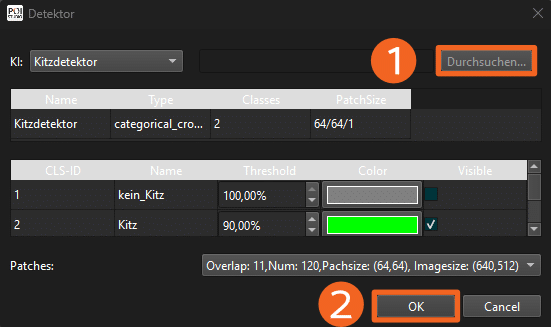
This function allows you to run an AI detector over the thermal images. This is currently particularly useful for fawn rescue. After selecting the function, the detector window appears, where you can configure the settings for the corresponding AI model. Adding an external model is possible via the Browse... button (1). The default configuration includes the categories "no_fawn" and "fawn," for each of which a threshold value and a display color can be selected. The checkmark icon in the Visible field allows you to activate/deactivate the visibility of the points found by the AI on the thermal images.
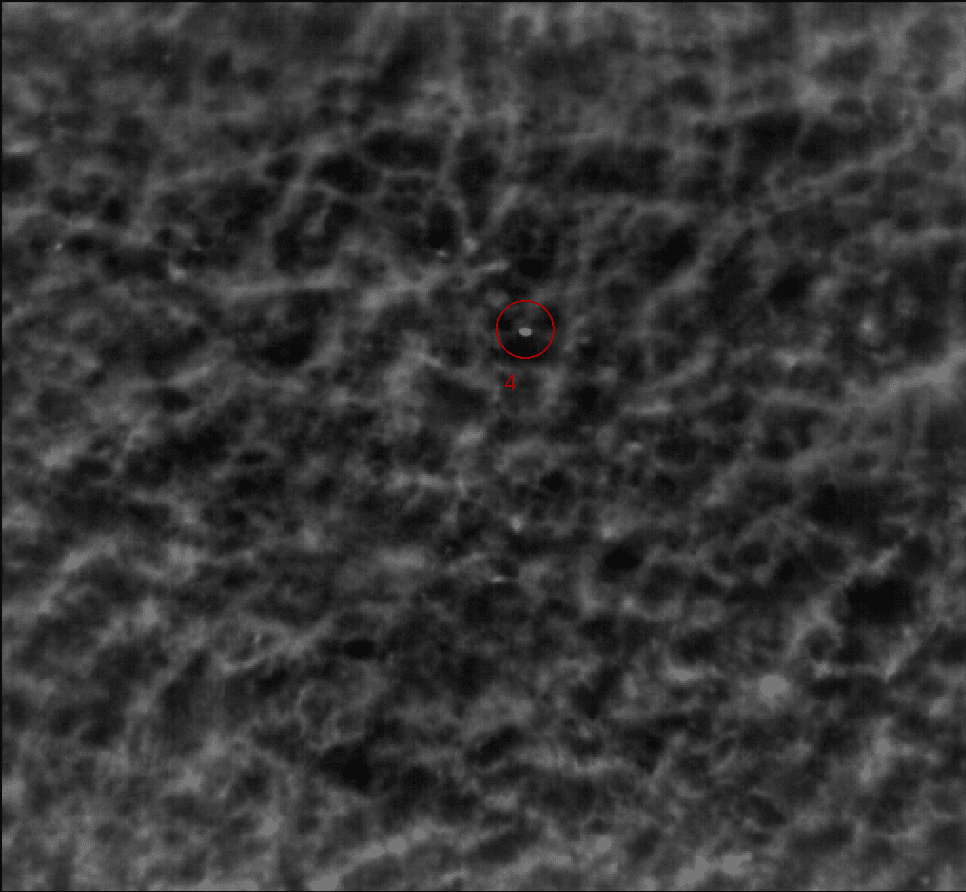
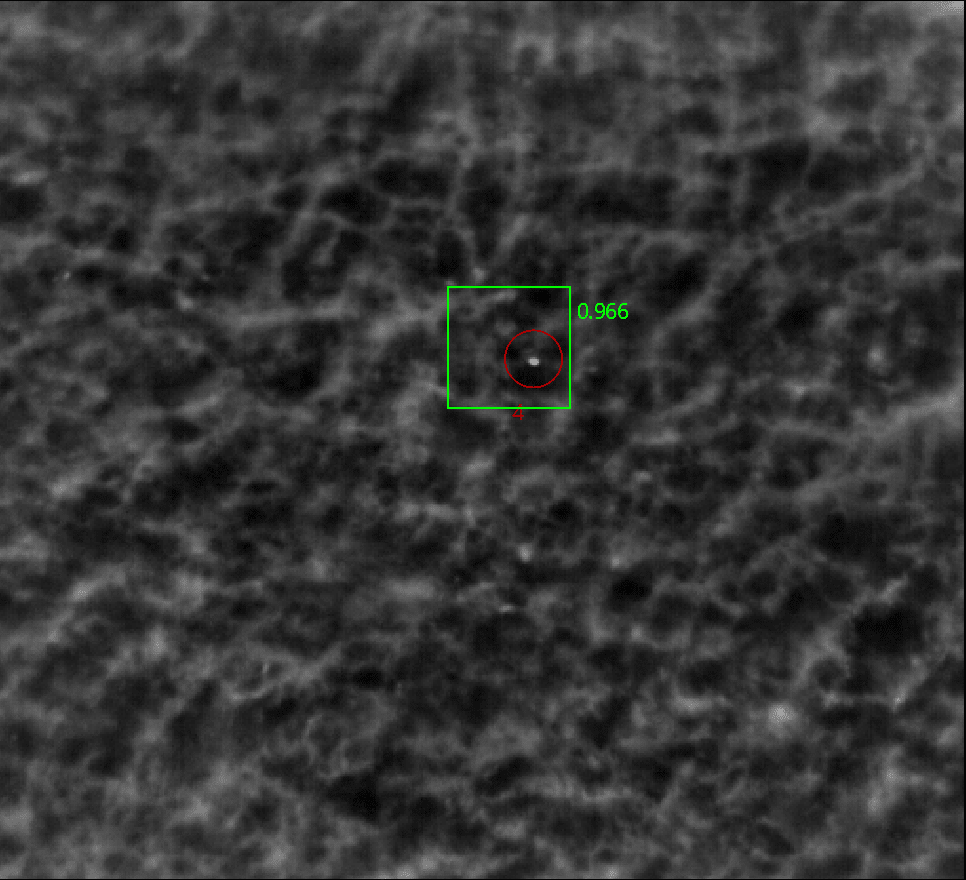
Clicking OK (2) starts the AI detector to analyze the individual thermal images and marks any detected points in the specified color.
GPS Export
By clicking on this symbol, the set POIs including coordinates can be exported to a GPS device connected to the PC and can be navigated to with it.
Cloud Upload
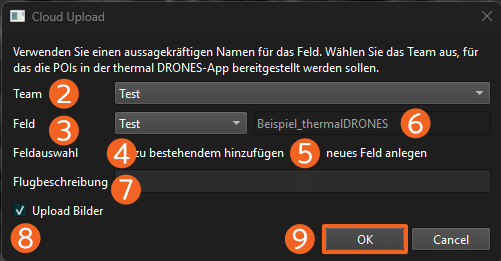
Attention: Registration on POICloud is required beforehand! Simply click the login button (1) and enter your login details. After successful registration, you can upload the POIs to POICloud. In the window that opens, select the team (2) and active field (3) to which the POIs should be added. For the latter, you can either add the markers to the existing field (4) or create a new field with the selected POIs (5). When creating a new field, you must assign a field name in the corresponding input field (6). If needed, a flight description (7) can be added.
By selecting the "Upload Images" checkbox (8), the thermal image on which each POI is marked will be added.
Clicking OK (9) starts the upload to POICloud.
IR image export
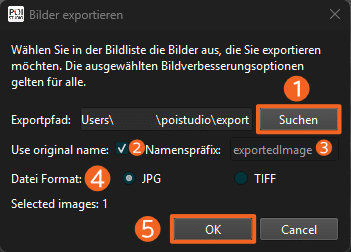
This allows you to export selected thermal images from the current flight, including any annotations. Clicking the icon opens the export window. First, you specify the export path. By default, the export folder in the POIStudio installation folder is selected. You can change the file path using the Browse button (1).
Next, you can choose whether to retain the original filename (2) during export or use a custom name prefix. This can be customized using the corresponding text field (3).
Under File Format (4), you specify the export format for the image(s). Available file formats are JPG and TIFF.
Clicking OK (5) starts the export process.
Convert flight plan
The flight plan converter allows you to generate flight paths with POIs from the current flight (1) or from existing QGroundControl files (2). When creating a flight path from set POIs, you must specify the approach altitude and the hover altitude.
When importing a QGroundControl file, you must select the file path where the file is located.
Next, select the appropriate drone model from the list of aircraft. The DJI Mavic 3T is selected by default.
After specifying the destination directory and clicking Convert (4), the flight plan conversion begins.
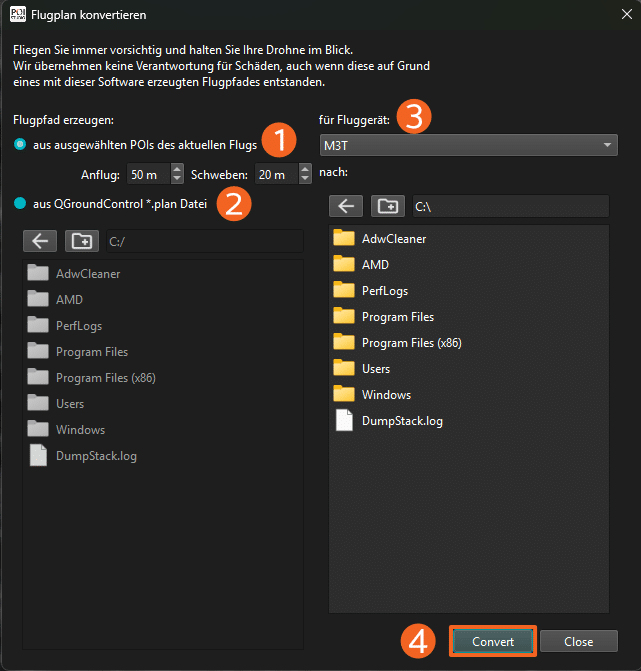
Image optimization
When this icon is selected, POIStudio converts the image file from 8-bit to 14-bit. This allows the image to contain significantly more information and enables a much better representation of contrasts. In addition, the three image optimization functions shown here are unlocked:
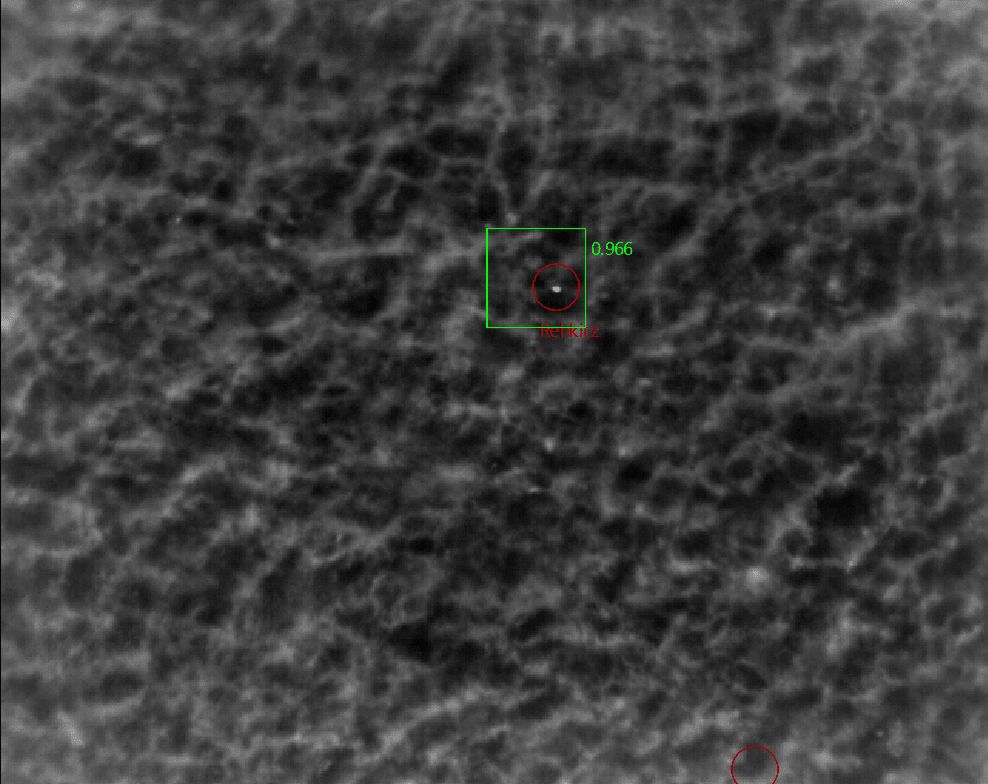
homogenize image
Apply a high-pass filter to the selected thermal image. This makes lower, spatially defined frequencies more easily visible.
Homogenization is particularly helpful when the image contains wide, warm objects (e.g., roads). The warmer areas are filtered out, freeing up more values for increased contrast and allowing for better differentiation between white and black levels.
Clip image
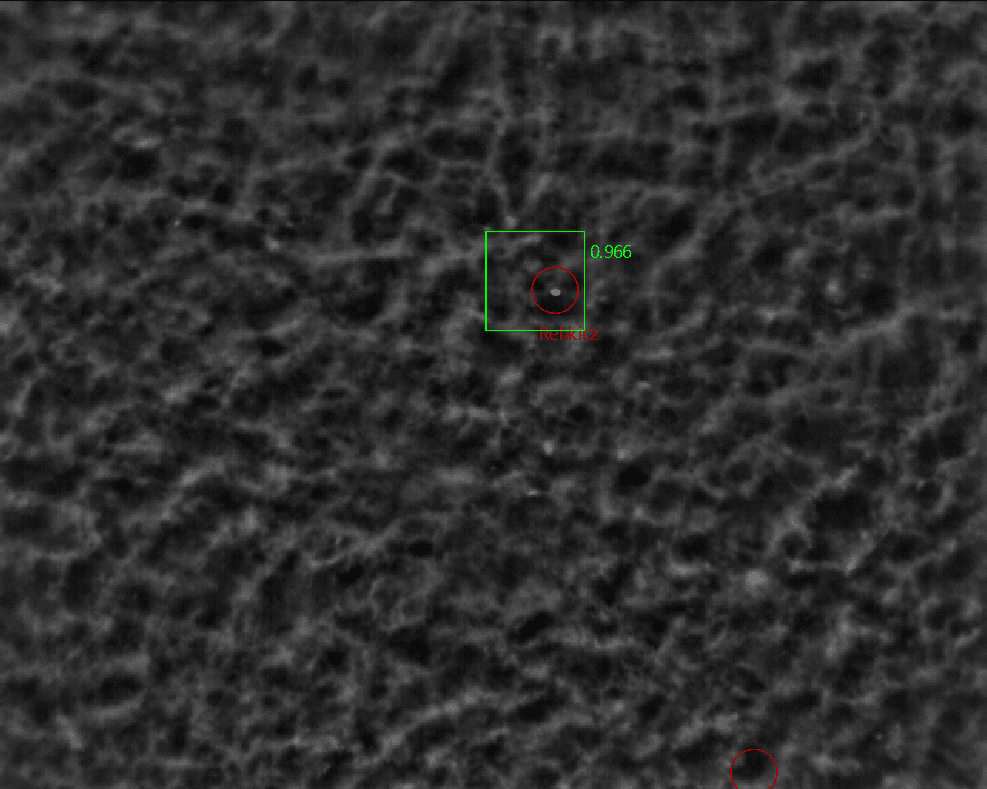
This function filters out specific areas in the image that are particularly hot or cold, cropping out temperature ranges within a certain number of pixels. The rest of the image remains unchanged.
The clipping function is more sensitive to extreme values, but is therefore only suitable in certain situations.
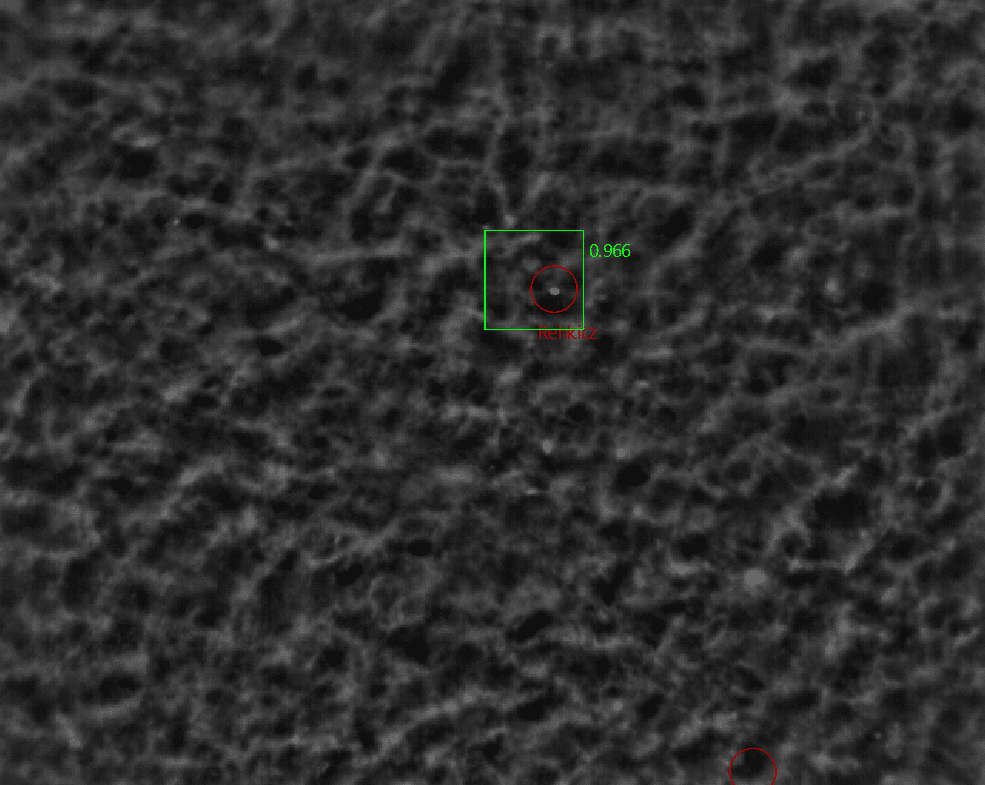
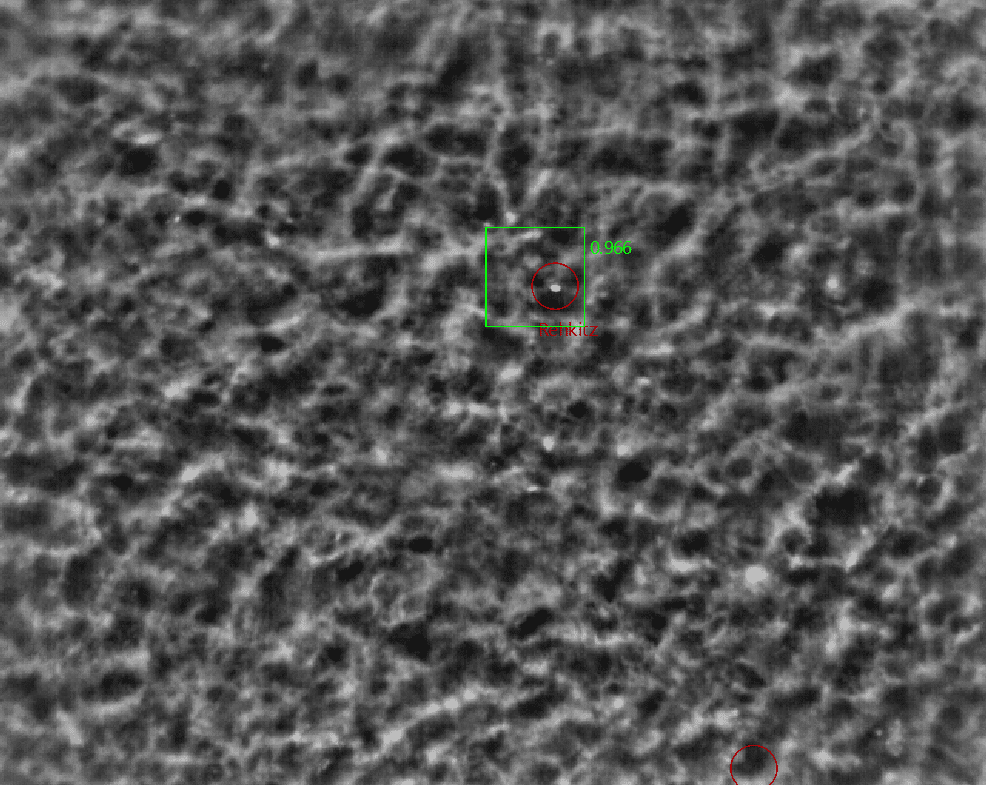
Histogram correction
This is a classic image optimization algorithm that redistributes the color values in the histogram. This results in stronger contrasts, especially in scenarios that are not necessarily related to wildlife rescue.
Capture histogram min/max
This function makes it possible to lock the set limits of the histogram and maintain them across all thermal images.
Lock zoom
This allows you to lock the current zoom level for the currently selected thermal image. This ensures that all other images will also appear at the specified zoom level when selected.
Reload
This resets the optimization and loads the original image.
Show/hide POIs
This allows you to show or hide all POIs placed on the selected image.
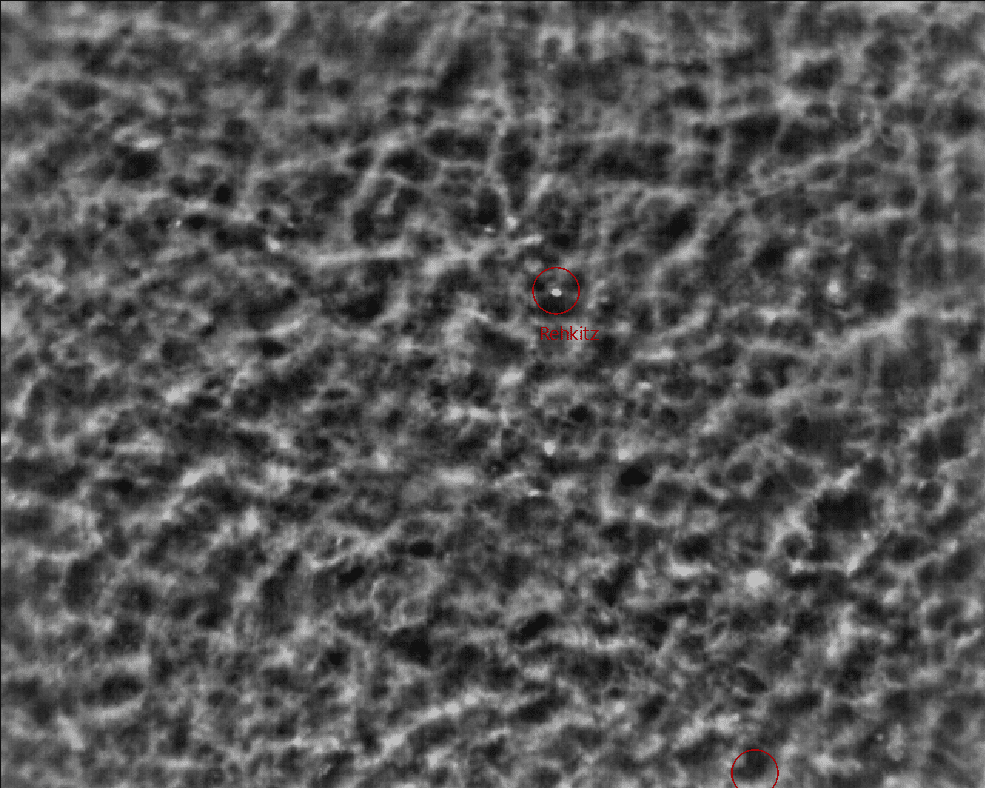
Show/hide back-projected POIs
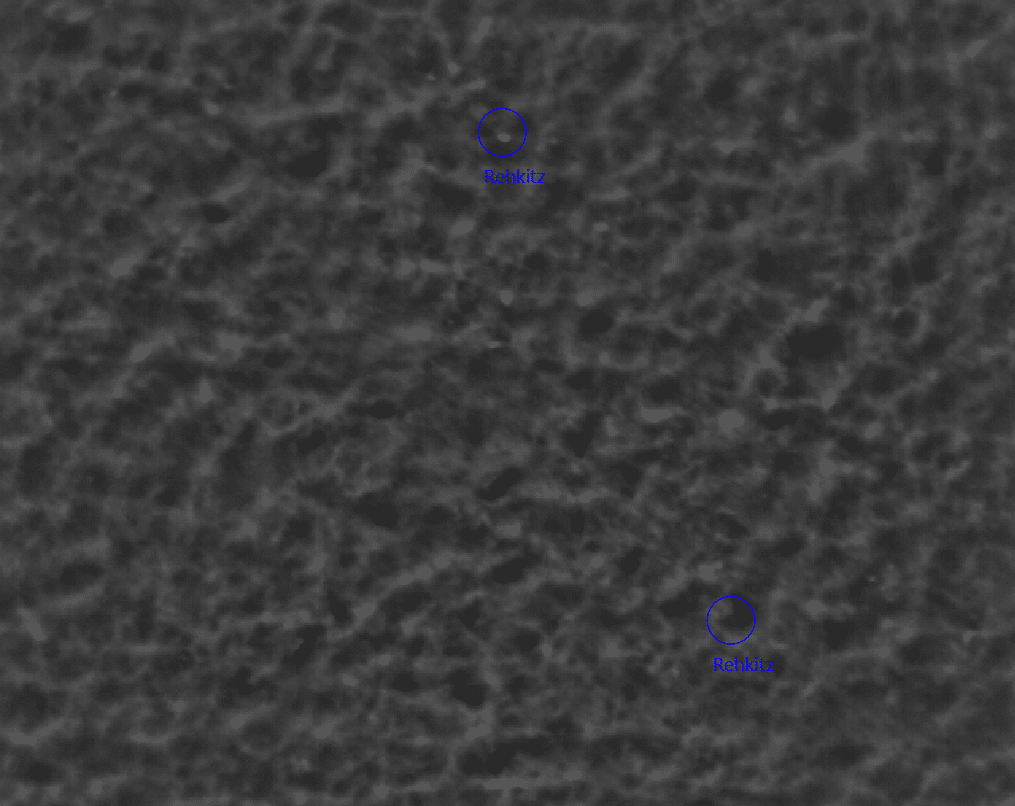
This allows you to show or hide back-projected POIs - that is, all POIs that appear in multiple images.
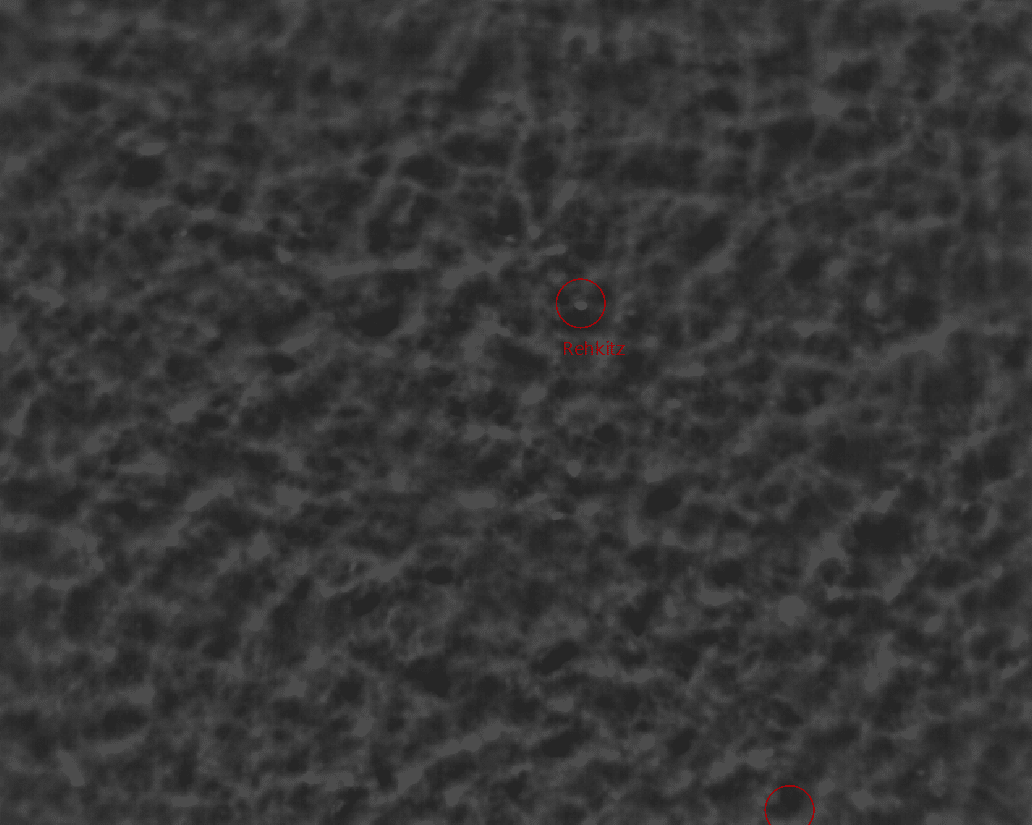
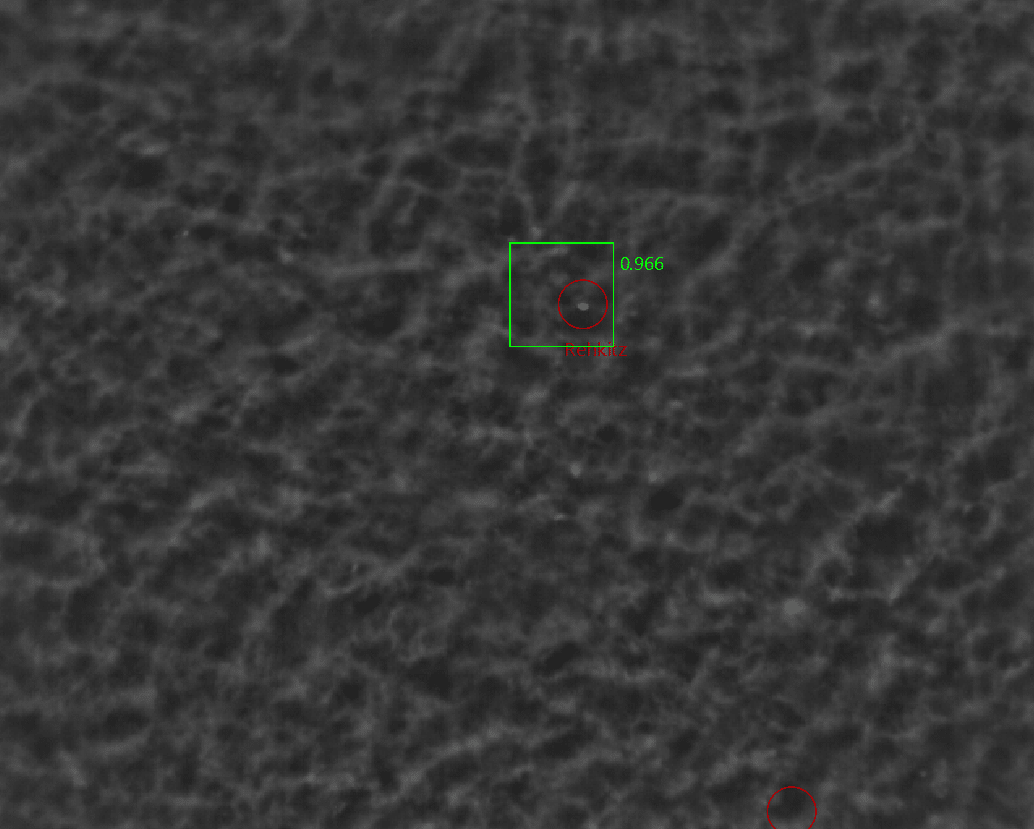
Show/hide AI patches
When the AI function is used, it automatically creates markers around the detected objects. (See Applying AI). These can be shown or hidden using the button.
Show/hide VIS images
When importing thermal images, the option "Import VIS images" can be selected as yes or no. If yes is selected, the corresponding color image can be displayed alongside each thermal image. The blending can be adjusted using the slider next to the button. This function is particularly helpful for monitoring nests in the field of bird conservation.
Clicking the camera icon switches the view between IR and VIS images.
Left workspace
Flight
This table lists all imported flights. All basic information is also available here, including the flight mission name, the number of currently set POIs, and the flight date.
In addition, you can see the area flown and the number of images included in the flight.
In the Terrain tab, you can check the box to enable the display of a terrain model.
The Upload tab indicates whether the flight has already been uploaded to the cloud.
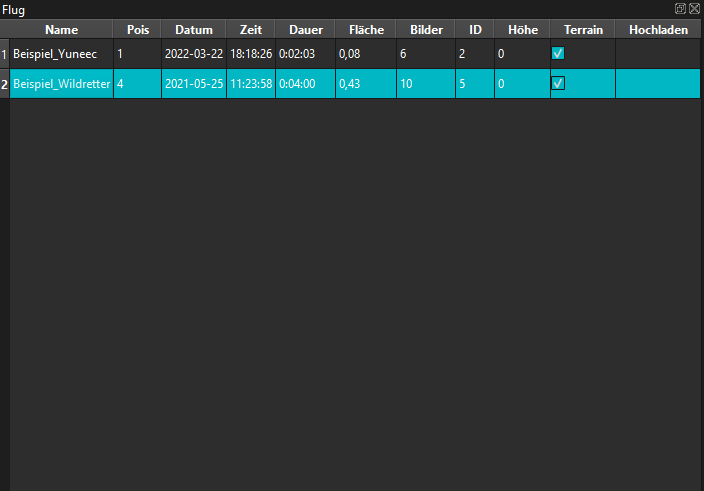
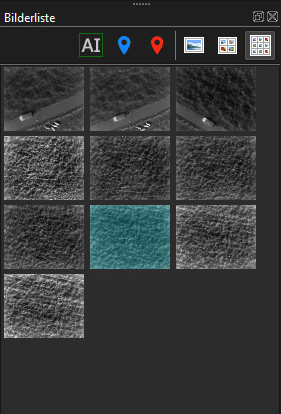
Image list
The image list displays all imported thermal images from a flight. Individual images can be selected either by left-clicking on the corresponding image or by using the arrow keys on the keyboard.
The display size within the list can be adjusted by clicking on one of the following three icons:
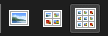
Show only POIs found by AI
This allows you to filter the image view so that only images on which the AI has found POIs are displayed.
Show only images with selected POIs
If one or more POIs are selected in the table at the bottom right of the application window, they can be filtered by clicking on the symbol, so that only those images on which the selected POIs appear are displayed.
Show only selected POIs
This option only displays images where POIs have actually been manually marked. The previous option also displays all images where the POIs appear during the flight.
Right-hand work area
Map
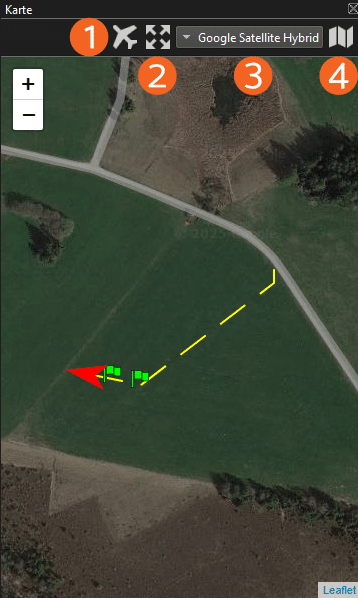
The map view allows you to track the drone's flight path. The drone's position on the map is always based on the coordinates of the currently selected image. Clicking the airplane icon (1) zooms the map to the drone's current position. Clicking the zoom icon (2) adjusts the map to the current flight.
The map view can be changed in the adjacent drawer menu (3). You can select your preferred display option from a list of different providers.
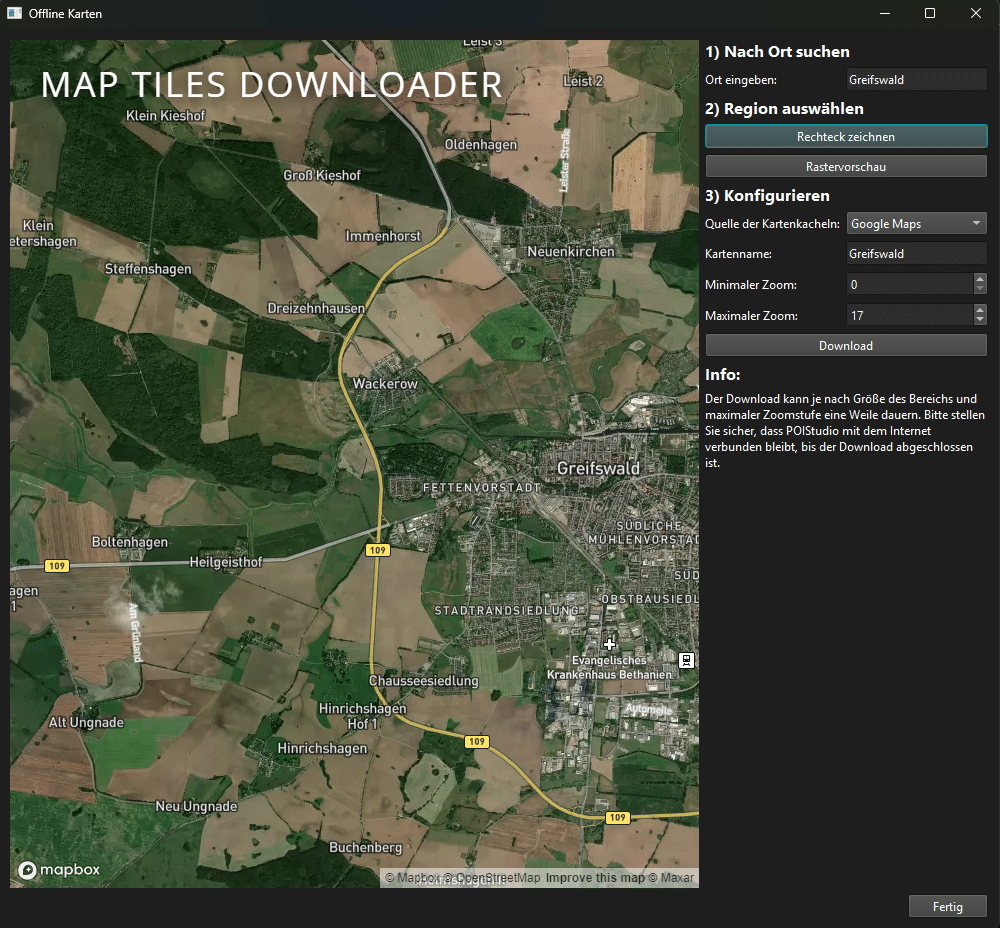
Offline maps can be downloaded via the map icon (4). To do this, follow the steps in the window that opens: First, enter the desired location and then click the "Draw Rectangle" button. Now you can select the desired area on the map. If needed, you can also create a grid preview. In the next step, you can configure the map. In addition to selecting the map data source and a map name, you can choose the zoom level for the selected area.
Clicking "Download" will download the map. Depending on the size of the selected area, the download may take some time.
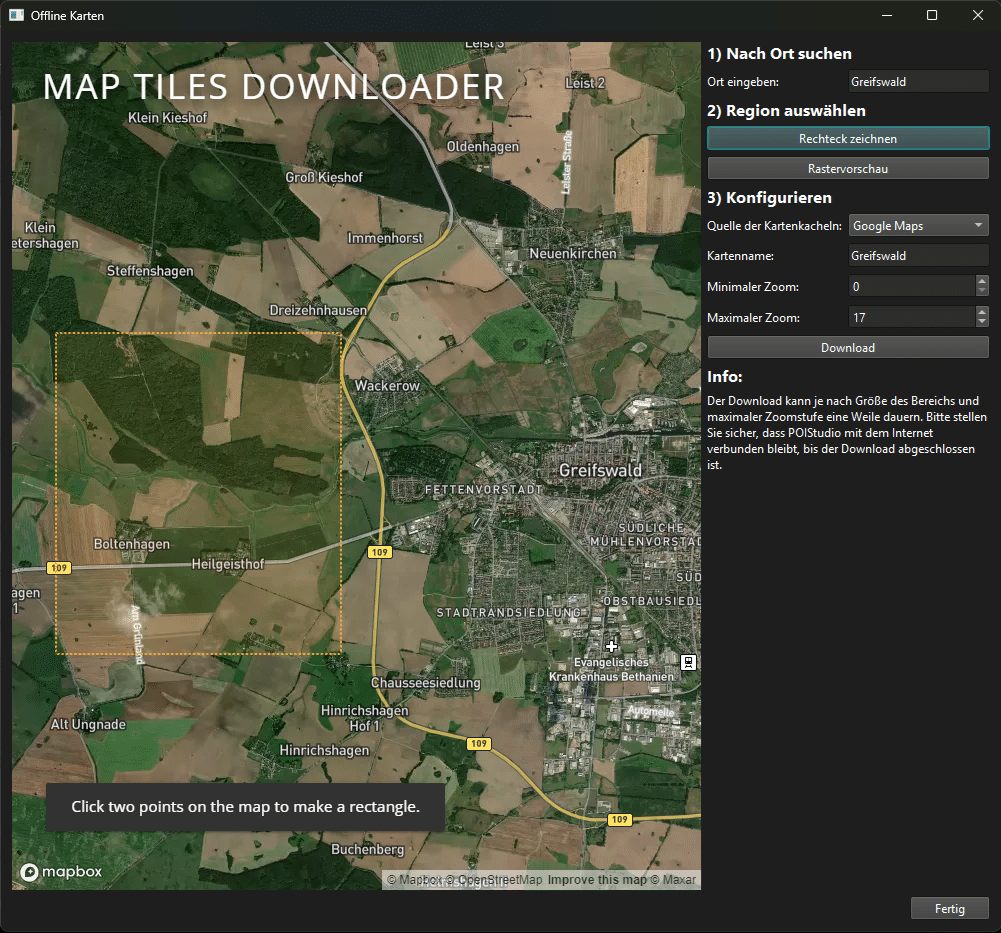
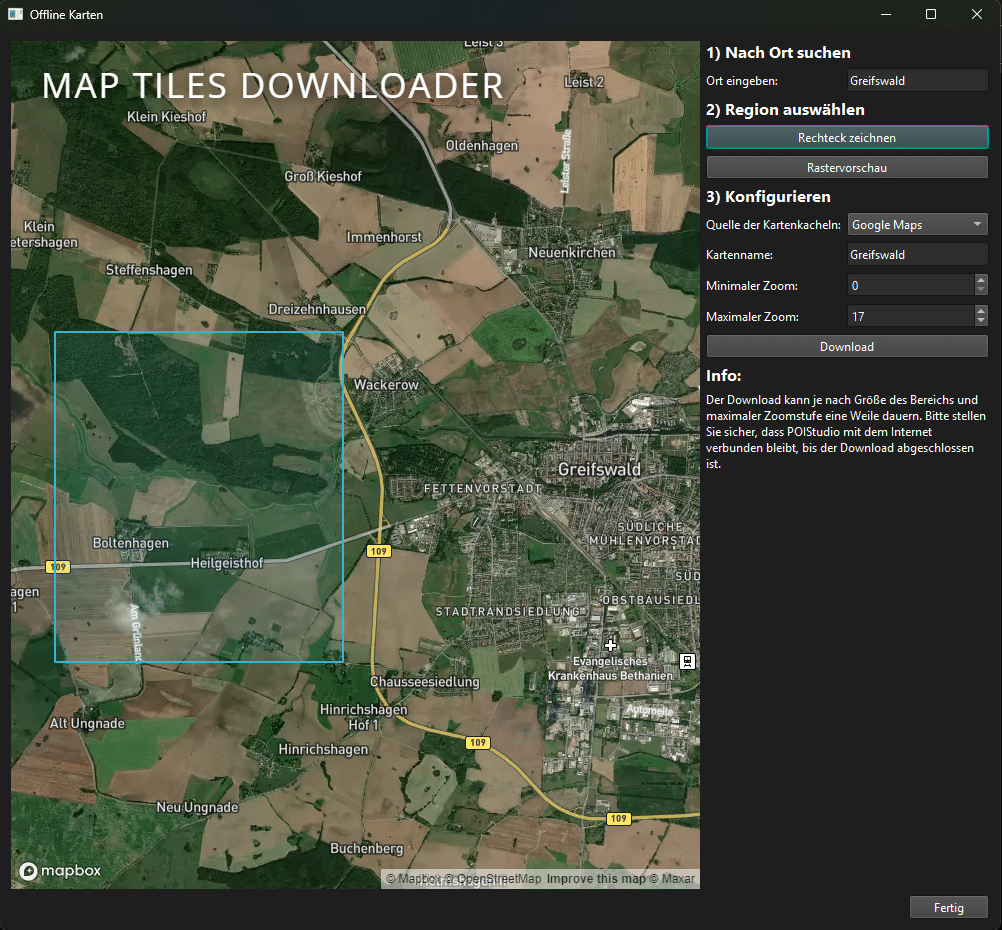
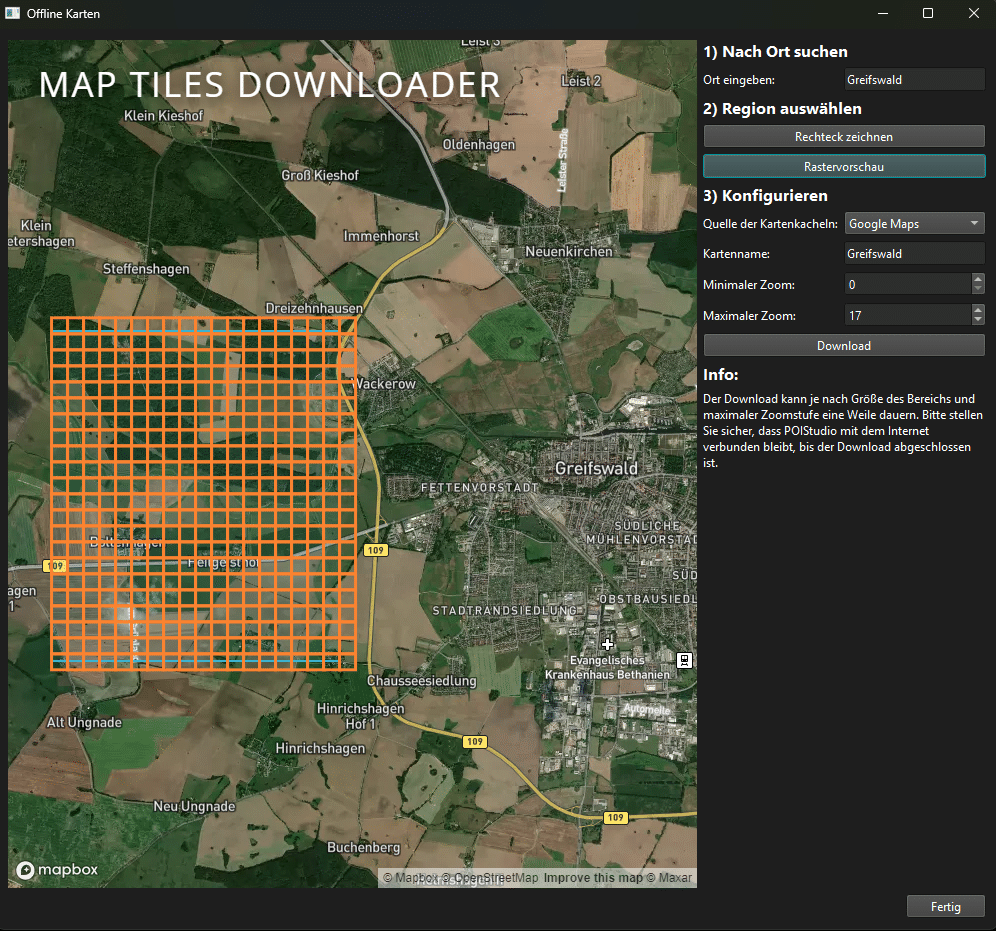
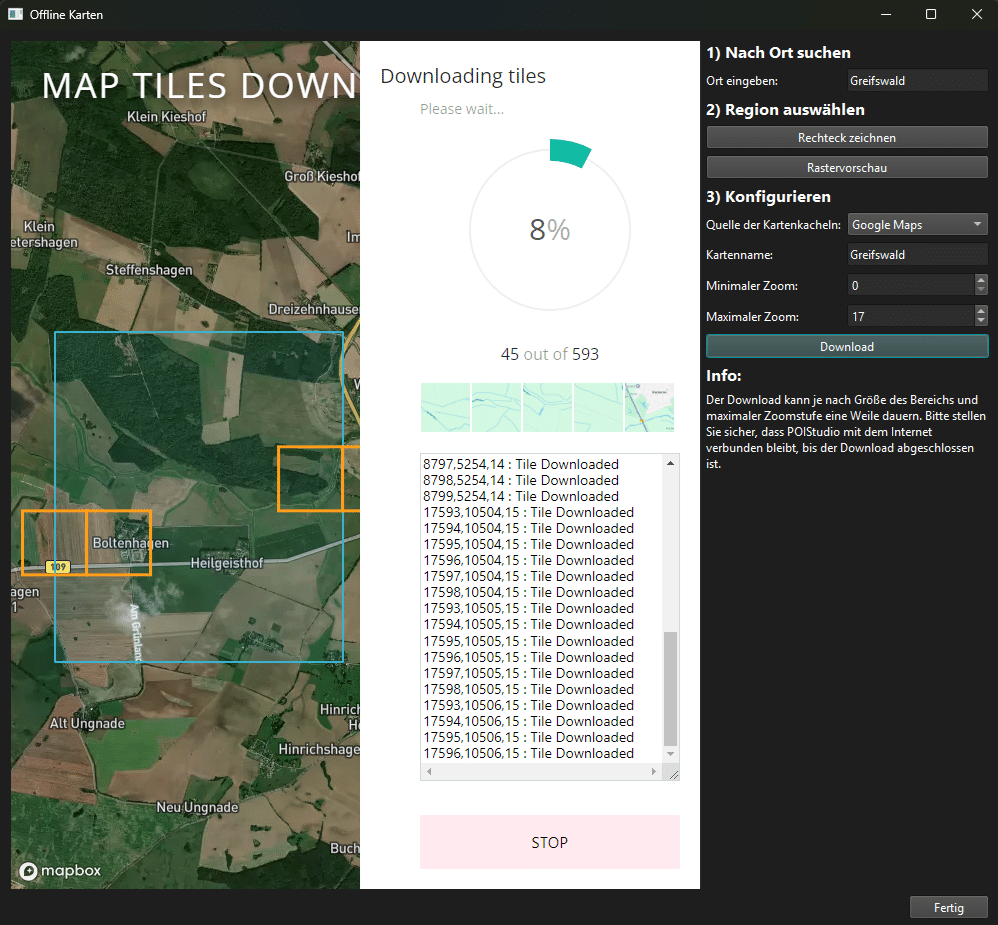
Set points of interest (POIs) appear as green flags on the map. When a POI is selected from the list, the flag on the map turns red.
info
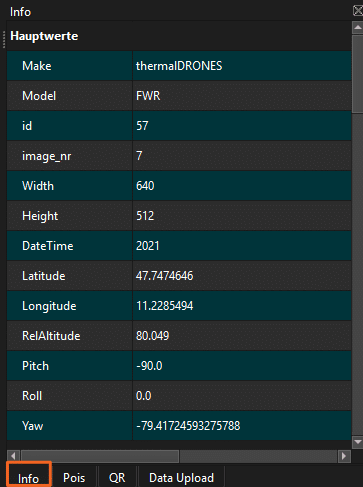
The Info tab lists all the information recorded for the selected image at the time it was captured. This includes, among other things, the drone model, the image number, the image resolution, the associated coordinates, and the gimbal position.
POIs
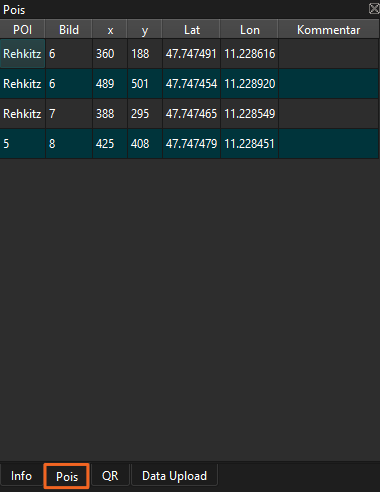
All saved POIs appear here, sorted by creation time. Double-clicking the POI section allows you to edit the name. This name will also appear in the corresponding field view in POICloud and POIApp after uploading to the cloud. Information such as the associated coordinates and the image number containing the POI is also stored here. A comment can be added if needed.
QR
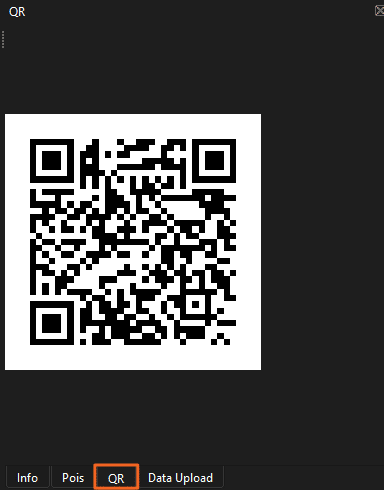
Once a POI is selected from the list, a QR code is generated for it in the QR code tab. This can then be scanned with the POI app to capture the POI's coordinates and navigate to it.
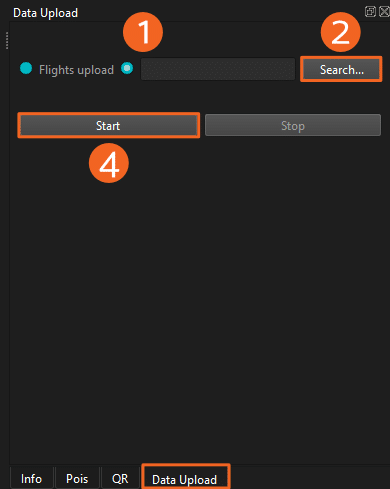
Data Upload
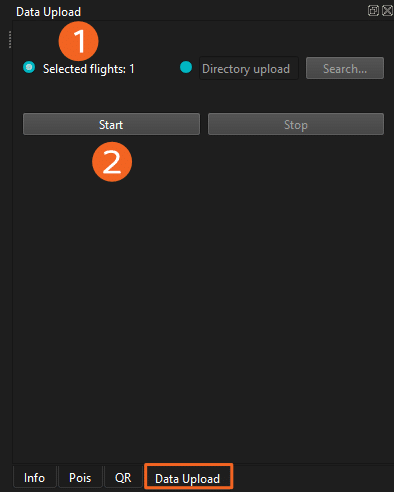
If you would like to contribute to the further development of our software and the training of POIStudio's AI, you can upload thermal images and share them with us.
This is possible in this tab. Here you can select either the currently selected flight or an external folder for the upload.
Upload selected flight
First, select the "Flights upload" field (1). Then, upload all previously selected flights along with their corresponding thermal images. Start the upload process by clicking "Start" (2).
Upload external flight directory
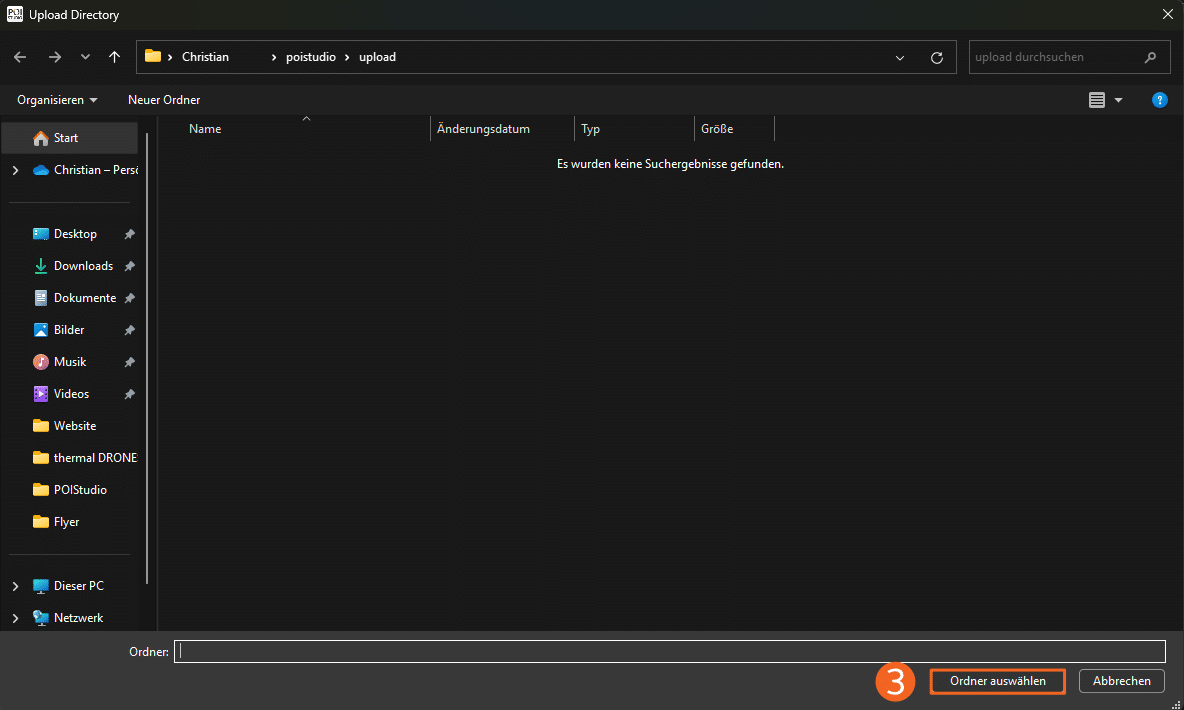
To upload an external flight that was not imported into POIStudio, first select the Directory Upload option (1). Clicking the Search... button (2) opens a window for selecting the file path containing the image data of the flight to be uploaded. To confirm the selection, simply click Select Folder (3). Clicking Start (4) begins the file upload.
Further actions
In addition to the functions of the action bar, further settings options can be accessed via the individual categories of the ribbon.
file
import
See Action Bar Icons - Import Flights
Map download
See right workspace - map
Convert Fluplan
See Action Bar Icons - Convert Flight Plan
POIsField Export
Selecting this option allows you to export the selected flight, including POIs, as a kmz file.
Field export
The selected flight can be exported as a KML file. This can then be exported to POICloud, for example, to generate a job based on the relevant field boundaries.
POI Export
If you only want to export the flight's set POIs, you can do so using the POI export function as a GPX file. This file can then be imported into external applications (e.g., GIS programs).
POI Image Upload
After successful registration, it is possible to transfer the sections of the thermal images containing the set POIs to the POICloud. This allows the corresponding IR image to be displayed for each POI in the field as needed.
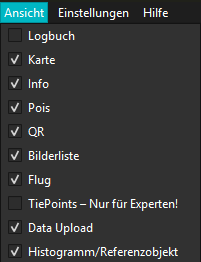
Opinion
The View tab allows you to customize the POIStudio user interface. Individual elements can be shown or hidden as needed, ensuring that only the information that is actually required is displayed.
Settings
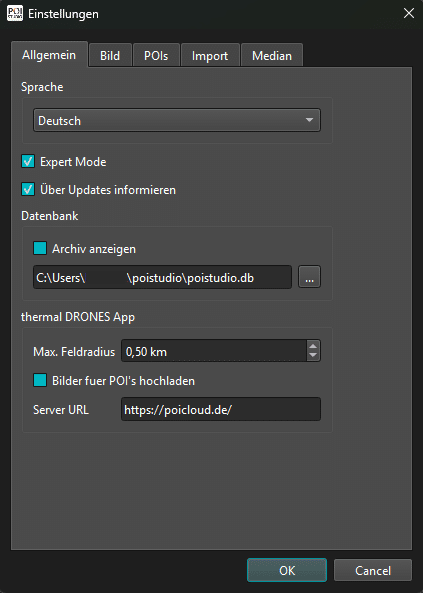
Generally
Here you can configure all general settings for POIStudio. This includes, for example, the application language or the display colors for POIs.
Generally
The first tab allows you to set the application language, among other things. Currently, German and English are available. You can also activate Expert Mode by clicking the corresponding checkbox. This unlocks the image optimization options (see above).
If the "Notify me about updates" checkbox is selected, information about new versions will appear when the application starts.
In the Database section, you can select the "Show archive" option. When this option is enabled, all archived POIs will be displayed again. You can also define and adjust the file path for the application database here.
In the section for the thermal DRONES app or POI app, you can adjust the options for uploading thermal images to POIs.
Picture
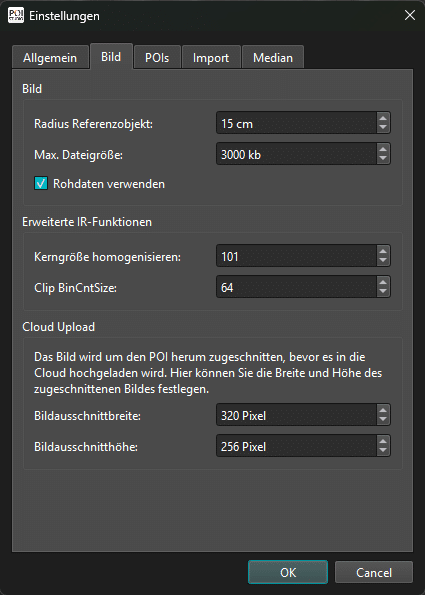
The image settings allow you to adjust the reference object radius, among other things. This serves as an indicator for identifying objects in the thermal image. For example, we recommend a radius of 15 cm for fawns. This value varies depending on the application.
You can also adjust the maximum file size of imported thermal images.
Note: To access the full information content of the images, the "Use raw data" option must be enabled!
In the "Cloud Upload" section, you can define the area around the POIs that will be transferred to the POICloud. To avoid large file sizes, we recommend keeping the default values.
POIs
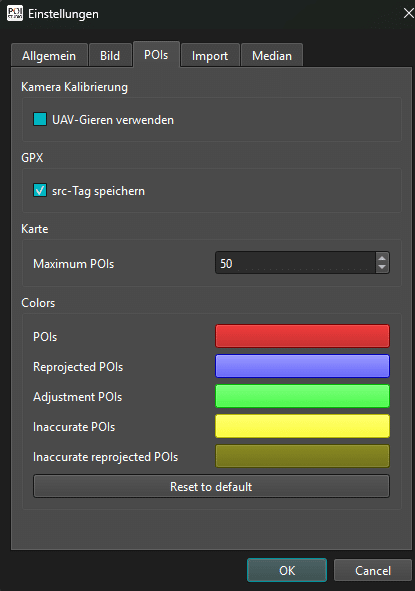
Here you can adjust the POI settings. Among other things, you can enable/disable the UAV yaw option for camera calibration. If you want the src tag to be saved when exporting POIs as a GPX file, you can select this option in the GPX section.
Under the Map section, you can set the maximum number of POIs to be displayed.
If you want different display colors for individual POI categories, you can adjust these in the Colors section.
import
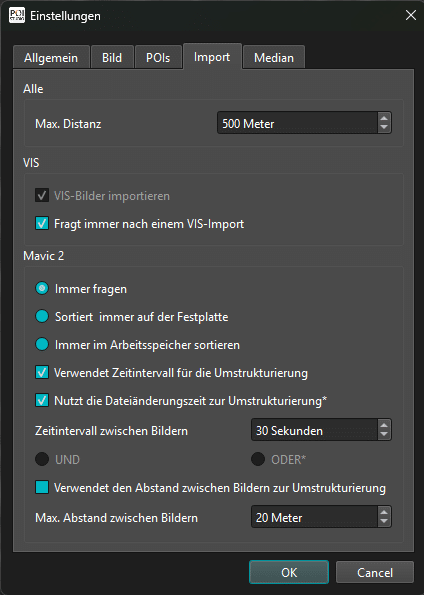
This section allows you to adjust image import settings.
Under the "All" option, you can adjust the maximum distance between images from a single flight. If the set value exceeds the default of 500 m, it is recommended to split the flight.
Under "VIS," you can enable/disable the import of color images in addition to IR images. If you no longer want the prompt to import VIS images to appear during the import process, you can deselect this option here.
When importing images taken with a DJI Mavic 2, a restructuring of the directory structure is required. The parameters for this restructuring can be defined in the "Mavic 2" section.
median
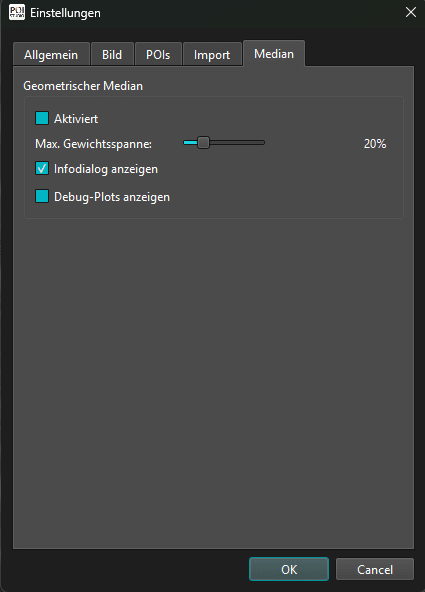
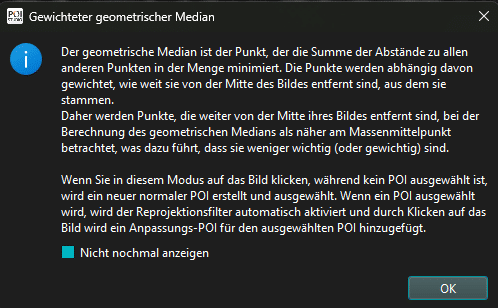
If the geometric median is to be applied to the image view, it can be activated in this window.
After activation, the following symbol appears in the action bar:
Switch POI customization mode
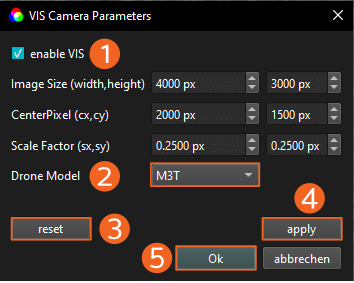
VIS-Cam Parameter
In this settings menu, you can adjust the display parameters of the imported color images.
To display the color images, first check the box in the "Enable VIS" field (1).
Under "Image Size," you can adjust the resolution of the respective color images. The default resolution is 4000 x 3000 pixels (12MP). You can also change the image center by specifying the pixel value under "CenterPixel."
The display scaling of the color images can be changed by specifying the scaling factor. The default value is 0.25.
In the "Drone Model" tab (2), you can select the appropriate drone from a list of supported models. Simply open the drop-down menu next to it.
To reset the values of the respective parameters, click "Reset" (3).
Apply the set parameters by selecting the "Apply" button (4) and close the window by clicking "OK" (5).
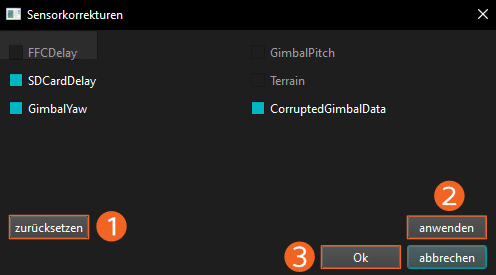
corrections
Within this menu, you can select various sensor correction options. The current version allows you to make the following corrections:
SDCardDelay
Compensates for any delays that may occur during SD card read and write operations.
GimbalYaw
Corrects any gimbal yaw errors that may occur.
CorruptedGimbalData
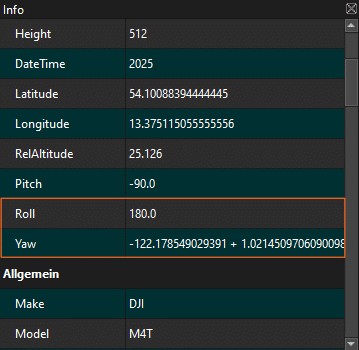
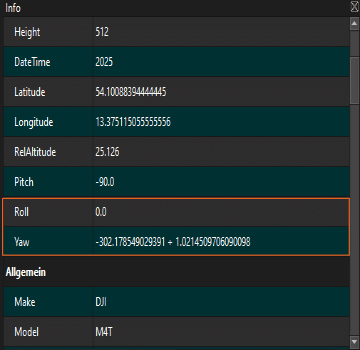
In many cases, flights performed with the DJI M4T exhibit faulty gimbal data. The roll and yaw values are displayed as 180° each, even though they should be 0°. This results in set POIs appearing to float in mid-air, and the following error message appears:
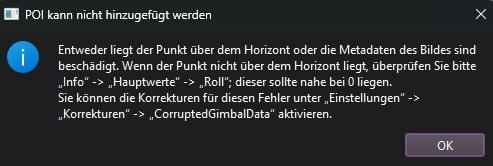
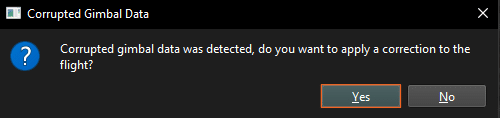
When importing flights with faulty gimbal data, a dialog box appears asking if the flight data should be corrected. Clicking "Yes" performs the correction.
Here too, the corrections can be reset using the reset button (1). Clicking apply (2) will execute the selected corrections and apply them to the current flight. To close the window, either the cross or the OK button (3) can be used.
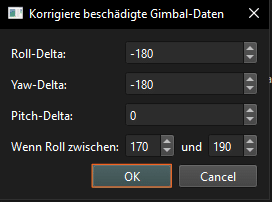
After selecting the Apply button, a new window appears for adjusting the gimbal correction. Here, the incorrect values are reset to their default values, and POIs can be marked as usual. The correction is applied to all images within a flight where the roll and yaw values are within the selected range. We recommend keeping the default settings.
Click OK to apply the correction.
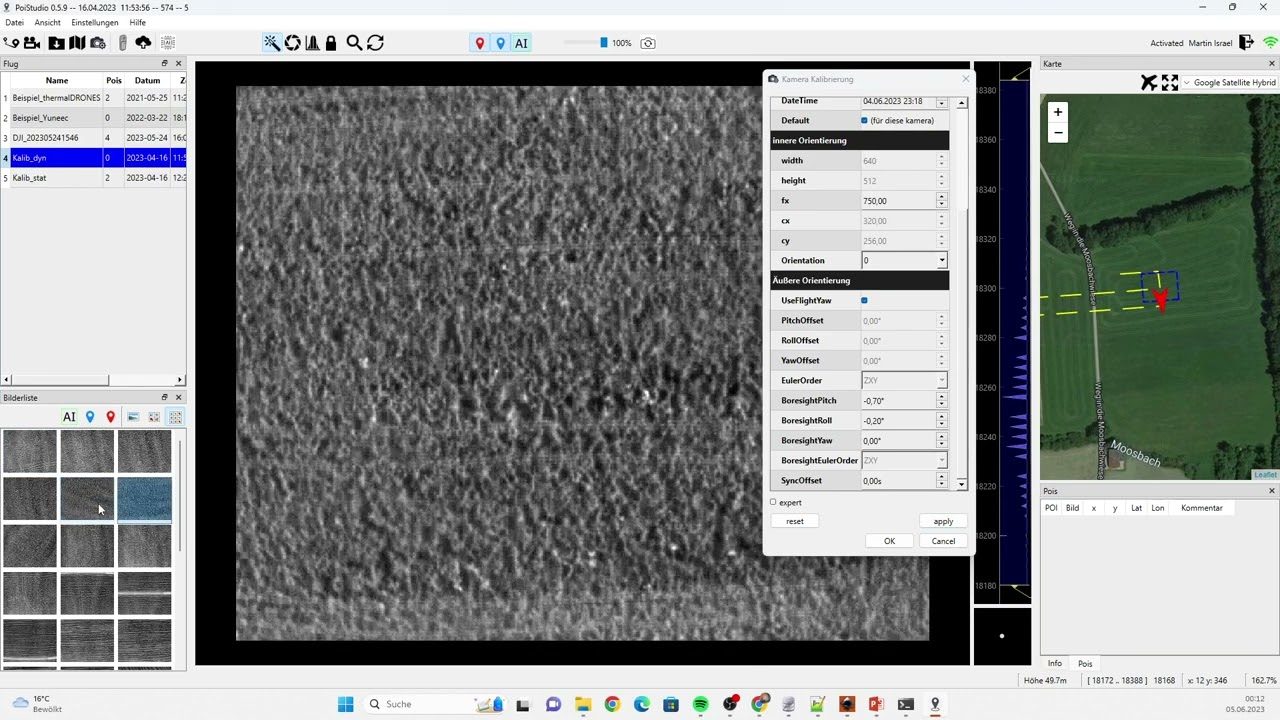
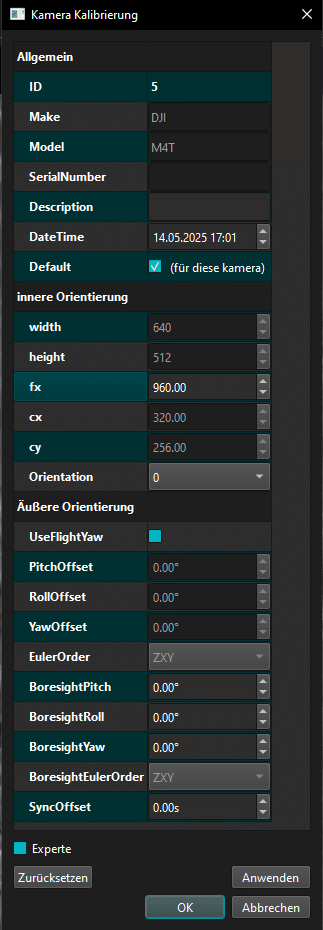
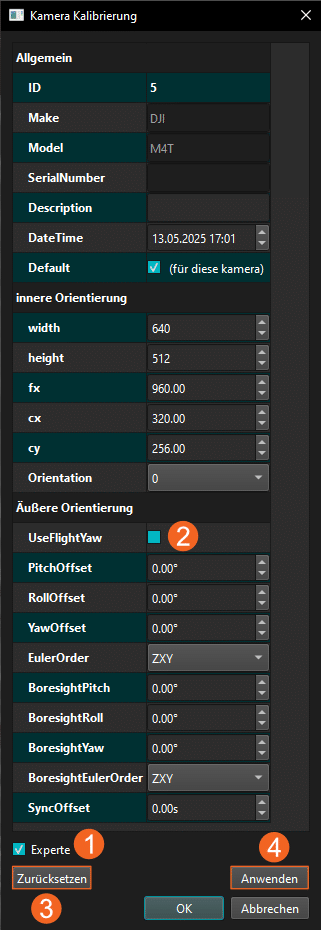
Camera calibration
Camera calibration allows you to configure various settings for the drone camera and its display within POIStudio. The calibration is divided into three sections: General, Inner Orientation, and Outer Orientation.
General:
This section contains information about the currently used drone, such as the model name and serial number. It also shows the date and time the flight was imported. The Description field allows you to add notes about the drone-related settings, if needed.
Inner Orientation:
This section contains all settings related to the drone camera. If Expert mode (1) is activated, you can adjust the image width and height, among other things. The image center point can also be changed. In normal mode, only the orientation can be adjusted.
Outer Orientation:
This section allows you to adjust the settings related to the drone's gimbal, such as the degree of yaw and tilt. Selecting the UseFlightYaw checkbox (2) applies the flight's settings.
Clicking Reset (3) restores the default settings.
To apply the changes, click the Apply button (4).
Introductory videos
Basic procedure for working with POIStudio
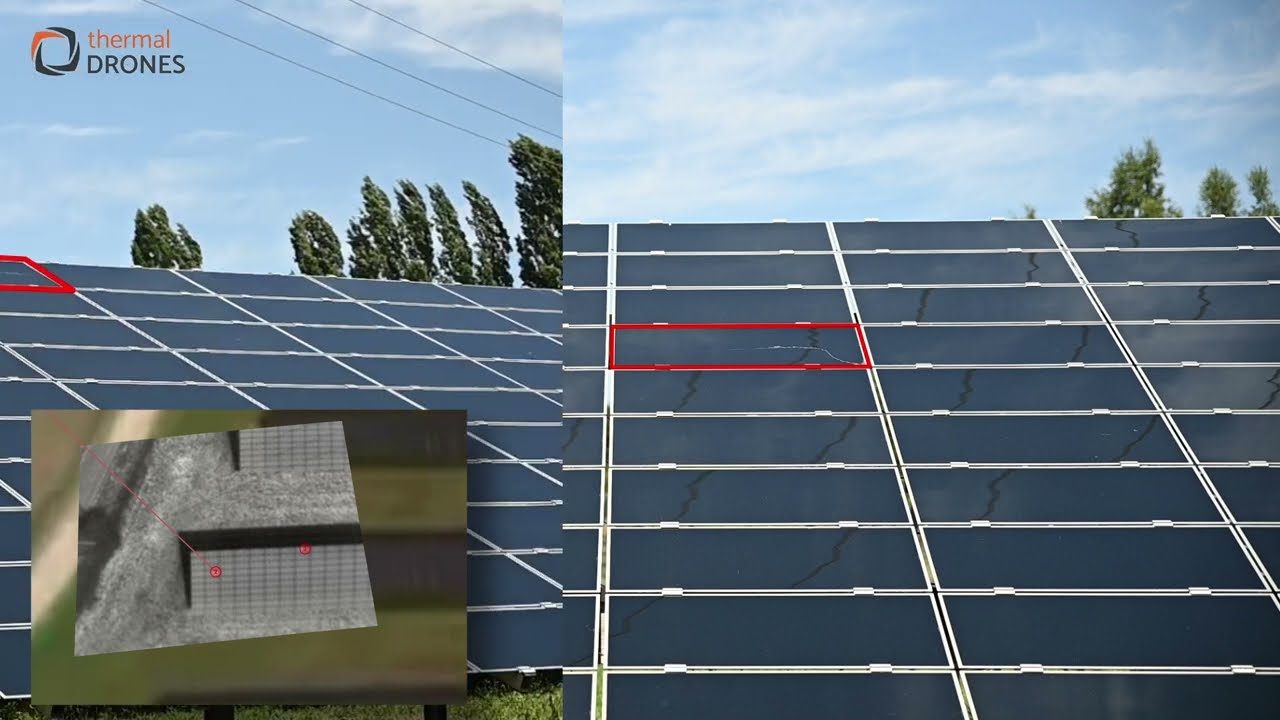
Introduction to the interface and functions of POIStudio
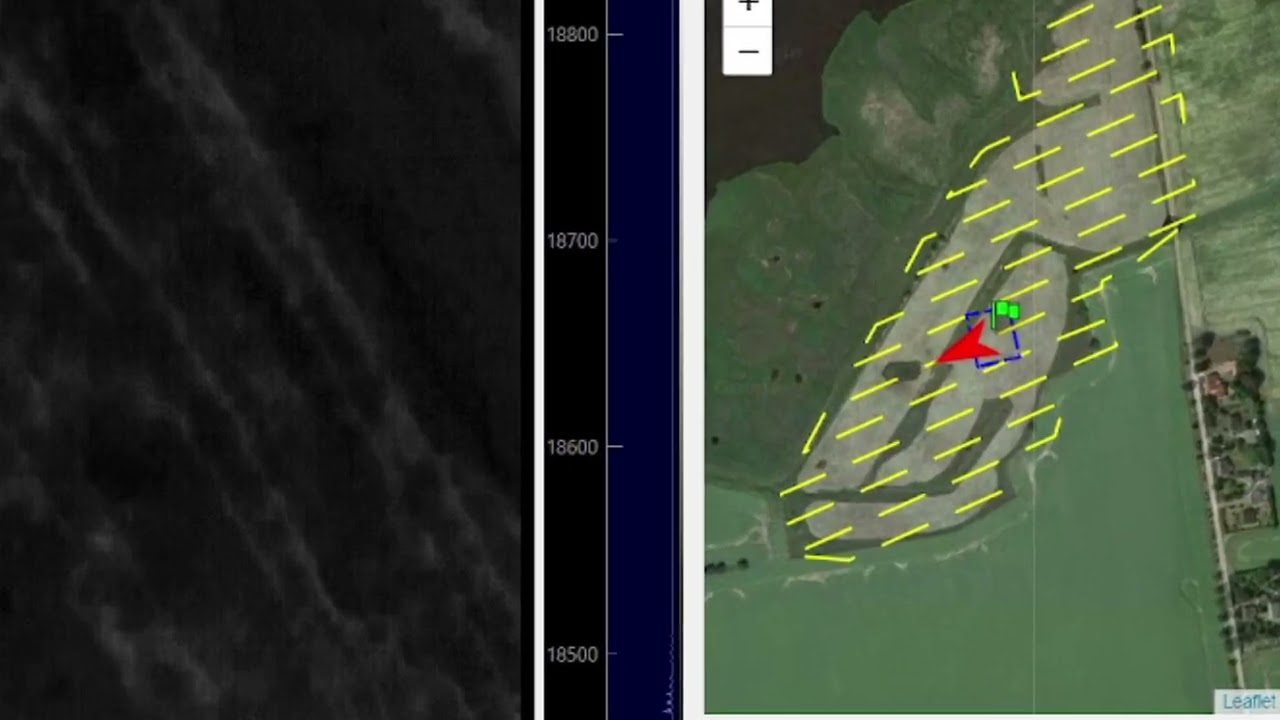
More videos can be found on our YouTube channel at
Calibrating the drone
To achieve the highest accuracy, the drone can be calibrated via a calibration flight and parameter adjustments in POIStudio. We are happy to provide remote support for the POIStudio settings.
Please perform the calibration flight as described in the instructions.