
Fawn Rescue: Job Report, Proof and Statistics
After the search, the job report documents every find with an aerial image, time and coordinates. Exports for GIS and team statistics for the annual report and funding applications come on top.
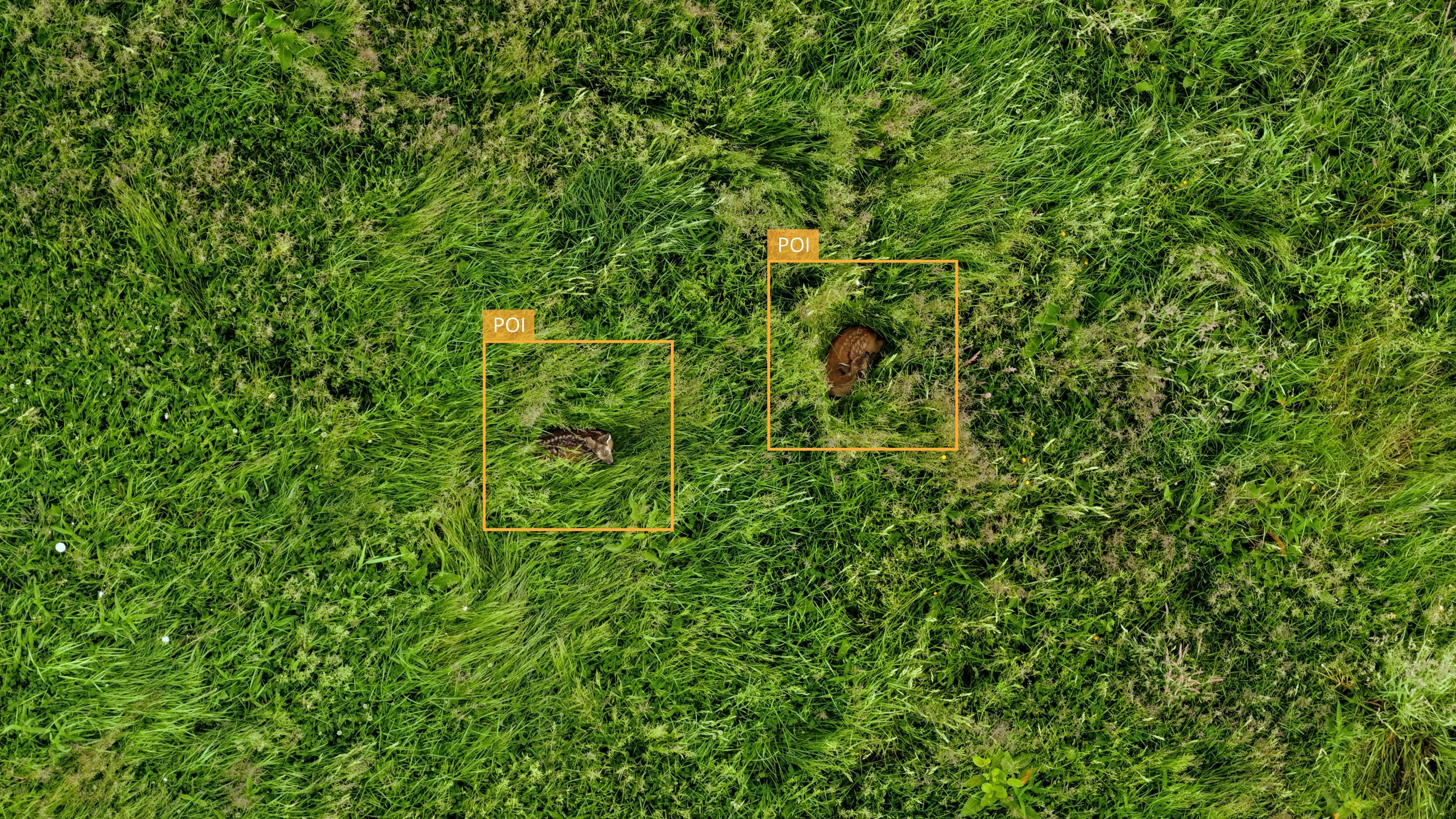
The fawn rescue job report is available in POICloud as soon as the team has completed the job. It shows the field in the aerial image with numbered finds and lists them with time and coordinates. That is proof for farmers, authorities or insurers. Exports for your own evaluation and team statistics come on top. The whole operation from field to report is described in Organizing Fawn Rescue with POICloud.
Step 1: Complete the job
Once the field has been searched, the team completes the job. The farmer sees at once that they can mow. On the map, the colour of a field shows its status: blue without a job, red with an open job, green when done.
Step 2: Retrieve the job report
The job report comes as a PDF with an aerial image: with the field boundary, the finds in the aerial image and below them the list of finds with time and coordinates. Admins, team members and farmers can retrieve it. Guests cannot. Farmers need no account for this, their contact link is enough. For the legal situation around mowing, read the overview of the legal situation in wildlife rescue.
Step 3: Export finds
For your own evaluation, you export finds and jobs as Shapefile, GeoJSON, GeoPackage (for example for QGIS), KML with a distance or square around the find, GPX for Garmin, ISO-XML and CSV. That way the data gets into a GIS, onto a navigation device or into the terminal on the tractor.
For a follow-up check, POICloud creates a mission from the finds of a job that flies to each find directly (DJI M2EA). A new full-field flight is not needed for this.
Step 4: Team statistics for the annual report and funding applications
The team statistics show finds by type and year and the completed jobs, with a CSV download. Admins and team members see them. The figures suit the annual report, funding applications and quotes. Contact lists and operations can also be exported as PDF.
Frequently asked questions
Frequently asked questions about report and statistics
Who can retrieve the job report?
Admins, team members and farmers. Farmers need no account for this, their contact link is enough.
What is in the job report?
The field in the aerial image with numbered finds and a list of the finds with time and coordinates.
Which formats can finds be exported in?
Shapefile, GeoJSON, GeoPackage, KML, GPX, ISO-XML and CSV.
Read on
Before and after
How finds are recorded and secured fawns found again is covered in Found Is Not Yet Rescued. How you plan the day is covered in Fawn Rescue: Building the Daily Plan and Assigning Jobs to Teams. Every step is described in the POICloud documentation.
Demo