
Live streaming with POICloud and POIApp
Drone live streaming to phones, PCs and the control room
With drone live streaming, the people who need the picture see what the camera sees from the air: volunteers in the field on their phones, incident command on a laptop in the vehicle and the control room on its screens. POICloud and POIApp stream the drone's live feed – and the free community server lets you try it right away.
How live streaming from the drone works
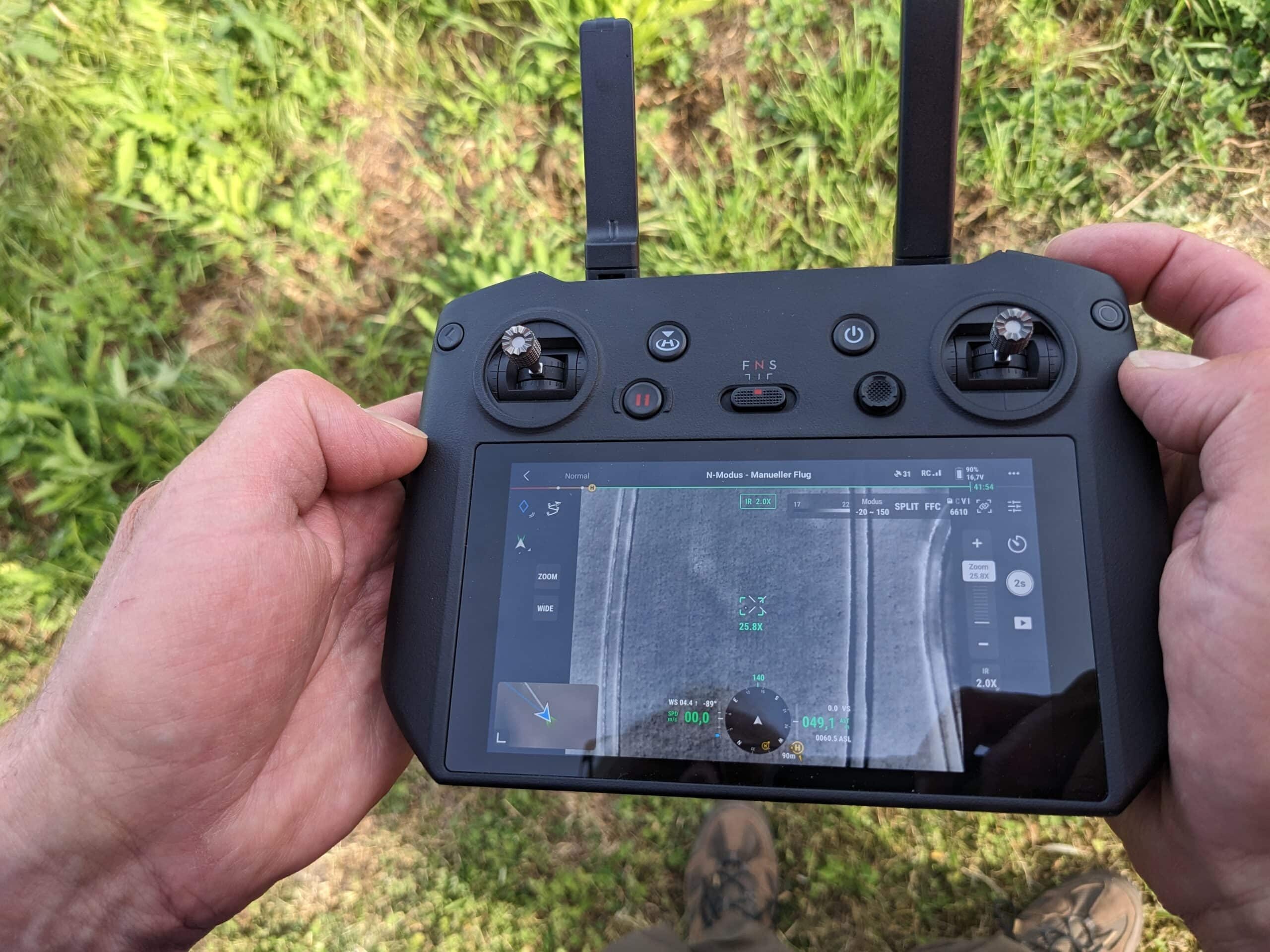
There are three stops between the drone and the screen. DJI's video transmission carries the image from the drone to the remote controller. There, DJI Pilot 2 is connected to the POICloud through POIConnect and sends the image over the internet to a streaming server. From there, the POIApp on phones and tablets and the POICloud in the browser pick it up – a real-time drone video feed for the whole team.
Depending on the drone, you start the DJI live stream on the remote controller or directly from the POIApp. Which drone supports what is listed further down.
-
Drone
captures the thermal or color image
Radio link
-
Remote controller
sends the live image online with POIConnect
Wi-Fi or mobile data
-
POICloud
distributes it via the streaming server
- POIApp Smartphone and tablet
- Browser PC and laptop
- Live stream link Control room, no sign-in
Three ways to show the drone's live image
-
On site: wireless HDMI to a monitor
The remote controller outputs its image via HDMI; a wireless HDMI transmitter sends it to a monitor nearby, for example in the command vehicle. Range according to the manufacturer up to 50 m with a clear line of sight, no internet needed.
Wireless HDMI transmitter -
Anywhere: live stream through the POICloud
The remote controller sends the image over the internet to the streaming server, and from there it reaches phones, tablets, PCs, laptops and the control room – however far away. You need a POICloud account and internet on the remote controller.
-
Public: DJI live stream to YouTube or RTMP
DJI Pilot 2 can also send a live stream on its own to your RTMP server or to platforms such as YouTube. You set this up directly in DJI Pilot 2, without the POICloud.
Ready-to-use monitor cases for the operation site are also available in our shop (German); the manufacturer states a delay of about 0.1 seconds for the wireless HDMI link. If the picture has to go further than the vehicle, the way is the POICloud – which is what this page is about.
Which devices get the live feed
-
Smartphone and tablet
Helpers on the ground stream the drone video to their phone in the POIApp for Android and iOS: tap play in the “Drones” tab, full screen if you like. You can also let the stream start by itself as soon as it is live.
About the POIApp -
PC and laptop
In the POICloud you watch the live feed in the browser without installing anything – next to the map with areas and finds. That works for incident command in the vehicle as well as for the office.
About the POICloud -
Control room and guests
Anyone without an account can watch via a live stream link, no sign-in required – the control room, for example, or the command staff of another organization. Members, contacts and guests with access see it anyway. Only the image is transmitted, no sound.
DJI live stream: which drones support it
| Drone | Pilot | POICloud Operator |
|---|---|---|
| DJI Matrice 4T, 4E, 4TD, 4D | yes | yes |
| DJI Matrice 400 | yes | yes |
| DJI Mavic 3T, Mavic 3E | yes | no |
In “Pilot” mode, the pilot starts DJI live streaming on the remote controller. In “POICloud Operator” mode, a member of the organization requests the image from the POIApp or the POICloud, and it is released on the remote controller with “Allow”. That way the team on the ground can get the DJI live image whenever it is needed.
The DJI Matrice 30T, DJI Matrice 350 RTK and DJI Dock support the live stream as well; we are happy to tell you how it starts on your model.
Where the drone's live feed pays off
From fawn rescue to firefighting: a drone live stream helps whenever the team on the ground needs to see what the drone sees.
-
Fawn rescue
In tall, dense crops such as alfalfa you often cannot spot a fawn from the ground, even standing in the right place. With the live image on your phone, the heat signature is right in front of you and you can recover the fawn safely.
More on fawn rescue -
Breeding bird protection
Small clutches are easy to miss on the way in, even with precise coordinates and RTK. With the thermal image on your phone you find the nest faster, and there is no need to guide people by radio.
More on breeding bird protection -
Fire brigades and public safety
In missing person searches, ember detection or recovery, incident command follows the drone footage live on a laptop or in the control room, and the crews on site on their phones. Radio traffic stays short.
More on public safety
Latency, image quality and mobile data
How good a drone camera live feed looks depends mainly on the internet connection at the remote controller. With a suitable connection, the latency is very low. Wi-Fi works without problems, mobile data (LTE) usually does too; with a weak signal the delay increases.
On iPhone and iPad it can take up to two seconds in “Pilot” mode. Where your drone supports it, we therefore recommend “POICloud Operator” mode.
Live stream image quality
| Level | Resolution | Bit rate |
|---|---|---|
| Smooth | 960 × 540 | 512 kbit/s |
| SD | 1280 × 720 | 1 Mbit/s |
| HD | 1280 × 720 | 1.5 Mbit/s |
| UHD | 1920 × 1080 | 3 Mbit/s |
| Adaptive | set by DJI | – |
In “POICloud Operator” mode you can switch the level while the stream is running; if the stream is started on the remote controller, DJI Pilot 2 sets the quality. Our recommendation: “HD” where the mobile network can carry it.
Try it for free with the community server
You don't need your own server to stream video from your drone. The community server is free for all POICloud users, with no booking. It allows a limited number of simultaneous viewers and is a good way to try the feature.
Set up in four steps
You set up the DJI Pilot 2 live stream once; after that, one tap is enough.
-
1
Connect the remote controller to the POICloud
In DJI Pilot 2, open the “Cloud Service” tile, choose “Open Platform” at the top right, enter poicloud.de/cloud as the address and sign in with your POICloud account. No account yet? Create one at poicloud.de.
-
2
Choose the streaming server
In the cloud service settings under “Live Streaming”, select the server – without your own server, that is the community server – and save. The same organization and team must be selected on the remote controller and in the POIApp.
-
3
Start the live stream
“Pilot” mode: in the camera view, tap the cloud icon and start the live stream. “POICloud Operator” mode: in the POIApp, tap the cloud icon in the “Drones” tab and confirm with “Allow” on the remote controller.
-
4
Watch the live image
In the POIApp or the POICloud, tap play in the “Drones” tab. The stream is stopped on the remote controller (Pilot) or with the red cloud icon (POICloud Operator).
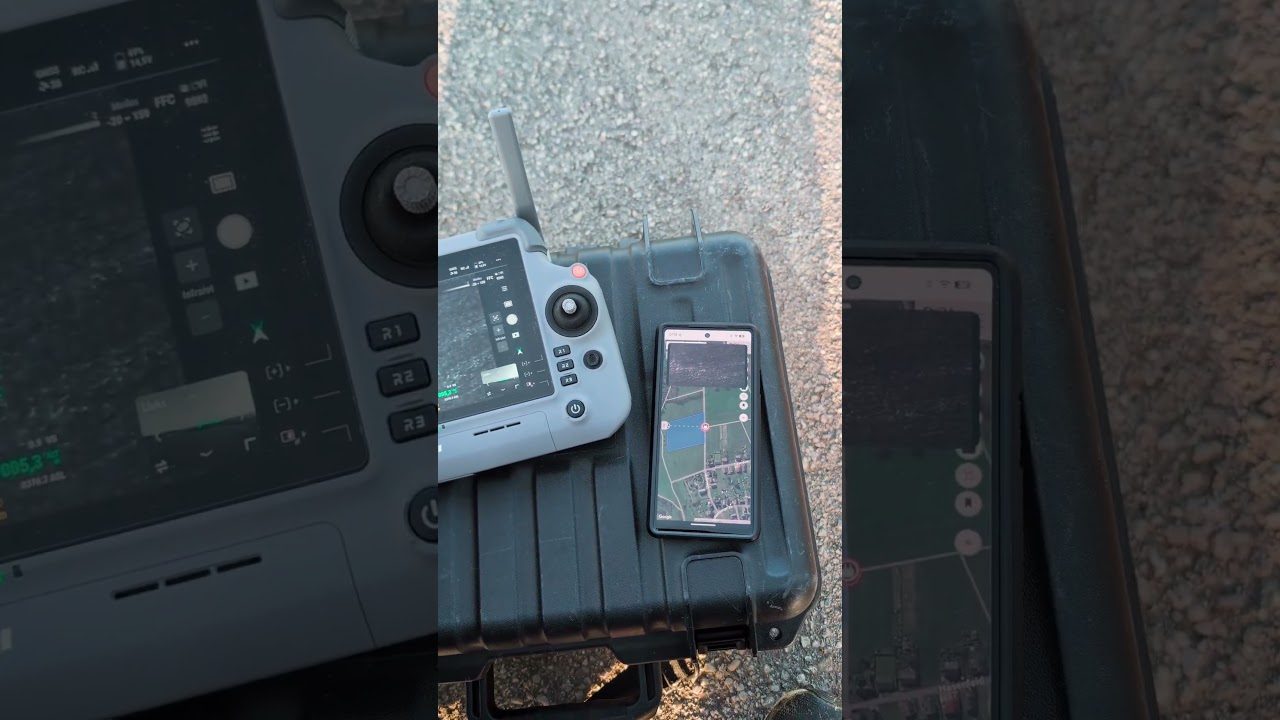
In this video we show how the live image gets from the drone into the POIApp.
Live streaming FAQ
Does the remote controller need internet?
Yes. The remote controller sends the image over the internet to the streaming server, via Wi-Fi or mobile data. For a monitor on site without internet, there is the wireless HDMI transmitter.
Does the live stream work on an iPhone?
Yes. In “Pilot” mode there can be a delay of up to two seconds on iOS; “POICloud Operator” mode works better on iPhone and iPad.
Can people without an account watch?
Yes, via a live stream link, with no sign-in. That way the control room can watch, for example.
Is sound transmitted?
No, the live stream transmits only the image.
Is the live stream recorded?
No, POICloud and POIApp do not record the live stream at the moment.
Do I need DJI FlightHub 2?
No. Unlike a FlightHub live stream, the remote controller connects directly to the POICloud through “Open Platform” in DJI Pilot 2.
What does the live stream cost?
Nothing with the community server: it is free for all POICloud users.
Which drones support the live stream?
DJI Matrice 4T, 4E, 4TD, 4D, Matrice 400, Mavic 3T and Mavic 3E, plus Matrice 30T, Matrice 350 RTK and DJI Dock. How the stream starts on each model is shown in the table above.
Try your drone's live feed
Questions about the setup or your drone model? Write to us – we'll help you.