
Fawn Rescue: Checking Airspace and Loading the Flight Route onto the Remote Controller
Before searching for fawns, check the airspace and create the flight route: in POICloud both are on the map, and the route reaches the DJI remote controller via POIConnect.
Before the flight
Fawn Rescue: Checking Airspace and Creating the Flight Route
Two things need doing before the fawn search: checking the airspace and having the flight route ready for the field. In POICloud both happen on the same map. POICloud creates the fawn rescue flight route from the field, the drone type and the flight parameters, and with POIConnect it sits directly on the DJI remote controller. The whole operation from field to report is described in Organizing Fawn Rescue with POICloud.
Airspace and obstacles
Checking the airspace and spotting obstacles
Before the drone takes off, the pilot checks the airspace. In POICloud everything is on the same map as your field.
-
Airspace
Restrictions and control zones
Restricted areas and control zones are shown as a layer on the map, right next to your field.
Drone law -
Closures
Temporary closures and safety distances
Temporary closures and safety distances are drawn in too, for example around airfields, industrial sites or power plants.
Drone Regulations: Exceptions for Wildlife Protection -
Details
Altitude range and legal basis at a click
A click on a zone shows its altitude range and the legal basis.
-
Preparation
No second tool needed
The layer shows German airspace. You don't need to open a second tool, and the team knows the situation before driving out.
-
Obstacles
Power lines and power poles
High-, medium- and low-voltage lines and power poles are shown directly on the map. Especially on low flights at dusk, every obstacle counts.
-
Obstacles
Wind turbines on the map
POICloud also shows wind turbines on the map. The data for lines, poles and wind turbines comes from OpenStreetMap.
Flight route
Creating the flight route and loading it onto the remote controller
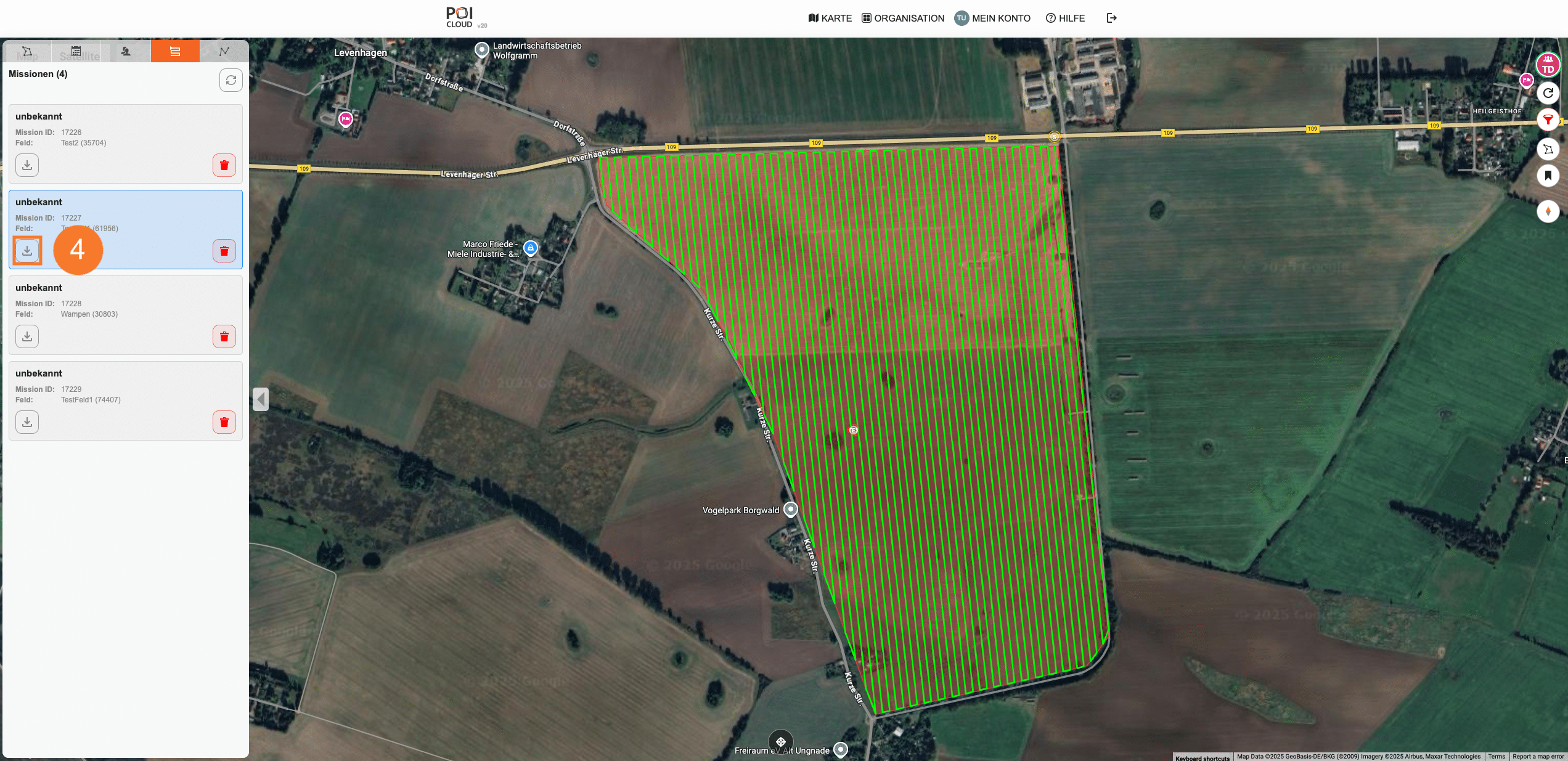
POICloud creates the flight mission automatically for every field, every drone type and every parameter set.
-
Route type
Area route, waypoints or linear route
You choose which kind of route the mission gets: an area route, waypoints or a linear route.
-
Parameters
Set the flight parameters yourself
You set flight altitude, speed, overlap, flight angle and camera tilt yourself.
Flight parameters for fawn rescue -
Default
Default mission for every field
A default mission can be chosen for each field. That way every team flies to the same specifications, regardless of who is piloting.
-
Planning
Route length and flight time
For every flight plan, POICloud shows the route length and the estimated flight time.
-
3D terrain
Flight path at true height
The flight path is drawn at its true height above the 3D terrain. On a slope you can see before takeoff where it gets too low or too high.
-
Remote controller
Field and route on the DJI remote controller
With POIConnect both sit directly in the cloud view of DJI Pilot 2. The pilot signs in there, fields, missions and finds are synchronized, and then they work as usual. The remote controller needs internet via mobile network or Wi-Fi.
POIConnect
Frequently asked questions
Frequently asked questions about airspace and flight route
Can I try POIConnect first?
Yes. In the cloud view of DJI Pilot 2 you start a 14-day trial. It needs no payment details. Prices are listed under Pricing and licenses.
Which drones can be connected?
That is listed in Which drone is compatible with POICloud?.
Does it also work without a cloud connection on the remote controller?
Yes. You can download the flight mission with the right file extension for the drone type, for example as KML or KMZ, and get it onto the device that way.
Read on
Before and after the flight
How to build the daily plan is covered in Fawn Rescue: Building the Daily Plan and Assigning Jobs to Teams. How a find is located in the field is explained in Georeferencing. Flight planning for a specific drone is shown in POICloud flight planning for the M2EA. More about the software on the remote controller is under POIConnect and in the POIConnect documentation.
Demo