
In the POICloud/POIApp, you have the option to add external helpers and individuals to your team. This is especially helpful if people only need to participate in search operations once or for a few days. Here you'll find everything you need to know about setting up and using guest access:
Enable guest access
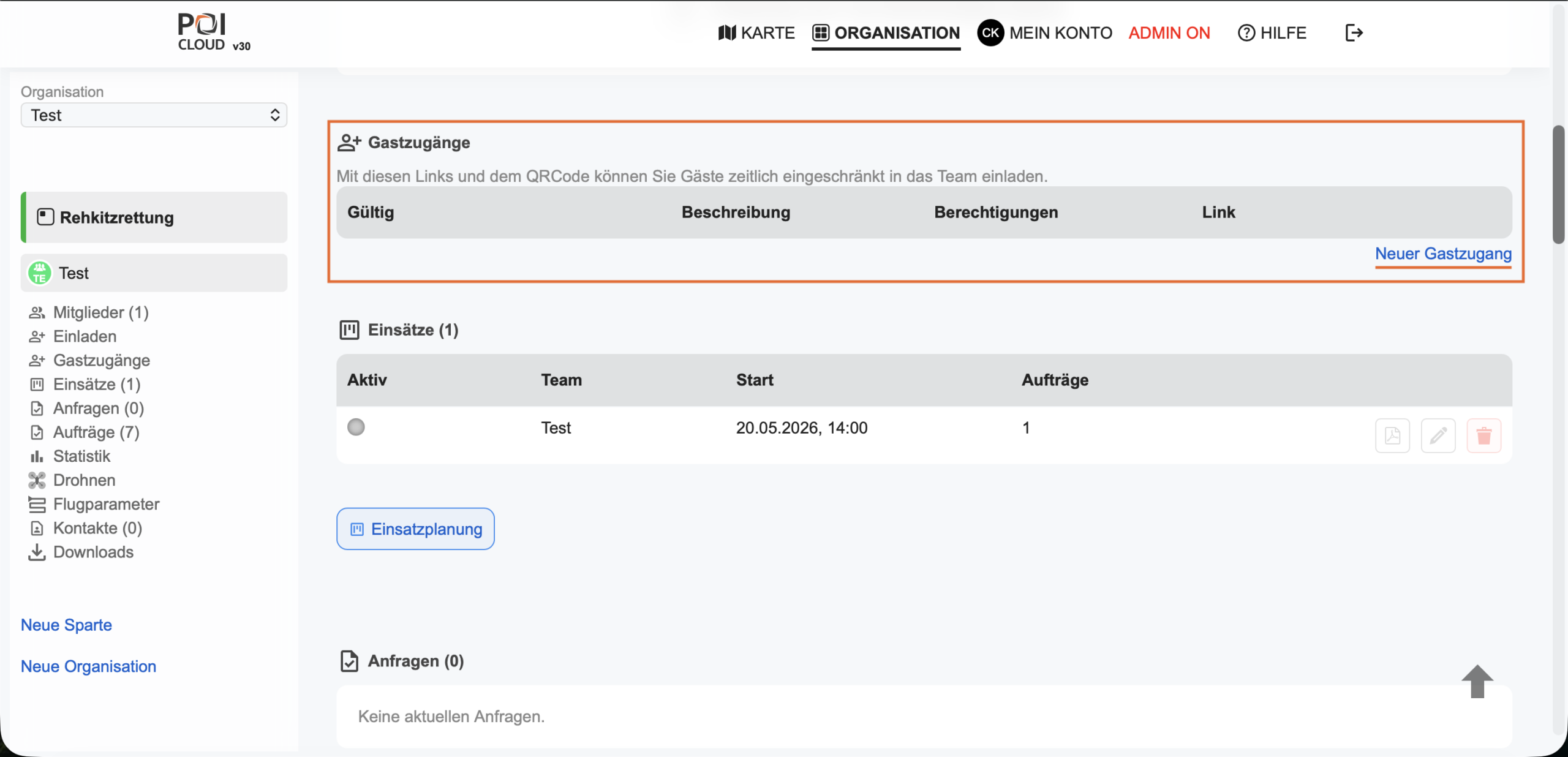
In the POICloud/POIApp's Organization tab, under Guest Access, you'll find a table view containing all the important information about existing guest access. Clicking New Guest Access will activate time-limited access.
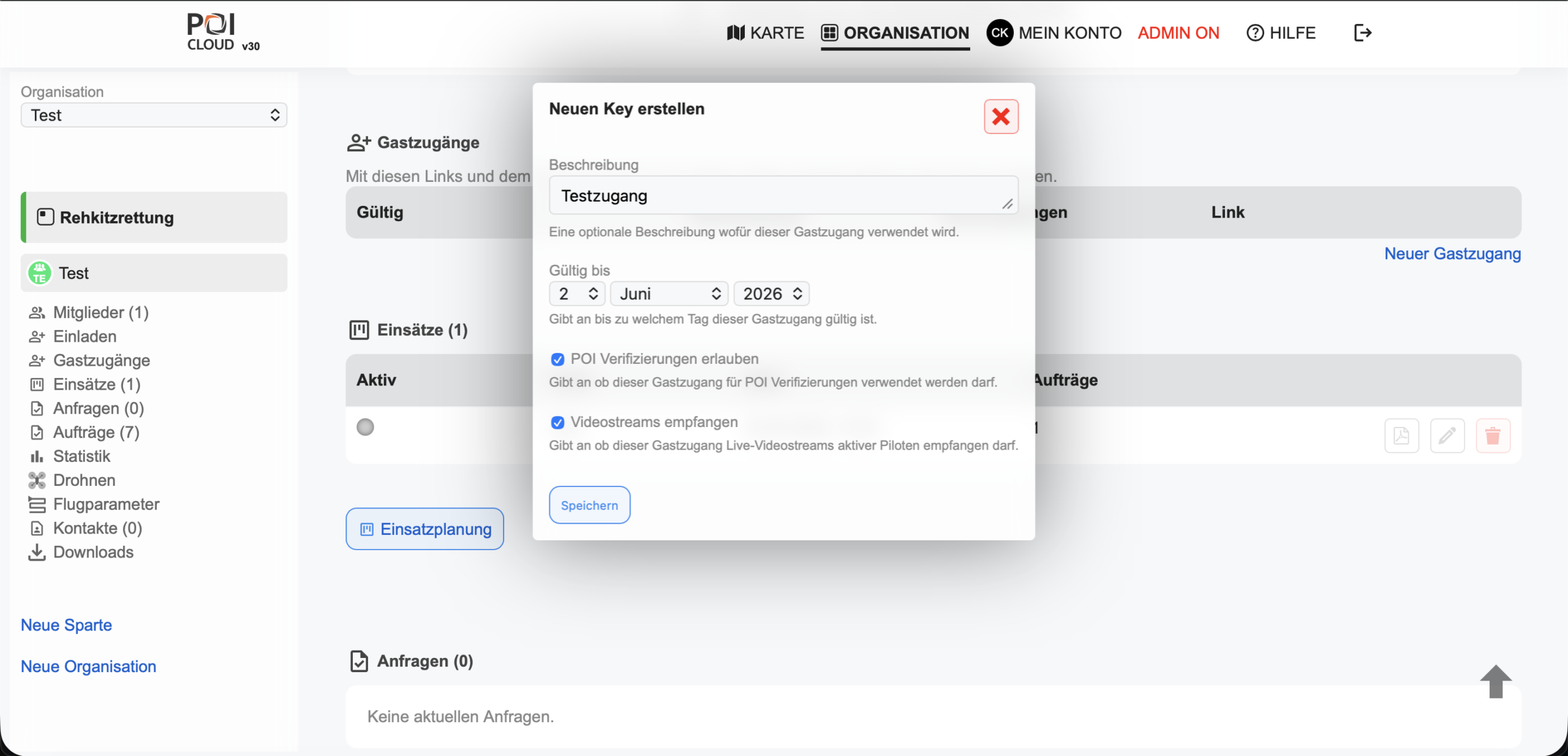
In the menu that opens for creating an access key, you can now define a description, the validity period, and select the permissions for guest access. The usage period depends on the specific use case. For example, it can be granted for a specific day or for an entire season. The decision regarding further permissions, such as those for POI verification and video streaming, rests with the organization or team leader. After all data has been entered, click Save, and the guest access key will be successfully created.
Enable guest access
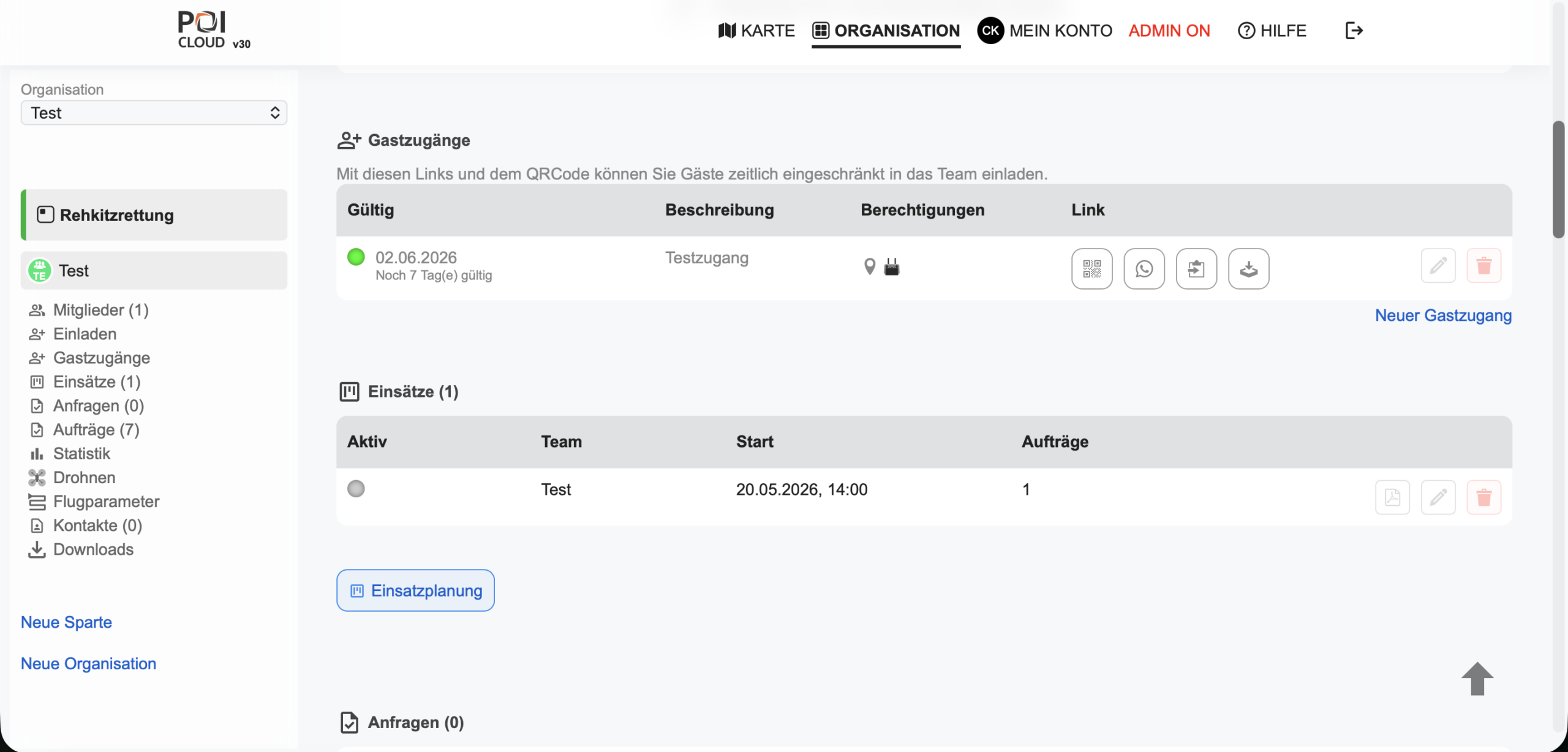
The created access now appears in the table view and can be shared and granted in several ways. Furthermore, you receive all important information at a glance. The indicator icon shows whether the access is active, inactive, or expired. The expiration date and the remaining days the access can be used are also visible there. Under Description you will find the assigned name, and the permissions are represented by a POI and a remote control icon.
You have four options to choose from for granting access:
-
QR code: Displays a QR code that can be easily scanned with a smartphone camera.
-
WhatsApp: Share the link to team access directly via WhatsApp
-
Copy to clipboard: Copies the access link so it can be easily pasted into a document or website.
-
Download: Here you can download the QR code as a file for scanning, which can then be embedded in a flyer or on a website, for example.
Guest view in the POICloud/POIApp
If a guest user opens the link, they will see the following view:
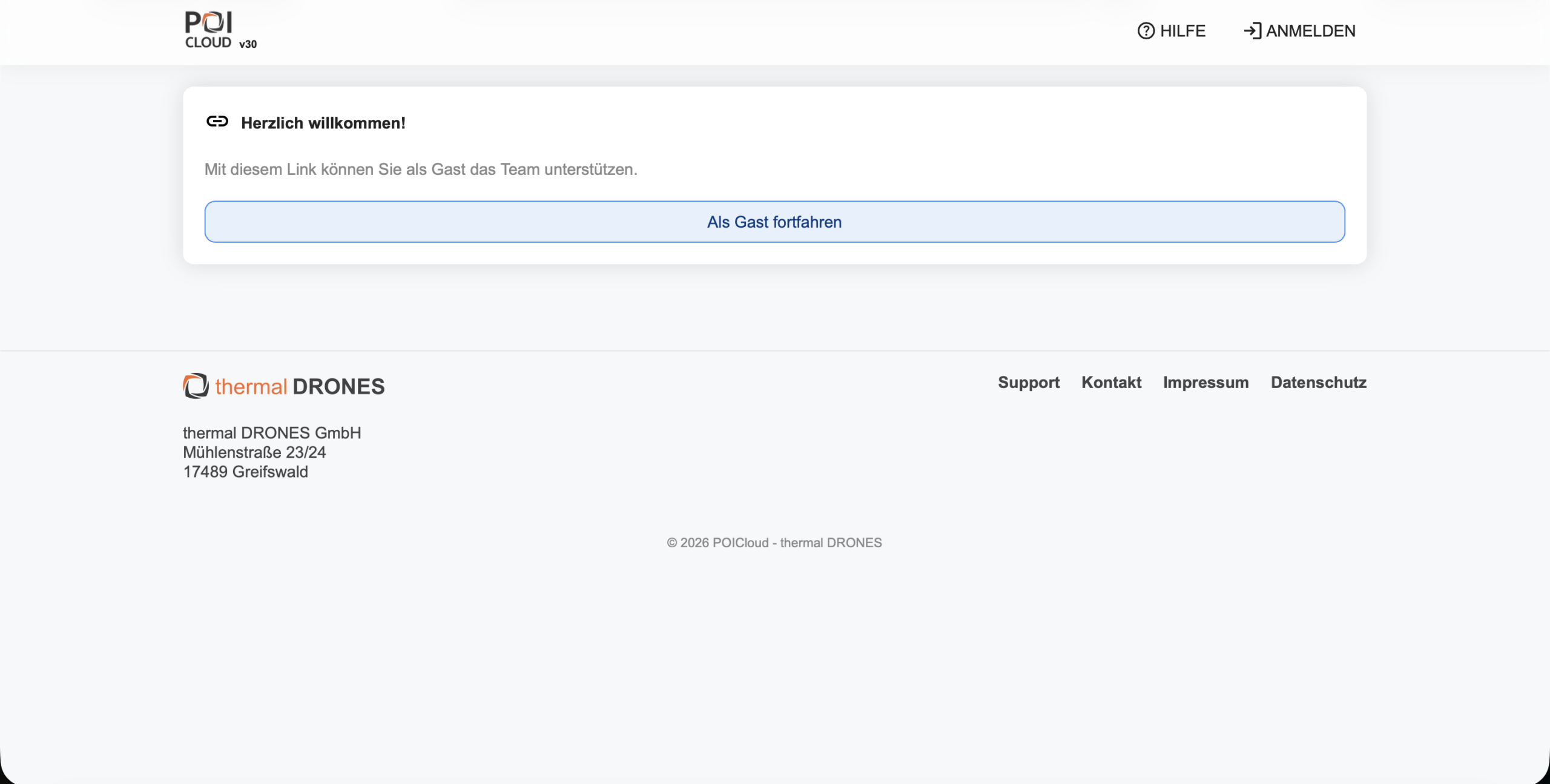
Clicking the Continue as Guest button opens the POICloud/POIApp user interface with limited functionality. This allows guest users to participate in search operations and similar scenarios without being a team member or having to create an account beforehand.
If fields have been marked on the team's map or if there are active tasks and operations, these are also visible in the guest access. However, due to the lack of user rights, no changes or settings can be made. The functionality is limited to viewing fields and visiting locations, provided this was configured accordingly when creating the access.
This is also evident when looking at the toolbar on the right side of the screen. There, the only options are to refresh the view, add additional layers (obstacles, no-fly zones, etc.), and orient the map to north. Furthermore, the drawer menu on the left side displays three fewer categories than in the regular view. The guest has access to the tabs "Missions", "Assignments" and "Drones".
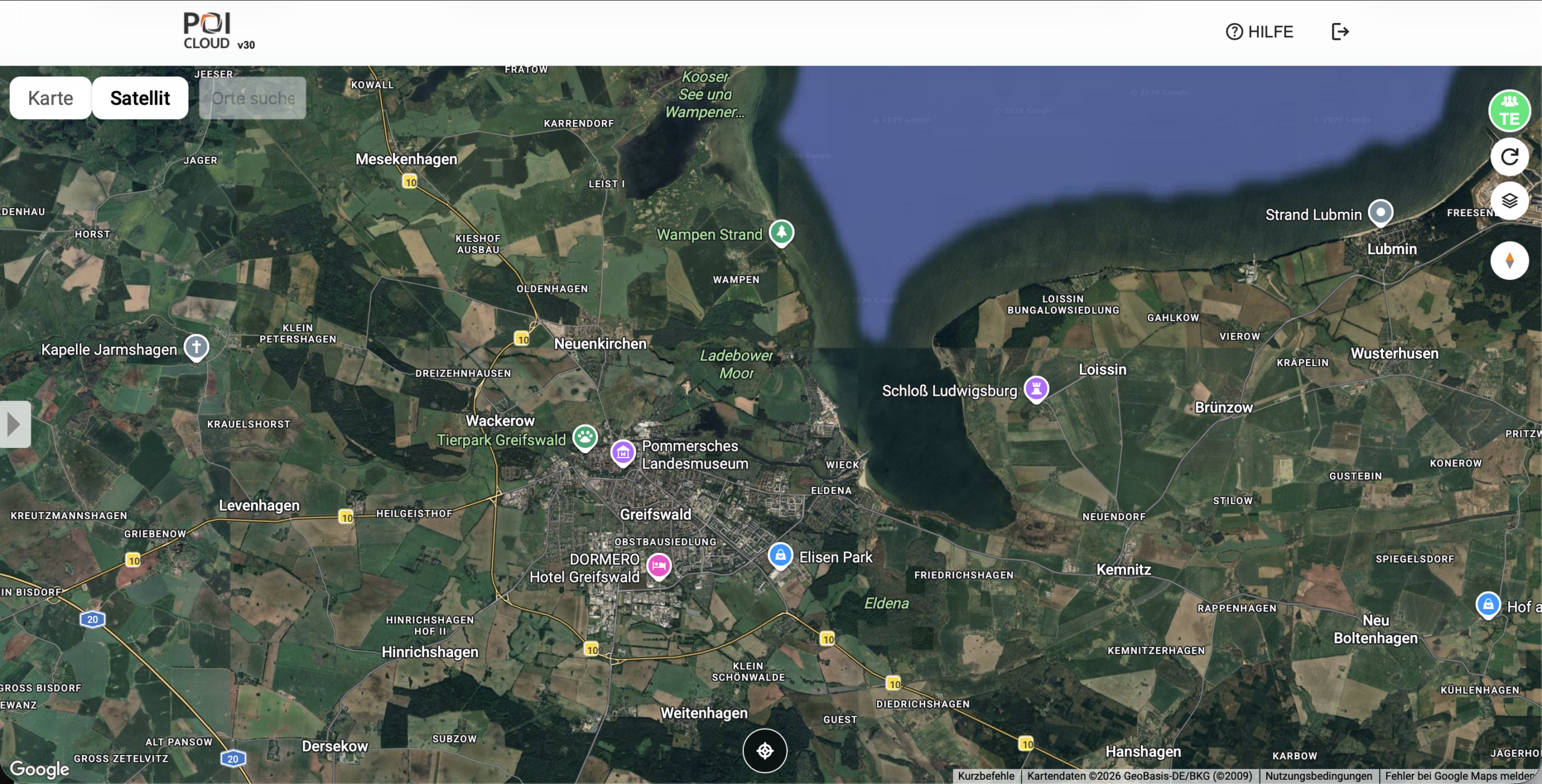
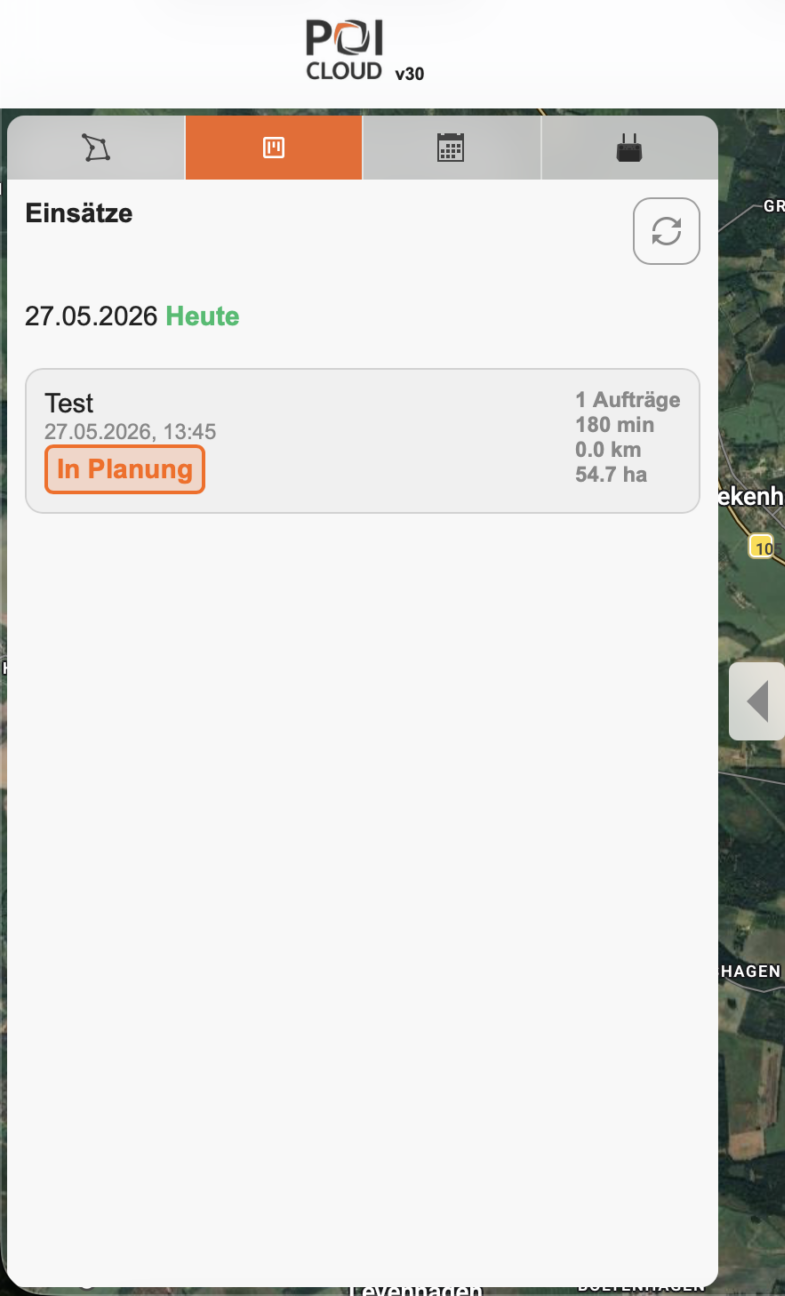
Note: Fields and orders can only be viewed on the current day. Past or future fields/orders are not visible via guest access. Therefore, please ensure that the correct date is selected in the order view.
Ending guest access
If a user logged in via guest access wishes to log out of the selected team, they simply need to click the Logout icon in the upper right corner of the screen. To log out, they only need to confirm the displayed prompt ("Are you sure you want to log out?") with "Yes," and they will be returned to the POICloud homepage.